This page was machine-translated from the Japanese original and may contain unnatural wording or errors. View the Japanese page
This page shows the information as of the date it was posted. Later updates may mean that the current screens and steps differ. For the latest information, see the articles linked on this page.
Switch summary templates from the "Summary" tab
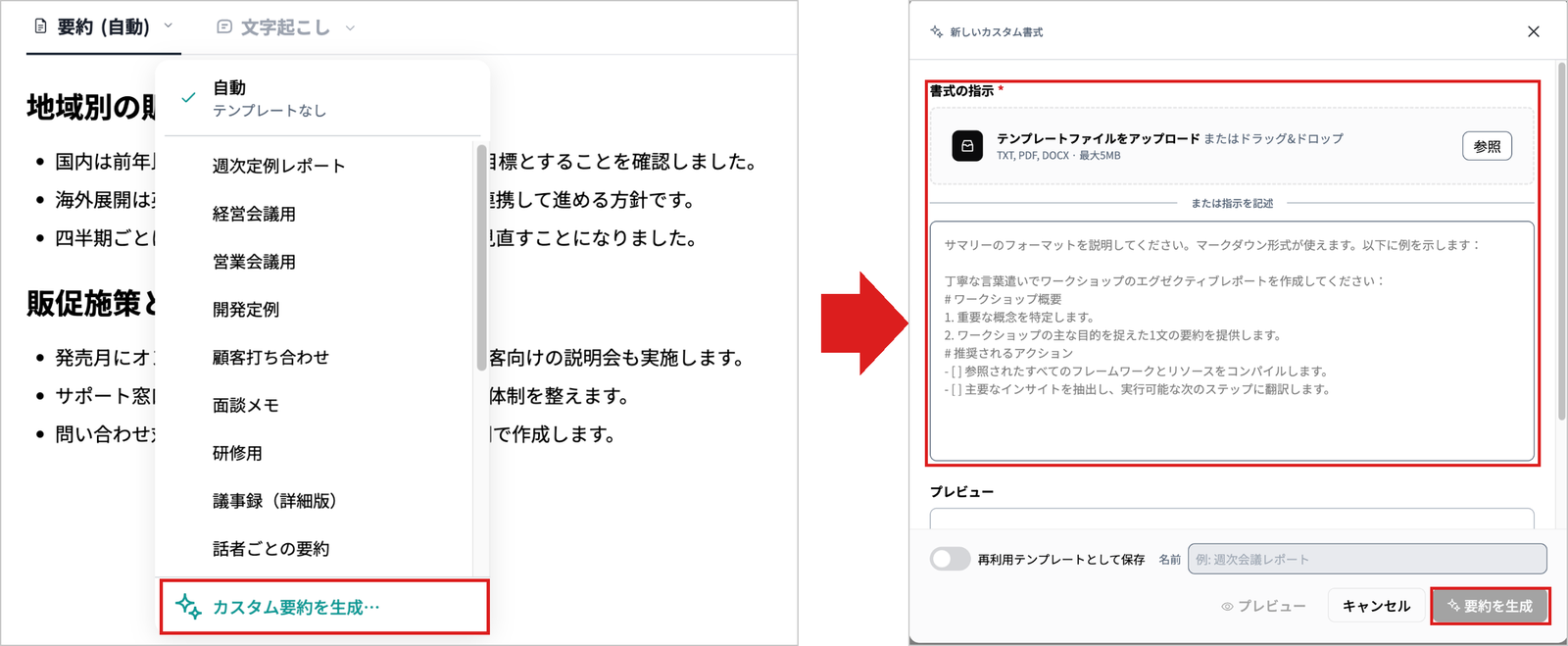
You can now switch the summary template of minutes from the ▾ next to the "Summary" tab.
A ▾ has been added next to the Summary tab of the minutes (to the right of the name of the template in use). Click it to open the list of templates. From Generate custom summary… at the bottom of the list, you can also create a summary in a format you specify.
You can switch to a summary that suits the type of meeting or the reader without leaving the minutes.
For details, see Opening the custom summary screen.