Customizing the Summary Format
Read this article when
- You want the summary organized in your company's structure, such as decisions, issues, and next actions
- You want to change the level of detail (more detailed or more concise) in the summary
- You want to use your company's existing minutes format as a template
- Writing the same instructions every time is a hassle
How customization works
After a meeting, you can regenerate the minutes summary in a different format. There are two ways to specify the format.
- Load a file in your company's format: If you load the minutes template you normally use, the summary is created with the same headings and item order. You do not need to write a prompt.
- Give instructions in a prompt: Describe in text how to organize the summary. You can copy the prompt examples below.
You can give the format you specify a name and save it as a template. A saved template can be selected and used for the minutes of other meetings.
You do this in the CoeFont Interpreter admin console by opening the minutes. The steps are the same no matter which app you used for the meeting. For how to open minutes, see Viewing and Downloading Minutes.
Opening the custom summary screen
- Open the minutes of the meeting.
- Click the ▾ next to the Summary tab (to the right of the name of the template in use). The list of templates opens.
- Select Generate custom summary… at the bottom of the list.
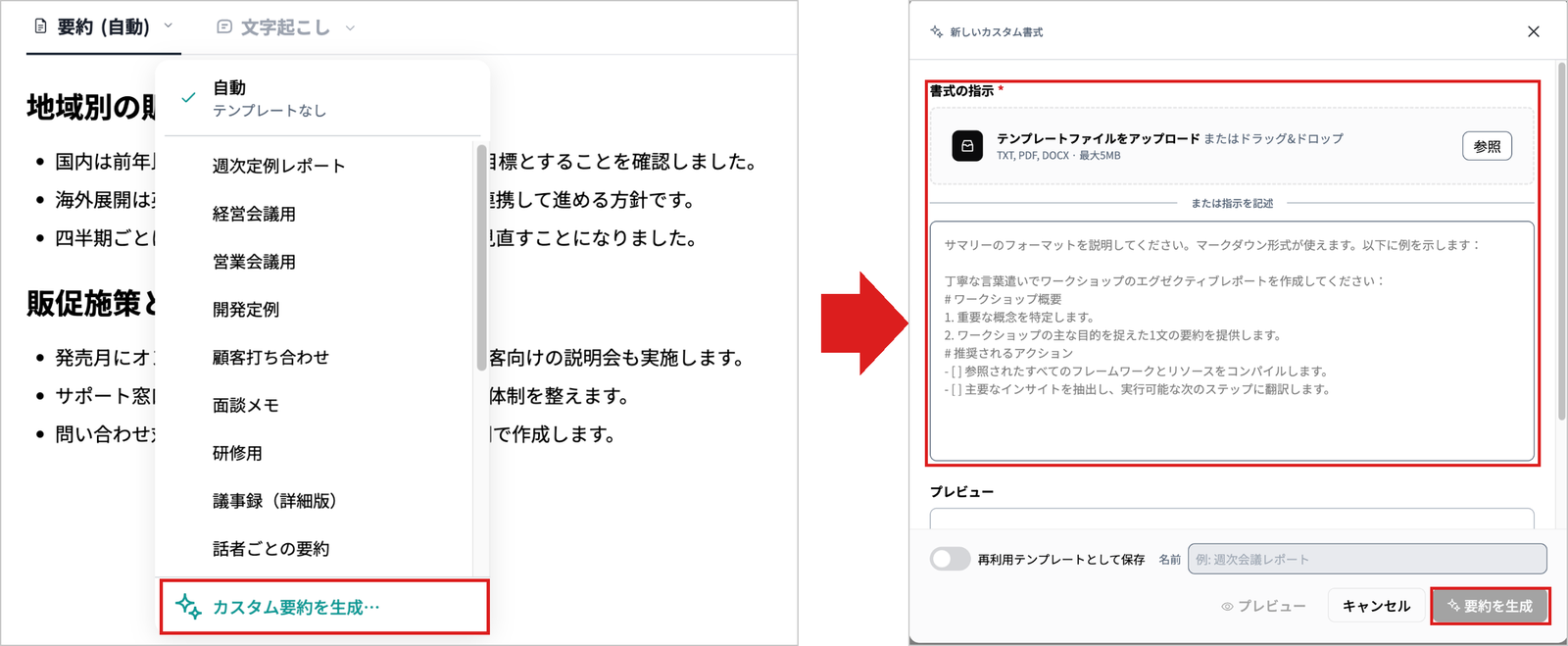
Creating a template from a file in your company's format
If you have a file with the minutes format you normally use, this method is the easiest. You can load TXT, PDF, and DOCX files, up to 5 MB per file. If your format was created in Excel or Google Docs, export it to PDF or Word (.docx) before loading it.
- Drag and drop the file in your company's format into the format instructions field. You can also click Browse to choose a file.
- Check in the preview that the result looks the way you intended.
- If you want to adjust it, add instructions as a prompt in the instructions field.
- Turn on Save as reusable template and enter a name for the template.
- Click Generate summary. The summary is regenerated in the specified format, and you are done.
To use the same format in your next meeting, save the template in step 4. Once saved, you do not need to prepare the file or rewrite the prompt each time.
Specifying the format with a prompt
If you do not have a file in your company's format, or want to specify the structure in detail, give instructions in a prompt.
- In the format instructions field, enter the summary format in text. A short instruction is fine.
- Example: "Organize in the order of decisions, issues, and next actions, and name the person in charge."
- If needed, turn on Save as reusable template and enter a name for the template.
- Click Generate summary. The summary is regenerated in the specified format, and you are done.
Prompt examples
Copy these and use them as they are, or adapt them for your company.
Example 1: Basic business minutes
# Purpose
Based on the provided transcript (or notes), create business meeting minutes that make the key points clear at a glance.

# Constraints
- Do not include speculation or inaccurate information that is not based on facts.
- Write technical terms and proper nouns correctly.
- Clearly extract the important decisions and tasks (owner and due date).
- Use mainly bullet points, and write concisely and readably in English.

# Output format
Follow the format shown below.

■ Meeting overview
- Date and time: [fill in if it can be read from the text; leave blank if unknown]
- Participants: [list the attendees]
- Agenda: [the main theme of the meeting]

■ Decisions (what was decided)
- [Decision 1]
- [Decision 2]

■ Summary and main discussion (what was discussed)
- [Topic 1]
  - Key points and background of the discussion
- [Topic 2]
  - Key points and background of the discussion

■ Action items (what needs to be done)
| Task | Owner | Due date |
|---|---|---|
| [Task 1] | [Name] | [Date / TBD] |
| [Task 2] | [Name] | [Date / TBD] |

■ Next steps / open items (carried over to the next meeting)
- [Items to cover next time or left pending]
Example 2: Summary by speaker
# Role
You are an excellent business assistant.
Read the meeting transcript and create a summary for each speaker, following the output format below.

# Purpose
Make it clear who made which claims and proposals, and what next actions (decisions) each person is responsible for.

# Constraints
- Exclude unnecessary content such as greetings and small talk, and extract only what directly relates to business decisions and discussion.
- Clearly separate each speaker's opinions (feelings and stance) from objective facts (decisions and tasks).
- Exclude speakers who said nothing or only gave brief acknowledgements.
- Make the subject of each statement explicit, and fill in omitted context so the meaning is not lost.

# Output format
Follow the format shown below.

■ Summary of [Speaker A]'s remarks
- Main claims and stance: (e.g., Requests a budget increase for the new initiative. States that current progress is on track.)
- Decisions and proposals: (e.g., Proposes running the XX campaign)
- Tasks and next actions: (e.g., Update the proposal document by next Monday)

■ Summary of [Speaker B]'s remarks
- Main claims and stance: (e.g., Cautious about the budget increase. Asks for the ROI to be presented.)
- Decisions and proposals: (e.g., In response to A's proposal, suggests a partial trial run first)
- Tasks and next actions: (e.g., Support defining KPIs for the trial run)
Example 3: Q&A format
# Purpose
From the meeting transcript (or notes), create highly detailed minutes that let people who did not attend, or who want to review the details later, understand the content accurately.

# Constraints
- Do not omit information or summarize it loosely in general terms. Keep technical terms, specific figures, and proper nouns as they are.
- To avoid misrepresenting the intent or nuance of remarks, avoid excessive paraphrasing and describe the facts in detail.
- Do not add speculative facts that are not explicitly stated in the transcript.

# Output format
Follow the format shown below.

■ Meeting overview
- Date and time: [extract from the transcript; leave blank if unknown]
- App used: [Zoom, Teams, Meet, etc., if identifiable; leave blank if unknown]
- Participants: [list the identifiable participants]

■ Decisions and next actions
Note: Clearly state who does what and by when (if there is a deadline).
- [Owner]: [Task] (Due: Month Day)

■ Q&A and discussion details
Note: This is the most important section. Do not over-summarize or paraphrase. Write it out in as much detail as possible so the nuance and specific context of each remark come through. Organize it in a Q&A format that shows the flow of the conversation.
- Q (question / proposal): [Speaker] "(the specific question or proposal)"
  - A (answer / discussion): [Speaker] "(a detailed description of the answer, background, concerns, etc.)"
Instead of loading a file, you can copy the contents of your company's format and paste them into the instructions field. Add a line such as "Summarize using the same headings and item order as this format."
Creating a summary with a saved template
A saved template can also be used for the minutes of other meetings.
- Open the minutes of the meeting and click the ▾ next to the Summary tab.
- Select the saved template from the list.
- The summary is regenerated in the template's format, and the tab shows "Summary (template name)". You are done.
A template is applied to each meeting (set of minutes). The summary of your next meeting is not automatically created in that format. For each meeting where you want the same format, select the saved template.