Viewing and Downloading Minutes
Read this article when
- You want to review the minutes, summary, or transcript after a meeting
- You want to download the minutes or transcript as a file
- You want to know where records of meetings interpreted with the mobile app or Teams Plugin are stored
Where minutes are saved
When a meeting ends, the minutes are saved automatically in the CoeFont Interpreter admin console. Minutes include a summary and a transcript.
Meetings interpreted with any of the following apps appear in the same minutes list in the admin console.
- Desktop app
- Browser version
- Teams Plugin
- Mobile app
- Meetings recorded in minutes mode (Minutes Mode)
In the desktop app and the mobile app, you can also check past records from History in the app. From History, you can copy the summary and transcript. To download them as files, use the admin console.
Who can view minutes
Who can view minutes depends on the folder where they are saved.
| Saved in | Who can view |
|---|---|
| Personal folder | Only you (and anyone you share with) |
| Department folder | All members of that department |
You can choose where to save when you start interpreting. After saving, you can also share the minutes with others or move them to a department folder. For details, see Sharing, Moving, and Undoing Minutes. How department folders work is explained in Departments and Folders.
Opening the minutes list
- Log in to the CoeFont Interpreter admin console from the login page.
- In the left menu, click Personal under All Meetings. The meetings saved in your personal folder are listed.
- To see meetings saved in a department folder, click the department name under All Meetings.
- To see meetings that others have shared with you, click Shared with me.
- To see only meetings you host, click Hosted by me above the list. Click it again to clear the filter. While the filter is applied, folders are not shown in the list.
- Click a meeting title in the list. The minutes detail screen opens.
For meetings saved in a department folder, the list and the detail screen show the icon and name of the person who started the meeting. The list also shows the name of the folder where the meeting is saved, if there is one.
Reviewing the summary and transcript
The minutes detail screen has a Summary tab and a Transcript tab.
- Summary: An AI-generated summary of the meeting. The tab shows the name of the summary template in use, and you can switch templates with the ▾ next to the tab. Use the language dropdown at the top right of the screen to switch the display language. When you switch, not only the summary body but also the title and overview change to the same language.
- Transcript: A record of each utterance, with the speaker and timestamp. There are two types, and you can switch between them with the ▾ next to the tab.
- Cleaned: A transcript with filler words such as "um" and "uh" removed, so it is easier to read.
- Original: A transcript that records what was said exactly as spoken.
When you scroll down, buttons such as Find and Replace, Export, and Share move into the tab row, so you can use them without scrolling back to the top. When the summary and the cleaned transcript are ready, you are notified by email. You can open the minutes from the link in the email.
From the detail screen, you can also do the following.
- Change the summary format: Customizing the Summary Format
- Fix incorrect words all at once: Bulk Replacing Mistranslations
- Listen to the original audio of an utterance: Playing the Original Audio
Downloading minutes
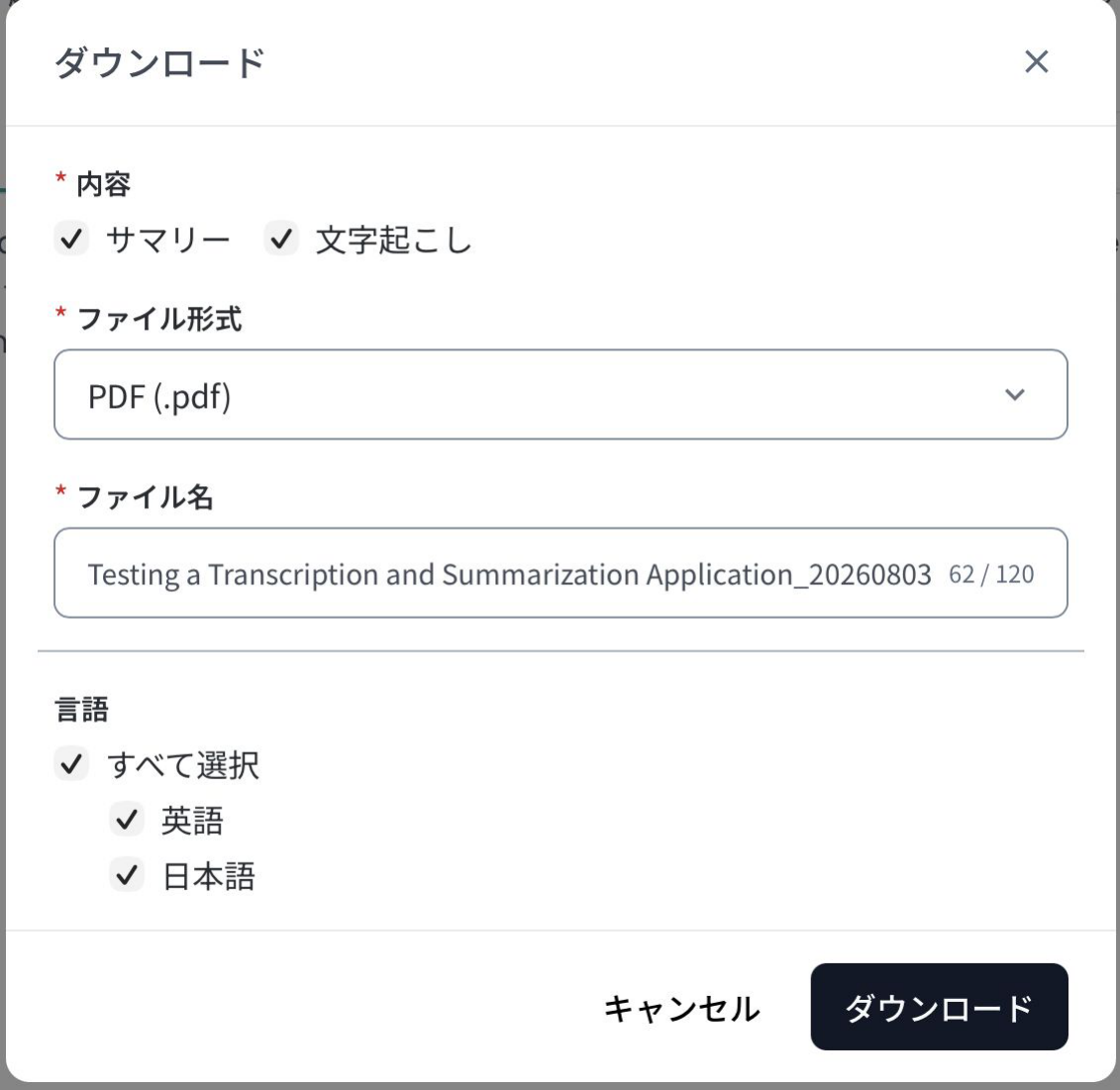
You can download minutes as a PDF, Word, or text file.
- In the minutes list, click the download icon in the row of the meeting. If you have the meeting open on the detail screen, click Export at the top right.
- Under Content, choose whether to include the Summary, the Transcript, or both.
- Under File format, choose PDF (.pdf), Word document (.docx), or Text (.zip).
- If needed, change the File name. You can enter up to 120 characters.
- Under Language, choose the output language. You can choose from the languages set for that meeting.
- Click Download. The file is saved to your computer, and you are done.
You can download the summary and transcript as text. The meeting's audio file cannot be downloaded. To check the audio of each utterance, use the method in Playing the Original Audio.