SSO (Single Sign-On)
CoeFont Interpreter Enterprise supports single sign-on (SSO) via SAML 2.0, allowing your organization to authenticate members through your identity provider (IdP). With SSO configured, members can log in to CoeFont Interpreter using their existing IdP credentials.
The configuration operations on this page can only be performed by users with Admin permissions.
What You Can Do with SSO Settings
| Feature | Description |
|---|---|
| SAML SSO Integration | Integrate with SAML 2.0 compatible IdPs such as Okta, Microsoft Entra ID (formerly Azure AD), and Google Workspace |
| Login Policy | Choose how organization members can log in: "Password only," "SSO or Password," or "SSO required" |
| Authentication Control for New Invitations | The authentication method for newly invited members is automatically determined based on the configured policy |
Login Policy (Modes)
The login policy determines which authentication methods organization members can use to log in. Switch between modes using the Login Policy dropdown in the SSO settings screen.
The login policy is not a setting that lets each member choose between SSO and password at login time. Instead, it determines which authentication method is assigned to each member by the organization. For example, in SSO or Password mode, members already registered in the IdP are assigned SSO authentication, while members not registered in the IdP are assigned password authentication. See "5. Member Invitation Behavior" for details.
| Policy | Authentication Methods Available | Typical Use Case |
|---|---|---|
| Password only | Email address + password | Default for organizations not using SSO |
| SSO or Password | Each member is assigned either SSO or password | During SSO migration, or when both methods are needed |
| SSO required | SSO in principle (Admin can retain password authentication) | When consolidating authentication to SSO |
When a new Enterprise organization is created, the login policy defaults to SSO or Password. Since SSO cannot actually be used until SAML configuration is complete, only password authentication is available until SAML settings are saved.
Admin Handling in SSO Required Mode
Even in SSO required mode, Admin members can retain password authentication. This is a safeguard to prevent situations where no one can log in due to an IdP outage or misconfiguration. Non-admin members (Editors) can only log in via SSO.
SSO Setup Flow
The standard process for setting up SSO is as follows:
- Create a SAML application for CoeFont Interpreter in your IdP
- Save the SAML configuration in CoeFont Interpreter's SSO settings screen (register the metadata obtained from your IdP)
- Change the login policy as needed (e.g., if you want to enforce SSO)
- Assign users to the CoeFont Interpreter app in your IdP
- Inform members of the SSO login procedure
Each step is explained in the sections below.
1. Create a SAML Application in Your IdP
CoeFont Interpreter acts as a SAML 2.0 Service Provider. When configuring the application on the IdP side, register the Service Provider information (Audience (Entity ID) / ACS URL (Assertion Consumer Service URL), etc.) displayed in CoeFont Interpreter's SSO settings screen.
These values may differ for each organization. You can find them by navigating to the account menu at the top right of the web console → SSO Settings.
The procedures for representative IdPs are shown below. The screenshots are from the time of writing, and IdP UIs may change.
- Okta
- Microsoft Entra ID
- Other IdPs
1-1. Create an application in Okta
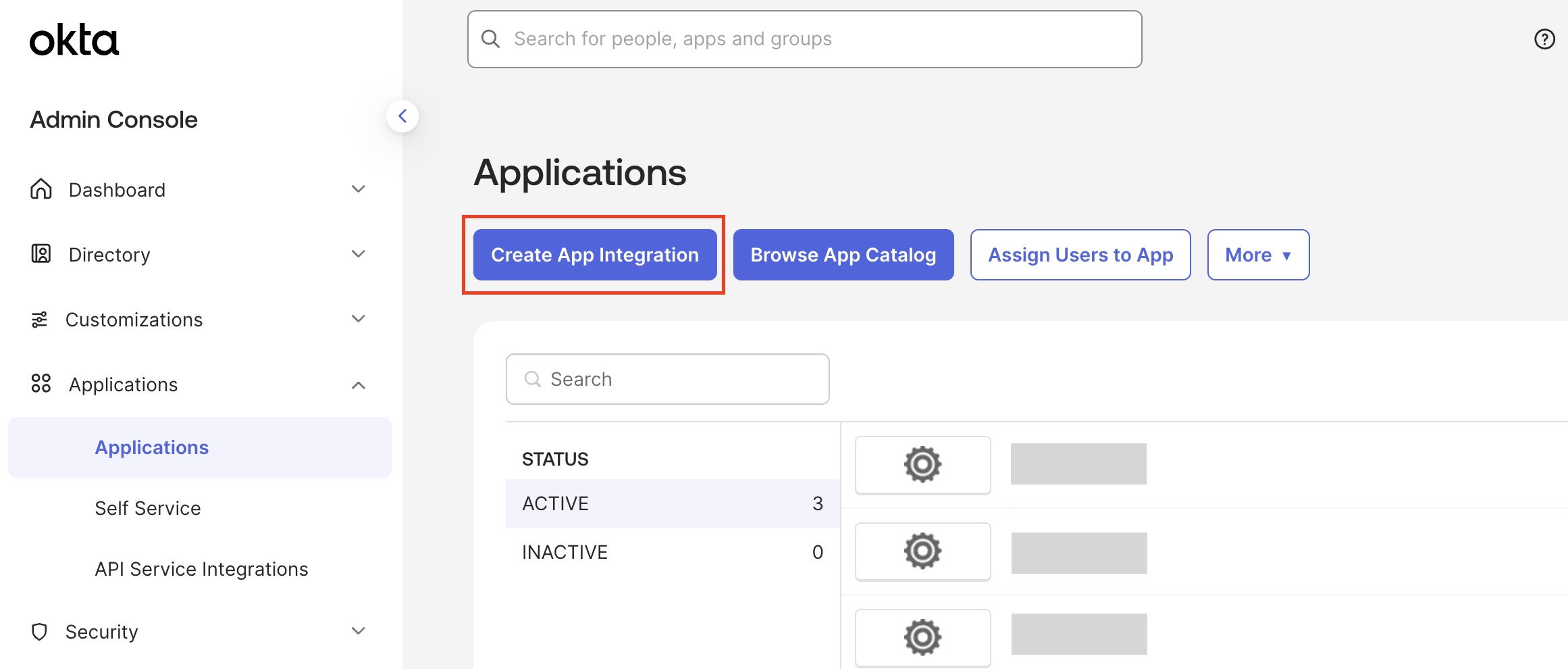
In the Okta admin console, go to Applications → Applications and click Create App Integration.
1-2. Select SAML 2.0
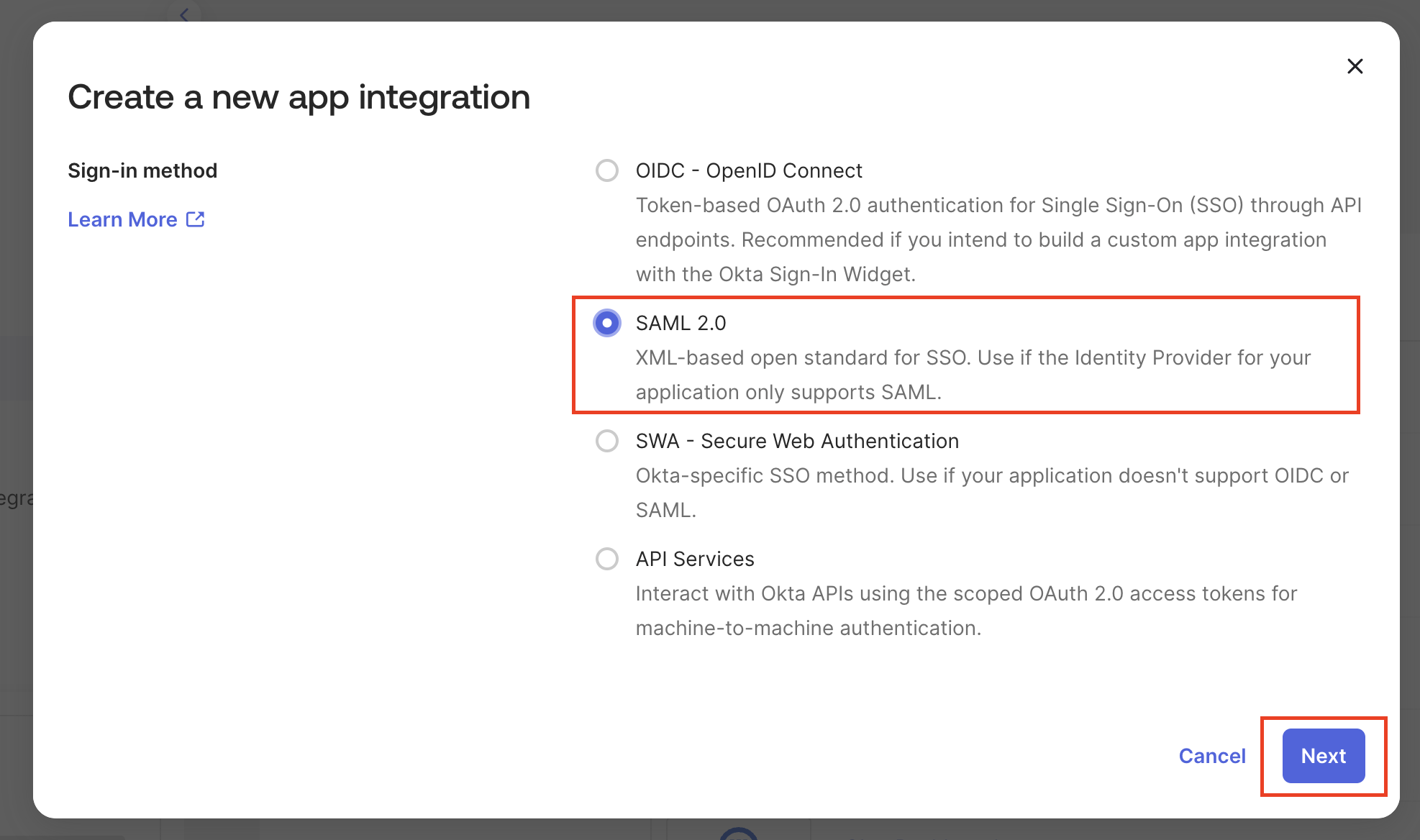
In the Create a new app integration dialog, select SAML 2.0 and click Next.
1-3. General Settings
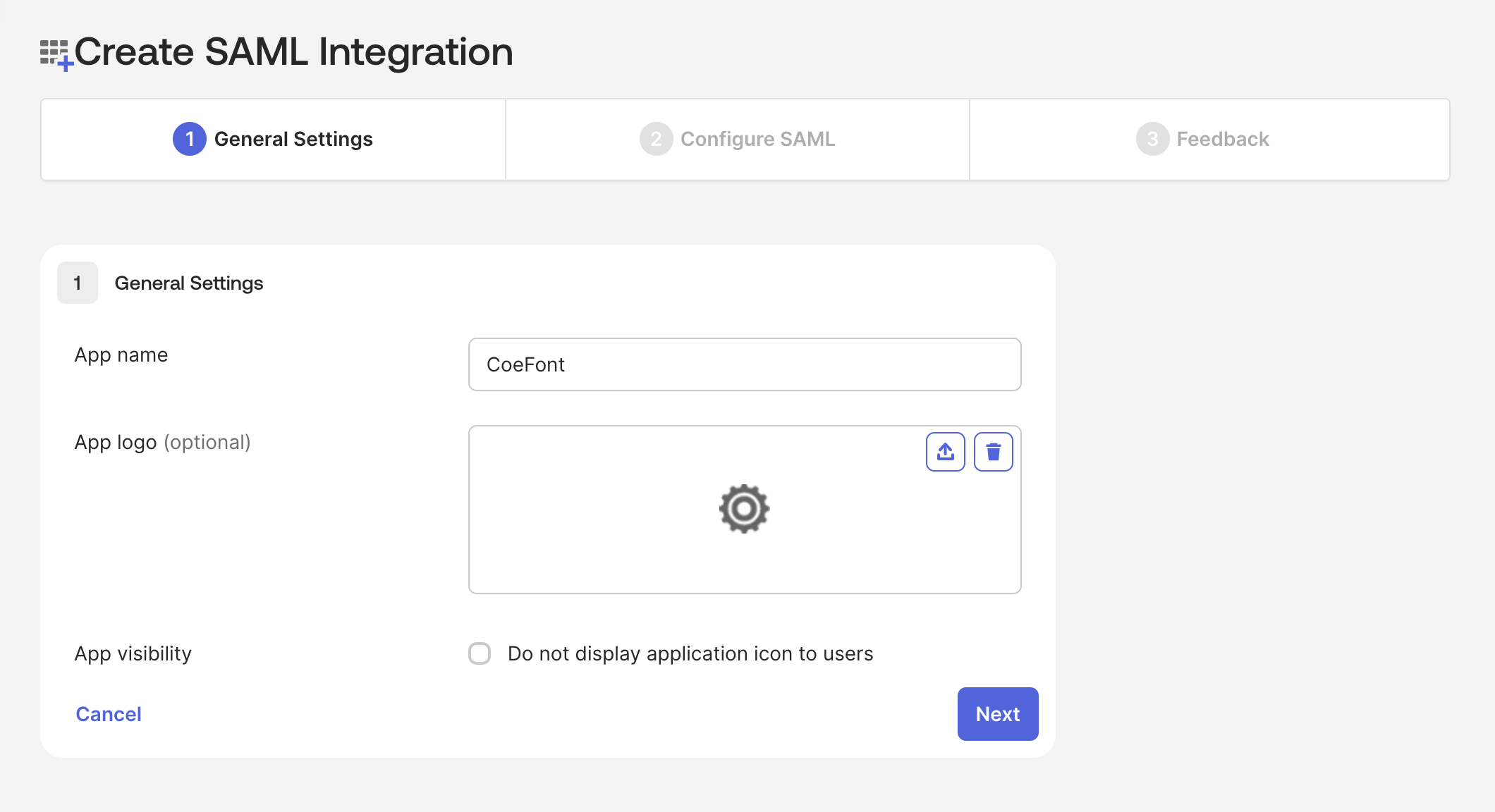
On the General Settings screen, enter a name for App name that clearly identifies it as a CoeFont Interpreter app, such as "CoeFont".
The App logo is optional.
1-4. Configure SAML
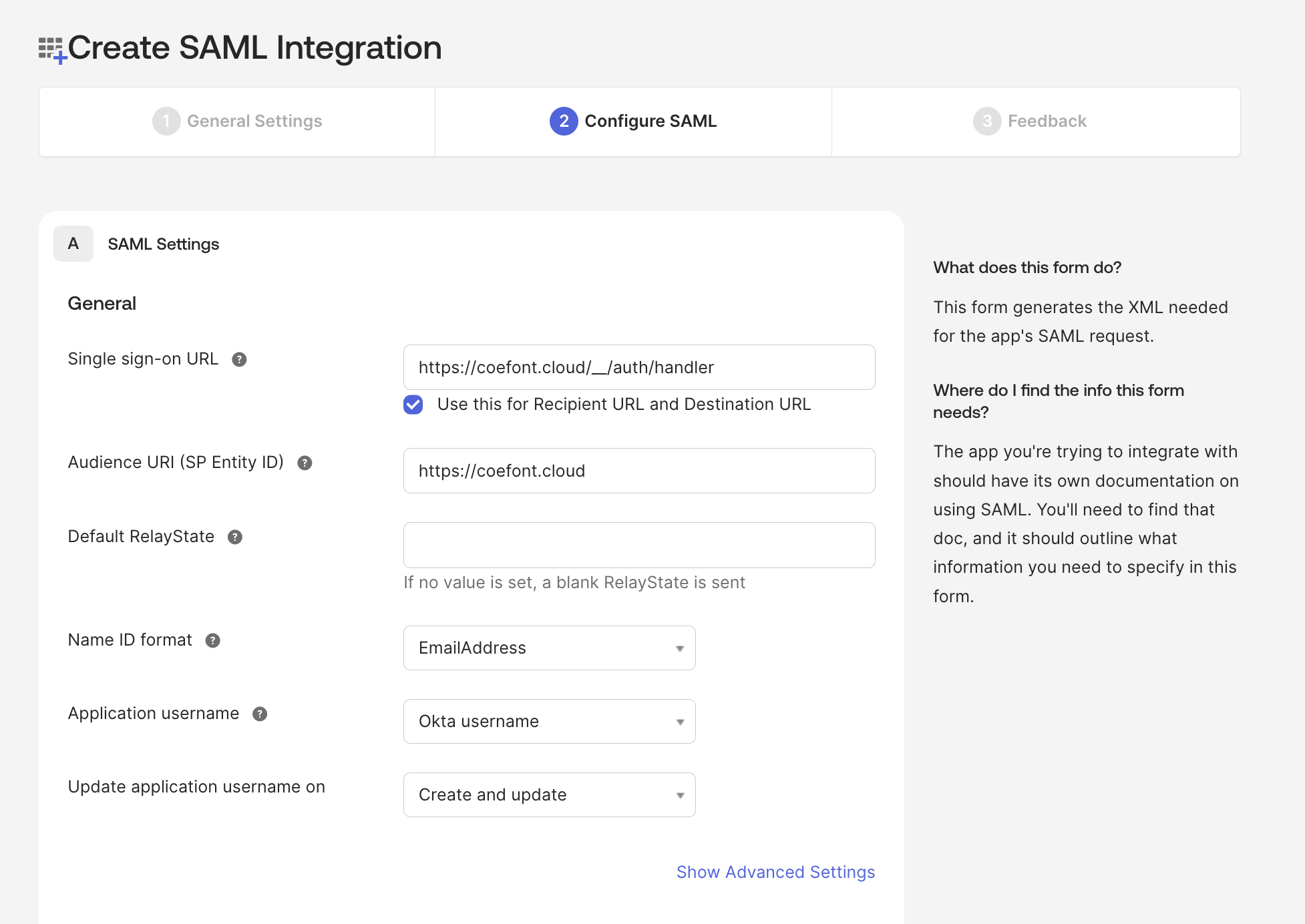
On the Configure SAML screen, set the following values.
| Field | Value |
|---|---|
| Single sign-on URL | https://coefont.cloud/__/auth/handler |
| Audience URI (SP Entity ID) | https://coefont.cloud |
| Name ID format | EmailAddress |
| Application username | Okta username |
| Update application username on | Create and update |
1-5. Feedback
There are no required fields on the Feedback screen. Simply click Finish to complete the application creation.
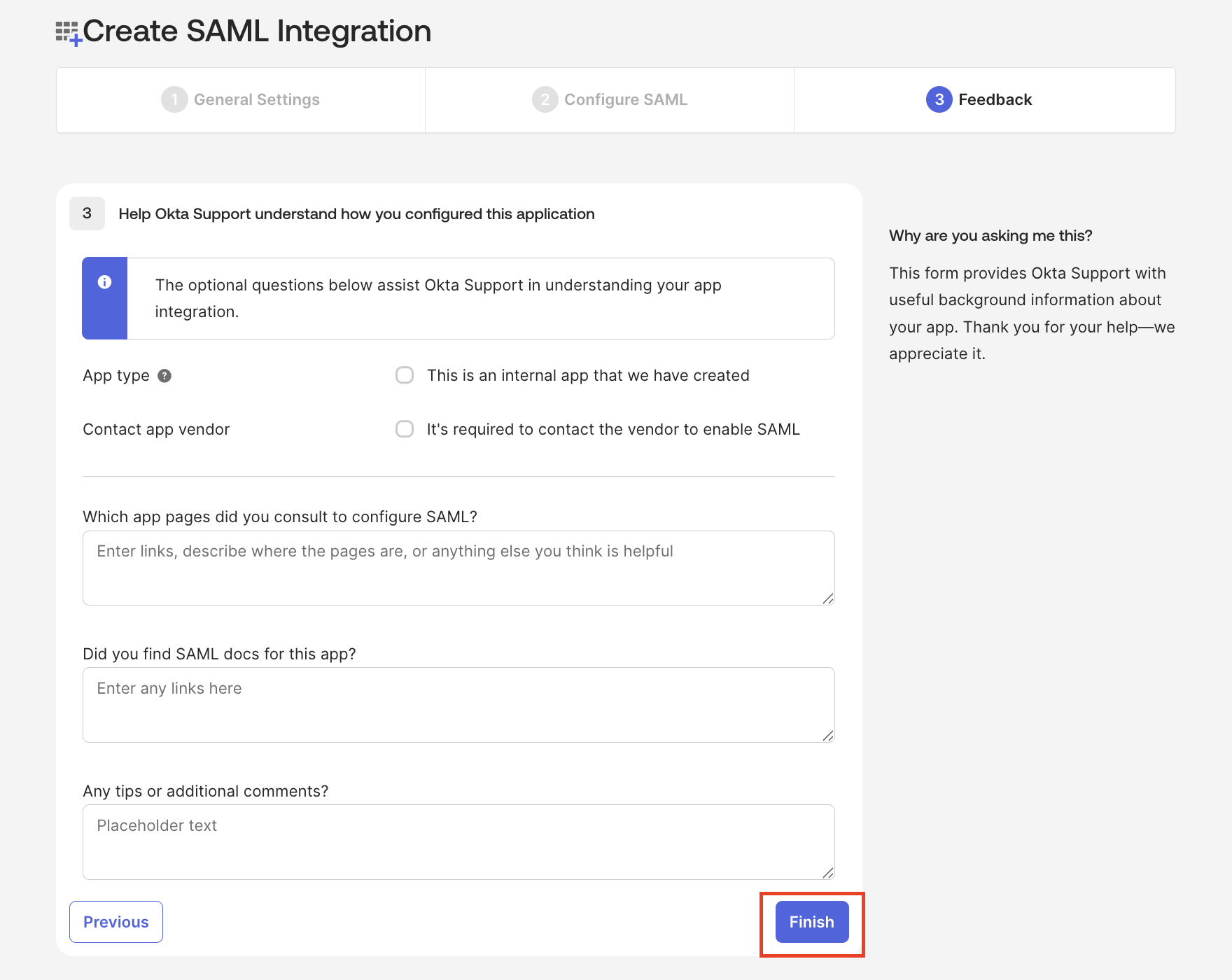
The application creation is now complete.
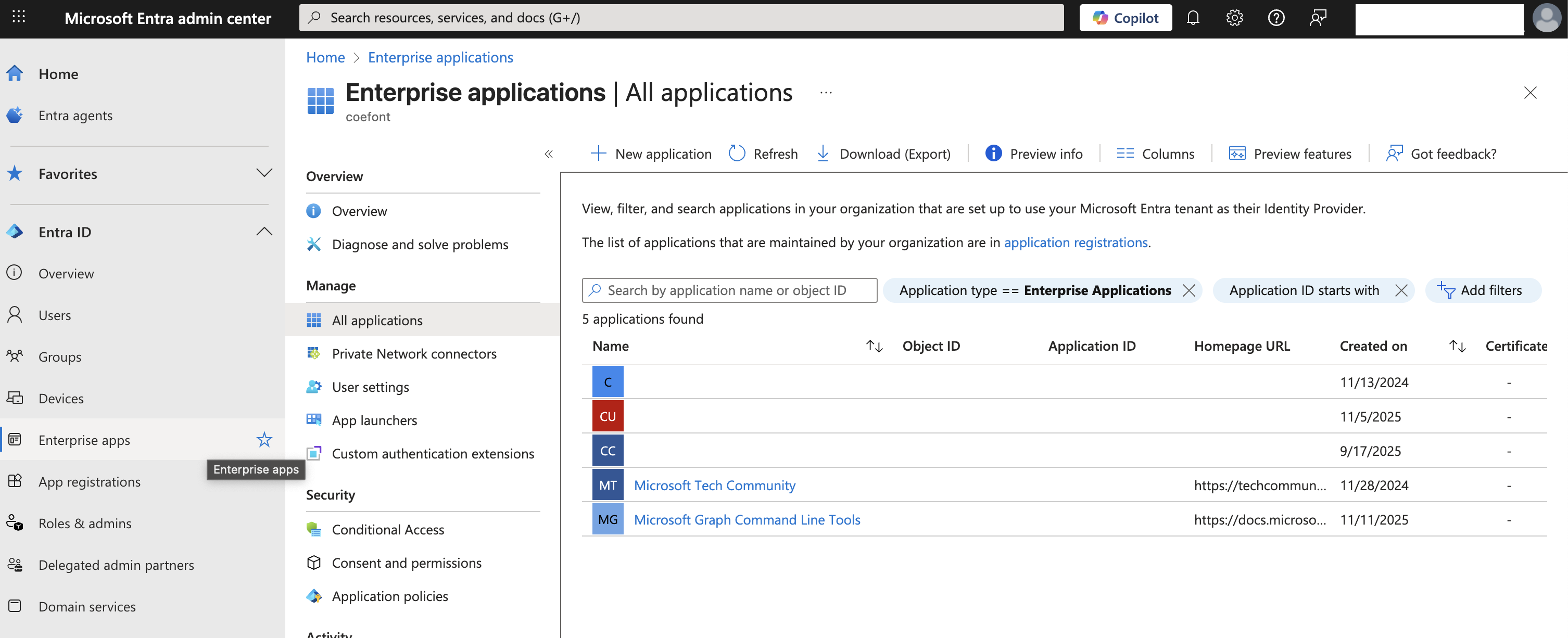
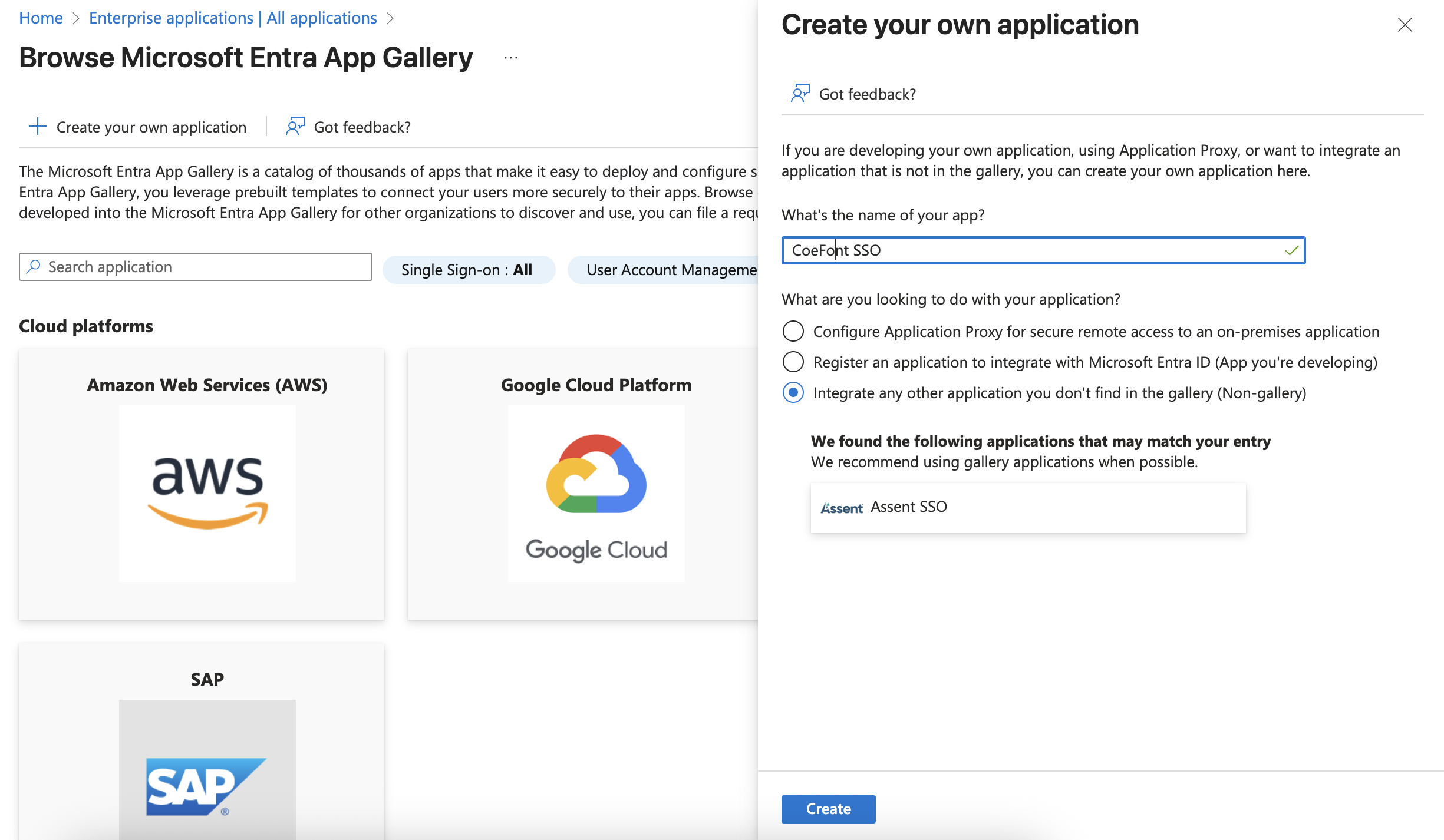
1-1. Create an enterprise application in Entra
In the Microsoft Entra admin center, go to Enterprise Applications → New application → Create your own application, and create the application for CoeFont as a non-gallery application.
1-2. Configure Basic SAML Configuration
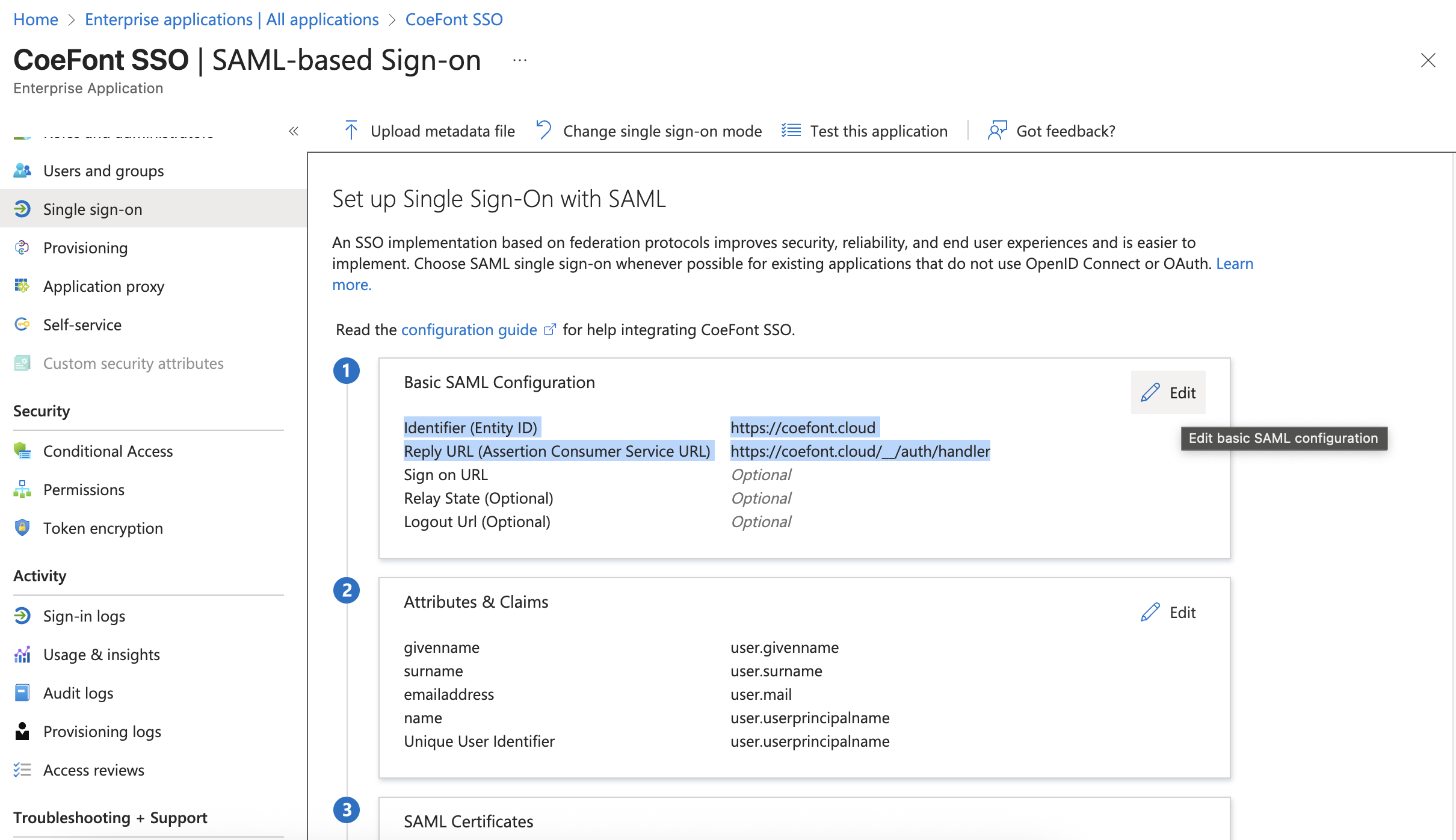
Open Single sign-on → SAML, and from Edit in Basic SAML Configuration, register the following values:
| Field | Value |
|---|---|
| Identifier (Entity ID) | https://coefont.cloud |
| Reply URL (Assertion Consumer Service URL) | https://coefont.cloud/__/auth/handler |
CoeFont Interpreter can also integrate with other SAML 2.0 compatible IdPs such as Google Workspace, OneLogin, and JumpCloud.
Register the ACS URL and Audience (Entity ID) shown in CoeFont Interpreter's SSO settings screen in the SAML application configuration on the IdP side. Configure the Name ID to include the user's email address.
2. Save the SAML Configuration
After creating the application in your IdP, you will receive a metadata XML file or the following values. Register these in CoeFont Interpreter's SSO settings screen.
| Field | Description |
|---|---|
| Entity ID | The IdP's issuer identifier (IdP Entity ID) |
| SSO URL | The IdP's SSO endpoint URL |
| Certificate | The IdP's certificate for signature verification |
Upload Metadata XML
In the SSO settings screen, you can upload the SAML metadata XML file issued by your IdP via drag and drop. Once the XML is loaded, the three fields above are automatically populated.
- Okta
- Microsoft Entra ID
- Other IdPs
2-1. Get the metadata URL
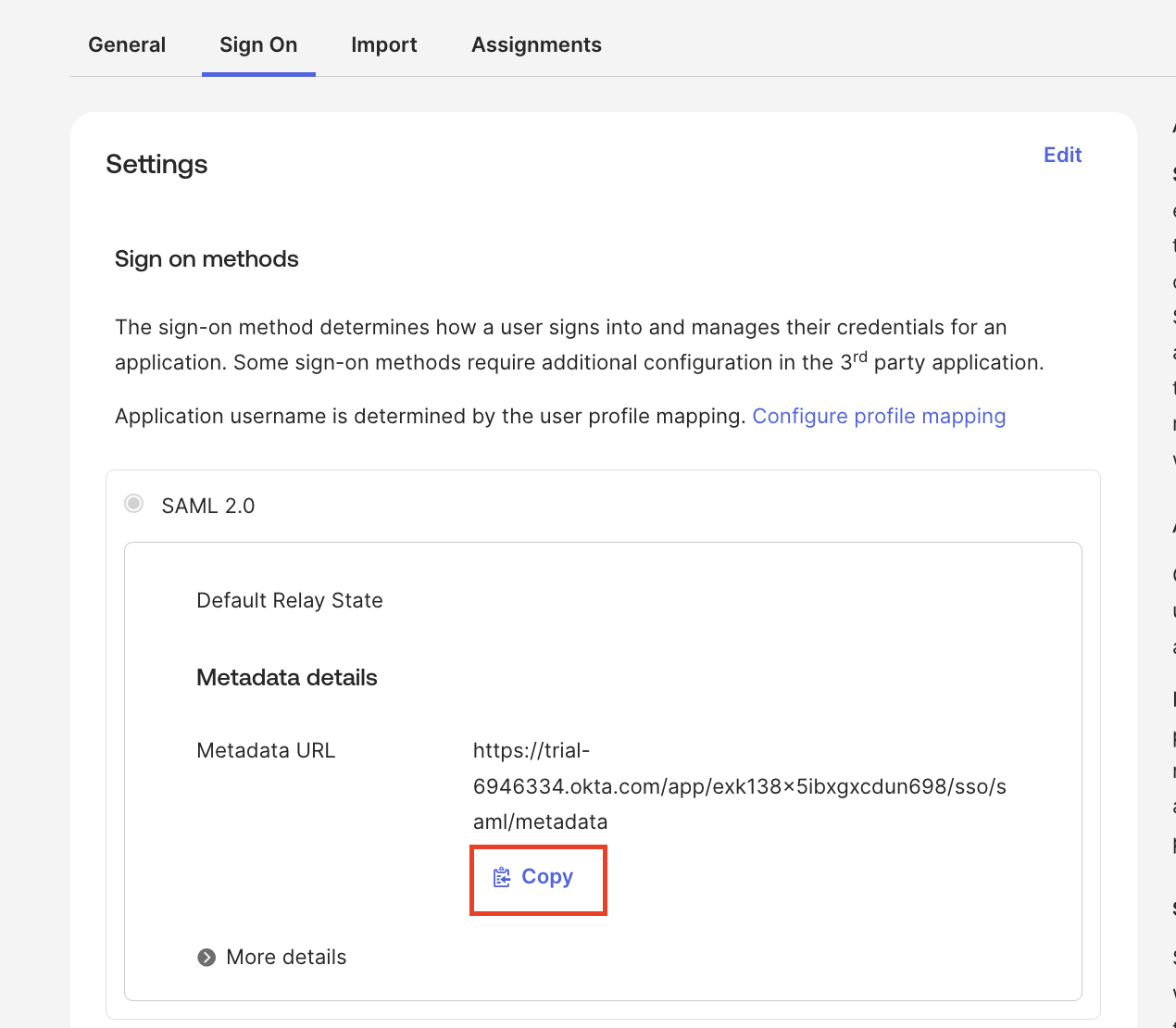
Open the Sign On tab and copy the Metadata URL shown under SAML 2.0 → Metadata details.
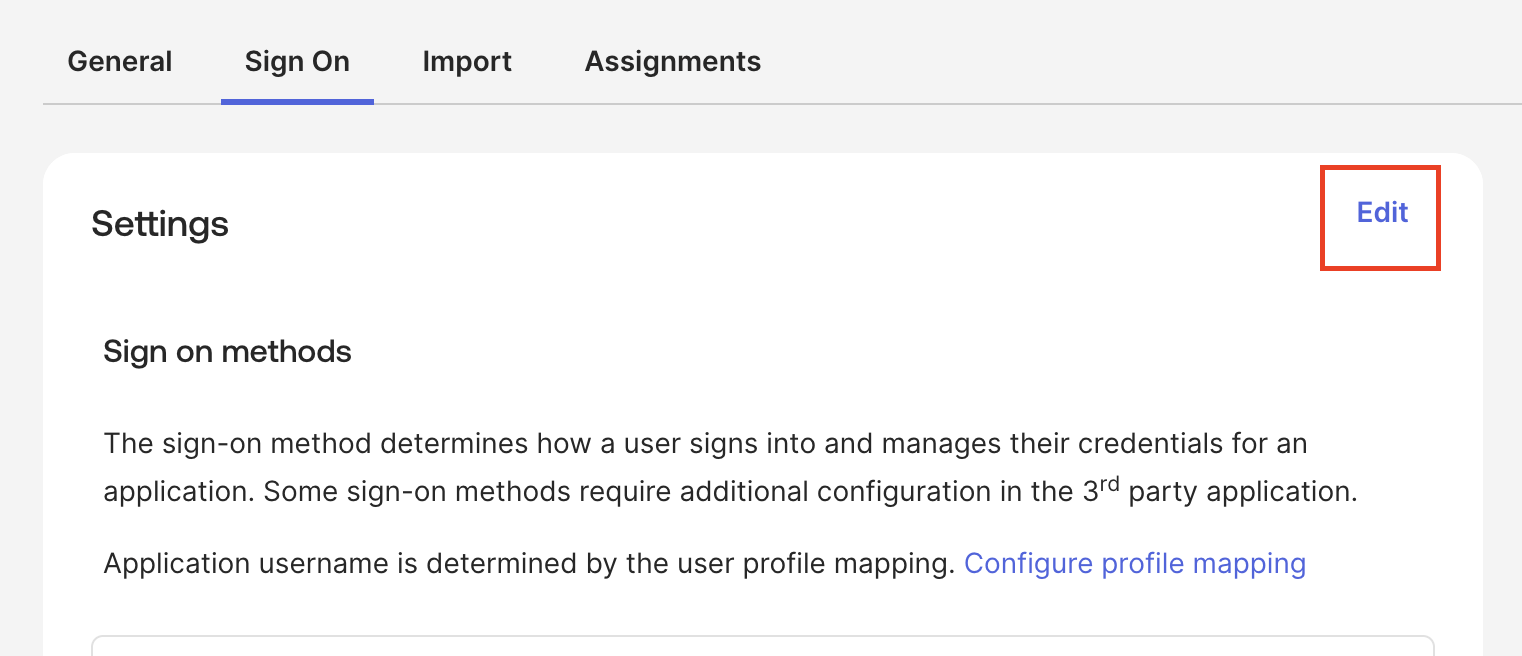
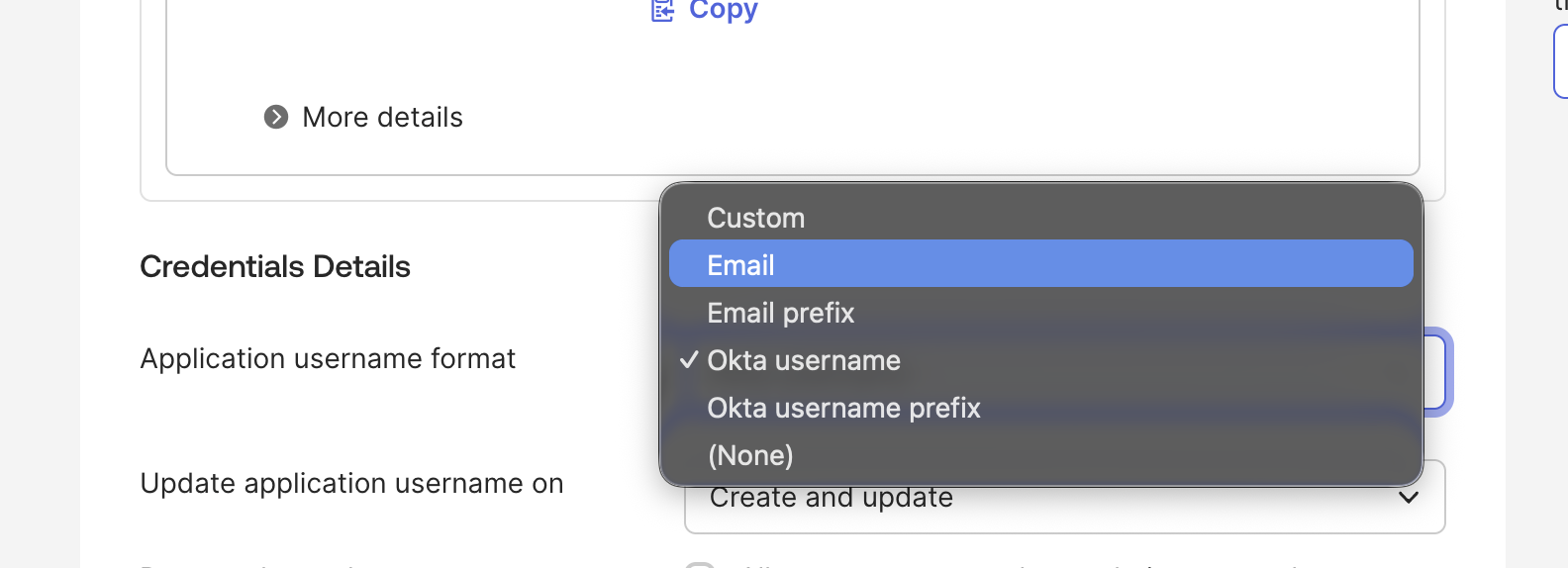
If the Okta username differs from the email address used in CoeFont Interpreter, you need to change the Application username format from Okta username to Email. Click Edit in the application's Sign On tab.
Scroll down, change the Application username format to Email, and click Save.
2-2. Open in a browser and save the file
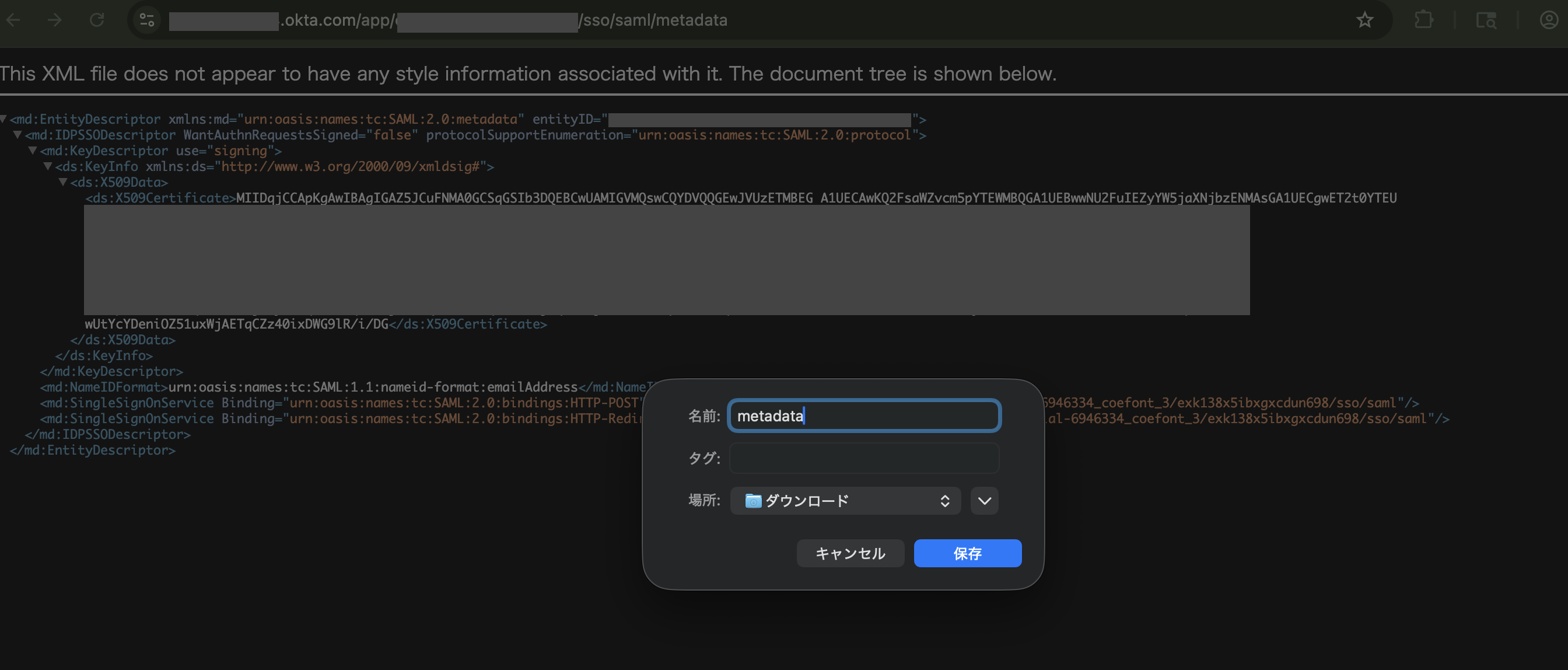
Open the copied Metadata URL in a browser, and use your browser's save function (⌘+S on macOS, Ctrl+S on Windows) to save it locally as an .xml file.
2-3. Upload the file to CoeFont Interpreter
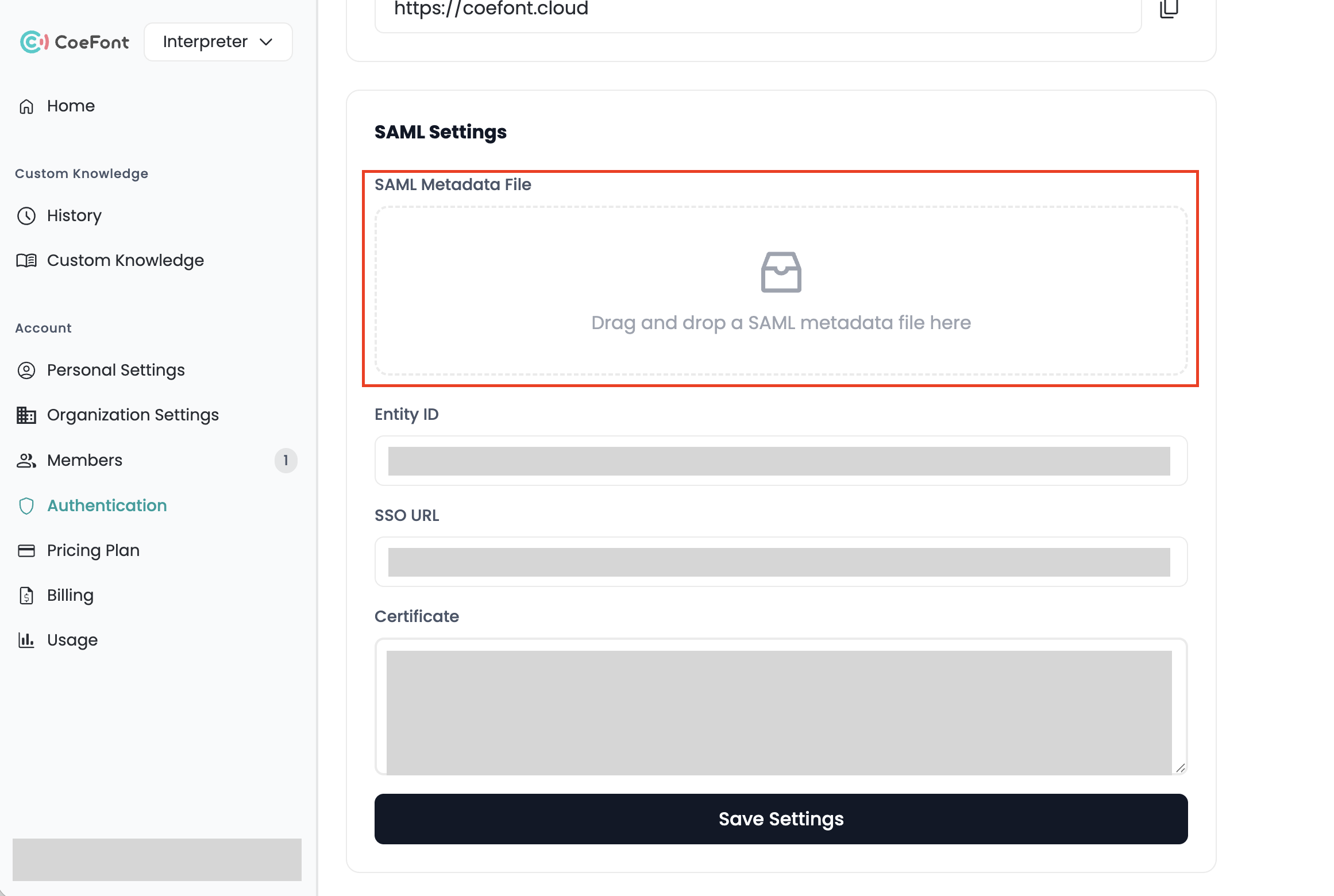
Open CoeFont Interpreter's SSO settings screen, and drag and drop the saved metadata file onto SAML Metadata File to upload it. Then click Save settings.
2-1. Download the federation metadata XML
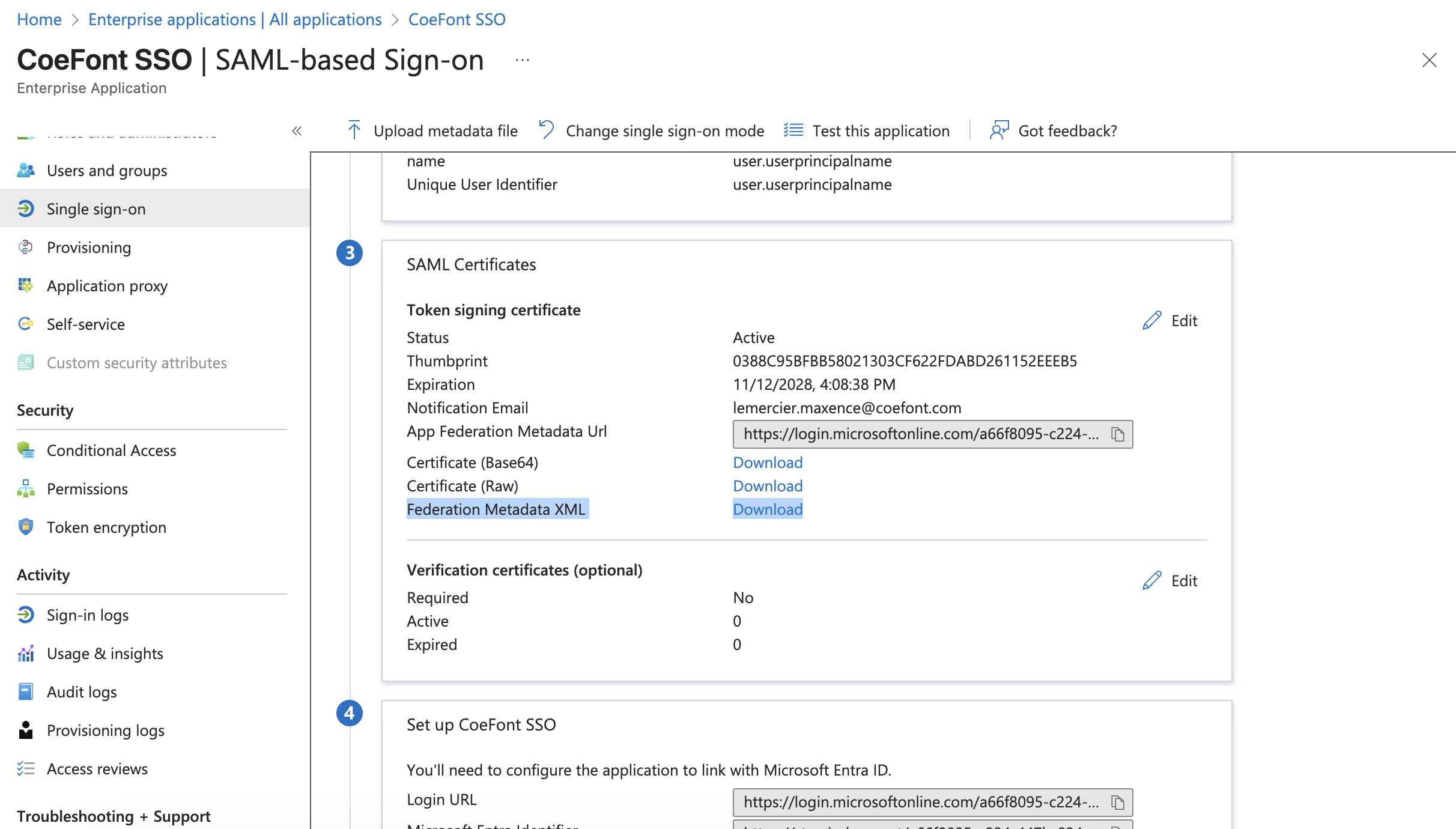
In the Microsoft Entra admin center, open Single sign-on → SAML for the target application, and download the XML file from Federation Metadata XML in the SAML Certificates section.
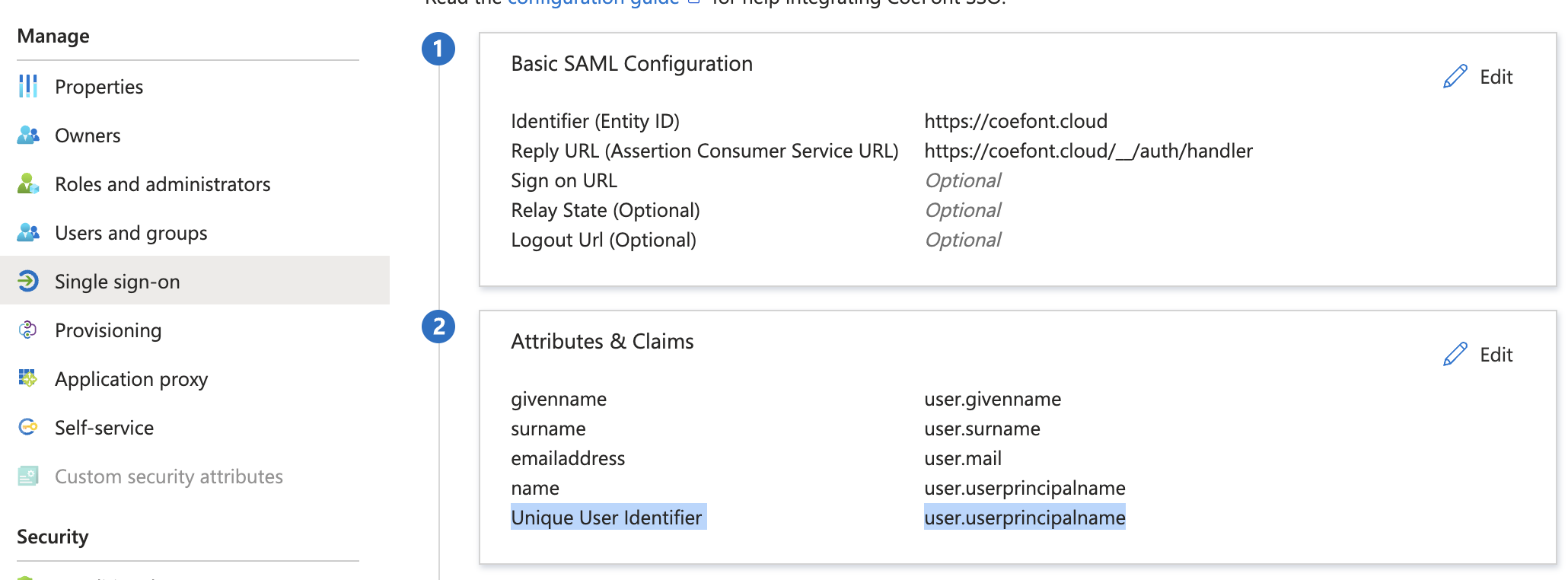
user.userprincipalname differs from the email addressIf the user's user.userprincipalname does not match their email address in Entra, you must change the Unique User Identifier (Name ID) to user.mail.
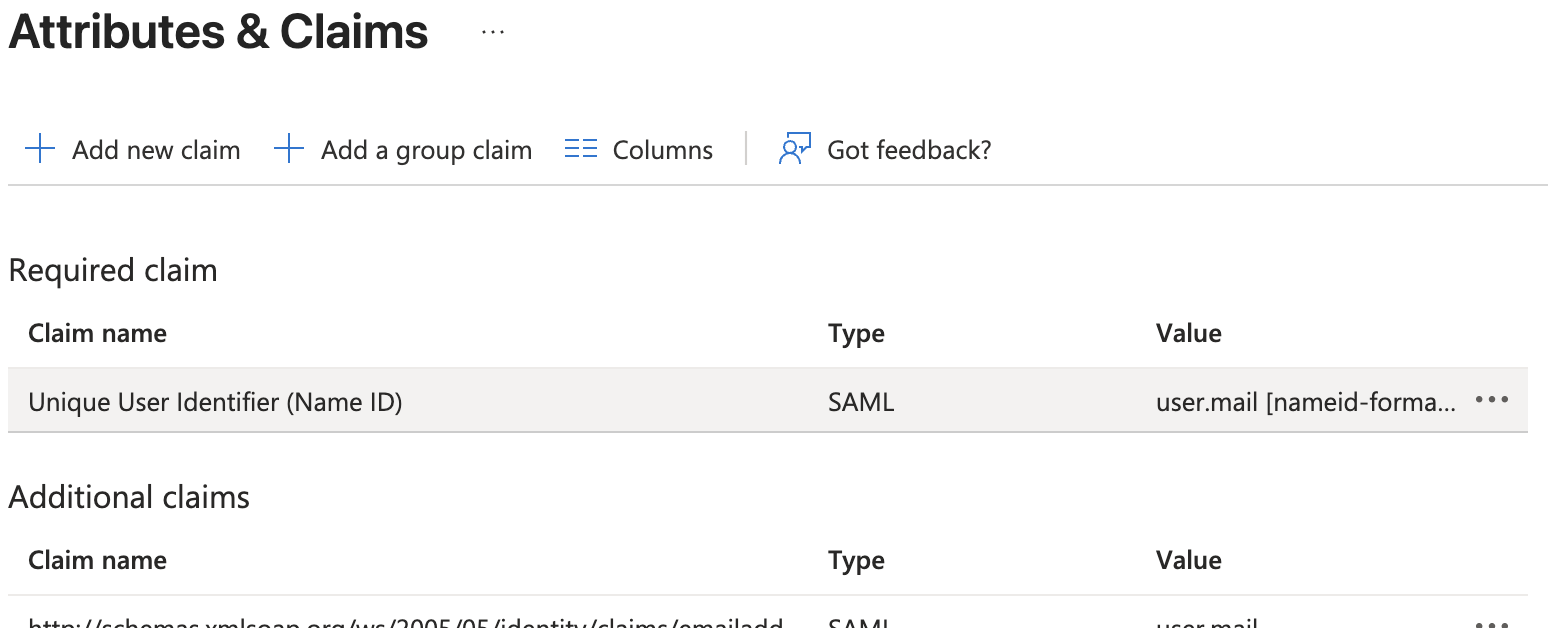
Click Edit in the Attributes & Claims section.
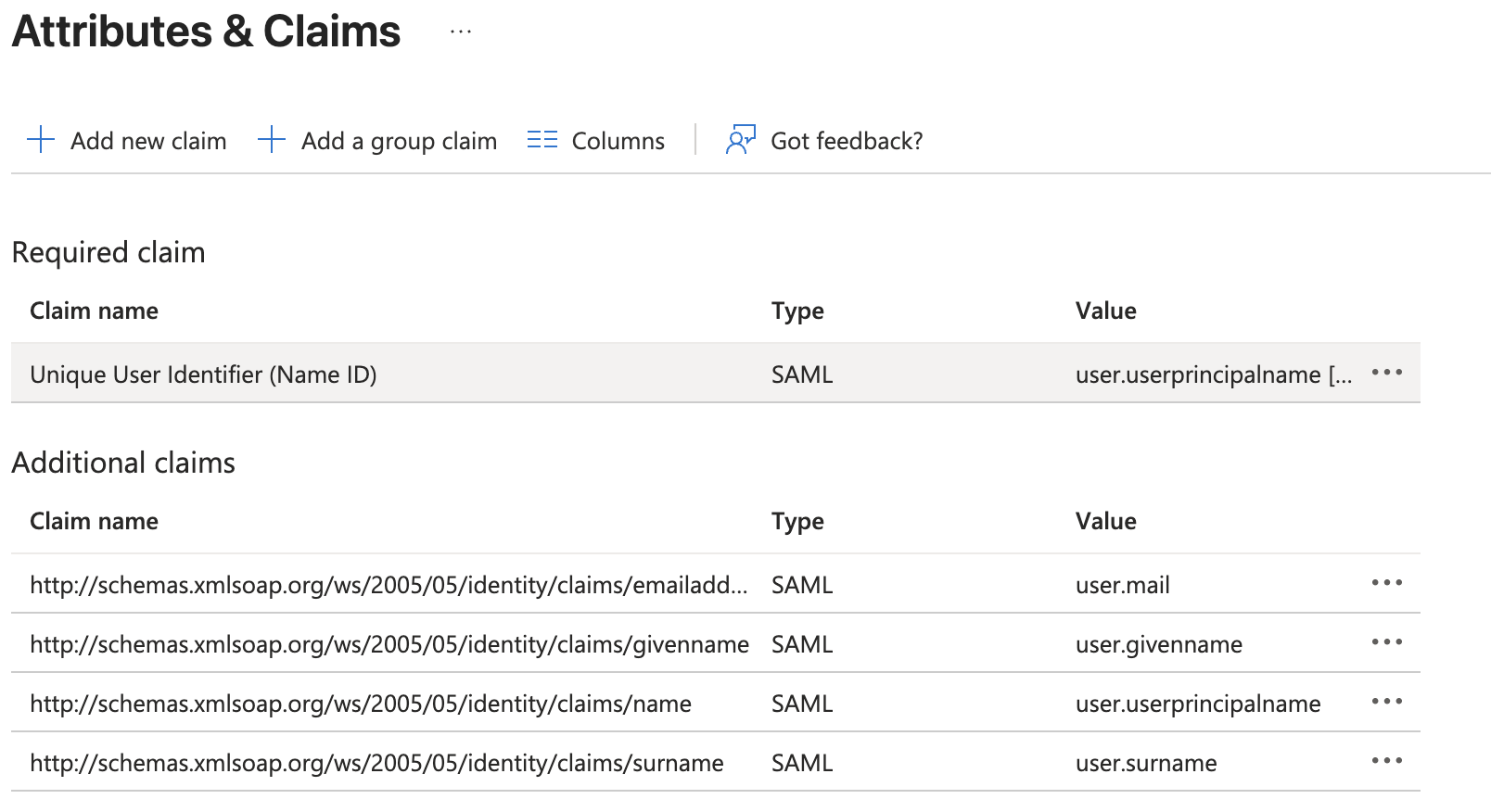
Select Unique User Identifier (Name ID) under Required claim.
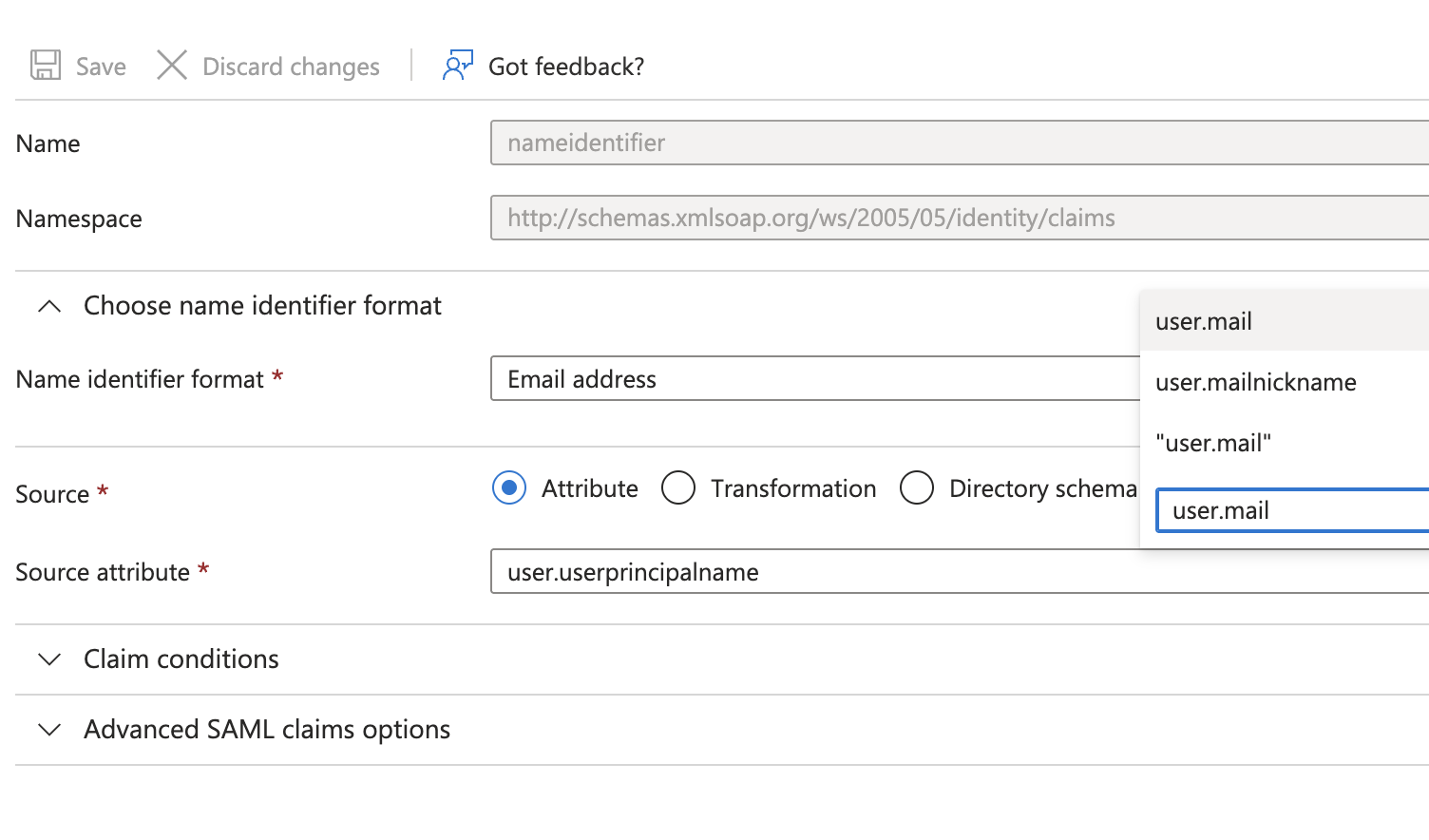
Change Source attribute to user.mail and Save.
2-2. Upload the file to CoeFont Interpreter
Open CoeFont Interpreter's SSO settings screen, and drag and drop the downloaded metadata file onto SAML Metadata File to upload it. Then click Save settings.
For SAML 2.0 compatible IdPs, export the SAML metadata XML issued by your IdP, drag and drop it onto SAML Metadata File in CoeFont Interpreter's SSO settings screen, and click Save settings. The method for exporting the metadata XML varies by IdP, so refer to the documentation for each IdP.
Behavior on Save
When you save the SAML configuration, if the login policy was still set to Password only, it is automatically switched to SSO or Password. This allows SSO login to be used immediately after saving. If it was already set to SSO or Password or SSO required, no change is made.
If you upload invalid SAML metadata, an error message "Invalid SAML metadata" will be displayed. Please use the metadata exported directly from your IdP.
3. Change the Login Policy
Use the Login Policy dropdown in the SSO settings screen to switch modes. If SAML settings have not been saved, the dropdown will be disabled and the message "To change the login policy, please save the SAML settings first." will be displayed.
Validation When Switching Policies
When switching, the system validates that the change is consistent with the current member configuration. If conditions are not met, the change will be rejected and an error will be displayed.
| Target Policy | Required Condition | Error Message |
|---|---|---|
| SSO or Password | No restrictions | (Always changeable regardless of current SSO enabled/disabled status) |
| SSO required | No non-admin members with password authentication remain | "Cannot switch to SSO required because members with password authentication still exist." |
| Password only | No members with SAML authentication remain | "Cannot switch to password only because members with SSO authentication still exist." |
When you change the policy to Password only, a confirmation dialog will appear: "Changing the login policy to 'Password only' will clear the SAML settings. Do you want to continue?" If you select Change, the SAML settings (Entity ID / SSO URL / Certificate) will be deleted. To enable SSO again, you will need to redo the SAML configuration.
Preparation Before Switching to "SSO Required"
Before switching to SSO required, handle all non-admin members with password authentication by doing one of the following:
- Remove them from the organization
- Remove and re-invite them as SSO authentication members (see below for invitation behavior)
Admin members can remain with password authentication.
4. Assign Users to the CoeFont Interpreter App in Your IdP
Assign the members who will use SSO to the CoeFont Interpreter application in your IdP.
CoeFont Interpreter also provides a provisioning feature that automatically adds, updates, and removes members on the CoeFont Interpreter side when users are assigned in your IdP. If you want to set this up, see Provisioning.
Once provisioning is configured, you can also sync the IdP department attribute into CoeFont Interpreter Departments. For details, see Department Sync with Your IdP.
Users who are not assigned cannot log in via SSO.
- Okta
- Microsoft Entra ID
- Other IdPs
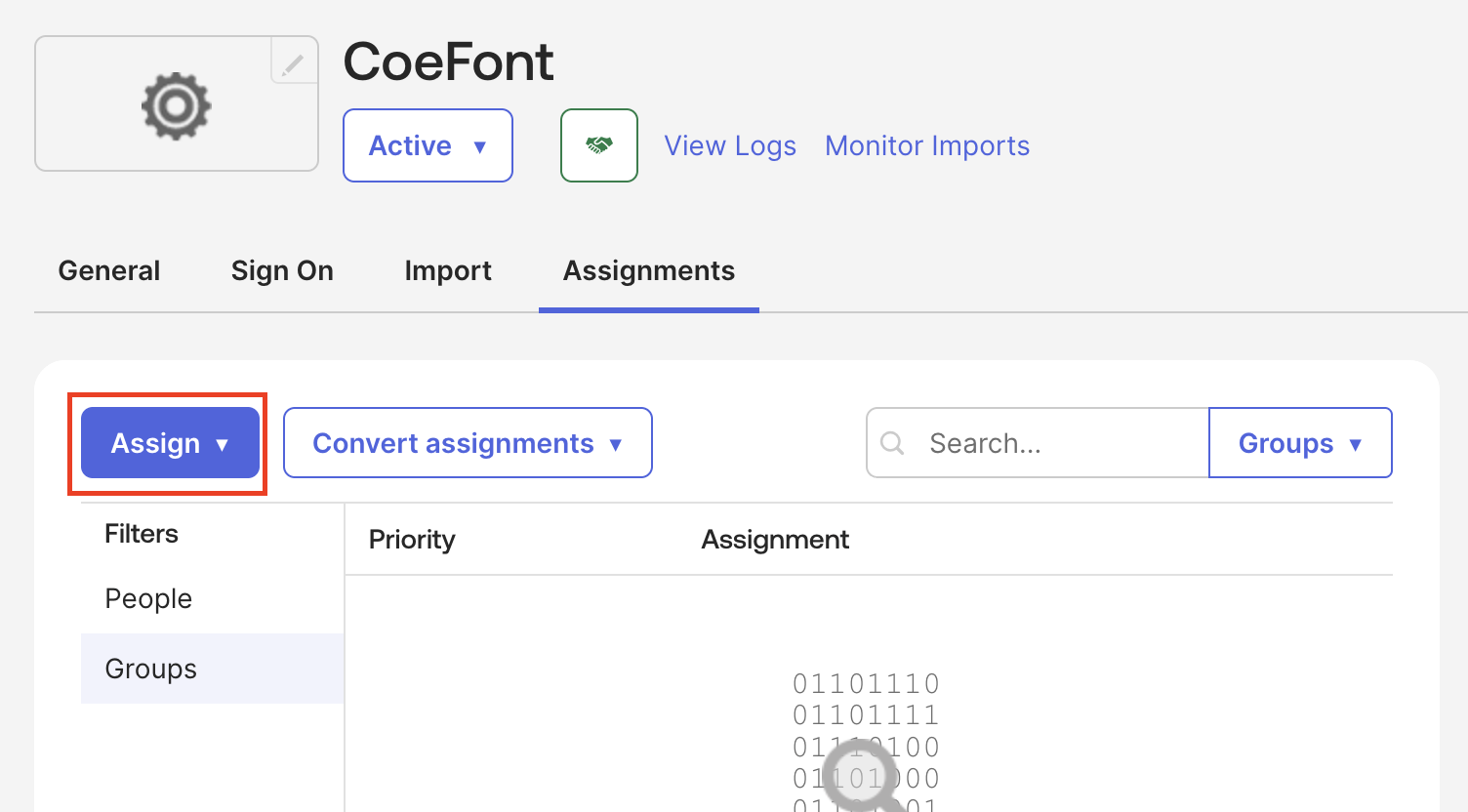
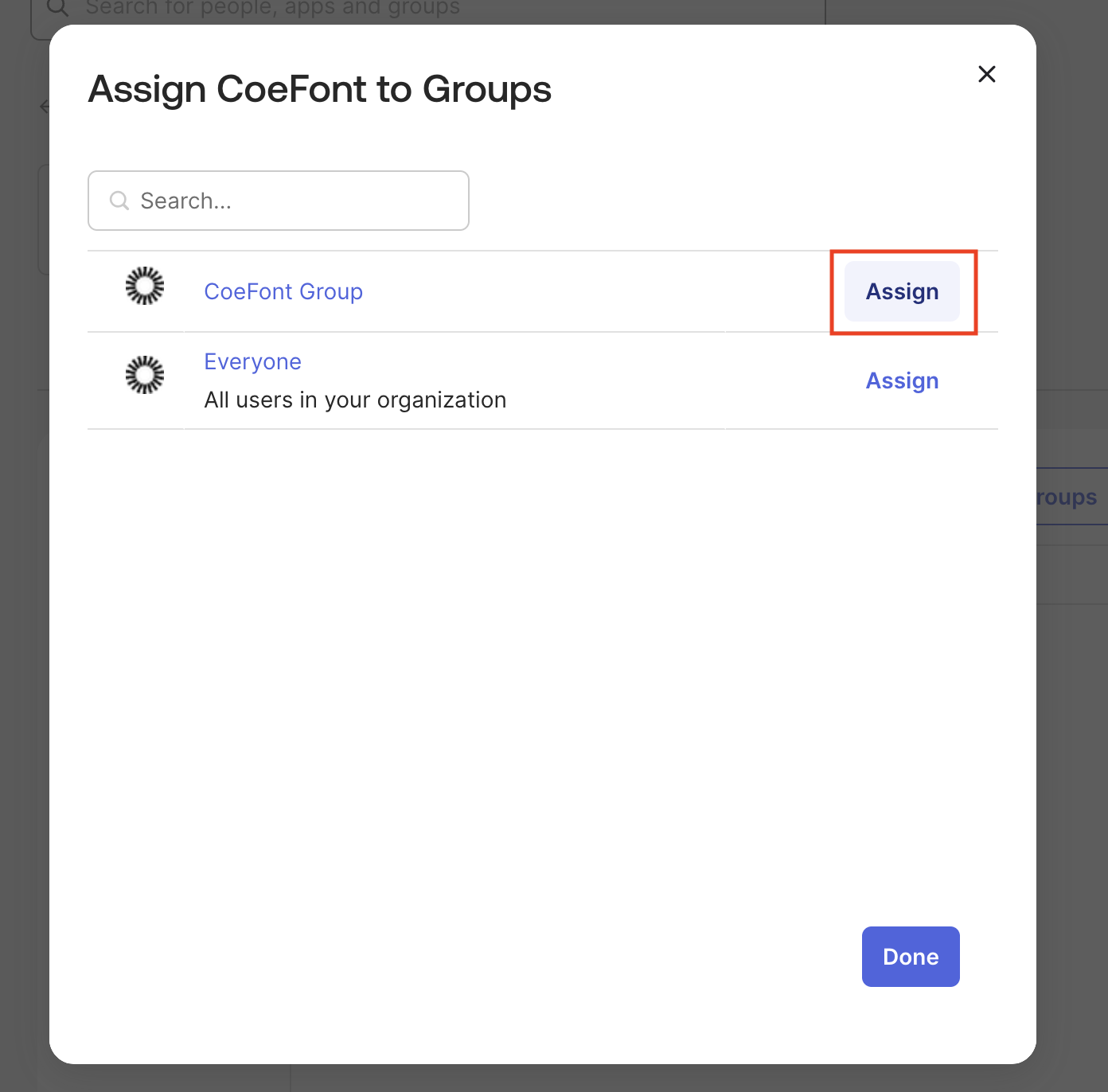
4-1. Assign users or groups
In the Assignments tab of the created application, assign the users or groups that will use CoeFont Interpreter.
4-2. Verify the assignment
If the assignment was successful, you can verify it on the assignments screen.
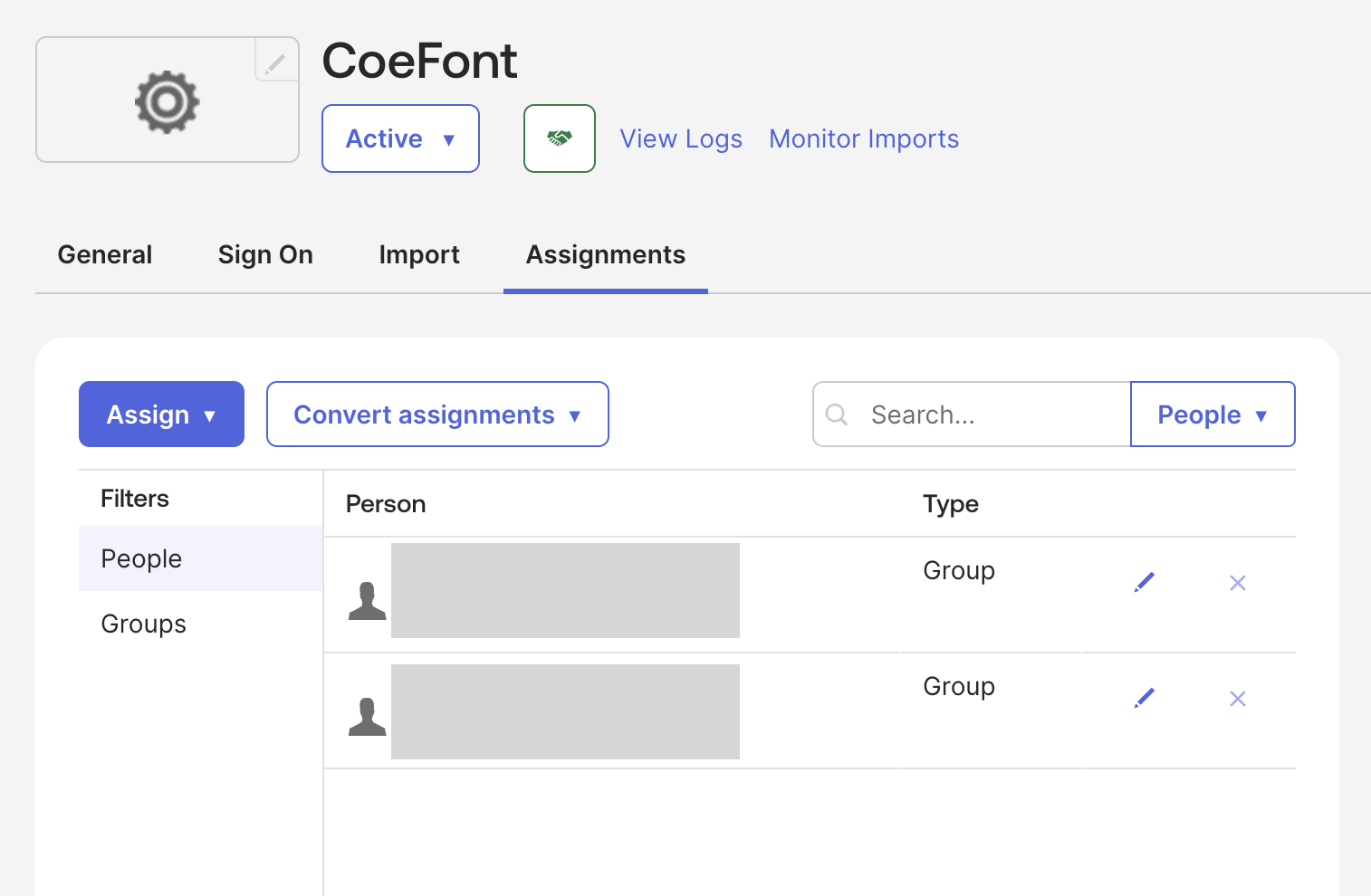
4-1. Assign users or groups
In Users and groups of the created application, assign users or groups that will use CoeFont Interpreter.
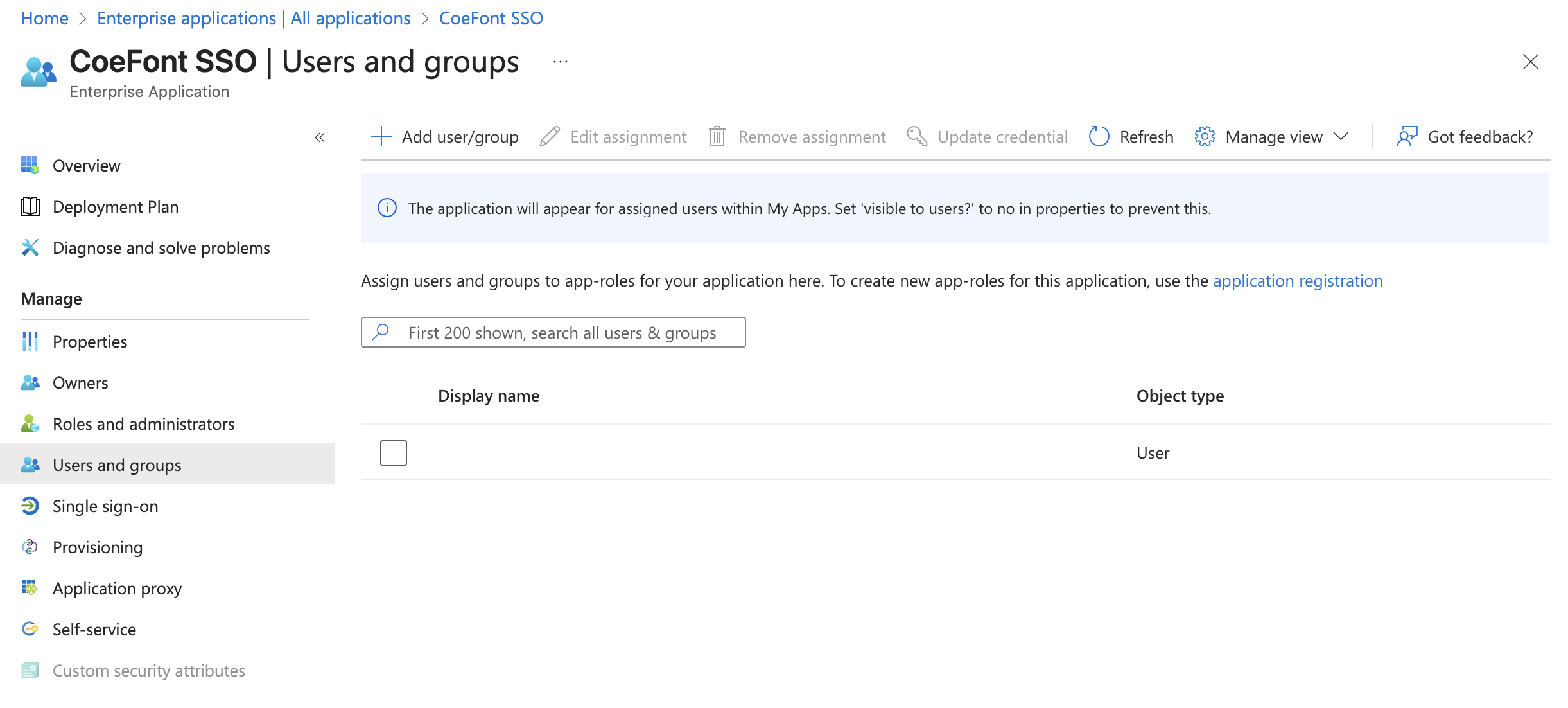
In your IdP, assign the users or groups that will use SSO to the SAML application for CoeFont Interpreter. The assignment method varies by IdP, so refer to the documentation for each IdP.
5. Member Invitation Behavior
You can add members from Member Management → Add Member, either by entering email addresses directly or by uploading a CSV template.
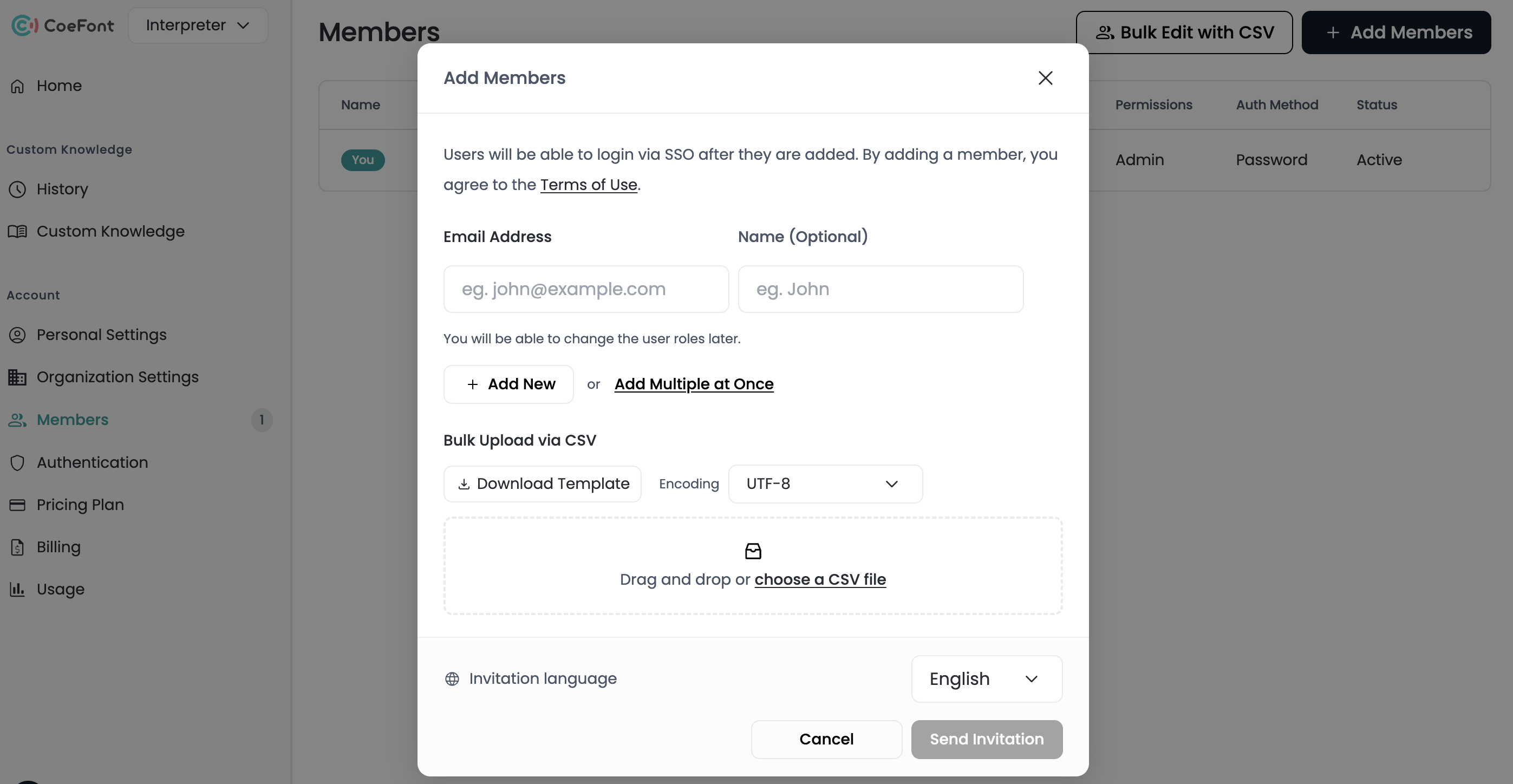
When a member is invited, their authentication method is automatically determined by the login policy at that time.
| Policy | Invited Admin | Invited Editor |
|---|---|---|
| Password only | Password authentication | Password authentication |
| SSO or Password | SAML authentication (if registered in IdP) / Password authentication (if not registered in IdP) | SAML authentication (if registered in IdP) / Password authentication (if not registered in IdP) |
| SSO required | SAML authentication (if registered in IdP) / Password authentication (can be invited even if not registered in IdP) | SAML authentication required (invitation is rejected if not registered in IdP) |
In SSO required mode, inviting an Editor who is not registered in the IdP will be rejected. Please create the user in the IdP first, then invite them. Admins are not subject to this restriction (due to the safeguard).
Resending Invitation Emails
In organizations with a policy of SSO or Password or SSO required, resending invitation emails to non-admin members with password authentication is rejected. This prevents legacy password invitations from being resent after SSO has been introduced. If re-invitation is needed, remove the member and invite them again.
Accepting Invitation Links
When a member attempts to log in for the first time via the invitation email link, the policy at that time is also rechecked. If a password invitation for an Editor was created when the policy was Password only, but the policy was later changed to SSO or Password, the acceptance of that invitation will be rejected.
6. Informing Members of the SSO Login Procedure
Once SSO is enabled, inform your organization's members of the following:
- Go to the CoeFont Interpreter login page and click Sign in with SSO
- Enter the email address and click Sign in with SAML SSO
- Sign in on the IdP authentication screen
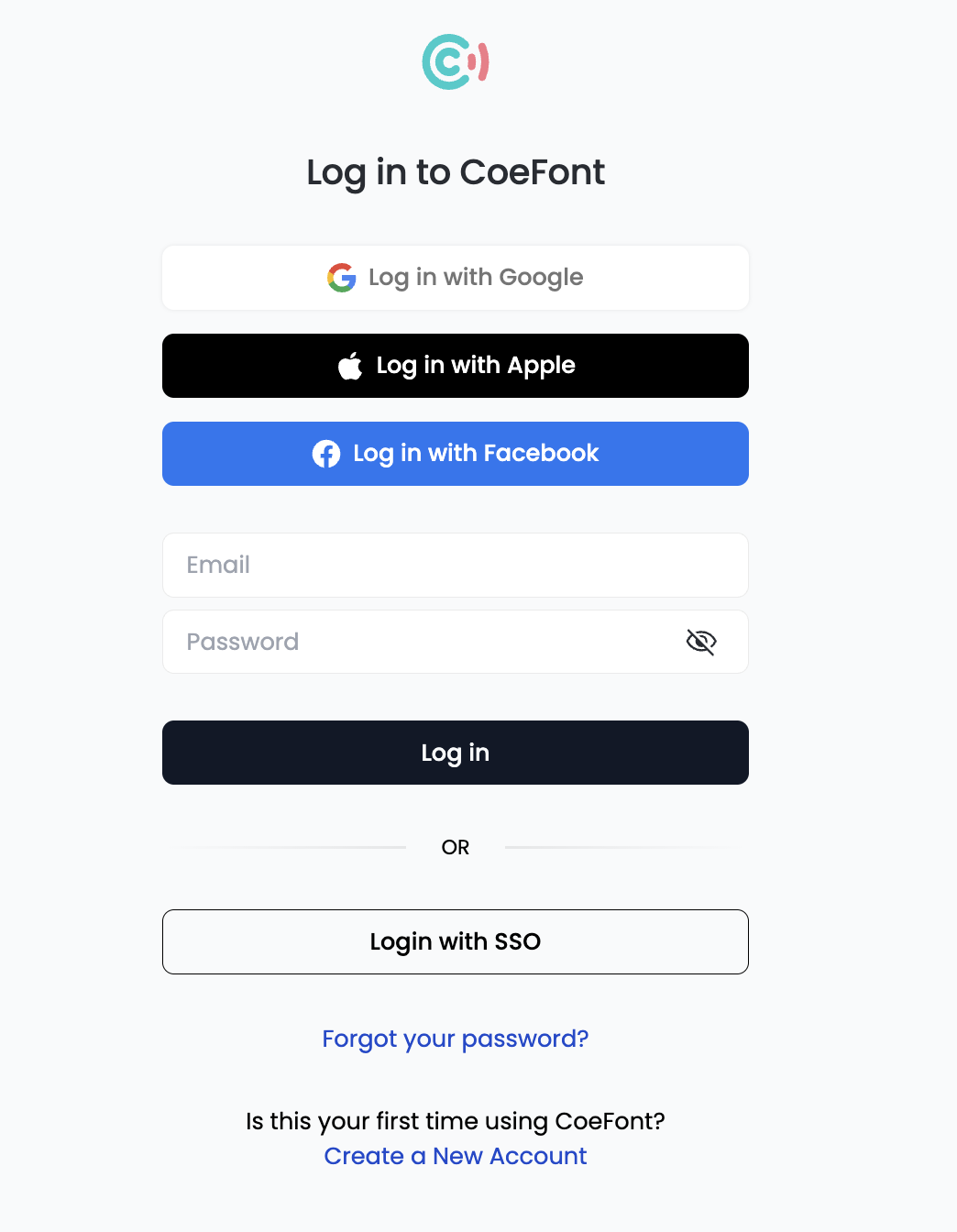
When a member clicks Sign in with SSO, they are taken to the email address input screen. When they enter their company email address, they are redirected to the organization's IdP.
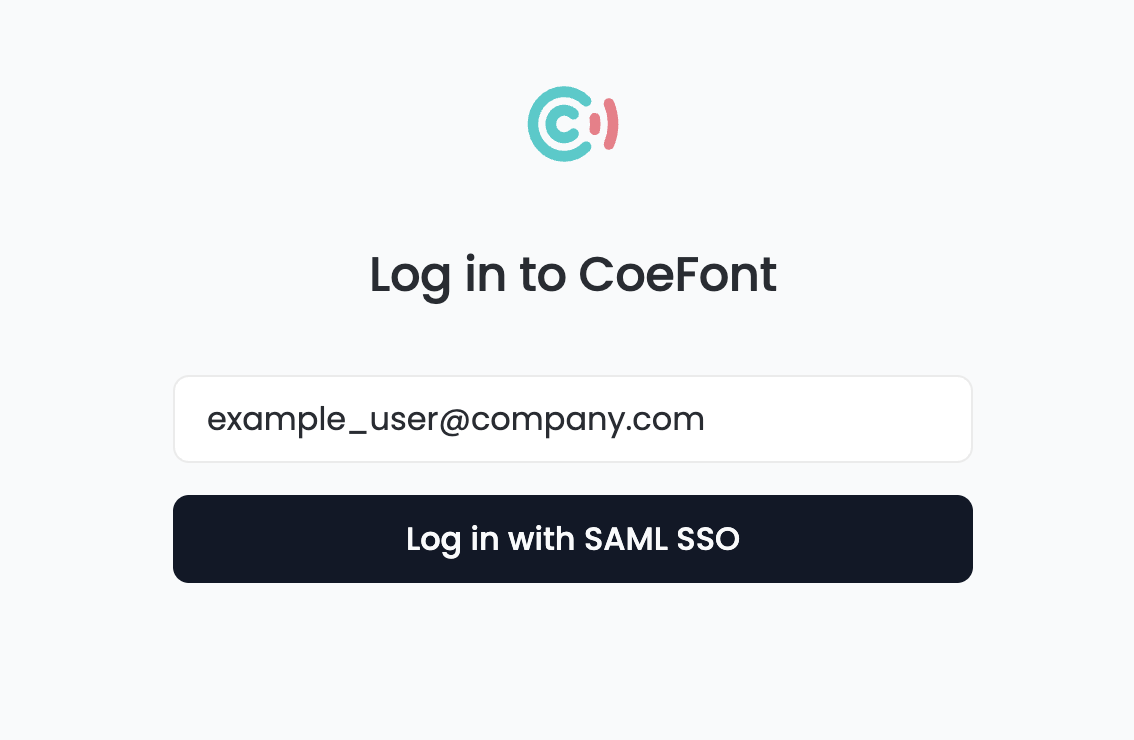
CoeFont Interpreter automatically identifies which organization to redirect to based on the email domain entered by the member. There is no need to communicate an organization ID.
Frequently Asked Questions
Will existing members be affected when I enable SSO?
If the policy remains SSO or Password, existing password-authenticated members can continue to log in with their password. To switch to SSO required, you must first handle non-admin members with password authentication.
Can I still log in if there is an IdP outage after enabling SSO required?
Admin members can retain password authentication, so Admins can still log in even during IdP outages. We recommend keeping at least one Admin with password authentication available in the organization.
Can I use SSO on Free / Standard / Plus plans?
SSO is an Enterprise plan-only feature. The SSO settings screen and login policy are not displayed on plans other than Enterprise.
I switched back to Password only, and now I want to enable SSO again
When the login policy is switched to Password only, the SAML configuration is cleared. To use SSO again, redo and save the SAML configuration from scratch. On save, the policy automatically switches to SSO or Password.