Custom Dictionary
Using the custom dictionary, you can improve translation accuracy for specialized terms and proper nouns.
This feature is only available to users with Admin permissions.
What Is the Custom Dictionary?
By registering terms used during interpretation, you can benefit from the following:
- Accurate translation of specialized terms: Correctly translate industry-specific terminology
- Proper noun recognition: Accurately recognize company names, product names, personal names, etc.
- Consistent translations: Use standardized translations across your organization
Open the Custom Dictionary
- Select "Custom Dictionary" from the side menu
- Or navigate directly to https://coefont.cloud/cir/custom_knowledge/dictionary
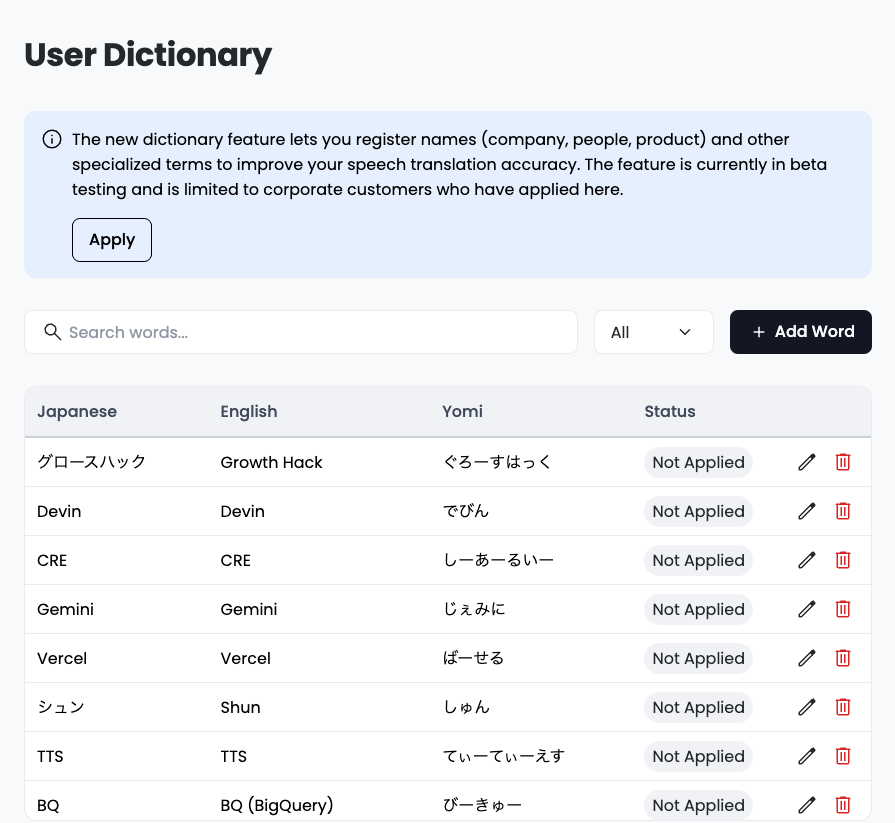
Register Terms
Basic Registration
-
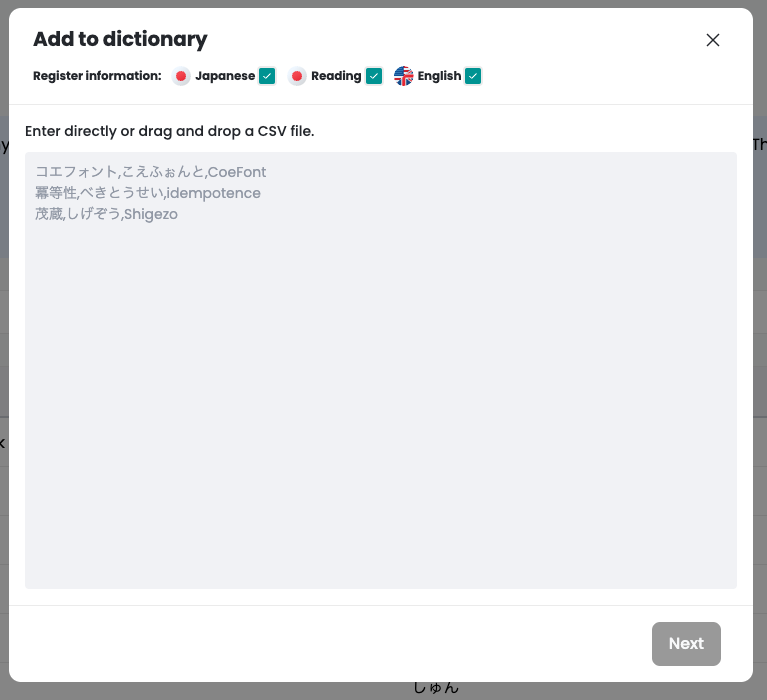
Click the "Add New" button
-
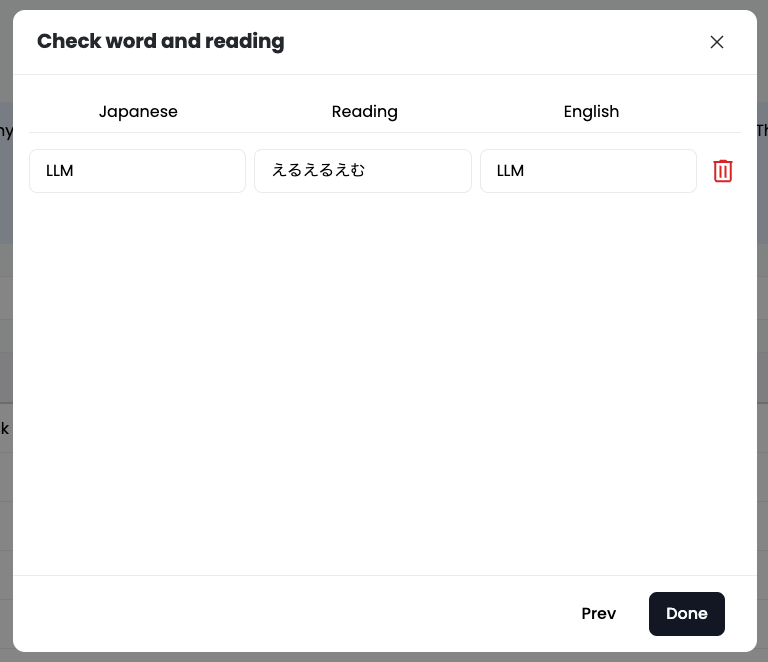
Enter the following information:
- Original Word: The word you want recognized (e.g., CoeFont)
- Reading: Pronunciation or romanized spelling (e.g., coefont)
- Description: Additional information (optional)
-
Click "Save"
Registration Tips
- If there are spelling variations, register multiple patterns
- Registering both abbreviations and full names improves recognition accuracy
Edit or Delete Terms
Editing
- Click the "Edit" button for the term you want to edit
- Make your changes
- Click "Save"
Deleting
- Click the "Delete" button for the term you want to delete
- Select "Delete" in the confirmation dialog
Import and Export
Import via CSV
You can bulk-register a large number of terms:
- Click the "Import" button
- Select a CSV file
- Review the preview
- Click "Run Import"
CSV Format:
Original Word,Reading,Description
CoeFont,coefont,Company name
CoeFont Interpreter,coefont interpreter,Interpretation service name
Export
You can download the current dictionary as a CSV file:
- Click the "Export" button
- The CSV file will be downloaded
Language-Specific Limitations
Chinese
If katakana readings are registered in the custom dictionary, the Chinese TTS cannot read katakana aloud (it will be skipped).
Example: If "密封(シーリング)" is registered
- Transcript: Displays "密封(シーリング)"
- Audio: Only "密封" is read aloud ("シーリング" is not spoken)
When using Chinese, it is recommended to register Chinese readings instead of katakana.
FAQ
Registered terms are not being applied
It may take a few minutes for registered terms to take effect. Please wait a moment and try again.
Is there a limit on the number of terms I can register?
With the Enterprise plan, there is no limit on the number of terms you can register.
Related Information
- View Usage (coming soon)