Department Sync with Your IdP
In CoeFont Interpreter Enterprise, the department user attribute on your IdP (identity provider) can be automatically reflected into Departments in CoeFont Interpreter. Once enabled, you no longer need to manage which department each member belongs to on the CoeFont Interpreter side, and you can operate with your IdP as the single source of truth.
The configuration operations on this page can only be performed by members with Admin permission in your CoeFont Interpreter organization. This refers to CoeFont Interpreter member permissions (Admin / Editor), which are separate from administrator privileges on the IdP side. You can check your own permission on the Member Management screen.
Department sync runs on top of the SCIM provisioning mechanism. You must complete the Provisioning setup in advance, and SSO Provisioning must be set to Automatic.
To set SSO Provisioning to Automatic, the SAML configuration must also be saved and the login policy must be SSO required (SSO Settings).
Prerequisites
All of the following must be satisfied to use department sync.
| Condition | Where to check |
|---|---|
| The organization is on the Enterprise plan | — |
| The person configuring it is a member with Admin permission in CoeFont Interpreter | Member Management |
| The SAML configuration is saved | SSO Settings |
| The login policy is SSO required | SSO Settings |
| SSO Provisioning is set to Automatic | Provisioning |
Departments are created automatically based on the department values from your IdP. Before enabling sync, there is no need to prepare departments or decide on department managers on the CoeFont Interpreter side.
Setting department managers is optional. Department sync works fine without them.
The Sync departments with your IdP setting only appears when SSO Provisioning is set to Automatic. While it remains Manual, the item itself is not displayed.
What Department Sync Does
| Feature | Description |
|---|---|
| Automatic department assignment | Members are automatically assigned to the department matching their IdP department value |
| Automatic department creation | If no department exists with the same name as the department value, a department with that name is created automatically |
| Automatic membership update | When you change department on the IdP side, the member's department is switched accordingly |
| Automatic membership removal | When department becomes empty on the IdP side, that member is removed from their department |
Setup Instructions
1. Open the authentication settings screen
From the account menu at the top right of the web console, open SSO Settings (URL: https://coefont.cloud/cir/account/authentication).
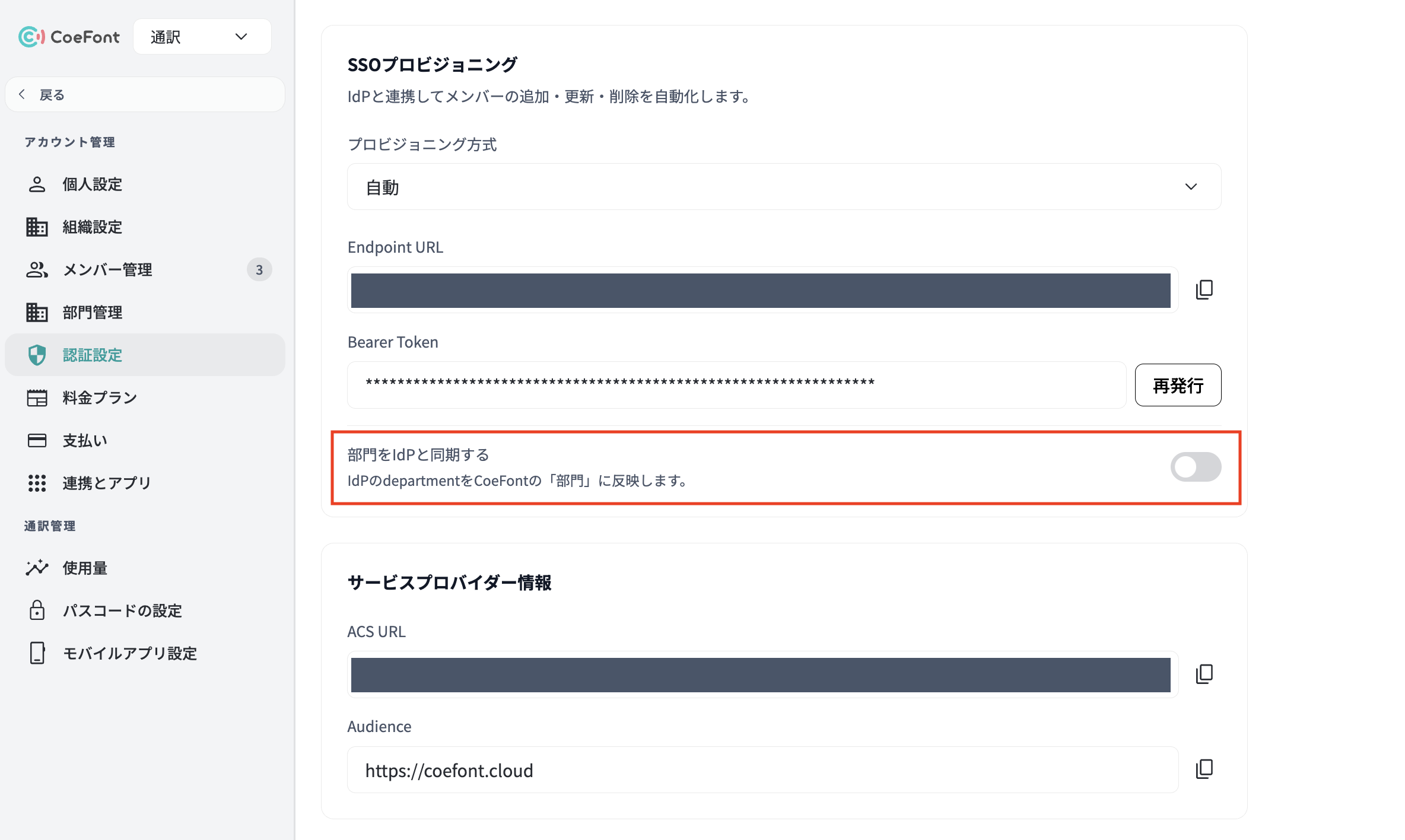
In the SSO Provisioning section, you will see the Sync departments with your IdP switch.
Sync departments with your IdP Reflects the IdP department attribute into CoeFont "Departments."
2. Turn the switch on
When you turn the switch on, the Enable department sync confirmation dialog appears.
Once enabled, departments can no longer be edited on the CoeFont side and will be synced based on the IdP department attribute.
If departments already exist in your organization, the following warning is also displayed.
This organization already has departments. Enabling this will make the following changes.
- Each member's department will be overwritten with the IdP value
- Members with no matching department will be removed from their department
- Departments that become empty are not deleted automatically and will remain
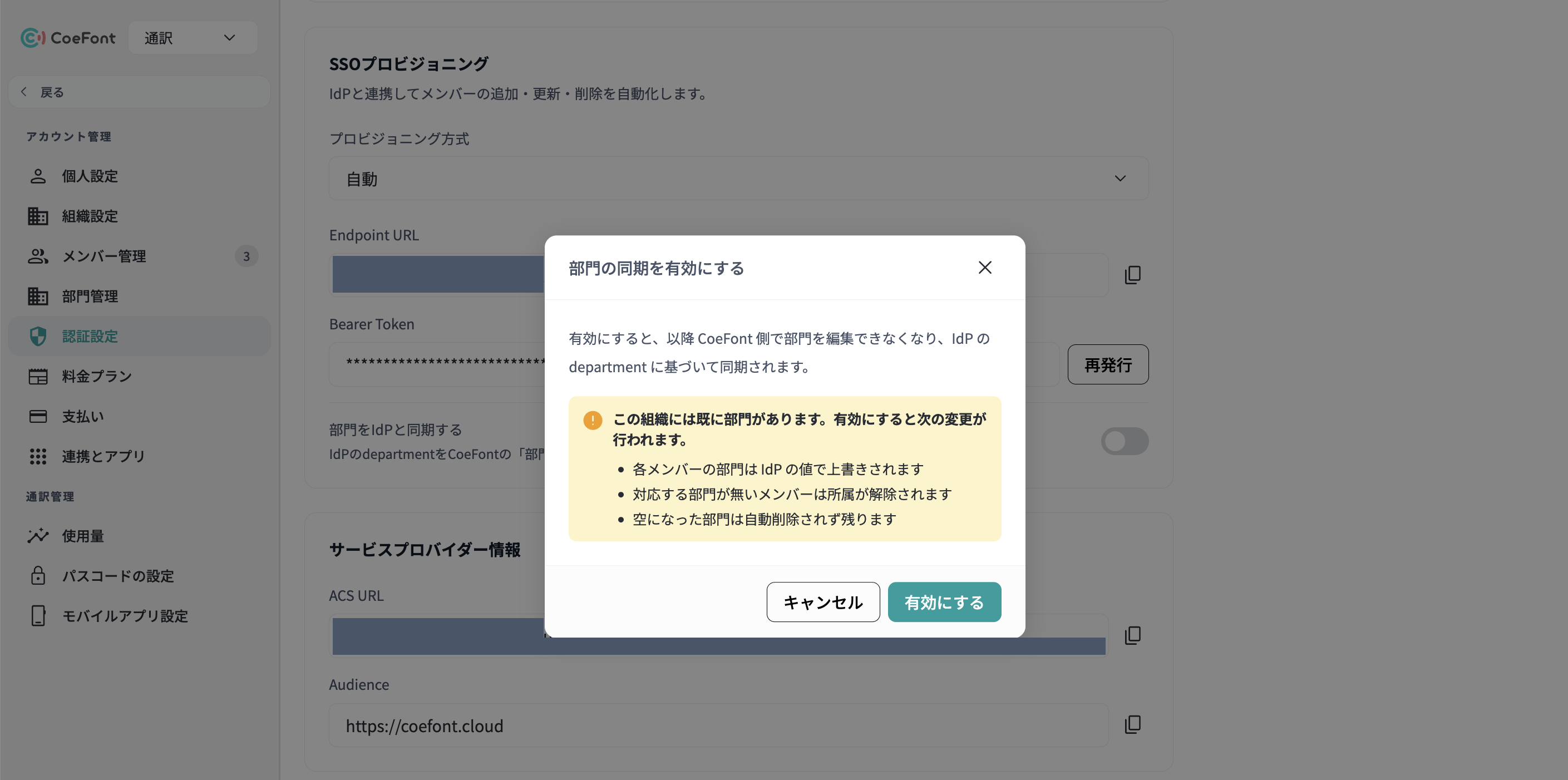
Review the details and click Enable. The message Department sync with your IdP has been enabled is displayed, and the setting takes effect.
Department memberships you assembled manually in CoeFont Interpreter are replaced by the IdP department values when sync runs. Before enabling, check that the department values on the IdP side are what you intend.
3. Set the department attribute on the IdP side
What gets synced is the department user attribute sent via SCIM. In Okta and Microsoft Entra ID, this corresponds to the Department field in the user profile.
- Okta: Enter the department name in the Department field of the target user's profile
- Microsoft Entra ID: Enter the department name in the target user's Department field
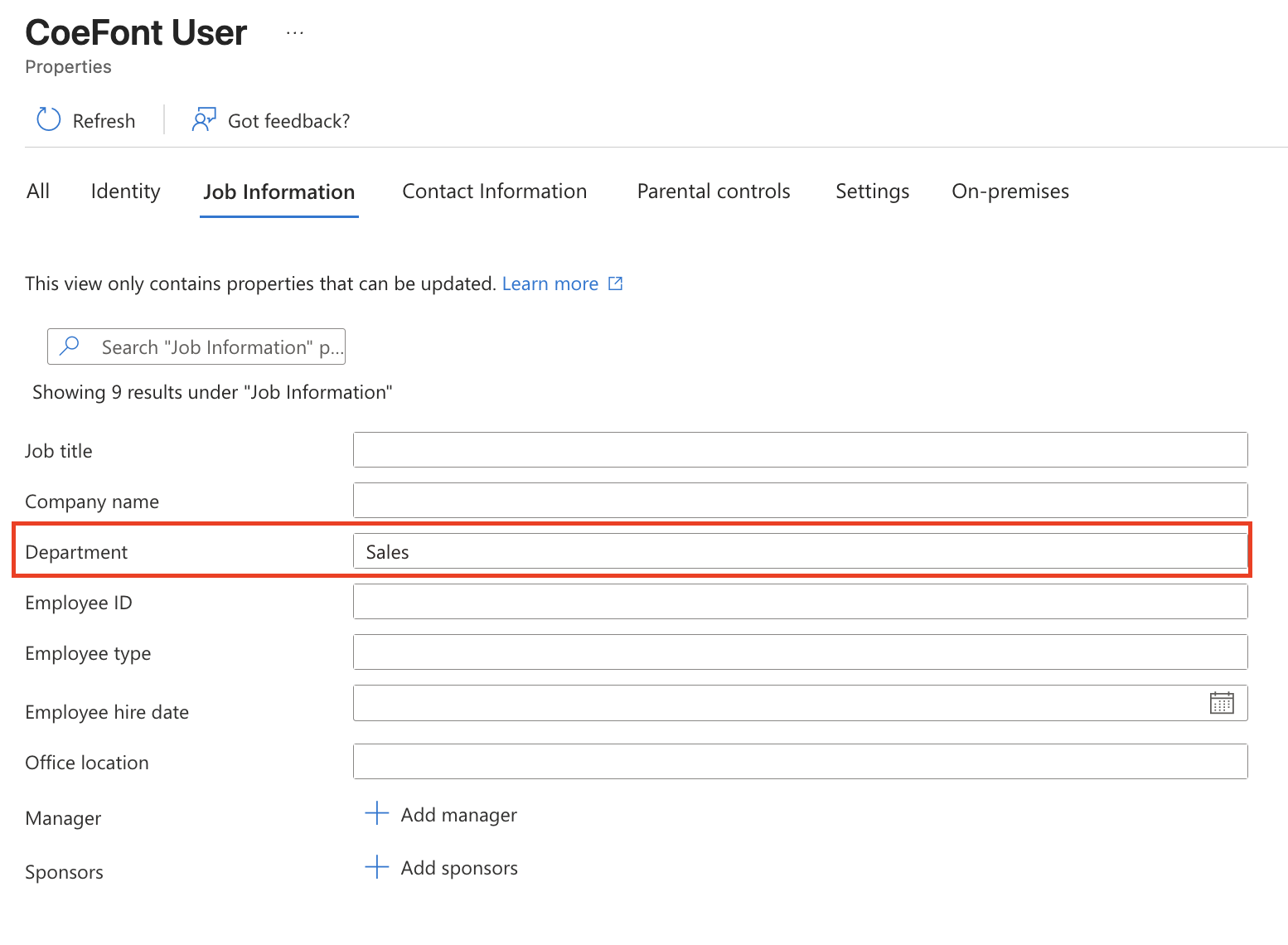
Once you change the value, it is reflected in the CoeFont Interpreter department at the next provisioning run.
How Sync Works
Here is how department sync behaves. Please review this before you start using it.
When sync runs
Sync runs when a provisioning (SCIM) request arrives from your IdP. It does not run when a member logs in.
As a result, changing Department on the IdP side is not reflected in CoeFont Interpreter immediately. With IdPs that run provisioning on a schedule, such as Microsoft Entra ID, it takes some time to be reflected. If you want it reflected right away, run on-demand provisioning on the IdP side (instructions).
A member can belong to only one department
While sync is enabled, a member always belongs to exactly one department. The IdP department value is treated as a single string; belonging to multiple departments, or specifying multiple values with a delimiter, is not supported.
Department names are matched exactly (case-insensitive)
If a department exists with the same name as the department value, the member is assigned to it; otherwise, a new department with that name is created. Matching is case-insensitive. For example, even if the IdP side has Sales, the member is assigned to an existing sales department if one exists (and the existing department name is not changed to Sales).
Leading and trailing whitespace in the value is ignored.
Hierarchies are not supported
All departments created are top-level departments. Even if you set a value such as Sales/West Japan in department, it is not interpreted as a hierarchy; a single department named Sales/West Japan is created.
You also cannot sync IdP groups (SCIM Groups) as departments. Only the department attribute is synced.
Departments are not deleted automatically
Departments that are no longer used on the IdP side, or that become empty because no members remain, are not deleted automatically. Deleting a department also affects the folders and sharing settings tied to it, so deletion is left to the administrator's judgment. Delete unneeded departments manually.
When department is empty
If department is sent with an empty value from the IdP side, that member is removed from their department. The member themselves is not deleted.
The Department Management Screen While Sync Is Enabled
Once department sync is enabled, departments are managed by your IdP, and the department structure and member assignments can no longer be edited from the CoeFont Interpreter side. This restriction applies to both Admins and department managers.
| Operation | While sync is enabled | Who can do it |
|---|---|---|
| Create a department | Not available (the Create Department button is replaced by a Managed by provisioning indicator and a link to Authentication Settings) | — |
| Edit department name and description | Not available | — |
| Add members | Not available | — |
| Remove members (unassign) | Not available | — |
| Delete a department | Only departments with no members can be deleted (departments with members cannot be deleted) | Admin only |
| Assign or unassign department managers | Available (limited to members already belonging to that department) | Admin / department manager |
If you want to change the department structure or member assignments, change the Department value on the IdP side instead of in CoeFont Interpreter.
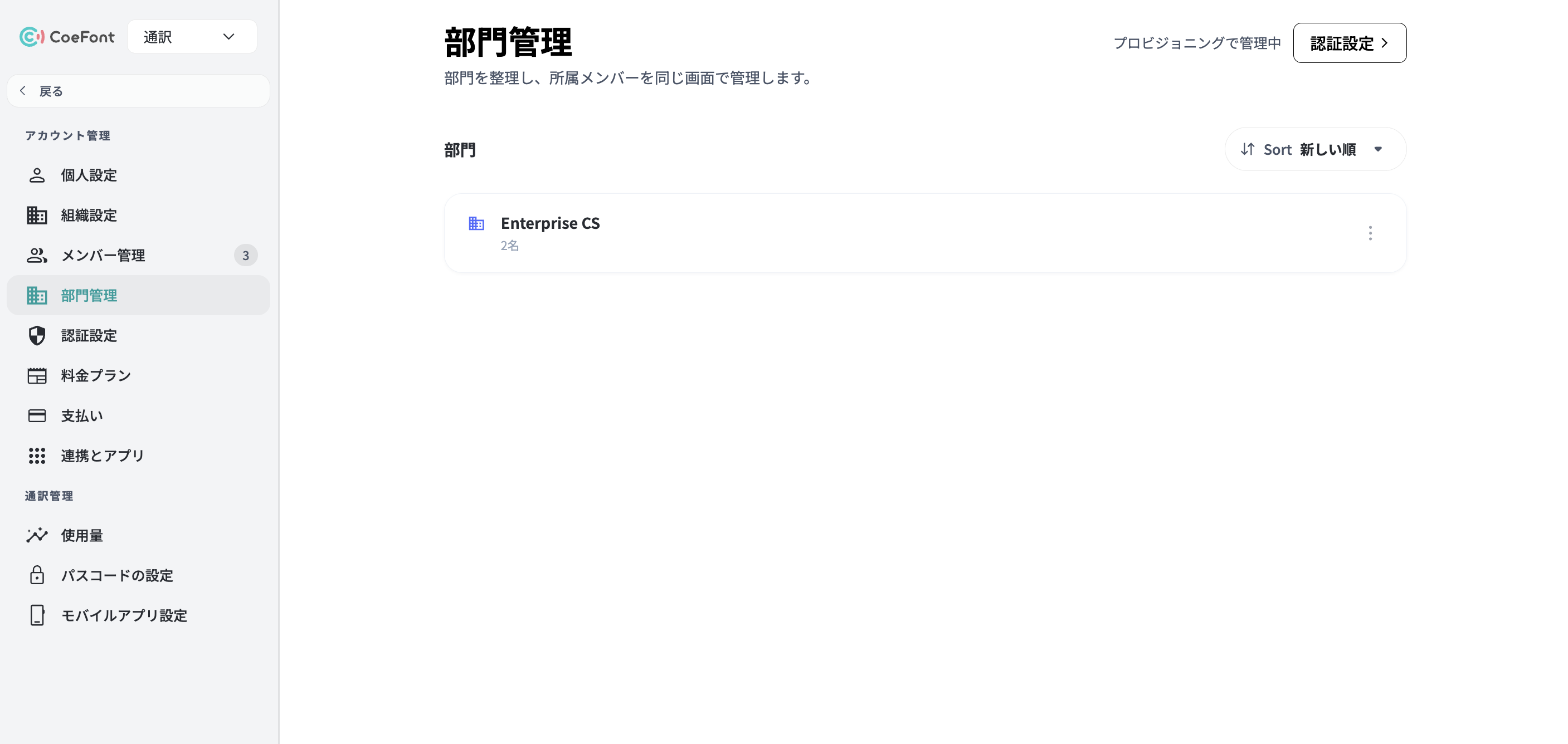
On the department detail screen, the Add Members button is disabled.
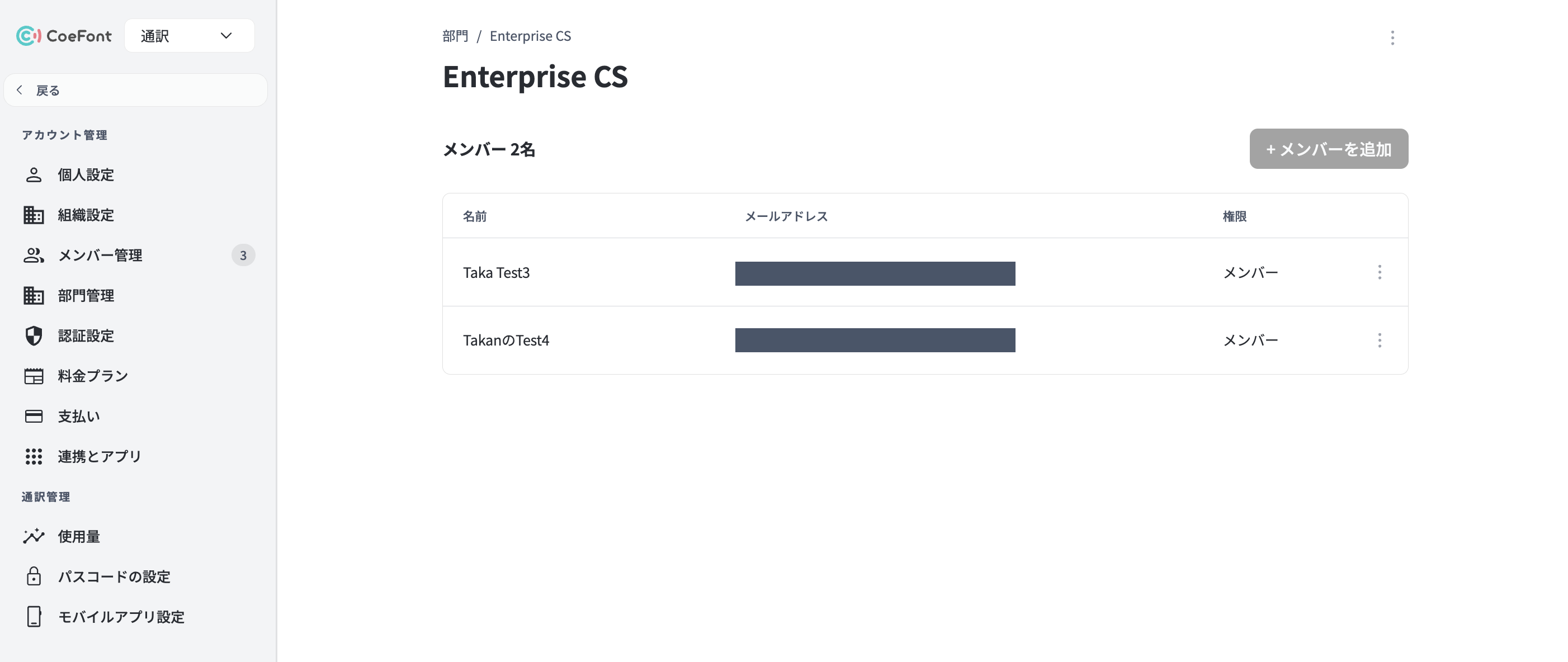
Hovering over an item that cannot be operated displays the following tooltip.
Cannot be edited in CoeFont because it is being synced with your IdP
When you need to delete a department
After enabling sync, deleting departments is generally unnecessary. You only need it when an unneeded department remains, in cases such as the following.
- You created departments in CoeFont Interpreter before enabling sync, and there is no corresponding Department on the IdP side
- You renamed a Department on the IdP side, and the department with the old name remains with no members
A department with zero members has no effect on sync behavior or on how members use the product. Whether to delete it is up to the administrator.
For those who want to tidy things up, empty departments are the one thing that can still be deleted while sync is enabled.
Department Managers While Sync Is Enabled
A department manager is an optional setting for delegating day-to-day operation of a department (it is not required in order to use department sync). In the member list on the department management screen, members whose Permission column shows Department Manager are the ones in this role.
Even while sync is enabled, department managers can perform the following operations.
| Operation | Description |
|---|---|
| Open the department management screen | Review the status of the departments they are responsible for |
| Assign or unassign department managers | Grant or revoke the department manager role for members who already belong to the department they are responsible for |
| Configure sharing for the folders of their department | Not affected by department sync. Sharing targets can be added and changed as usual |
On the other hand, the following operations are unavailable to them, the same as for Admins. Manage these with the Department value on the IdP side.
- Adding or moving members
- Removing members (unassigning)
- Editing department names and descriptions
While sync is enabled, only members who already belong to that department as a result of syncing from your IdP can be made department managers. Trying to make a member who does not belong to the department a department manager results in an error.
In that case, change that user's Department on the IdP side to the target department name, wait for it to sync, and then set them as a department manager.
Folder sharing settings also have a permission level named Department Manager, but that one applies to folders and is separate from Department Manager on the department management screen.
Note that creating and deleting departments can be done by Admins only, whether or not department sync is enabled.
Disabling Sync
When you turn the Sync departments with your IdP switch off on the authentication settings screen, the Disable department sync confirmation dialog appears.
Department sync will be disabled. From now on, the IdP department attribute will not be synced to departments, and departments can be edited on the CoeFont side. Are you sure?
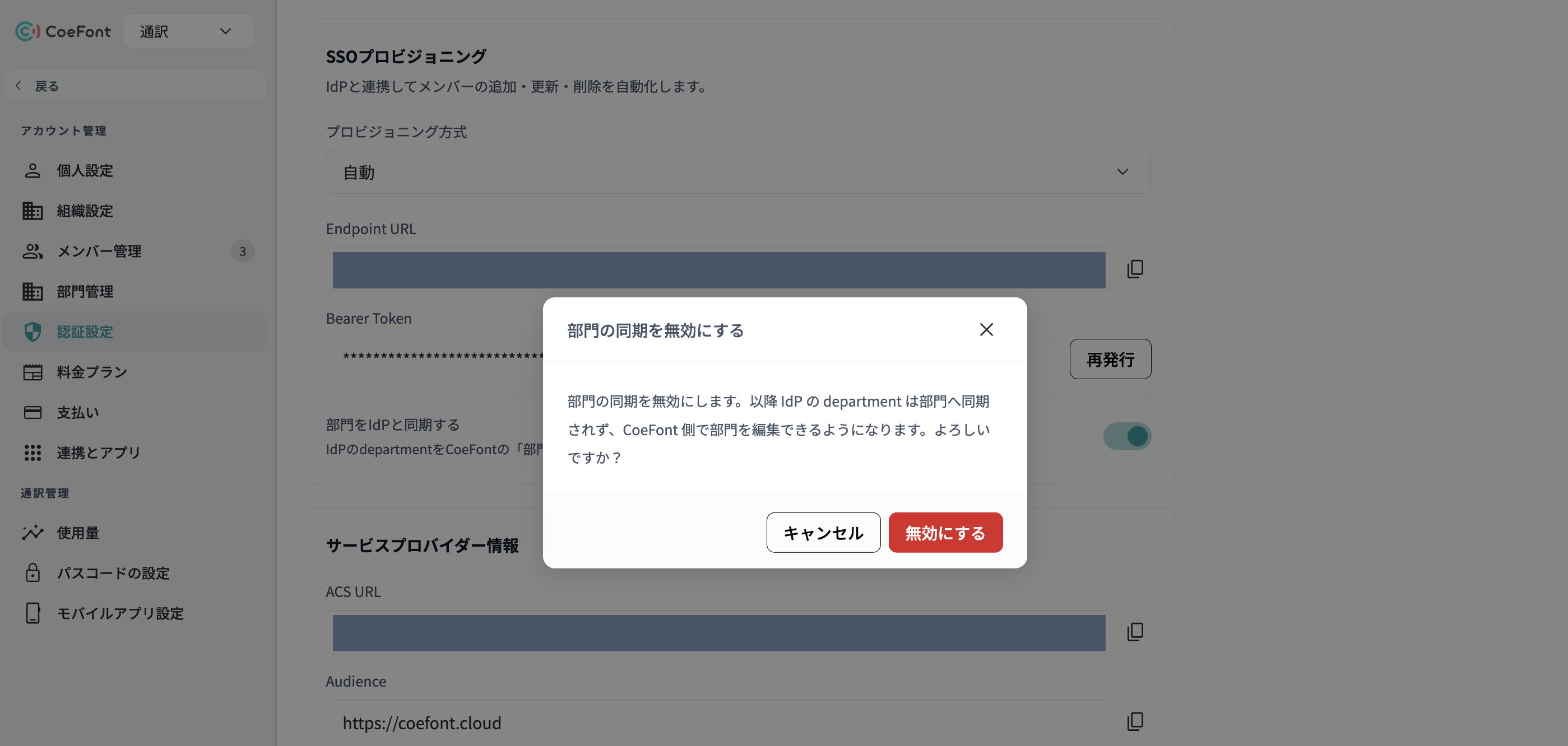
When you click Disable, the message Department sync with your IdP has been disabled is displayed. The departments and memberships as of the moment you disabled sync remain as they are, and from then on you can edit them freely in CoeFont Interpreter.
If you try to switch SSO Provisioning back to Manual while department sync is still enabled, the following error is displayed and the change is rejected.
SCIM cannot be disabled while department sync is enabled. Turn department sync off first.
Turn Sync departments with your IdP off first, then change the provisioning method.
When Departments Are Not Reflected
If departments are not reflected after you turn sync on, the department value may not have been sent from the IdP side yet.
Many IdPs send only the items that have changed since the last sync. As a result, for users whose department value has not changed since before you turned sync on, department may not be sent at the next provisioning run either, and may not be reflected in the department on the CoeFont Interpreter side.
In that case, restart provisioning on the IdP side to resend the attributes of all users.
For Microsoft Entra ID
Open Provisioning for the target enterprise application and click Restart provisioning.
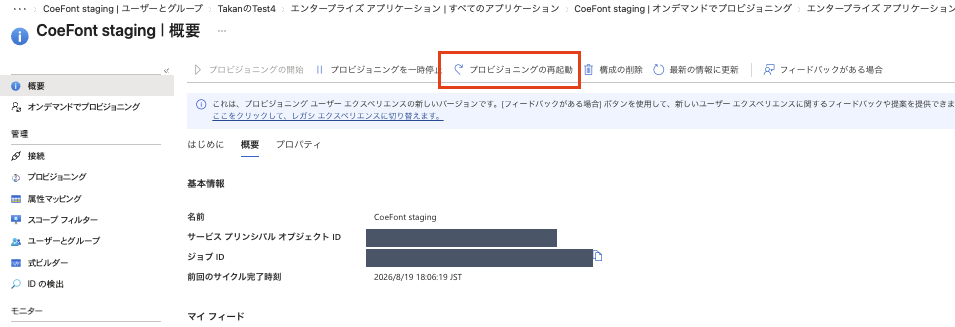
Restarting resets the incremental sync state and syncs all assigned users again. Depending on the number of users, this may take some time to complete.
For Okta
Resend the attributes from Provisioning for the target application, or change the target user's Department to a different value, save it, and then change it back. Because the value changes, department will be sent at the next provisioning run.
With Microsoft Entra ID, you can use Provision on demand to specify a target user and sync immediately. For instructions, see Provisioning.
Limitations
- A member can belong to only one department
- Department hierarchies cannot be synced (all departments are created as top-level departments)
- Department assignment via IdP groups (SCIM Groups) is not supported
- Department names can be up to 255 characters. If you send a
departmentvalue longer than that from your IdP, provisioning fails for that user - If the number of departments in the organization is very large (over 500), department names may not be displayed on screens such as the member list
Frequently Asked Questions
Do I need to set department managers?
No. Department sync works fine even if you have not set a single department manager. Department managers are an optional setting for when you want to delegate day-to-day operation of a department.
Do I need to create departments in CoeFont Interpreter before starting sync?
No. Departments with the same names as the IdP department values are created automatically.
Do I have to delete departments that become empty?
No, you do not have to. A department with zero members has no effect on sync behavior or on how members use the product. Delete them (as an Admin) only if you want to tidy up your organization's list.
Will my existing departments be deleted when I enable sync?
No. However, each member's assignment is overwritten with the IdP values. Members with no corresponding department on the IdP side end up unassigned. The departments themselves remain, empty.
If I rename a department on the IdP side, does the department name in CoeFont Interpreter change too?
No. A department with the new name is created, and members move to it. The original department remains empty, so delete it manually if you no longer need it.
Provisioning started failing
When department sync is enabled, a failure to apply department changes causes provisioning itself to error (your IdP retries it). This can happen when your organization has no members with Admin permission, or when a department value exceeds 255 characters. Check your organization's Admin composition and the attribute values on the IdP side.
Can I use only department sync without using provisioning?
No. Department sync runs on top of the SCIM provisioning mechanism, so SSO Provisioning must be set to Automatic.
Are departments synced when a member logs in?
No. Sync only happens when provisioning runs from your IdP.