This page was machine-translated from the Japanese original and may contain unnatural wording or errors. View the Japanese page
Playing the Original Audio
Read this article when
- You want to check the translation or transcript against the original audio
- You want to replay just one specific utterance
- You want to download the audio data (the recording itself) of the minutes
Playing audio for each utterance
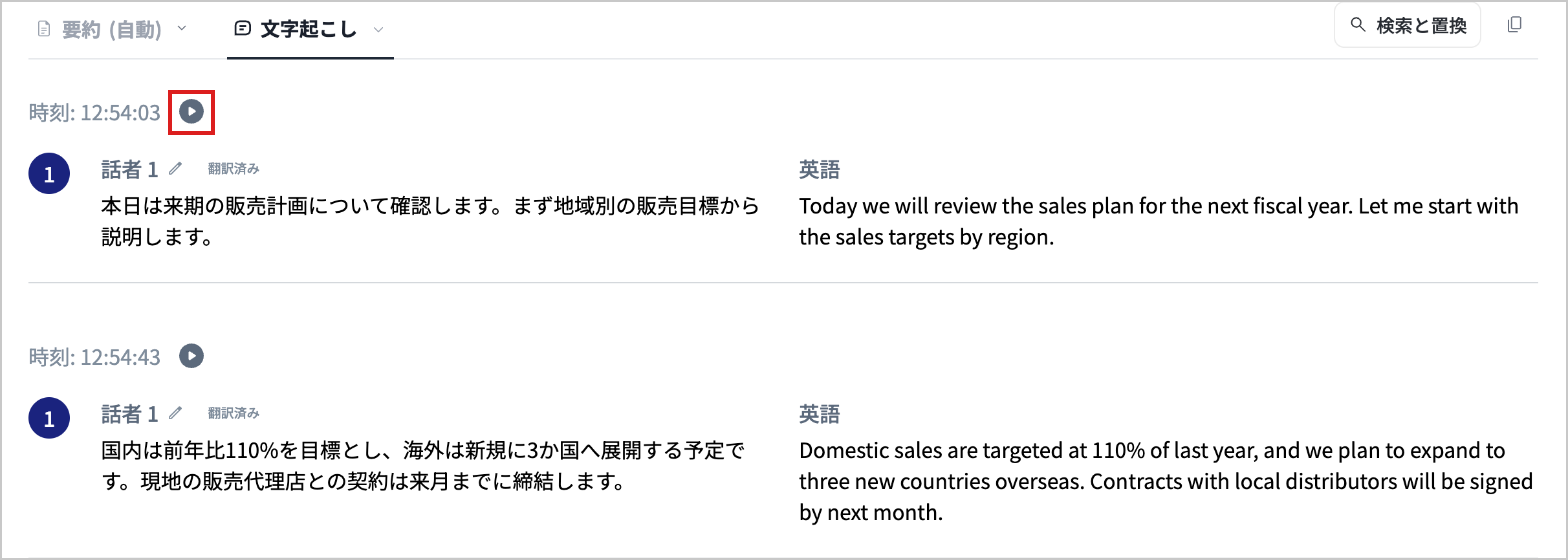
In the minutes transcript, you can play the original audio of each utterance. By comparing what you hear with the text, you can check on the spot whether the transcript and translation are correct.
- In the CoeFont Interpreter admin console, open the minutes of the meeting. For how to open minutes, see Viewing and Downloading Minutes.
- Open the Transcript tab.
- Find the utterance you want to check, and click the play button (▶) next to its timestamp.
- Only the audio of that utterance plays. Compare the text with the audio.
The audio file cannot be downloaded on its own
The minutes screen has no feature for downloading the meeting's audio file (such as an mp3) by itself. To check the original audio, play it utterance by utterance as described above. You can download the summary and transcript as text.
Next steps
Related information
Did this article solve your problem?