Take Minutes for a Single-Language Meeting (Minutes Mode)
Read this article when
- You want a transcript and minutes saved automatically, even for an internal meeting held entirely in Japanese
- You want to use only summaries and speaker identification, without translation (interpretation)
- You want minutes in a different language from the one spoken, such as Japanese minutes for an English-only meeting
- You want to know how the "minutes" usage time, which is contracted separately from interpretation, is used
- You want to take only minutes in a Teams meeting
Differences Between Minutes Mode and Interpretation Mode
Minutes mode does only transcription and summarization, without interpretation (translation).
| Interpretation mode | Minutes mode | |
|---|---|---|
| Best for | Meetings held in two or more languages | Meetings held in only one language |
| Interpreted audio and translation | Yes | No |
| Minutes language | All languages used in the meeting | The one language you select |
| How usage time is counted | Interpretation usage time | Minutes usage time |
- You can select only one language for the minutes output.
- You can choose the language spoken in the meeting and the minutes language separately. For example, you can create Japanese minutes for an English-only meeting.
- Interpretation and minutes usage times are counted separately. While you record in minutes mode, interpretation usage time is not consumed. For how time is handled under each contract, see How Usage Time Is Counted.
Minutes mode processes everything in the one language you set at the start. If people speak a different language than expected, the transcript may be garbled or the summary may not be created correctly. If the spoken language may change, such as in a meeting that mixes Japanese and English, use interpretation mode.
Starting Minutes Mode
How to start depends on the app.
- Desktop app
- Browser version
- Smartphone app
- Start the desktop app and log in.
- On the home screen, select the Minutes card. The selected card is shown in red.
- In the drop-down below it, select one language for the minutes.
- Click Start minutes. You are done when the transcription starts.
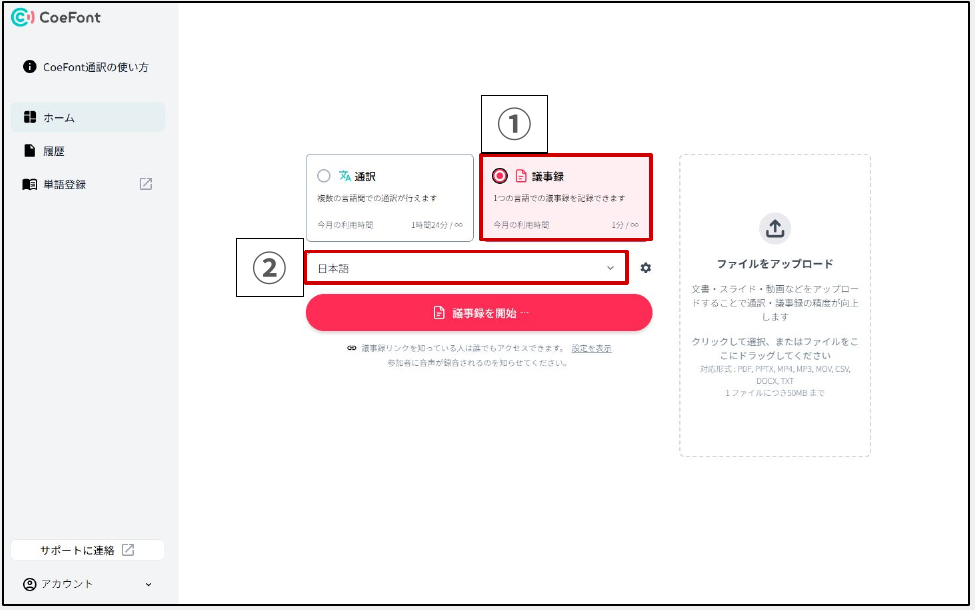
Each card shows "Usage time this month". You can see here that interpretation and minutes time are counted separately.
To record a Microsoft Teams meeting on Windows, you need to configure advanced audio capture and CoeFont Audio. For how to set it up, see Audio Settings for Using Teams (Desktop App). In minutes mode, enable Advanced audio capture from the advanced options under Sound in Settings. You can set it either before or after you start the minutes.
- Log in to the CoeFont Interpreter admin console.
- On the home screen, select Minutes. "Interpretation" and "Minutes" are separate buttons.
- Select one language for the minutes.
- Start the minutes. You are done when the transcription starts.
The steps for capturing meeting audio are the same as in interpretation mode. See Start Interpreting in the Browser Version. For Teams, Zoom, Google Meet, and Webex meetings, you can also have the bot join from the meeting link to take minutes (Invite the Bot to a Meeting for Interpretation).
- Start the smartphone app and log in.
- Under Mode selection on the settings screen, select Minutes.
- Select one language for the minutes.
- Start from the main screen. You are done when the transcription starts.
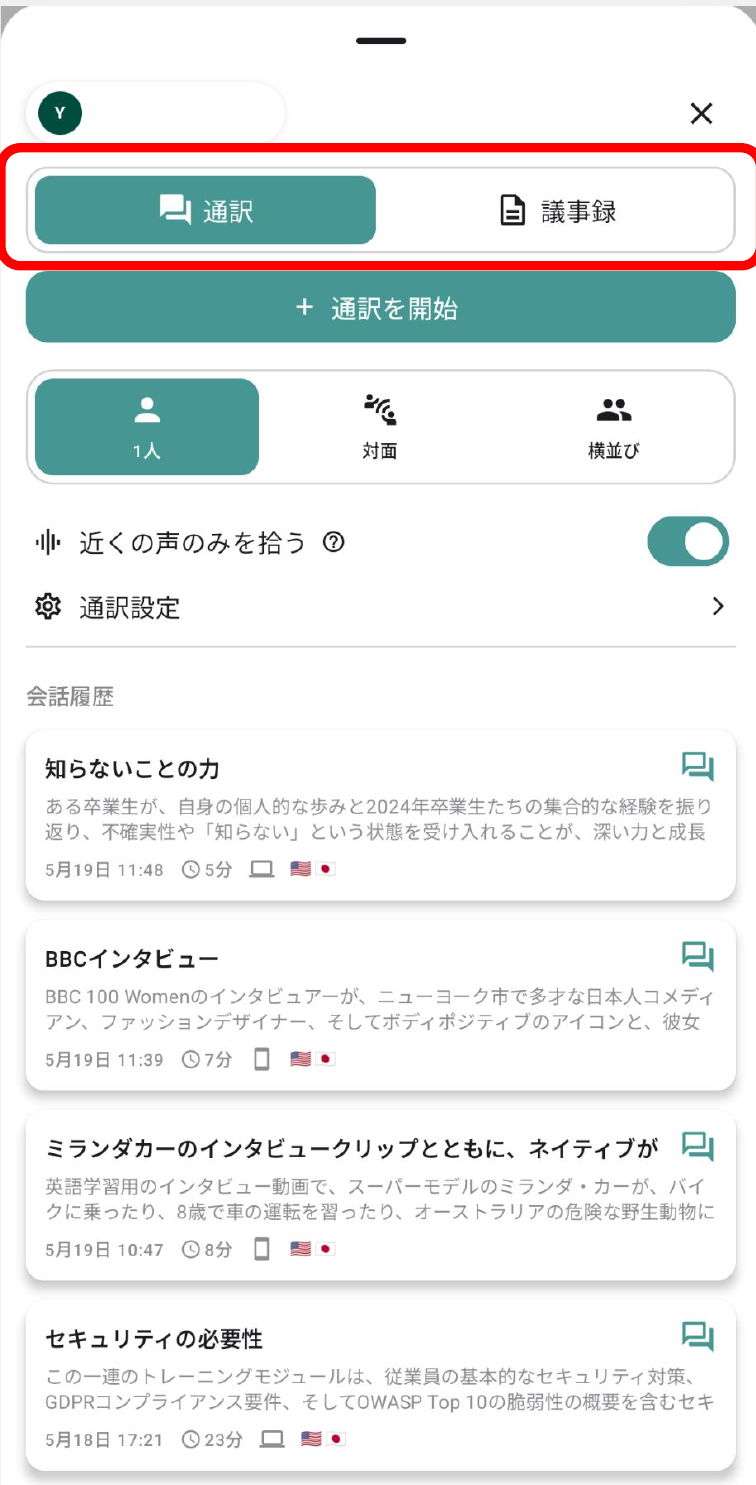
You can review past records from History in the app. In the history, icons show whether a record is from interpretation or minutes. For details on the app's screens and settings, see Smartphone App Screens and Settings.
Screen and Controls While Recording
While recording, what is said is transcribed as is. The screen also shows a summary from the start of the meeting up to that point.
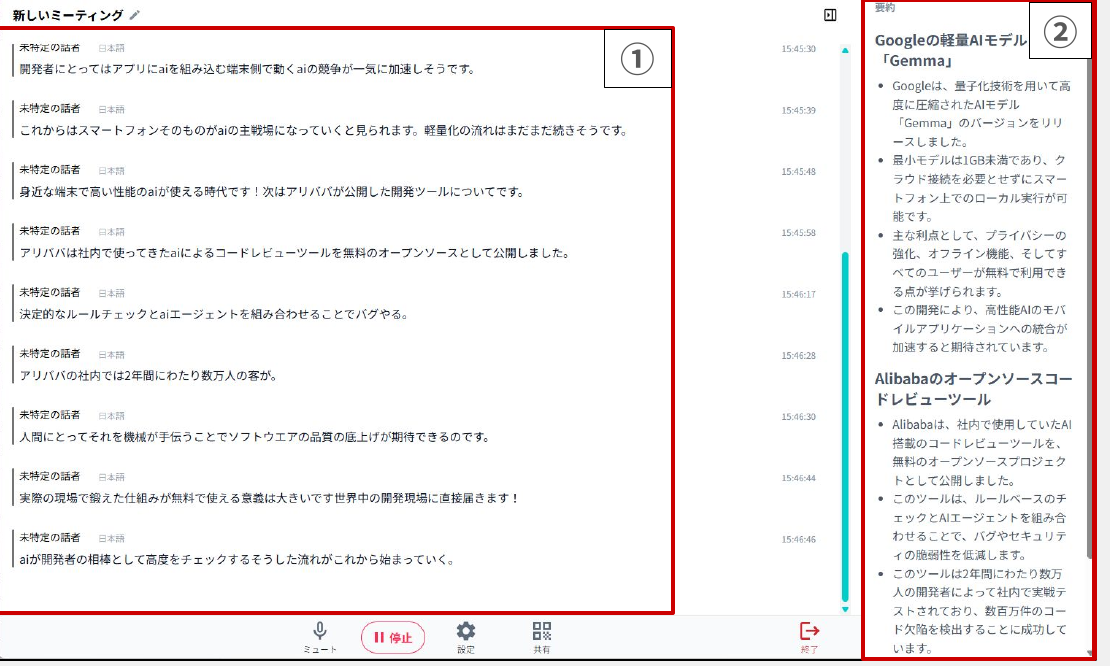
In the desktop app, you can use the following controls in the menu bar at the bottom of the screen.

- Mute: Stops audio from entering CoeFont Interpreter.
- Resume / Stop: Resumes or stops the transcription.
- Share: Shares the minutes link with participants.
- End: Ends the recording. Even if you close the window, the app stays in the system tray (the menu bar at the top of the screen on a Mac).
Assigning Speaker Names
Speech right after the start is recorded without an identified speaker. After the conversation continues for a while, AI distinguishes the speakers and shows them as "Speaker 1", "Speaker 2", and so on.
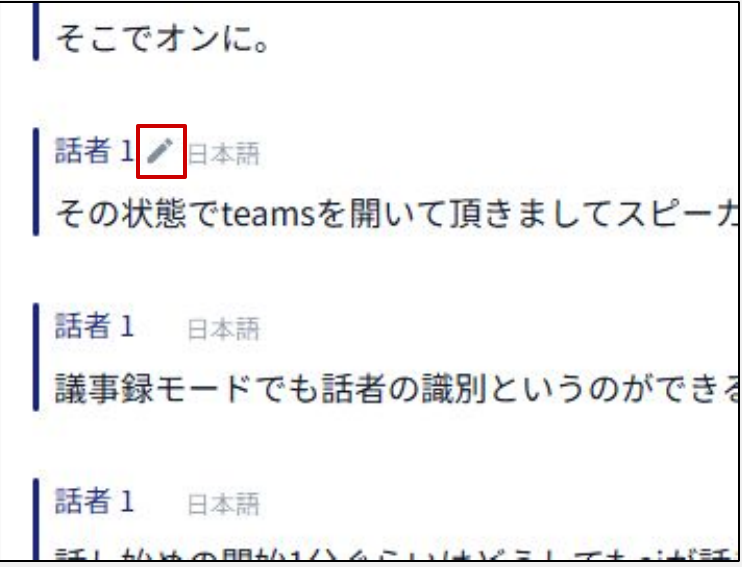
- Hover over a speaker name such as "Speaker 1".
- Click the pencil icon that appears.
- Select a member of your organization, or enter any name.
When you change a speaker that already has a name, you can choose This utterance only or All utterances. For an utterance whose speaker has not been identified, only that utterance changes. You can also assign an organization member to an utterance whose speaker has not been identified on the live screen while recording.
Accuracy in telling speakers apart may drop for people with similar voices.
Checking After the Meeting
Meetings recorded in minutes mode are saved in the admin console's minutes list, just like in interpretation mode. For how to view the summary and transcript and download them as PDF, Word, or text, see Viewing and Downloading Minutes.
Recording Teams Meetings
You can also record in minutes mode with the Teams Plugin. If you select only one language in the CoeFont app's language settings and start, it becomes minutes mode. No translation is done, only a transcript and summary are created, and the usage time is counted as minutes time.
- Add the CoeFont app to the Teams meeting. For the steps, see Teams Plugin Default Mode.
- In the language settings, select only one language, the one spoken in the meeting. Other operations are the same as in interpretation mode.
If you select two or more languages, it becomes interpretation mode as usual. If you start in interpretation mode even for a Japanese-only meeting, minutes are still created automatically, but the usage time is counted as interpretation time.
Advanced mode, which invites interpreter bots, requires two or more languages, so minutes mode is not available. If you want only minutes, select only one language in default mode.