Interpreting in Default Mode
Read this article when
- You want to use CoeFont Interpreter in a Teams meeting
- You want to know how to add the interpreter app to a Teams meeting
- You want to know how to deliver interpreted audio and translated text to participants
In Default Mode, you start interpreting by adding the CoeFont app to the meeting and selecting languages. Participants open the translation screen from the QR code or URL sent to the meeting chat and use the interpreted audio and translated text.
Before you start
- Add the CoeFont app to Teams and log in beforehand. For instructions, see Adding the Teams Plugin and logging in for the first time.
- The meeting organizer performs the following steps in the Teams desktop app.
Video guide
Choosing when to add the app
- Add the app after joining the meeting: Go to "Adding the app during the meeting".
- Add the app before the meeting (when creating the schedule): Go to "Adding the app before the meeting". Use this method also if CoeFont doesn't appear in the app list after you join the meeting.
Adding the app during the meeting
Scheduling the meeting
Schedule the meeting the way you usually do, such as in Teams or Outlook. In Teams, select "New event", turn on the "Teams meeting" toggle, and save.
Adding the app
- Join the meeting.
- In the meeting toolbar, select "Apps".
- Enter "CoeFont" in the search bar.
- Select "CoeFont Interpreter" from the results.
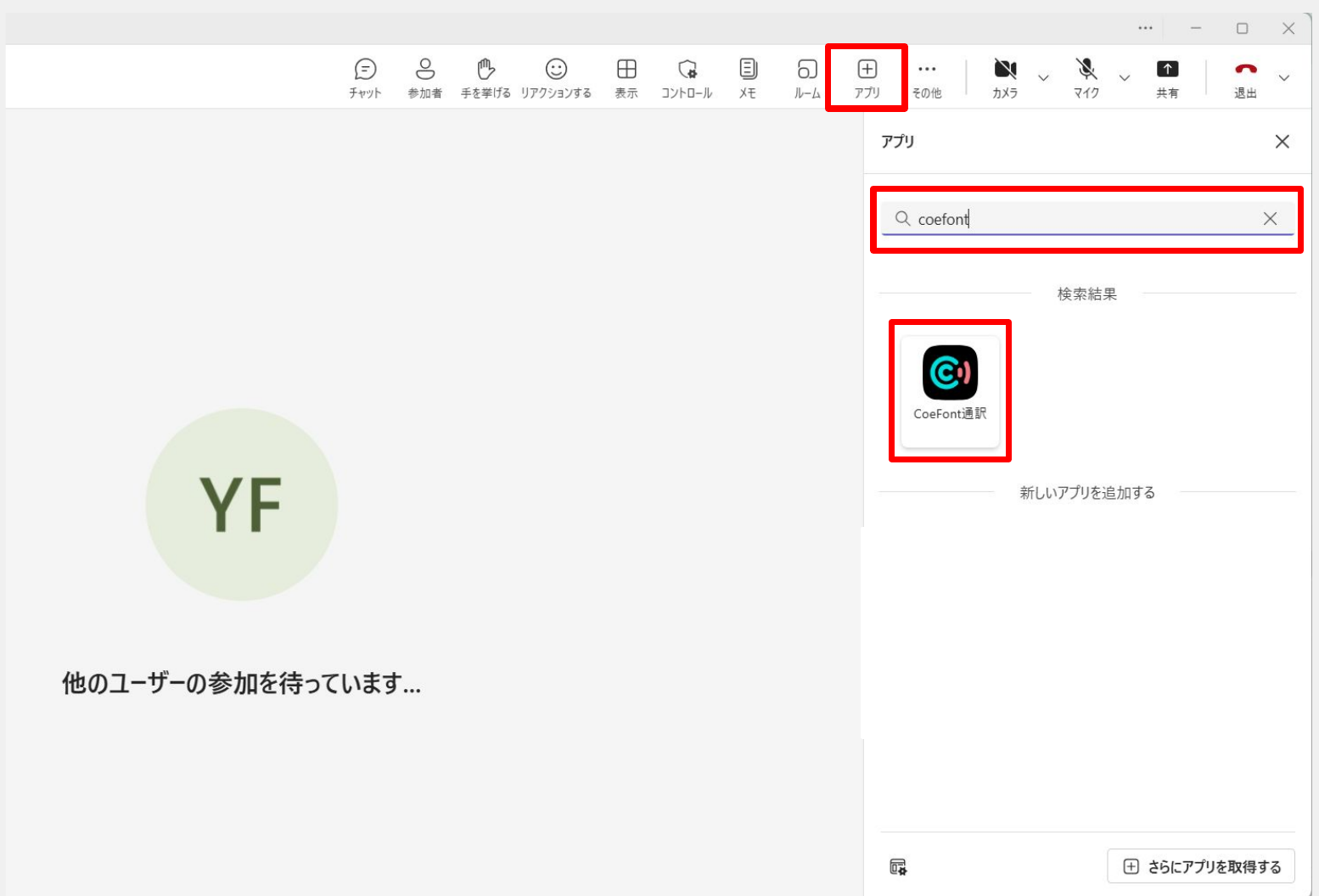
If "Another user has already added it" appears, another user has already added the CoeFont app to this meeting. Only the user who added the app can change the interpretation settings, so follow the steps in "Another user has already added it" appears in the Teams Plugin to uninstall the app and add it again.
Setting the interpretation languages
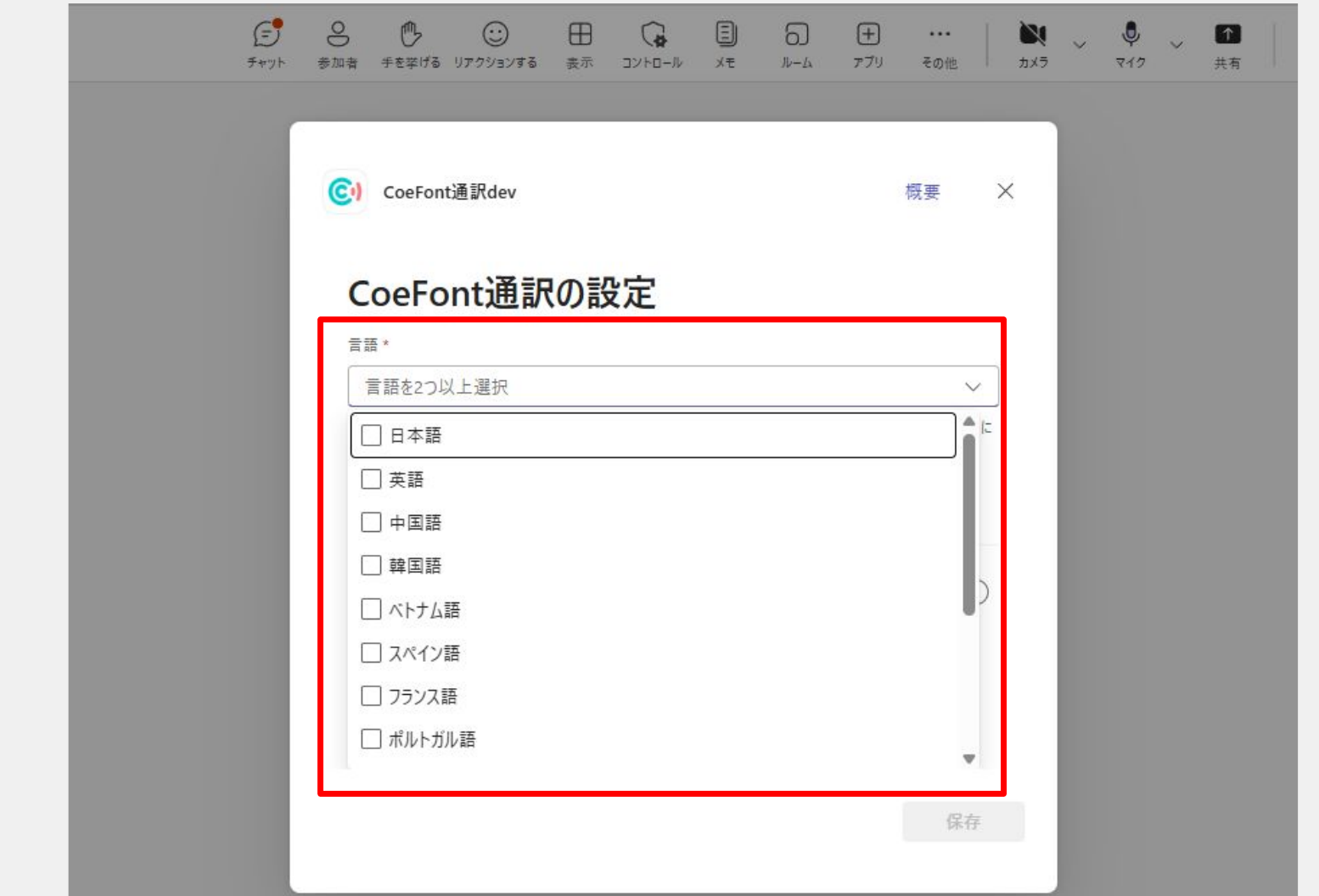
- In the "Language" drop-down, select the languages you want to use. The order of the two languages doesn't matter.
- If needed, turn on the "Wait longer before translating" toggle. The interpreter pauses before translating, so translations are more likely to take the surrounding context into account.
- Select "Save".
- In the meeting toolbar, select "CoeFont Interpreter".
- Select "Start interpreting".
Allowing CoeFont Interpreter to join
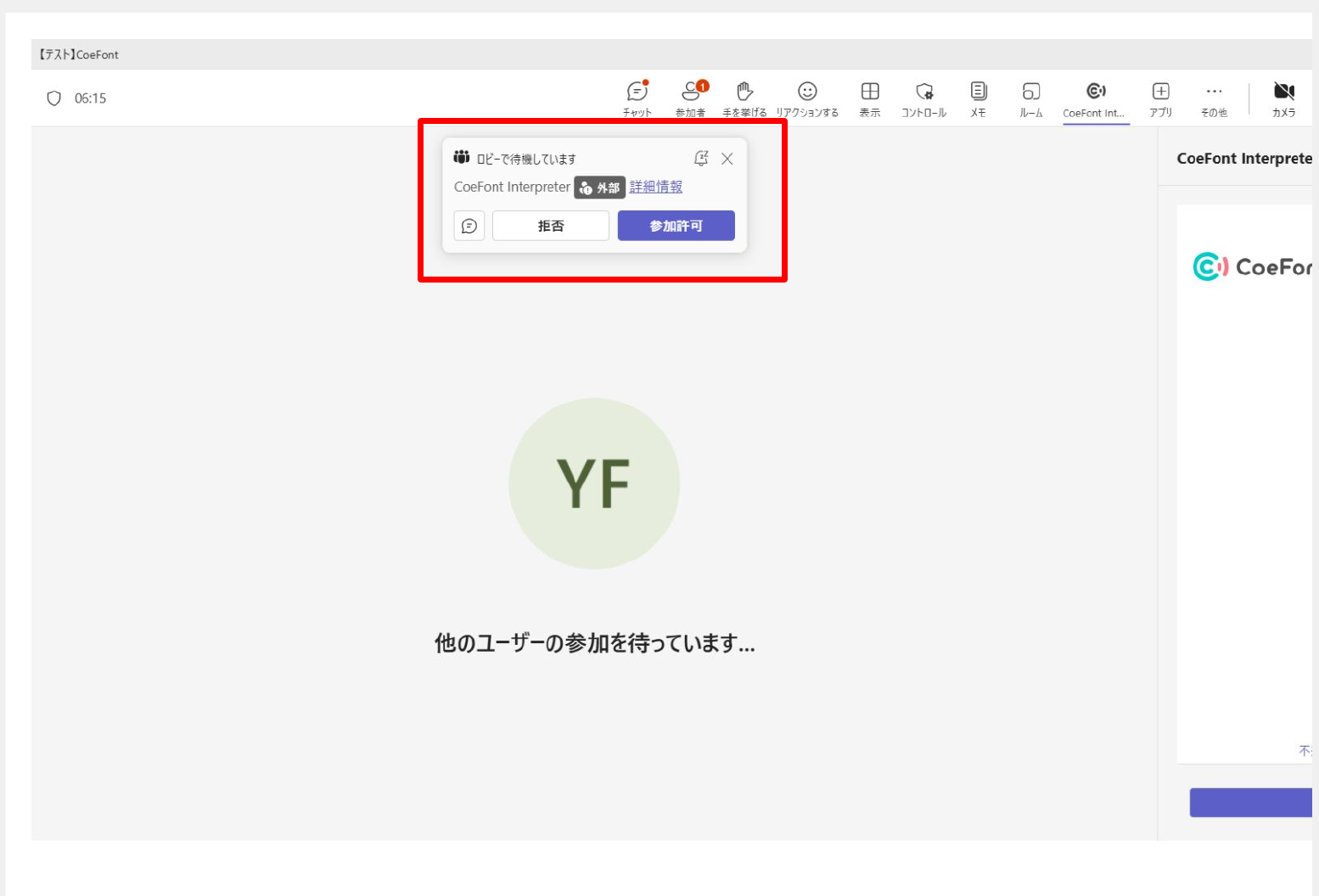
- After a few seconds, a notification that CoeFont Interpreter wants to join appears.
- Select "Allow".
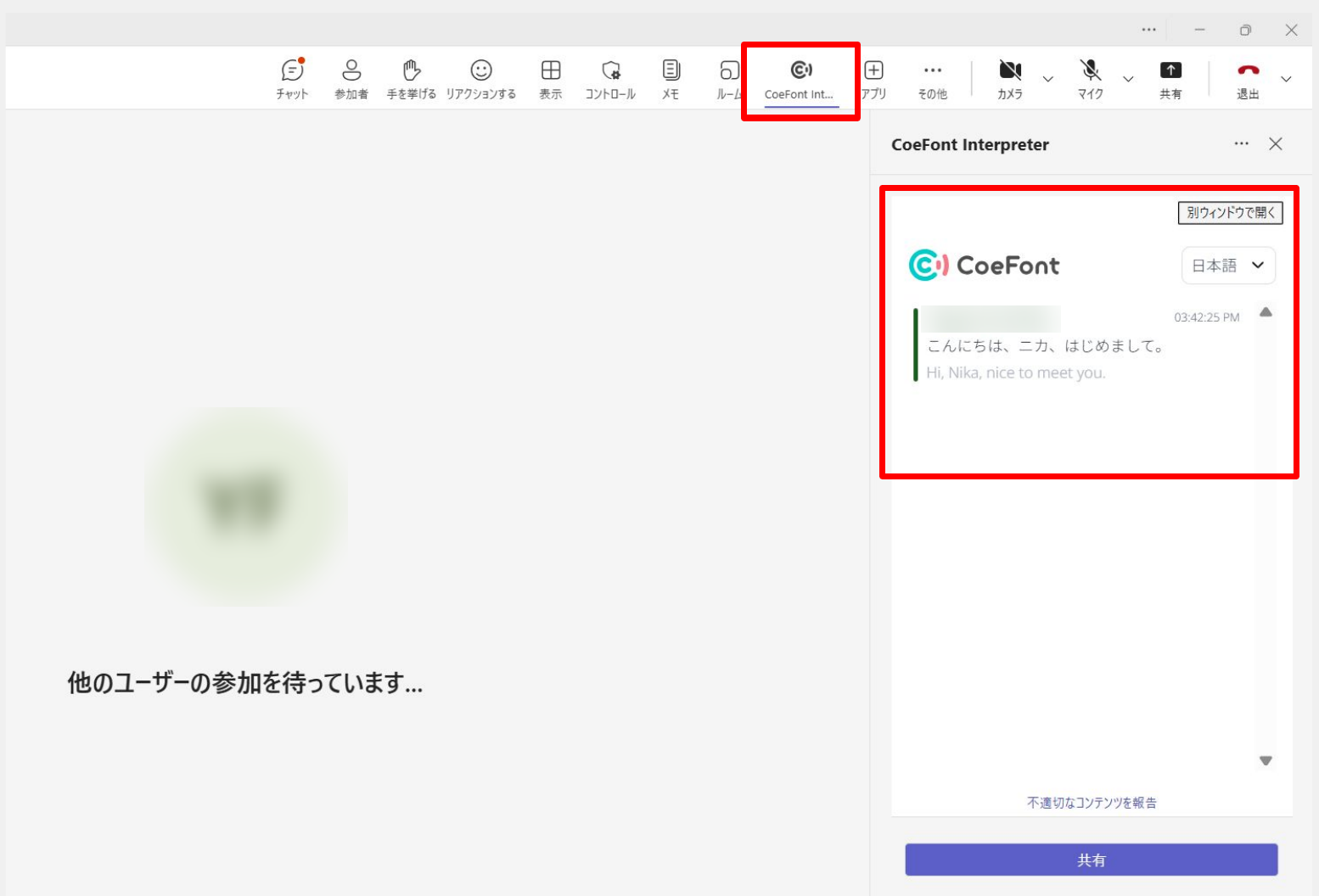
- In the meeting toolbar, select "CoeFont Interpreter". When translated text appears in the two languages you set, interpretation has started.
Adding the app before the meeting
Scheduling the meeting
Schedule the meeting the way you usually do, such as in Teams or Outlook. In Teams, select "New event", turn on the "Teams meeting" toggle, and save.
Adding the app from the calendar
- In the Teams calendar, open the meeting you created and edit it.
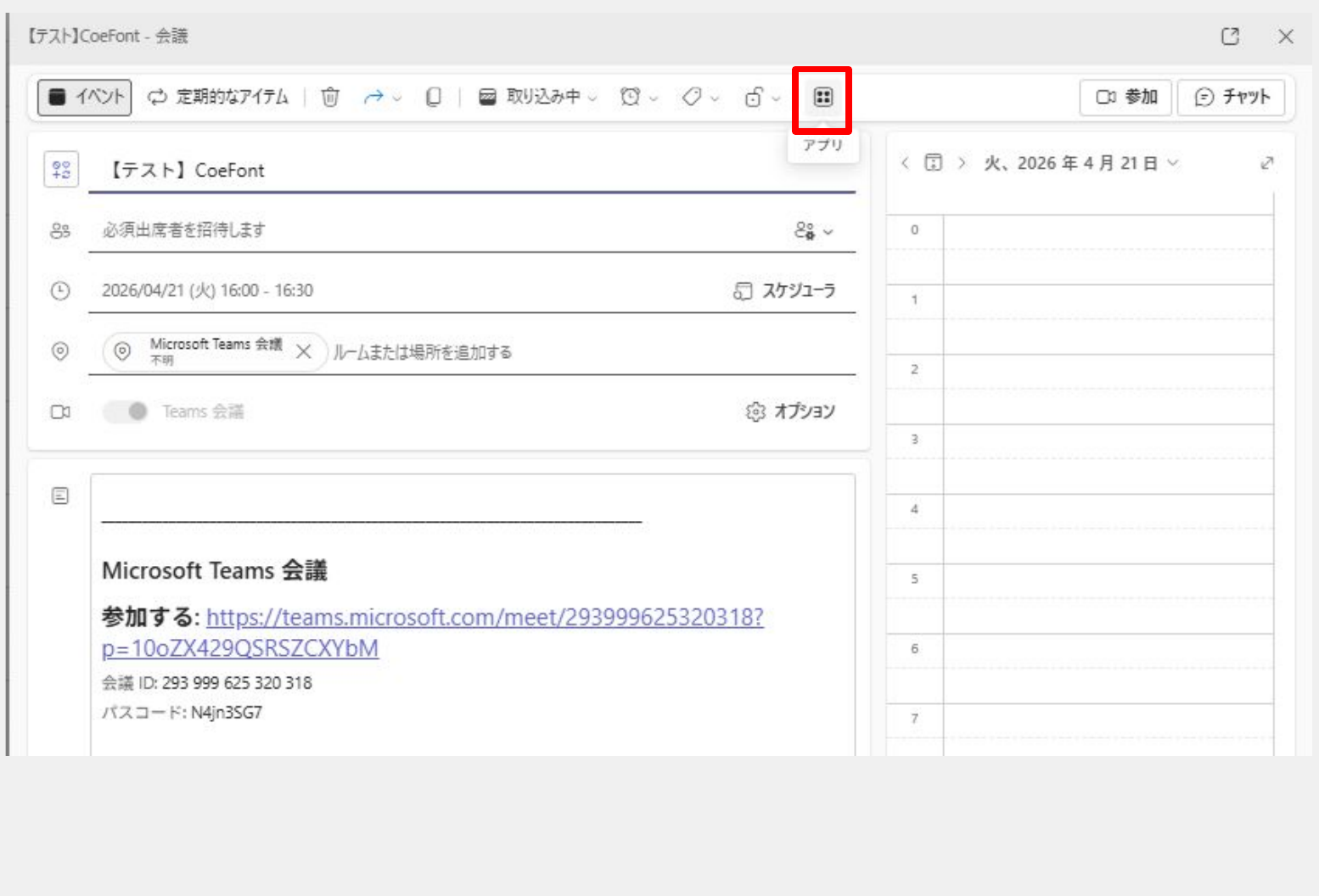
- In the toolbar, select "Apps".
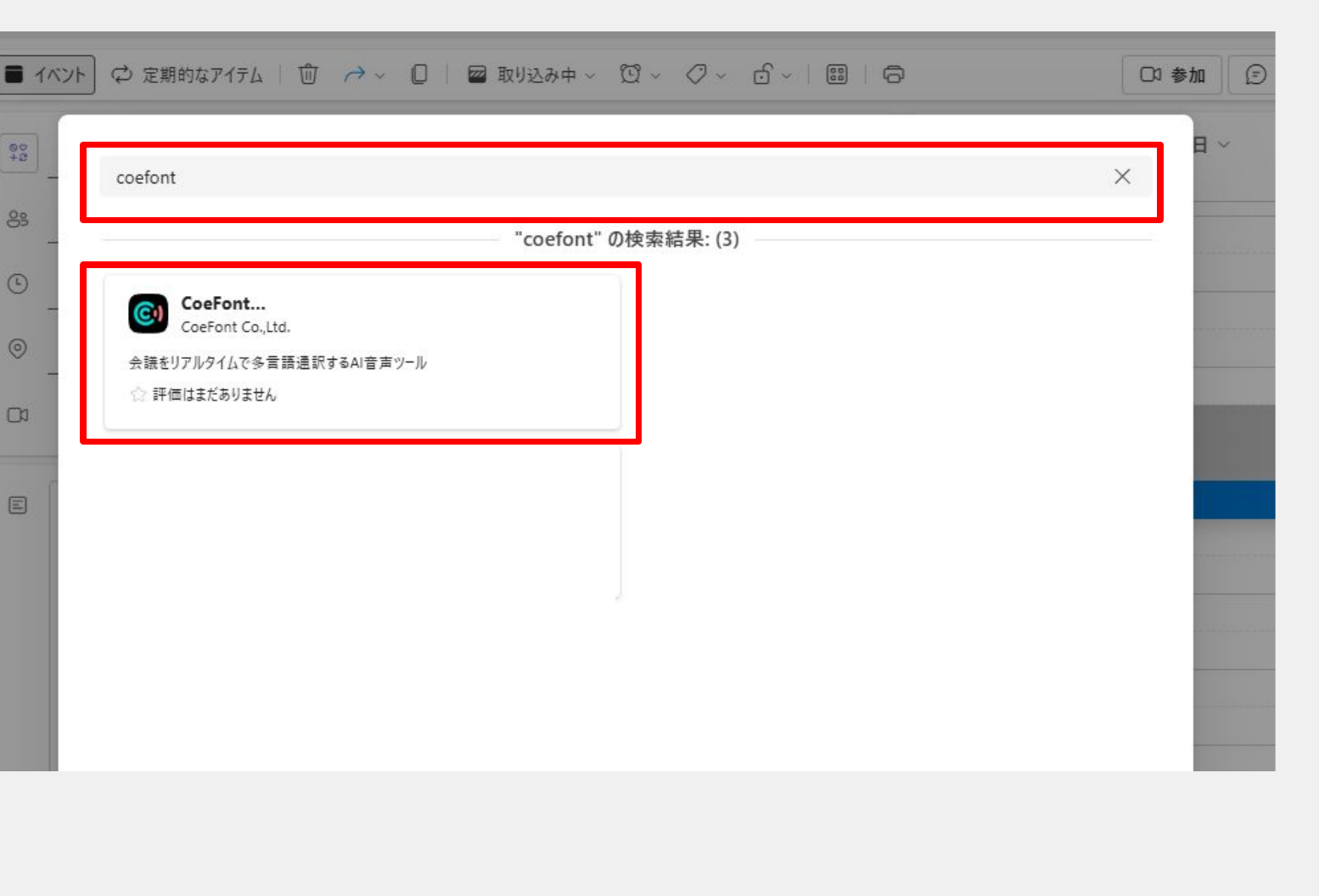
- Enter "CoeFont" in the search bar.
- Select "CoeFont Interpreter" from the results.
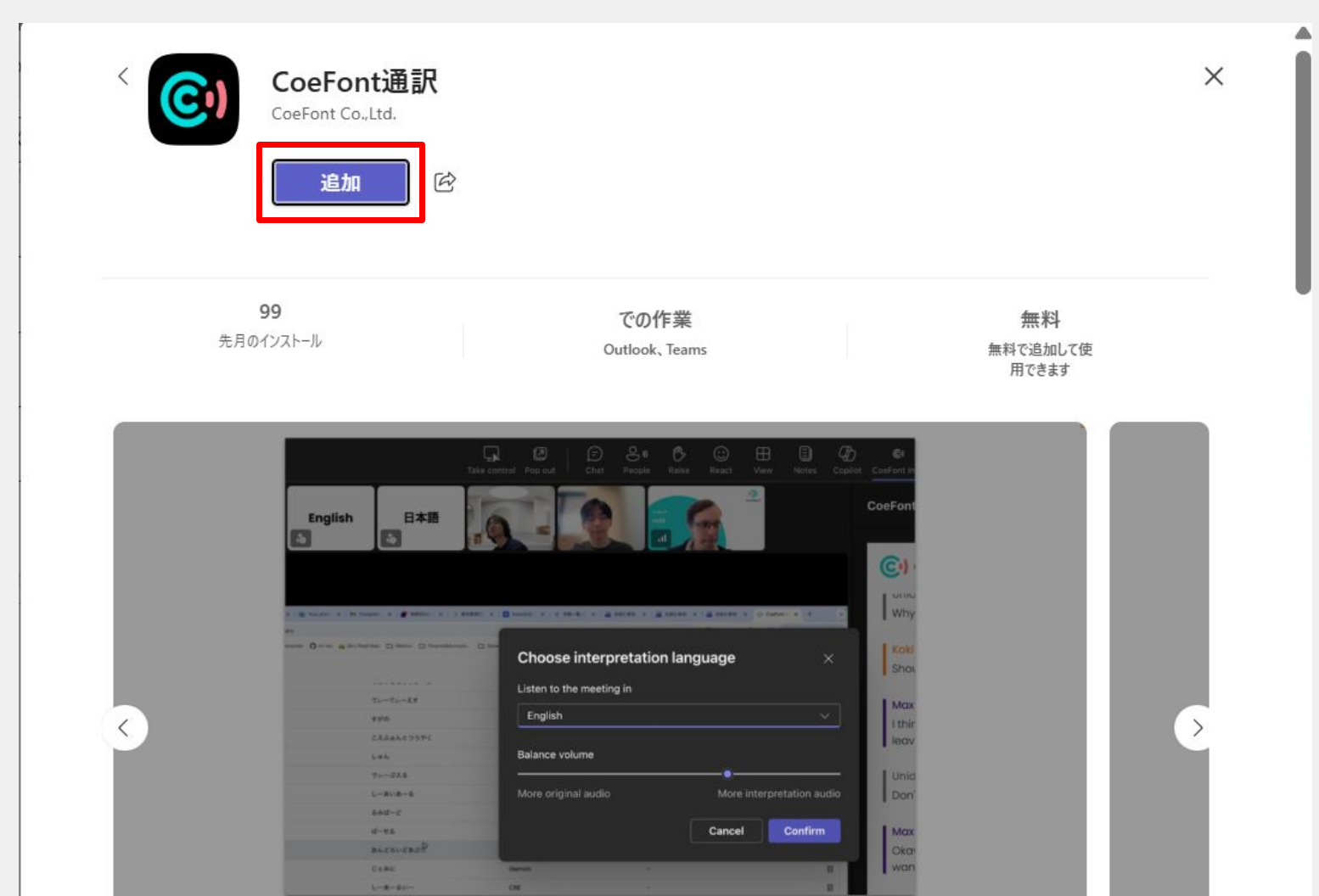
- Select "Add".
Setting the interpretation languages
- In the "Language" drop-down, select the languages you want to use.
- If needed, turn on the "Wait longer before translating" toggle.
- Select "Save".
Allowing CoeFont Interpreter to join
- When the meeting starts, join it.
- In the notification that CoeFont Interpreter wants to join, which appears after a few seconds, select "Allow".
- In the meeting toolbar, select "CoeFont Interpreter". When translated text appears in the two languages you set, interpretation has started.
Guiding participants to the translation screen
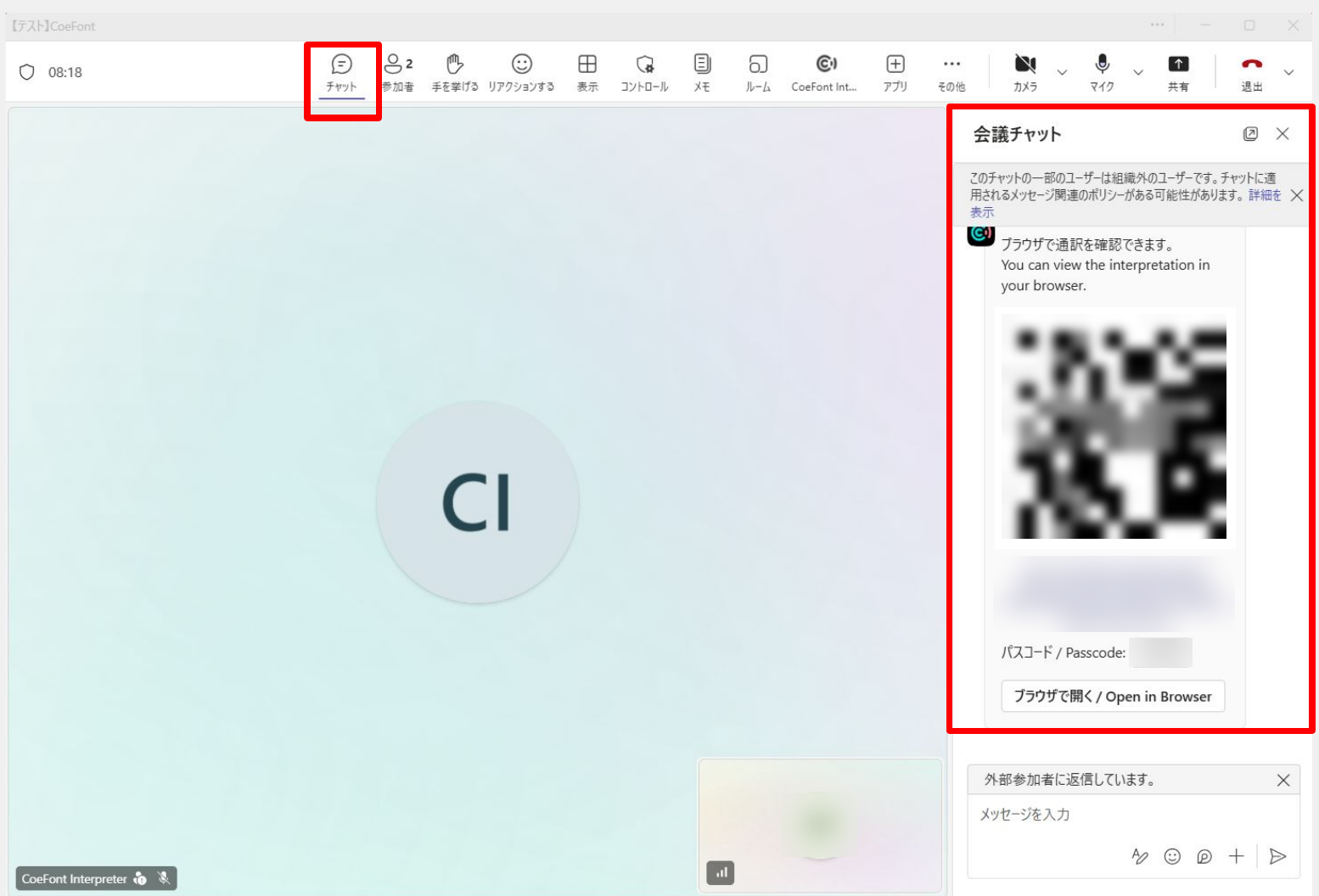
When CoeFont Interpreter joins the meeting, the QR code, URL, and passcode for the translation screen appear in the meeting chat. The organizer and participants (including guests) open the translation screen from there to use the interpreted audio and translated text.
- QR code: Scan it with a smartphone or tablet to open the translation screen
- URL: Open it in a PC browser for a larger view, or share it with other participants
For what participants do, see Listening to interpretation in a Teams meeting. To guide guests, share the URL of that page.
Default Mode doesn't have the Teams volume balance feature. To balance the original and interpreted audio, keep the Teams speaker volume low and set the translation screen volume to maximum. If you want finer control in the tool, consider Advanced Mode.