Listen to Interpretation in a Teams Meeting
Read this article when
- You joined a Teams meeting and want to hear interpreted audio or see translated text
- You don't know how to use the QR code or URL sent to the meeting chat
- You don't know how to set the Teams "Interpretation language"
- The interpreted audio plays twice
How you listen to interpretation depends on the mode the host has set.
- Default mode: Open the translation screen from the QR code or URL sent to the meeting chat and listen there.
- Advanced mode: Select an "Interpretation language" in Teams and listen inside Teams. If the "Live interpretation available" pop-up appears when you join the meeting, the meeting is in advanced mode.
If you don't know which mode is in use, ask the meeting host.
How to Listen
- Default mode
- Advanced mode
Open the Translation Screen
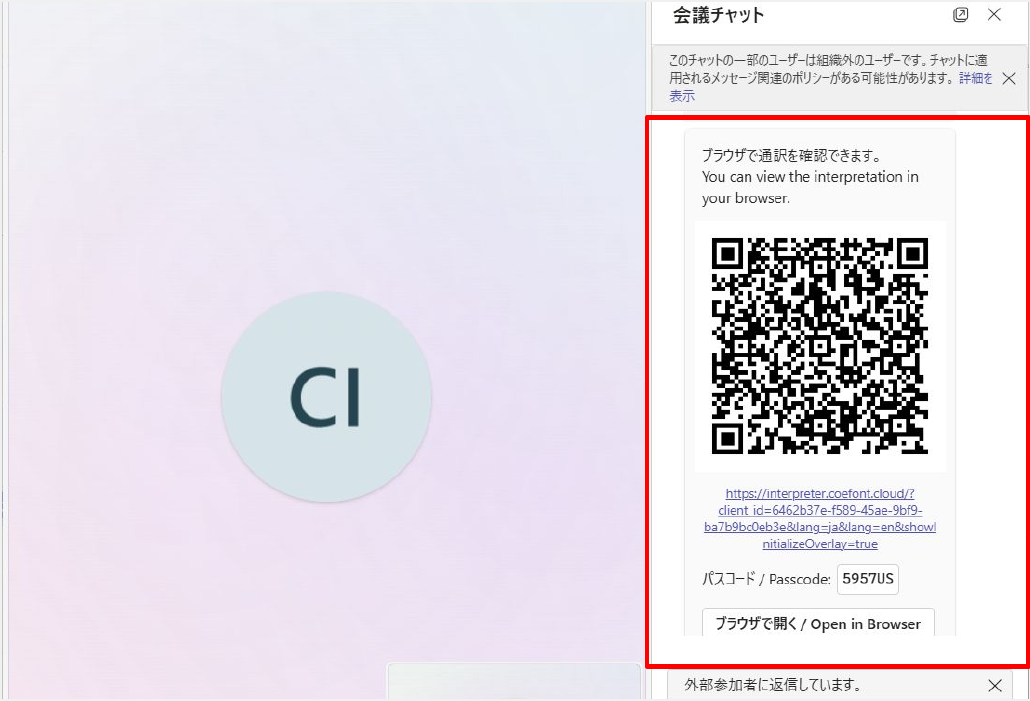
- Select "Chat" from the Teams meeting toolbar.
- From the notice shown in the meeting chat, open the translation screen in one of the following ways:
- QR code: Scan it with a smartphone or tablet to open it
- URL: Display it larger in a PC browser, or share it with other participants
- If you are asked for a passcode, enter the passcode shown in the meeting chat.
- On the start screen, select "Start with audio on" or "Start with text only".
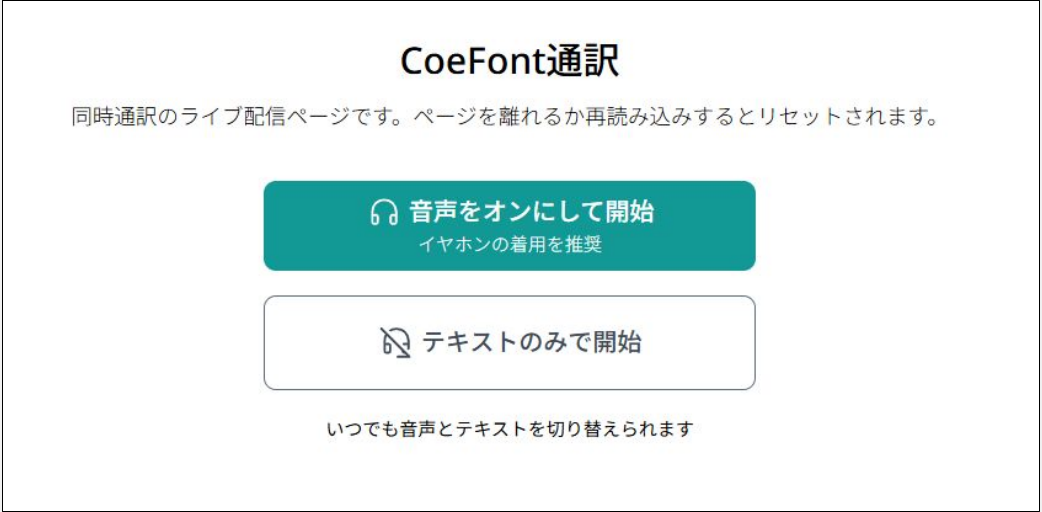
If you select "Start with audio on", you hear the interpreted audio in addition to the translated text. You can turn the audio on or off at any time while participating.
Choose the Language to Listen To
On the translation screen, select the language you want to listen to. On a smartphone, select the language at the top right of the screen.
- If you select English, you hear what was said in Japanese as English audio.
- If you select Japanese, you hear what was said in English as Japanese audio.
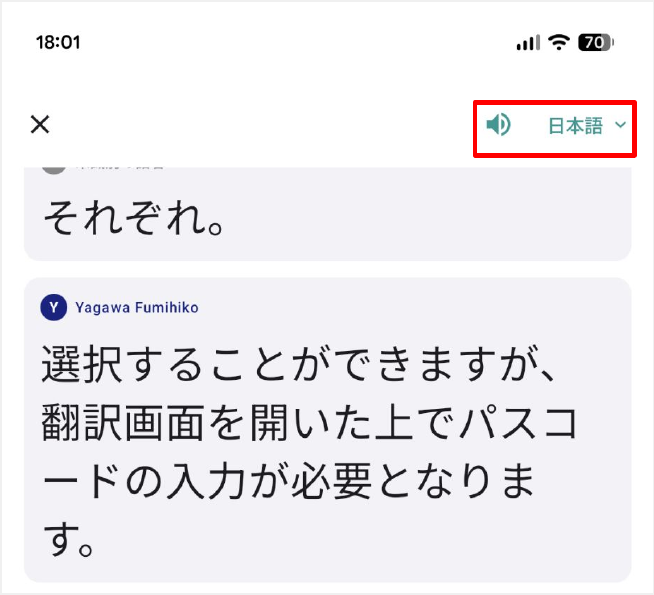
You can change the language even during the meeting. You can choose only from the languages set by the host.
For how to read the translation screen (Single, All, summary, volume), see Join with a shared URL or QR code.
In advanced mode, you can listen to interpretation entirely within Teams. If you also open the translation screen in a browser from the QR code or URL in the meeting chat, the interpreted audio plays twice.
However, if you are an external guest and your organization's policy prevents CoeFont Interpreter from appearing in Teams, open the translation screen from the meeting chat by following the steps in the "Default mode" tab.
Choose the Interpretation Language
When you join the meeting, the "Live interpretation available" pop-up appears. You can set the language from "Select interpretation language" in the pop-up, or by following these steps.
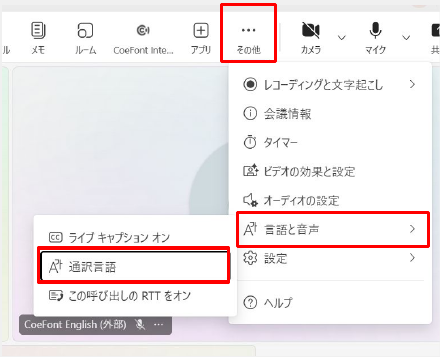
- Select "More" from the Teams meeting toolbar.
- Select "Language and speech".
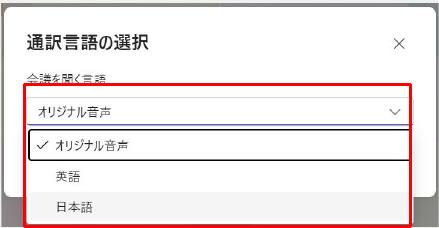
- Select "Interpretation language".
- Under "Language to listen to the meeting in", select the language you want to listen in (such as your native language).
Adjust the Volume Balance
- Use the "Balance volume" slider to adjust the volume balance between the original audio and the interpreted audio.
- Select "Confirm".
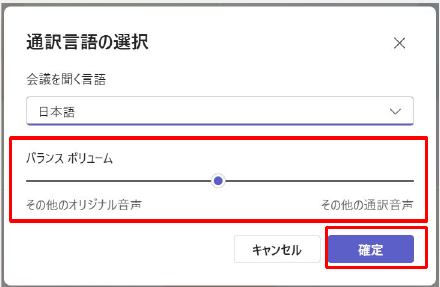
You can adjust the volume balance only in the Teams desktop app. You can't adjust it in Teams in a browser. To stop the interpreted audio, set "Language to listen to the meeting in" back to "Original audio".
Show the Translated Text
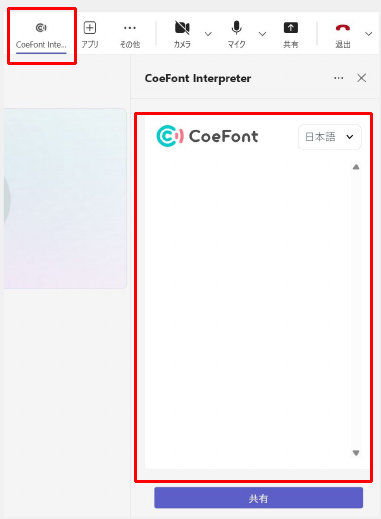
Select "CoeFont" at the top left of the toolbar to display the translated text.
In the Teams Mobile App
- Tap "…" at the top right of the meeting screen.
- Tap "Language settings".
- Tap "Listen to the meeting in".
- Select the language you want to listen in.
- When a confirmation banner appears, you are done.
To display the translated text, open "…" → "Apps" and select "CoeFont Interpreter".
Participants Who Can't Use Interpretation
Only the following users can open CoeFont Interpreter or select an interpretation language in Teams.
- Users who belong to the same Microsoft organization as the host
- Users who belong to a different Microsoft organization (including schools) from the host
- Users who have been added to a Microsoft organization as guests and added to the appropriate group in that organization (they must be logged in to that organization in Teams)
Users logged in with a personal Microsoft account, and users who join without logging in to a Microsoft account (anonymous participation), can't use it. In a default mode meeting, these participants can still open the translation screen from the QR code or URL in the meeting chat.
Use a headset or earphones to prevent feedback and audio loops. When you speak, use a moderate pace and pause between sentences to improve interpretation accuracy.
Handout for Guests
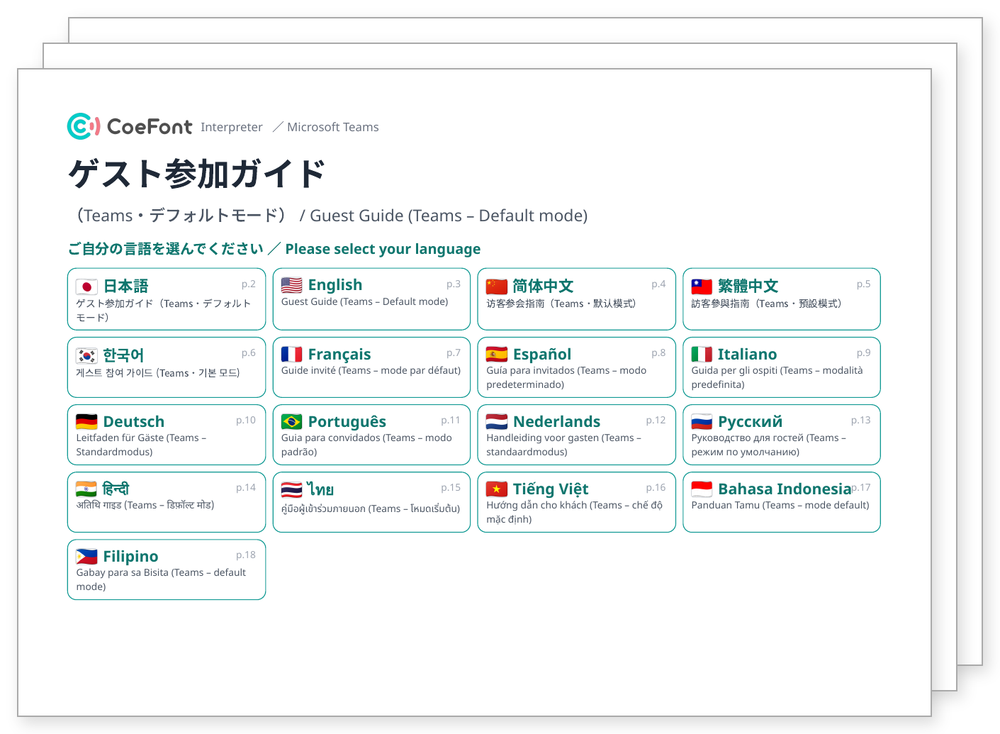
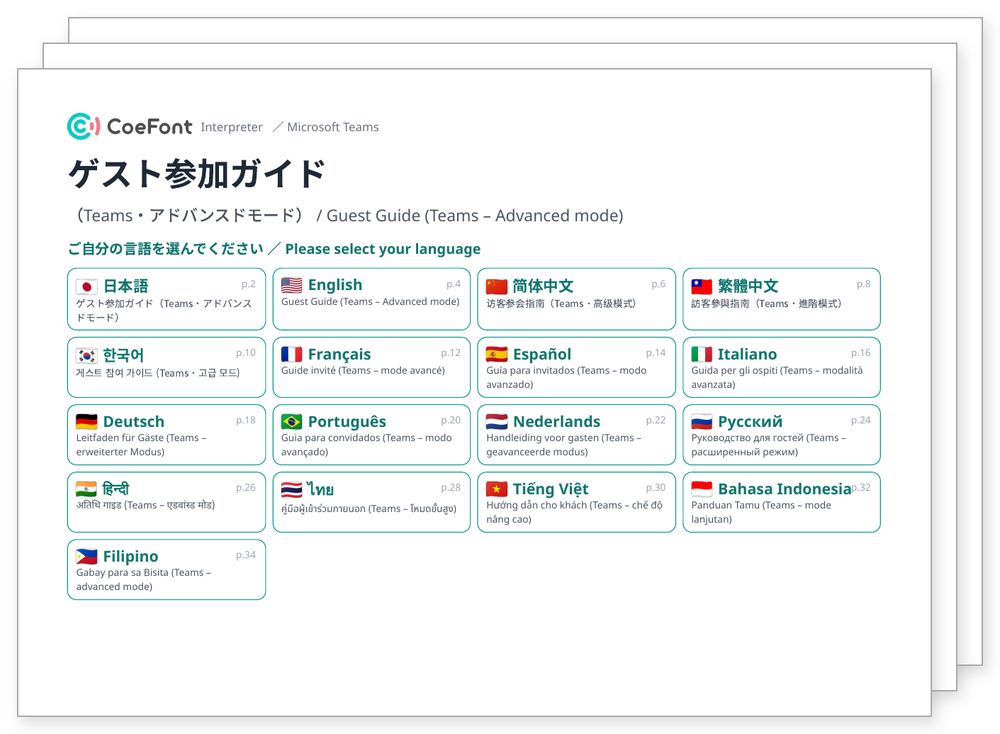
A one-page handout that covers how to join and how to read the screen. It is written in 17 languages, so you can hand it out to guests overseas. Use the PDF to hand it out as is, or the PPTX (PowerPoint) to add the meeting URL or QR code before handing it out. Choose the one that matches the mode the host has set.
- Guest Guide (Teams Plugin, default mode): PDF / PPTX
- Guest Guide (Teams Plugin, advanced mode): PDF / PPTX