Meeting Controls (Pause, Wait Time, Commands)
Read this article when
- Interpretation is split into very short segments, and you want it to translate longer passages
- You want to pause only the interpretation, for example during a break, while the meeting continues
- You want to know the difference between the "stop (
/stop)" command and "pause" - The organizer has left the meeting and you can't stop the interpretation
- You want to check or switch the account you're logged in with
Switching the wait time before translation (organizer only)
If interpretation feels too fragmented, turn on "Wait longer before translating". The interpreter takes in a little more speech before translating, so translations are more likely to take the surrounding context into account. It's especially effective for long explanations and conversations with a lot of technical terms.
Switching when setting up the meeting
- In the meeting toolbar, select "Apps".
- Select "CoeFont Interpreter".
- In the "Language" drop-down, select the languages you want to use.
- Turn on the "Wait longer before translating" toggle.
- Select "Save".
Switching during the meeting
You can also change the setting during the meeting. For example, use a longer wait for presentations and the default for Q&A.
- In the meeting toolbar, select "CoeFont Interpreter".
- Select "…" at the top right of the panel.
- Select "Settings".
- Turn on the "Wait longer before translating" toggle.
- Select "Save".
Pausing and resuming interpretation (organizer only)
- In the meeting toolbar, select "CoeFont Interpreter".
- At the top of the panel, select "Interpretation controls".
- Select "Pause interpretation".
- To resume, select "Resume interpretation" in the same place.
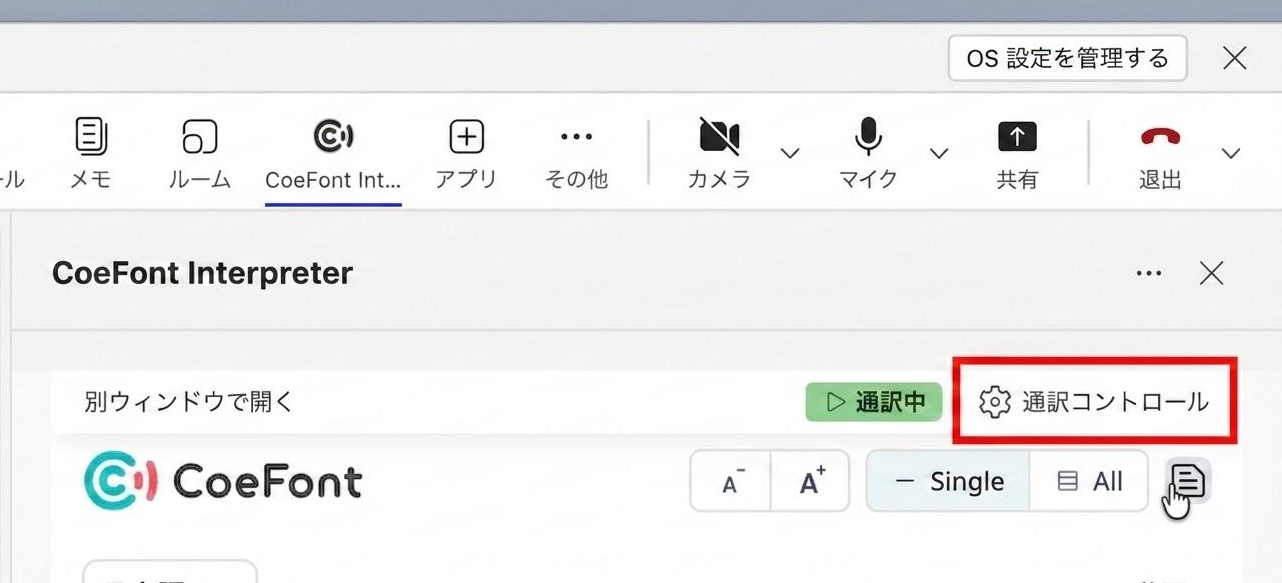
An "Interpreting" badge appears while interpretation is running, and a "Paused" badge appears while it's paused. The badge also appears in the meeting header, so all participants, including anonymous participants, can see the status.
When you pause, audio translation stops, but the bot stays in the meeting. Conversation during the pause isn't included in the minutes.
/stop)"The /stop command makes CoeFont Interpreter leave the meeting. Participants watching in a browser may need to reopen the translation screen. If you only want to stop temporarily, such as for a break, use pause.
Stopping and resuming interpretation with commands (organizers and participants)
Interpretation keeps running until the organizer stops it or ends the meeting. If the organizer has left the meeting and can't pause it, you can stop interpretation with a command in the meeting chat.
How to stop
- In the Teams meeting chat box, enter
@coefont. - Select "CoeFont Interpreter" from the suggestions.
- Then enter
/stopand send it. - When "Bot を停止しました。 / Bot stopped." appears and CoeFont Interpreter leaves the meeting, you're done.
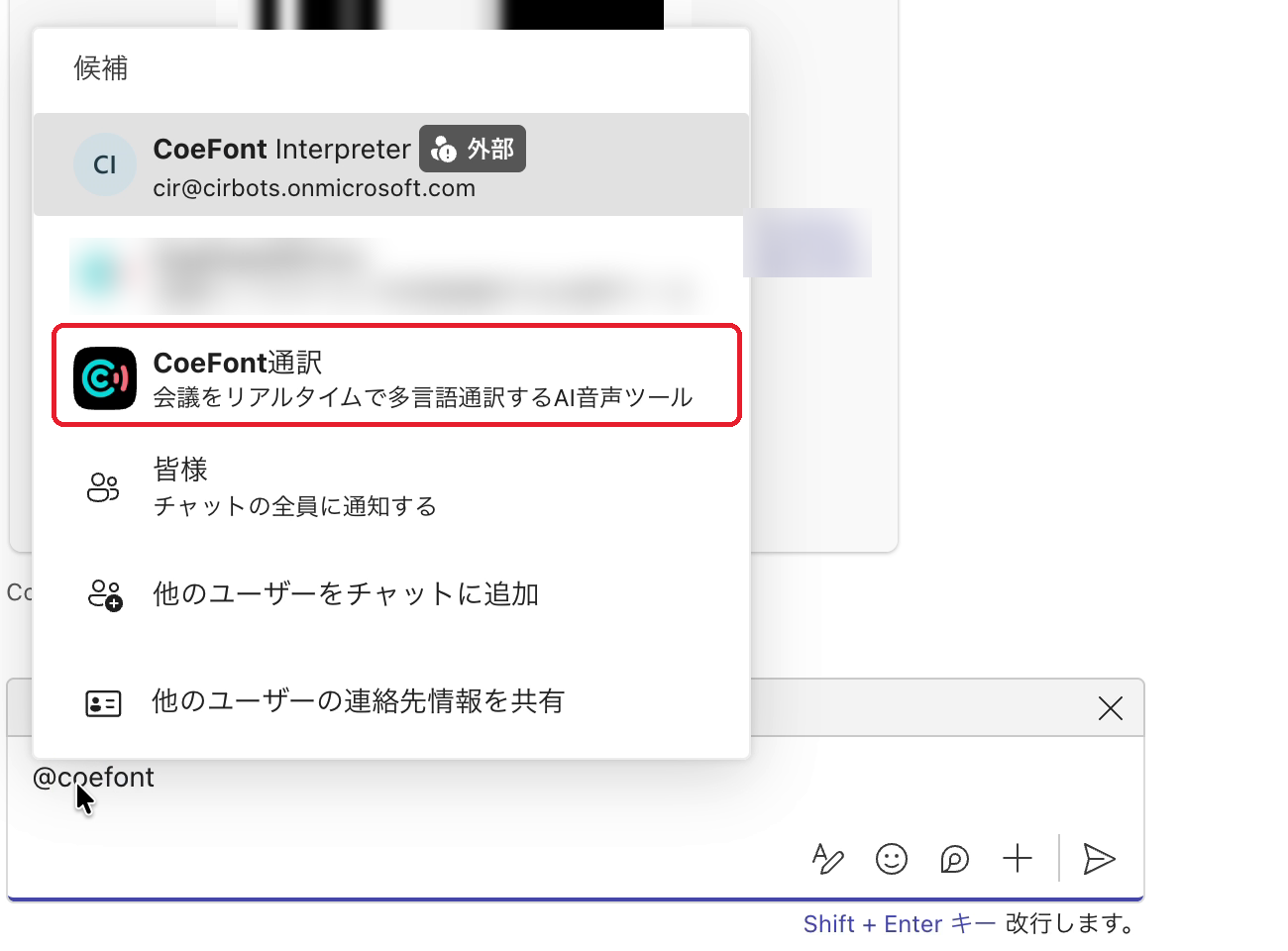
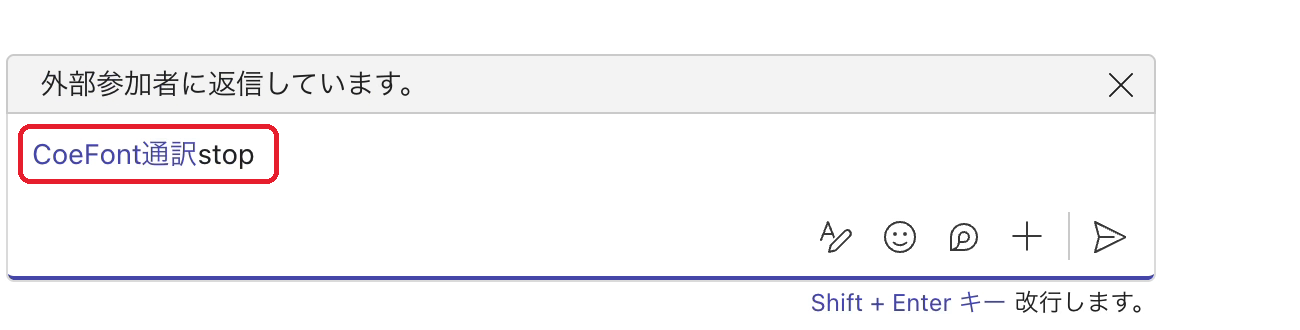
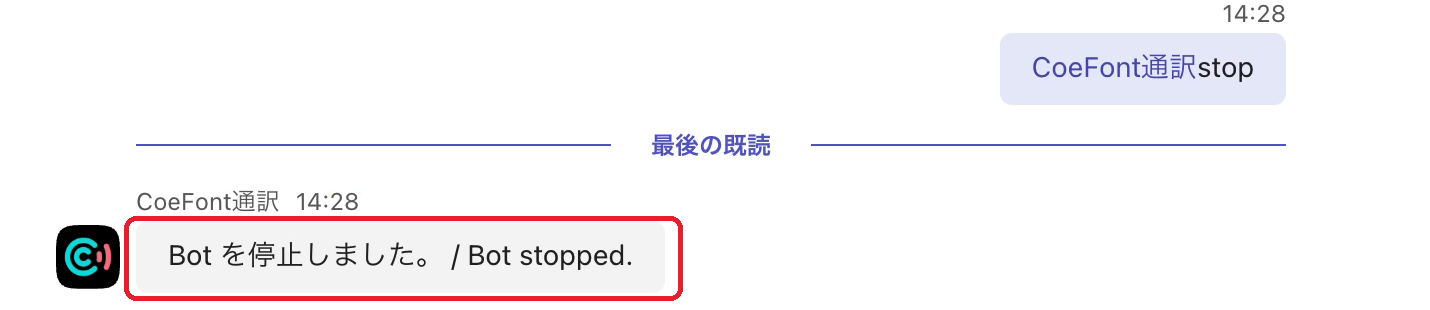
How to resume after stopping
- In the chat box, enter
@coefont. - Select "CoeFont Interpreter" from the suggestions.
- Then enter
/startand send it.
When you resume, a new QR code, URL, and passcode are issued for the translation screen. Ask participants who were watching in a browser or on a smartphone to reopen the screen using the new link and passcode resent to the chat.
Command list
In the meeting chat, enter @coefont, select "CoeFont Interpreter", and then enter one of the following commands.
| Command | Description | When you can use it |
|---|---|---|
/help | Show the list of commands | Anytime |
/check | Check the CoeFont Interpreter account you're logged in with | When the interpreter bot isn't in the meeting |
/login | Log in to CoeFont Interpreter | Anytime |
/logout | Log out of CoeFont Interpreter | Anytime |
/stop | Stop interpretation and make the interpreter bot leave the meeting | During the meeting only |
/start | Make the interpreter bot join the meeting and start interpretation | During the meeting only |
Checking and switching the logged-in account
Checking the account you're logged in with
- In the meeting chat, enter
@coefontand select "CoeFont Interpreter" from the suggestions. - Then enter
/checkand send it. - The email address of the logged-in account appears.
Switching accounts
- Stop interpretation by following the steps in "Stopping and resuming interpretation with commands".
- In the meeting chat, enter
@coefontand select "CoeFont Interpreter" from the suggestions. - Then enter
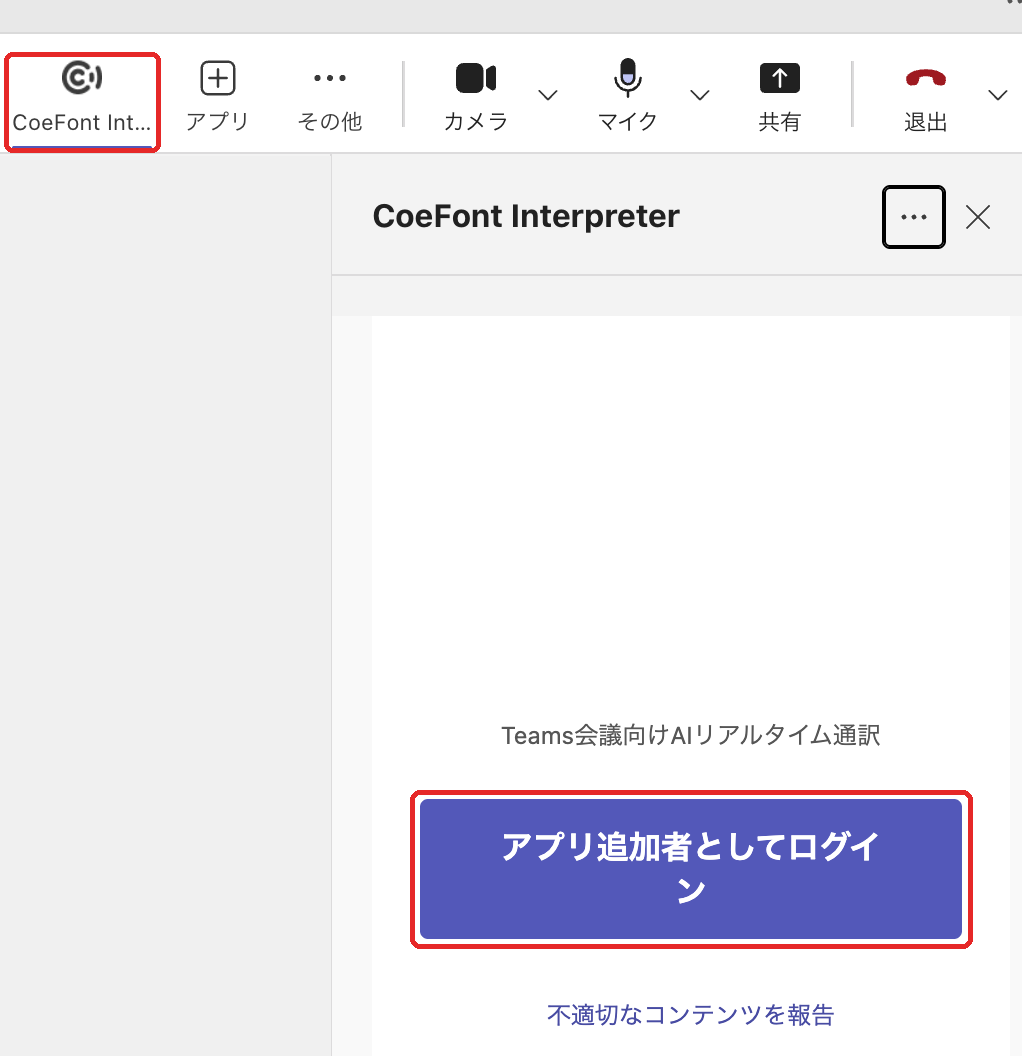
/logoutand send it. - In the meeting toolbar, select "CoeFont Interpreter".
- In the right-hand panel, select "Log in as the app installer".
- On the screen that appears, select or enter the account you want to use.
Log in from the "CoeFont Interpreter" panel in the toolbar, not with /login in the meeting chat.
If login information remains in your browser, you may be logged in automatically with the same account, without the email address and password screen appearing. To switch to a different account, log out in the browser or use a private window. If it still doesn't switch, contact us through the contact form.