This page was machine-translated from the Japanese original and may contain unnatural wording or errors. View the Japanese page
Set up your microphone and speaker before interpreting
Read this article when
- You're hosting an interpretation for the first time and want to know what to prepare in advance
- You want to know how to set up earphones or a meeting room's microphone and speaker
- You want to prevent feedback (noise) and audio loops
Whichever app you use, check your PC's sound settings before joining the meeting when you host (run) an interpretation. The content of this page applies to the browser version, the desktop app and the Teams Plugin.
Microphone and speaker settings
Set the microphone and speaker in your PC's sound settings (Settings > System > Sound on Windows, System Settings > Sound on Mac).
- If you use earphones (a headset): Set both the microphone and the speaker to the earphones you're using.
- If you use the meeting room's microphone and speaker: Set the microphone and speaker to the equipment installed in the meeting room.
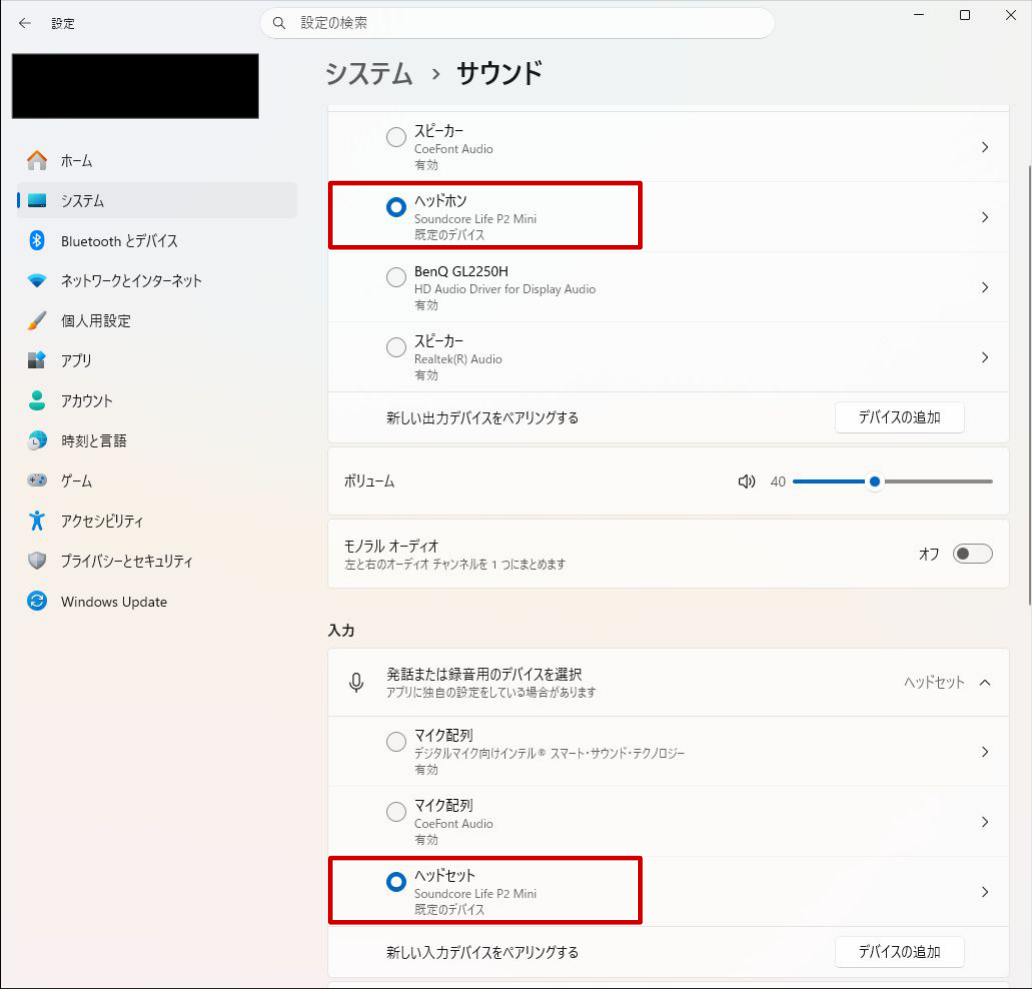
Don't use your PC's built-in microphone and speaker
If you use your PC's built-in microphone and speaker, feedback is likely to occur and interpretation accuracy tends to drop. Use external earphones, or the meeting room's microphone and speaker.
Both the host and participants should use earphones when listening to the interpreted audio. This prevents an audio loop in which the interpreted audio is interpreted again.
Additional settings for each app
- Using the browser version with Teams on Windows: Set the speaker in Teams and the speaker in Windows sound settings to the same device. For details, see "Checking sound settings" in Controls during interpretation and sharing with participants (browser version).
- Using the desktop app with Teams on Windows: You need an additional setting that sets the Teams speaker to "CoeFont Audio". See Audio settings for using Teams (desktop app).
- Using a meeting room speakerphone (such as Jabra or Yamaha): The settings differ depending on the combination of how speech is picked up and how the interpreted audio is heard. See Use microphones and speakers in a meeting room.
Next steps
- Start interpreting in the browser version
- Interpret with the desktop app
- Teams Plugin overview and choosing a mode
Related information
Did this article solve your problem?