Audio Is Translated Twice
Read this article when
- The same content appears on two lines in the translated text
- Meeting participants' speech is translated repeatedly
- It happens when translated audio plays through speakers
- You are using your PC's built-in microphone and built-in speakers at the same time
- Multiple PCs have joined the same meeting
Cause
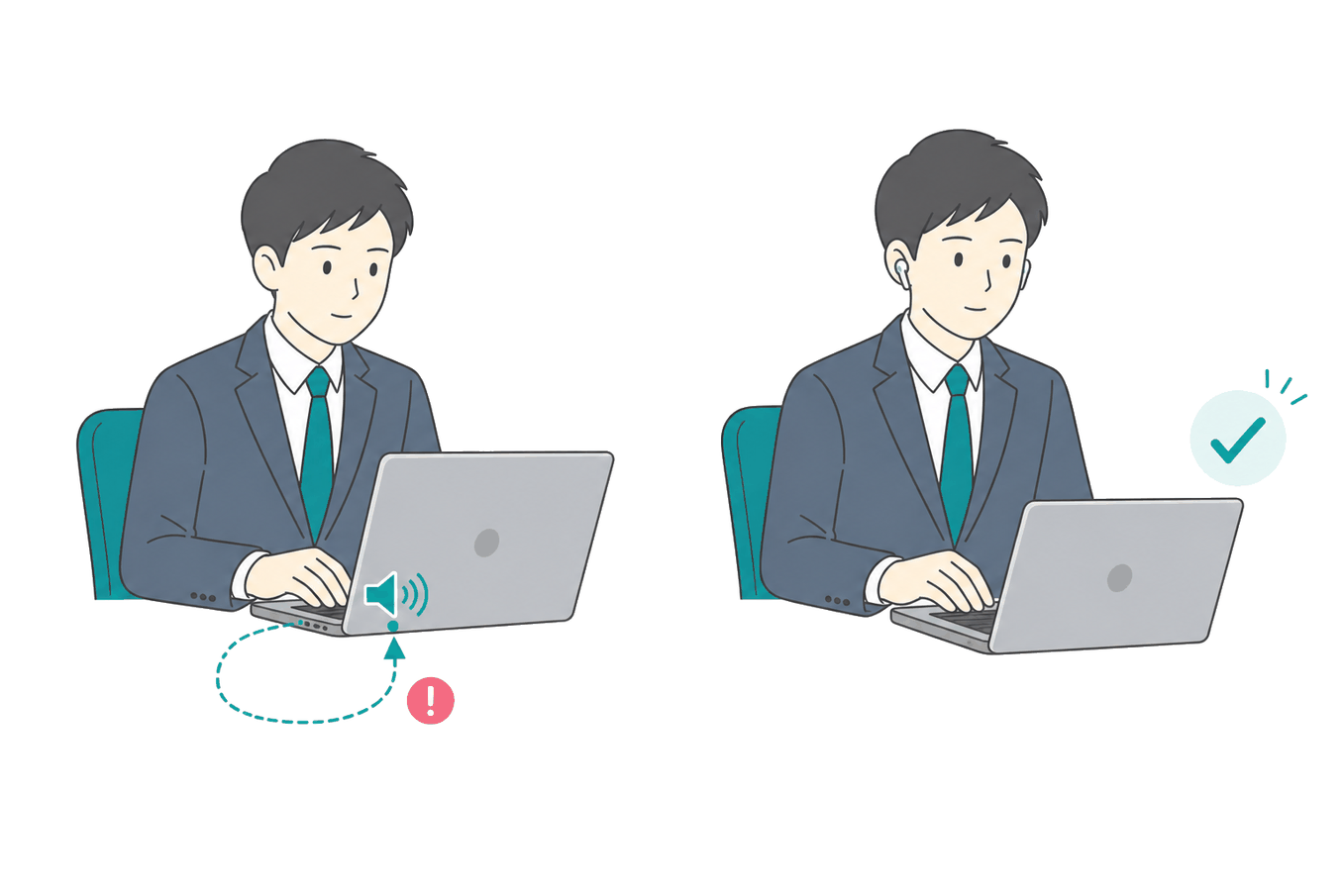
The left side shows double translation occurring because the microphone picks up the speaker's sound. The right side shows the problem resolved by listening with earphones.
The main cause is echo. The microphone picks up the translated audio played through the speakers, and CoeFont Interpreter translates it again as new speech.
Double translation is most likely in the following situations.
- You are using your PC's built-in microphone and built-in speakers at the same time (the most common situation)
- The meeting room speakers and microphone are connected separately and there is no echo cancellation
- Multiple PCs have joined the same meeting and each is sending audio input
- With the Teams Plugin, the translated audio plays from the speakers as meeting audio and enters the microphone
Solution
Identify the cause
- Check whether translated audio is playing through speakers.
- Check whether multiple PCs have joined the same meeting. If so, consolidate audio input onto one PC and mute the microphones on the others.
If multiple PCs have joined, consolidating input onto one PC often fixes the problem. If it does not, choose one of the following solutions to suit your environment.
Solution A: Use a speakerphone with echo cancellation (recommended)
- Prepare a speakerphone with echo cancellation (such as a Jabra).
- Connect the speakerphone to your PC.
- In CoeFont Interpreter's microphone settings, select the speakerphone you connected.
- If the audio is no longer translated twice when you play translated audio through the speakers, you are done.
In Advanced mode, translated audio goes through Teams' standard audio path. The speakerphone's echo cancellation then works, which greatly reduces double translation.
Solution B: Listen to translated audio with earphones
- Switch the output for translated audio from the speakers to earphones (wired or Bluetooth).
- Each participant listens to the translated audio with earphones.
- If sound from the speakers no longer enters the microphone and double translation stops, you are done.
Solution C: Run the meeting with text only
- Turn off CoeFont Interpreter's translated audio output.
- Run the meeting while reading the translated text on the screen.
No sound comes out of the speakers, so no echo occurs.
If the problem persists
Contact your CoeFont representative. Please include the following information.
- The app you use (desktop app / browser version / Teams Plugin)
- The model of the microphone and speakers you use
- The number of PCs in the same meeting