Meeting Audio Is Not Captured
Read this article when
- Other people's speech is not reflected in interpretation or transcription
- Your own voice is captured, but meeting participants' voices are not
- The transcription stays blank
Cause
Meeting audio is not reaching CoeFont Interpreter. The cause depends on how you use it.
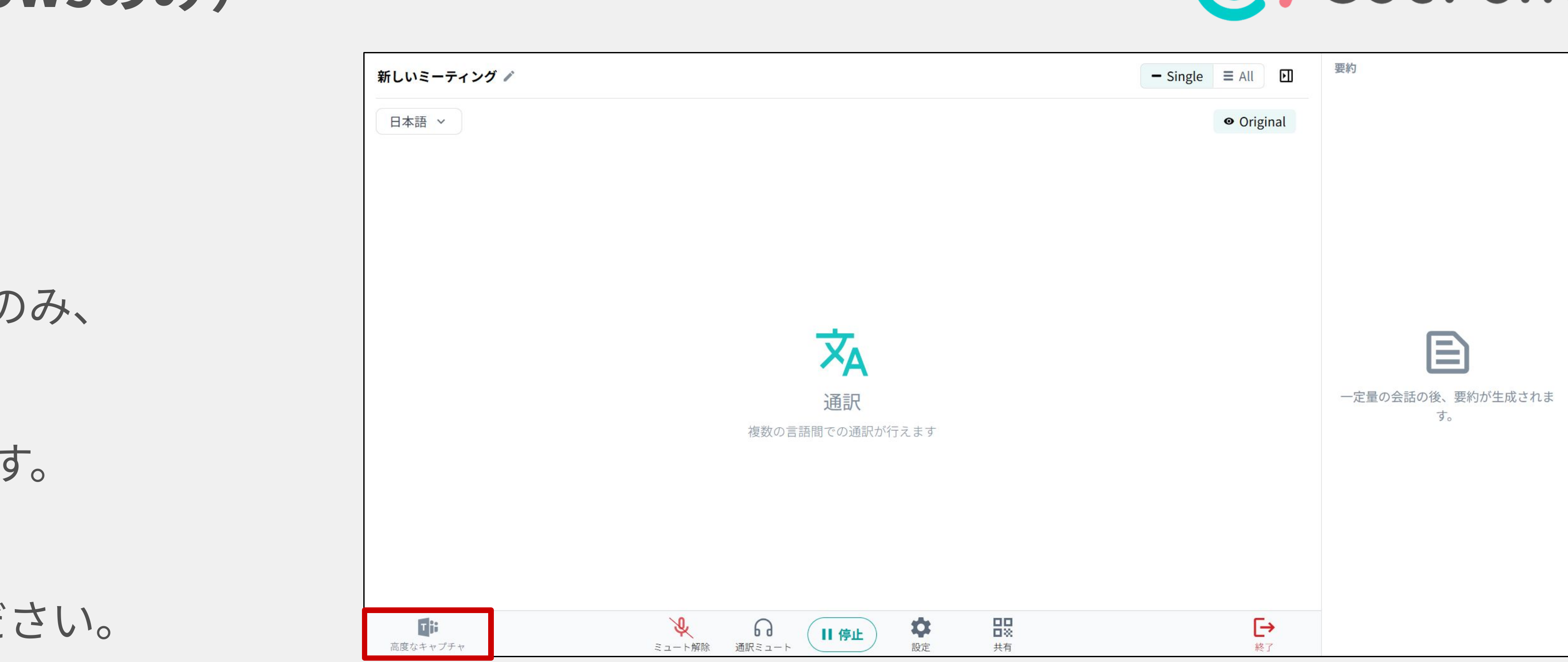
- Desktop app (Windows) with Teams: "Advanced capture" is off, or the Teams speaker is not set to "CoeFont Audio"
- Browser version: You are sharing a tab or window other than the meeting, or "Also share tab audio" is off, or the PC's speaker setting differs from the meeting tool's speaker setting
Solution
- Desktop app (Windows) with Teams
- Browser version
Turn on Advanced capture
- Open the interpretation screen in the desktop app.
- Check the Advanced capture button at the bottom left of the screen.
- If the button has no color (off), click it to turn it on.
Teams speaker settings
- Open Microsoft Teams.
- Open Devices in the settings.
- Change the speaker to CoeFont Audio.
- Rejoin the meeting. If the other person's voice appears in the transcription, you are done.
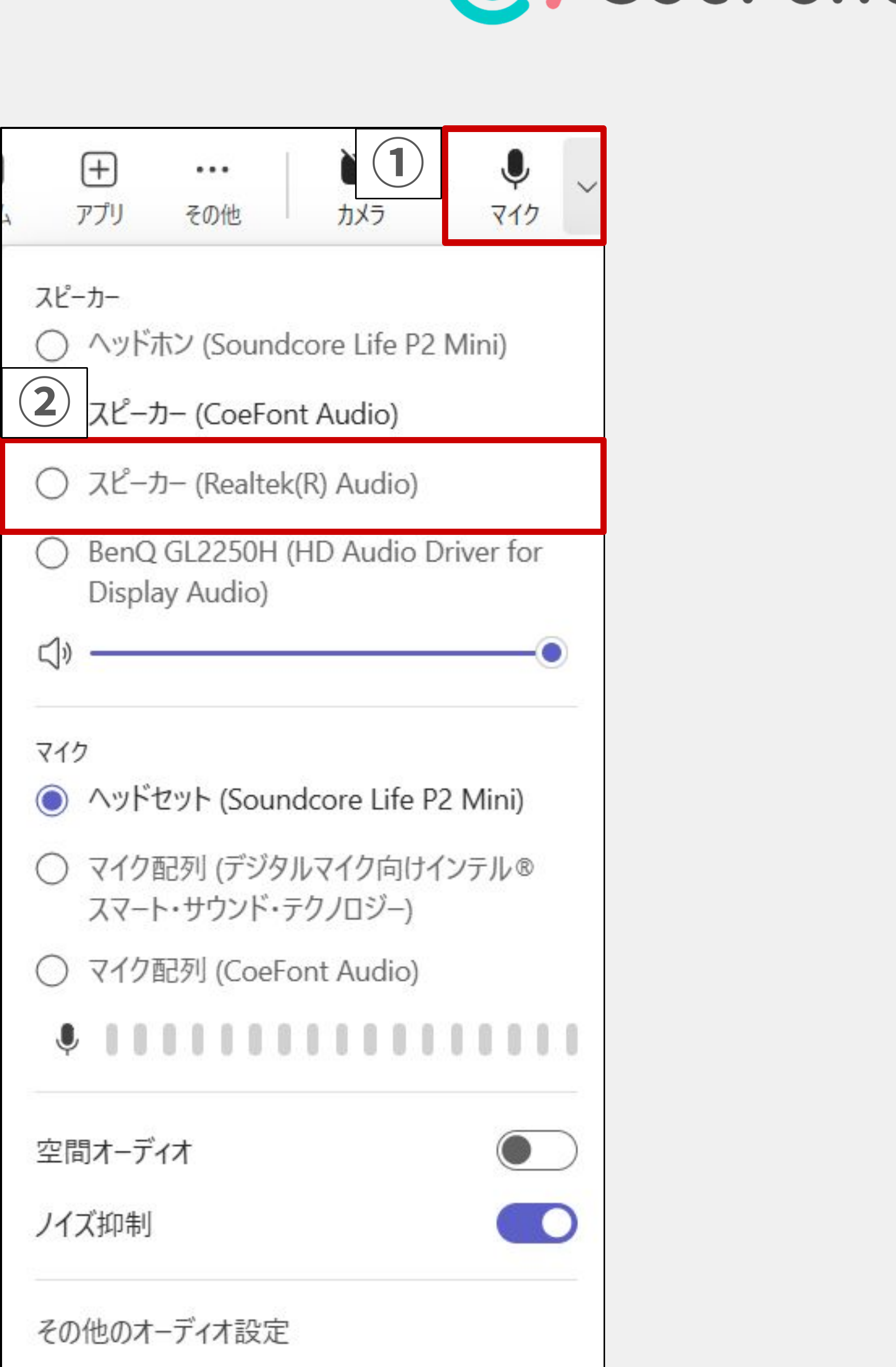
For details on the settings, see Audio Settings for Using Teams (Desktop App).
Share the meeting tab and turn on audio
- Start screen sharing on the interpretation screen in the browser version.
- From the list, select the tab or window where the meeting is open, or the entire screen.
- On the confirmation screen, turn on (blue) "Also share tab audio".
- Click Share with audio.
- If the other person's voice appears in the transcription, you are done.
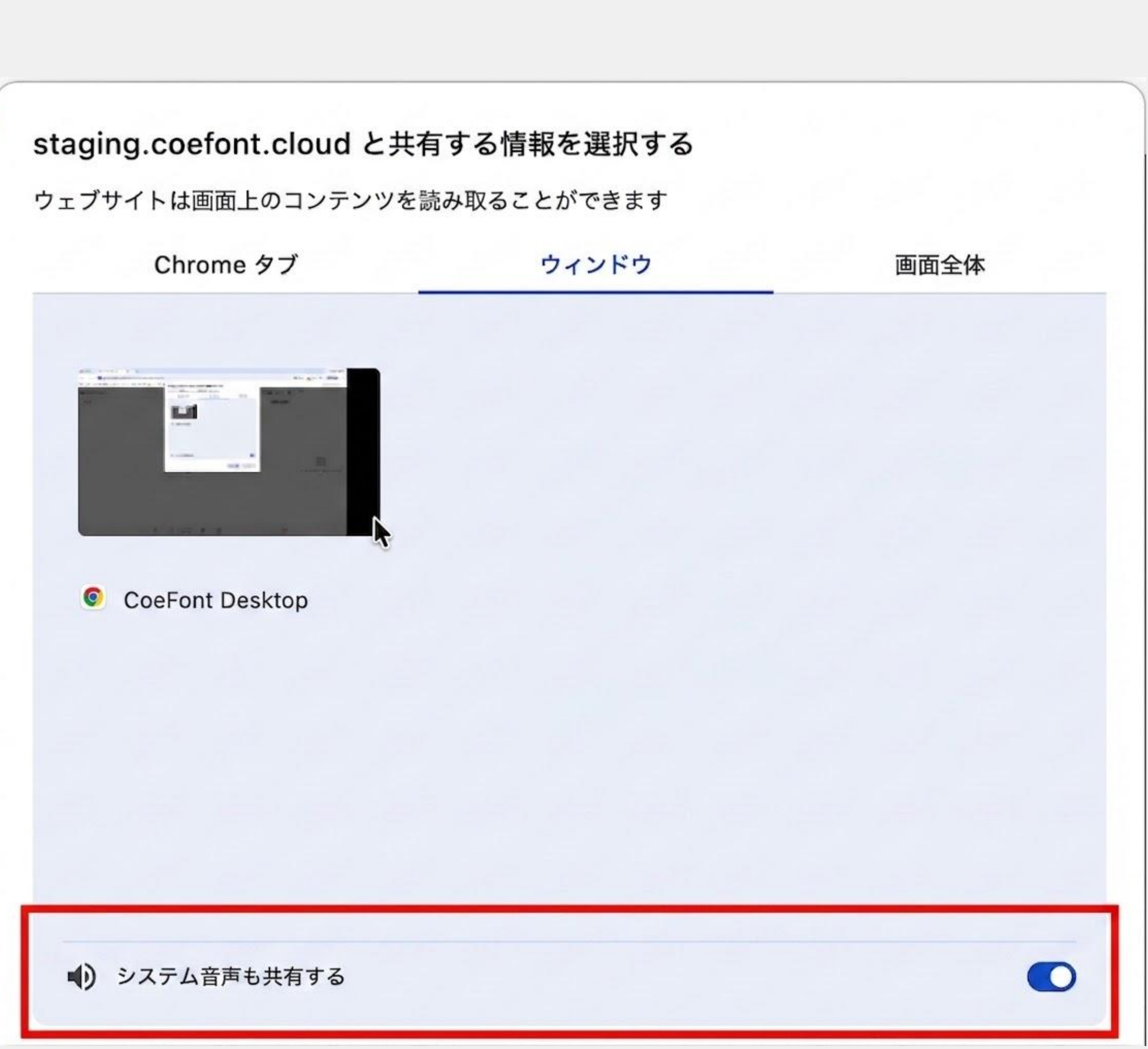
Even if you select the right tab, the other person's voice is not captured while "Also share tab audio" is off.
Align the sound settings of the PC, the meeting tool, and CoeFont Interpreter
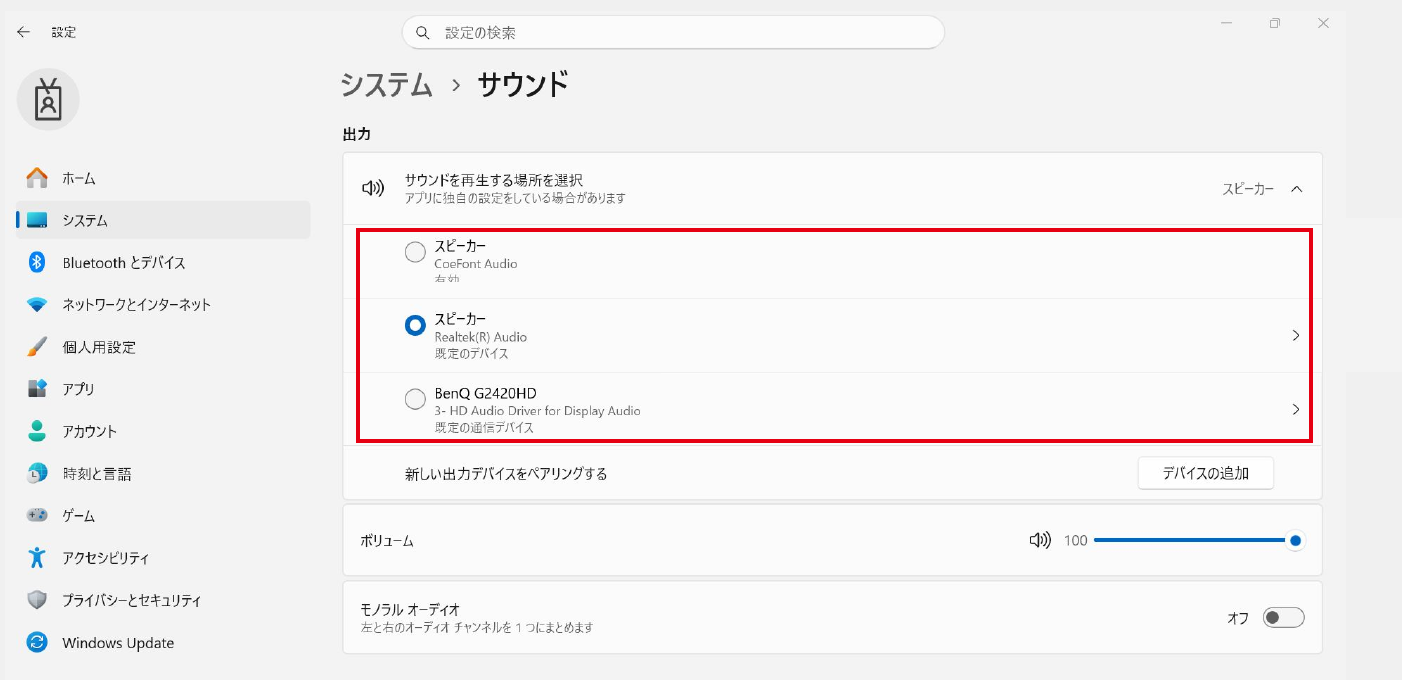
The browser version captures meeting audio from the device set as the PC's speaker. If you use a meeting room's audio equipment, a USB speakerphone, a headset, or similar, set the input and output of the following three places to the same device.
| Where to set it | Output (speaker) | Input (microphone) |
|---|---|---|
| PC (Windows) sound settings | The device used for the meeting | The device used for the meeting |
| Meeting tool (Teams, etc.) device settings | The device used for the meeting | The device used for the meeting |
| CoeFont Interpreter sound settings | The device used for the meeting | The device used for the meeting |
- Open Windows Settings → System → Sound, and change the output and input to the device used for the meeting.
- Open the meeting tool's device settings (in Teams, Settings → Devices; during a meeting, the "∨" next to the microphone icon) and set the speaker and microphone to the same device.
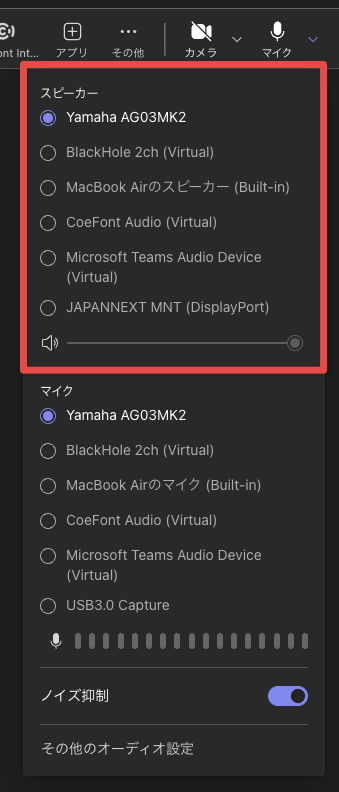
- In CoeFont Interpreter, open Settings → Sound at the bottom right of the interpretation screen and select the same device.
- After aligning the settings, stop interpretation once and restart screen sharing.
If audio is still not captured after these steps, screen capture itself may not have started. For troubleshooting in Google Chrome and the connection check, see Interpretation Does Not Start in the Browser Version.
If the problem persists
Contact us through the inquiry form. Please include the following information.
- The app you use (desktop app / browser version) and your OS
- The meeting tool you use (Teams / Zoom / Google Meet, etc.)
- The browser you use (for the browser version: Google Chrome / Microsoft Edge, etc.)
- How far you got through the steps on this page
- When the problem occurred