Interpretation Does Not Start in the Browser Version
Read this article when
- You selected the meeting tab or window when sharing your screen, but interpretation does not start
- Sharing seems to have completed, but the CoeFont Interpreter screen does not respond
- The symptom does not change even after you redo the sharing several times
Cause
There are three main causes.
- Screen capture fails to start in a browser other than Google Chrome (such as Microsoft Edge)
- You are sharing a different tab or window with a similar name
- "Also share tab audio" is off when you share
Running "Screen capture and microphone test" in the connection check shows whether screen capture itself is failing. For the steps, see Network Requirements and Connection Check.
Solution
Try the steps in order from the top. Once the problem is solved, you do not need the remaining steps.
Check in Google Chrome
If you use a browser other than Chrome, try Google Chrome first.
- Open Google Chrome and log in to CoeFont Interpreter in the browser.
- Share the meeting tab in the same way and check whether interpretation starts.
- If it starts in Chrome: The problem is specific to the browser you were using. Use Chrome.
- If it does not start in Chrome either: The cause is something other than the browser. Go to the next step.
If your company policy does not allow Chrome, you may be able to work around it in Edge by selecting the tab where Teams is open and turning on "Also share tab audio."
Select the meeting tab again
- Switch to the tab where the meeting is open and check that the meeting screen displays correctly.
- Go back to the interpretation screen in the browser version and stop sharing.
- Start screen sharing on the interpretation screen.
- From the list of tabs and windows to share, select the tab or window where the meeting is actually open. If several items have similar names, choose the one whose thumbnail shows the meeting screen.
Check "Also share tab audio"
- On the confirmation screen before you start sharing, check that the "Also share tab audio" toggle is on (blue).
- Click Share with audio.
- If the transcription starts appearing on the interpretation screen, you are done.
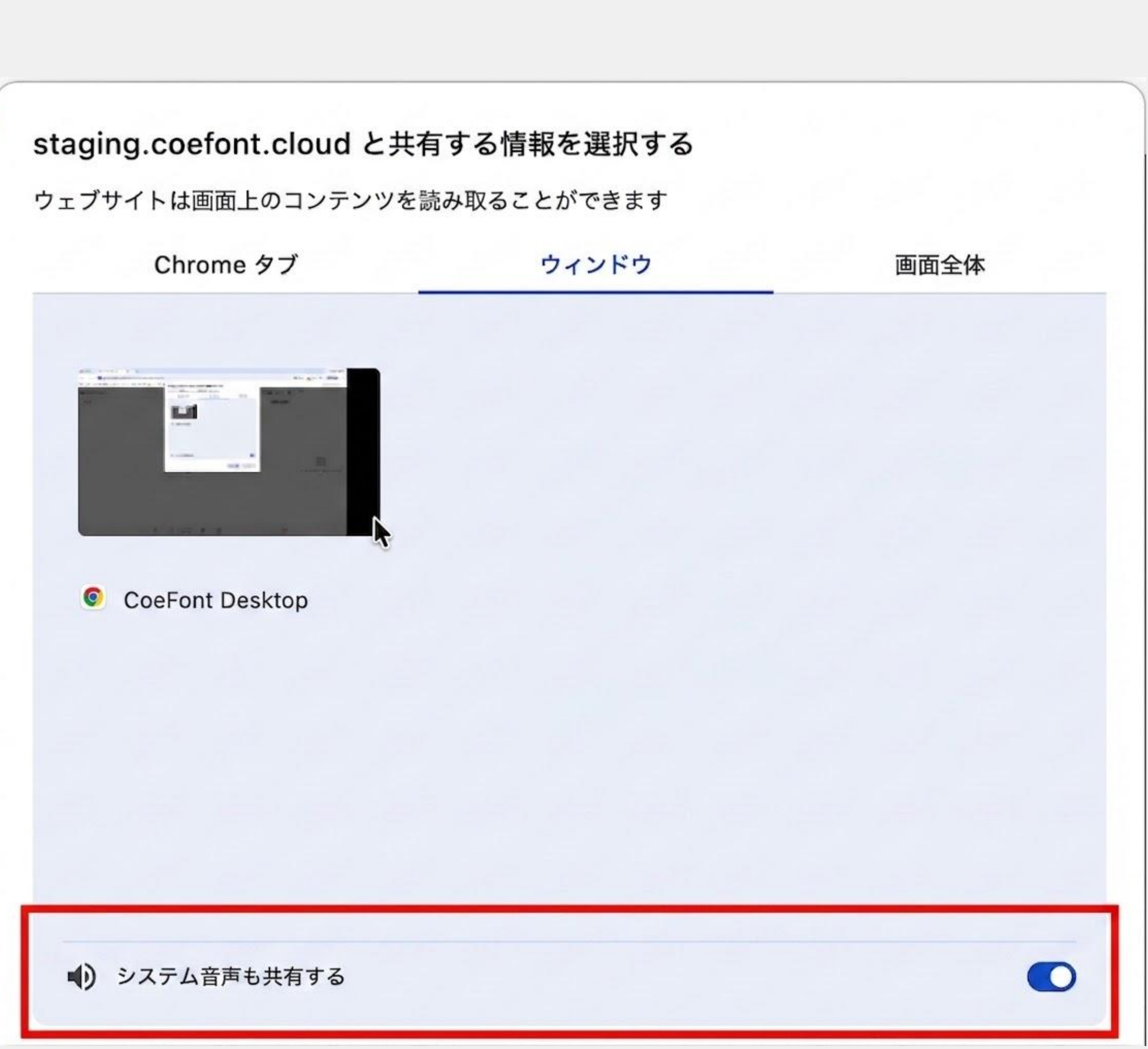
Even if you select the right tab, interpretation does not start while "Also share tab audio" is off. Check that it is on every time you share.
Restart the browser
- Quit the browser completely.
- Start the browser and join the meeting again.
- Redo the sharing by following Select the meeting tab again and Check "Also share tab audio".
If the problem persists
Contact us through the inquiry form. Please include the following information.
- Your OS and browser, and the version of each
- The result of trying Google Chrome
- The connection check result (if you ran it)