The Microphone Does Not Appear in the Browser Version
Read this article when
- The microphone you want to use does not appear in the sound settings
- The only microphone option is "Browser default microphone"
- You accidentally closed the prompt asking for microphone permission
- You connected a headset or similar device, but cannot select it as a microphone
Cause
The browser has not allowed CoeFont Interpreter to use the microphone. If you close the permission prompt without choosing an option, or close it several times in a row, the browser may block the microphone automatically and stop showing the prompt. On a Mac, microphone access for the browser may also be turned off in the computer's own settings.
Solution
The following steps are for Google Chrome.
Allow the microphone in the browser
- In CoeFont Interpreter in the browser, open the interpretation screen.
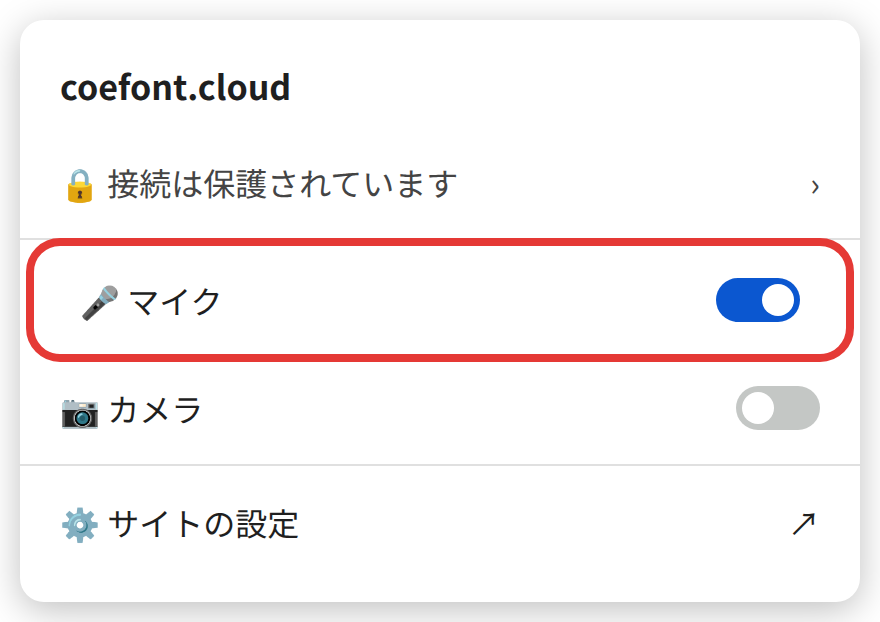
- Click the leftmost icon in the address bar at the top of the screen. Depending on your Chrome version, it appears as a horizontal line icon with sliders, or as a lock icon.

- In the menu that appears, turn on "Microphone." If you cannot find "Microphone," open Site settings and change "Microphone" to "Allow."
- Reload the page.
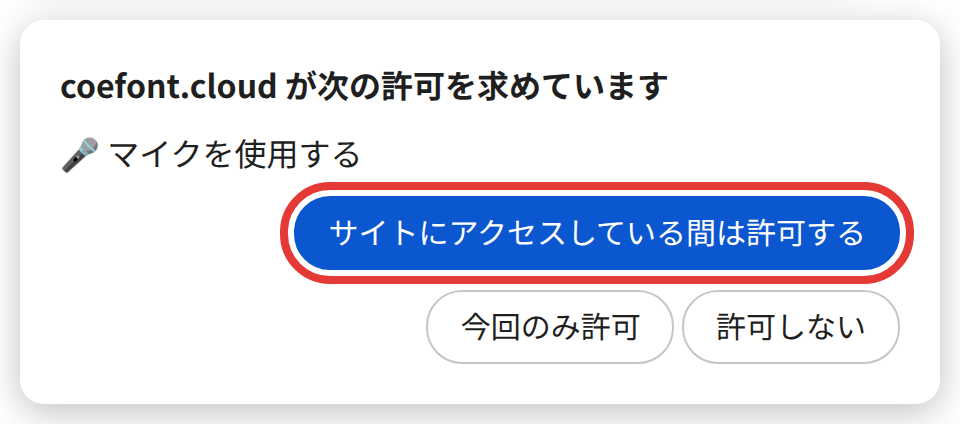
- When the prompt asking for permission to use the microphone appears, select "Allow while visiting the site."
Check in the sound settings
- Click Settings in the menu bar at the bottom of the interpretation screen.

- Select Sound from the left menu of the settings screen.
- Check that your microphone name (such as the built-in microphone or a headset name) appears under "Input source."
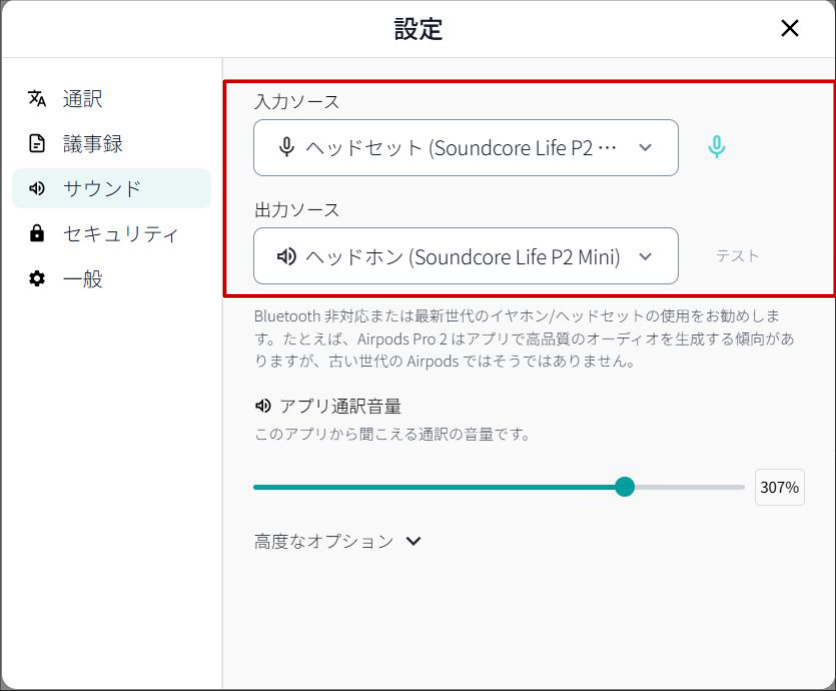
- Select the microphone you want to use. If your speech is recognized, you are done.
You only need to allow the microphone once. When you connect a new microphone (such as a headset), reload the page and then check the sound settings.
Mac microphone settings
On a Mac, even if you allowed the microphone in the browser, you cannot use it if microphone access for the browser is turned off in the Mac's own settings.
- From the Apple menu, open System Settings.
- Open Privacy & Security and select Microphone.
- Turn on your browser (such as Google Chrome).
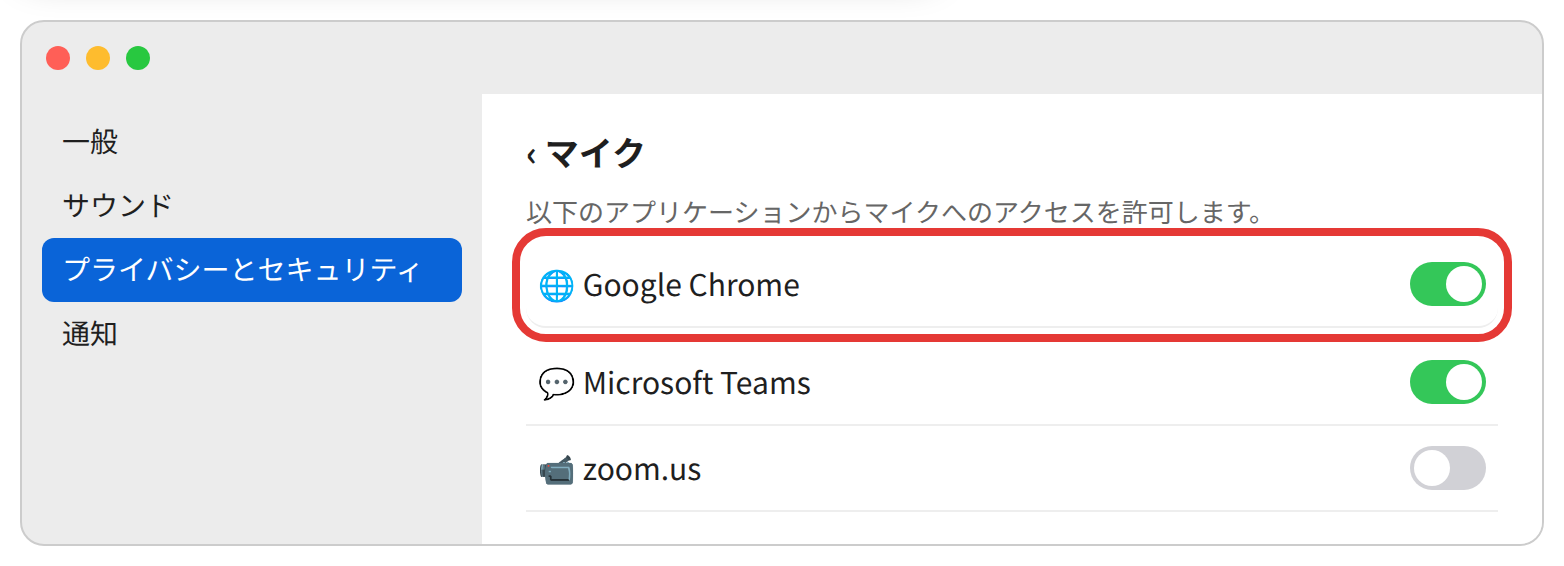
- Quit the browser, then open it again.
- If the microphone appears when you follow Check in the sound settings, you are done.
If the problem persists
Contact us through the inquiry form. Please include the following information.
- Your computer (Windows / Mac)
- Your browser (Google Chrome / Microsoft Edge, etc.)
- How far you got through the steps on this page