Use microphones and speakers in a meeting room
Read this article when
- You want to know how to set up your PC's microphone and speaker before a meeting
- You want to interpret using a speakerphone, such as a Jabra, in a meeting room
- You want people in the meeting room to listen to the interpretation on their own earphones
- You want to play interpreted audio through speakers for the whole meeting room
- Audio loops or feedback occurs in the same room
- You're using the browser version in an in-person meeting and want to play interpreted audio from another device
Preparation: set up your PC's microphone and speaker
Before joining the meeting, set the microphone and speaker in your PC's sound settings to the equipment installed in the meeting room. The basic steps and how to prevent feedback are covered in Set up your microphone and speaker before interpreting.
Also, use the same microphone and speaker in both your web meeting tool and CoeFont Interpreter. Mismatched inputs and outputs can cause feedback.
Choose a usage pattern
When using a speakerphone in a meeting room, choose from the following three patterns to suit how you run the meeting. If you're not sure, choose Pattern A.
| Pattern | Speaking | How to hear the interpreted audio | Best for |
|---|---|---|---|
| A: Everyone listens on earphones (recommended) | Speakerphone in the center | Each person's device and earphones | Most stable audio |
| B: Play through the speakerphone | Speakerphone in the center | Everyone listens through the speakerphone | When you want to run the meeting close to usual. Requires a speakerphone with an echo canceller |
| C: Everyone uses a headset | Each person's headset | Each person's device and earphones | When each person wants to speak into their own microphone |
Setup for the desktop app with Teams
When you use the desktop app in a Teams meeting, because of how Teams works, set only the speaker inside the Teams app to "CoeFont Audio". For advanced audio capture settings, see Audio settings for using Teams (desktop app).
Only the Teams speaker is set to "CoeFont Audio". Make sure your PC's (OS) input and output are not set to "CoeFont Audio".
Pattern A: Everyone listens on earphones (recommended)
Speech is picked up by the speakerphone in the center of the meeting room, and everyone listens to the interpreted audio on their own device and earphones.
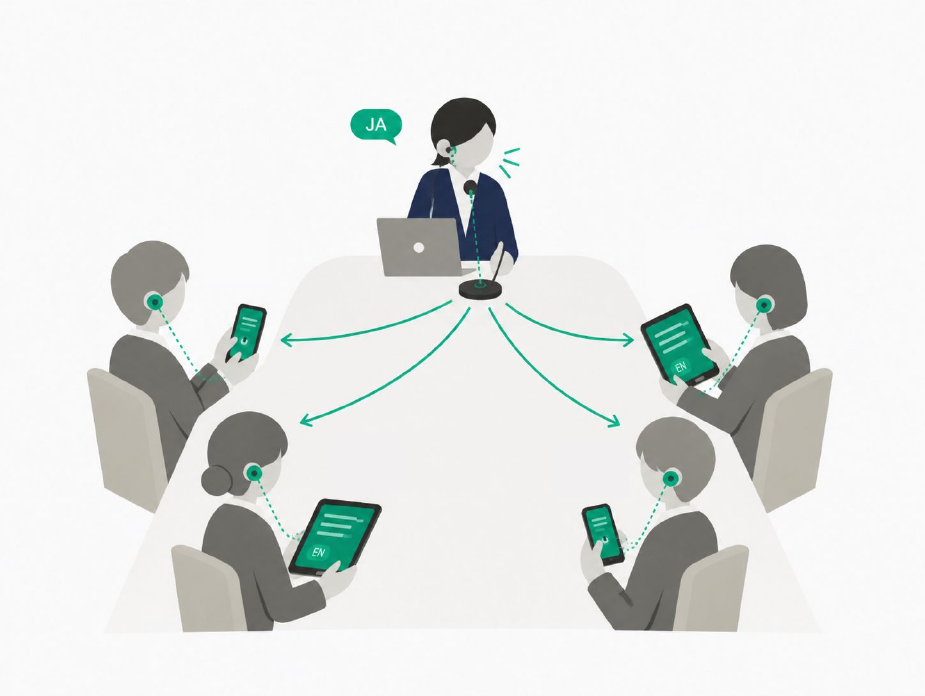
Host PC settings
| Where to set | Output (speaker) | Input (microphone) |
|---|---|---|
| PC (OS) sound settings | Host's earphones | Speakerphone (Jabra, etc.) |
| In-app settings in CoeFont Interpreter | Host's earphones | Speakerphone (Jabra, etc.) |
| In-app settings in Teams | CoeFont Audio | Speakerphone (Jabra, etc.) |
What participants in the same room do
- Open the URL or QR code shared by the host on your own PC or smartphone.
- Connect your own earphones and listen to the interpreted audio.
- To prevent audio loops, set Teams on your own PC as follows.
- Microphone: Mute completely
- Speaker: Your own earphones
When you speak, don't use your own PC's microphone. Speak toward the speakerphone in the center of the meeting room.
Pattern B: Play through the speakerphone
Speech is picked up by the speakerphone in the center of the meeting room, and the interpreted audio is also played through the speakerphone so everyone listens together.
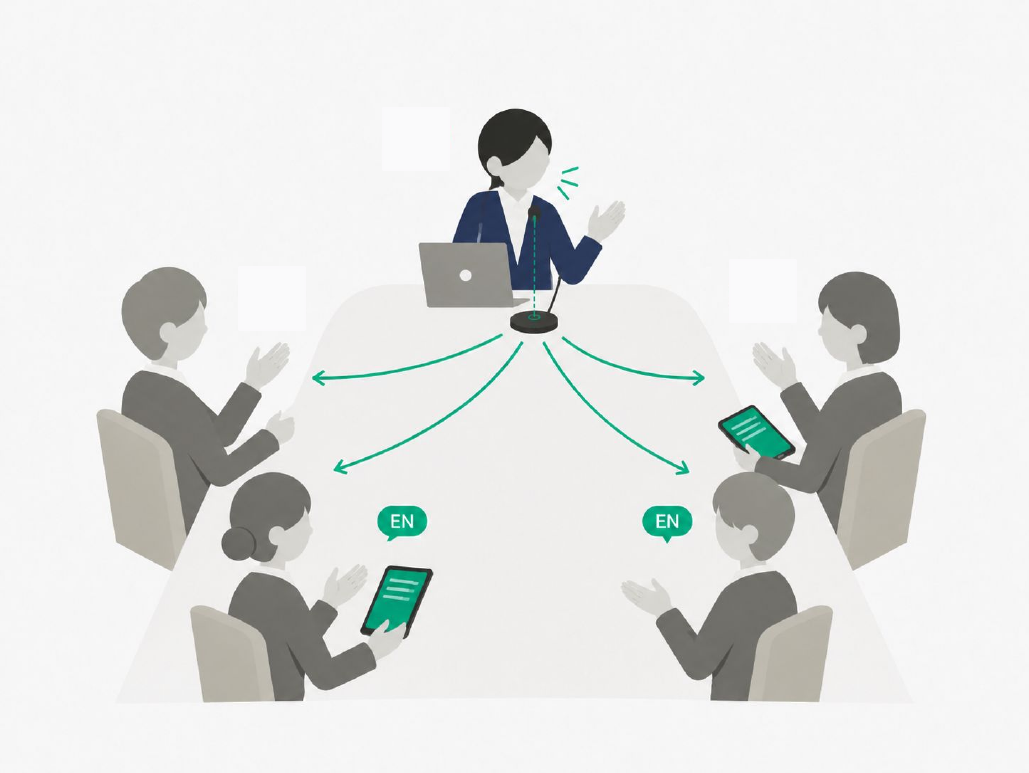
With a speakerphone that has no echo canceller, or one that doesn't perform well enough, the microphone picks up the interpreted audio played from the speaker again. If you get audio loops or severe feedback, switch to Pattern A right away.
Host PC settings
| Where to set | Output (speaker) | Input (microphone) |
|---|---|---|
| PC (OS) sound settings | Speakerphone (Jabra, etc.) | Speakerphone (Jabra, etc.) |
| In-app settings in CoeFont Interpreter | Speakerphone (Jabra, etc.) | Speakerphone (Jabra, etc.) |
| In-app settings in Teams | CoeFont Audio | Speakerphone (Jabra, etc.) |
What participants in the same room do
- On your own PC, turn off both the microphone and speaker of your web meeting tool (Teams, Zoom, Google Meet, etc.) completely (disconnect or mute).
- Speak directly into the meeting room speakerphone, and everyone listens to the interpreted audio played from the speaker.
Pattern C: Everyone uses a headset
The host and participants each speak into their own headset and listen to the interpreted audio on their own earphones.
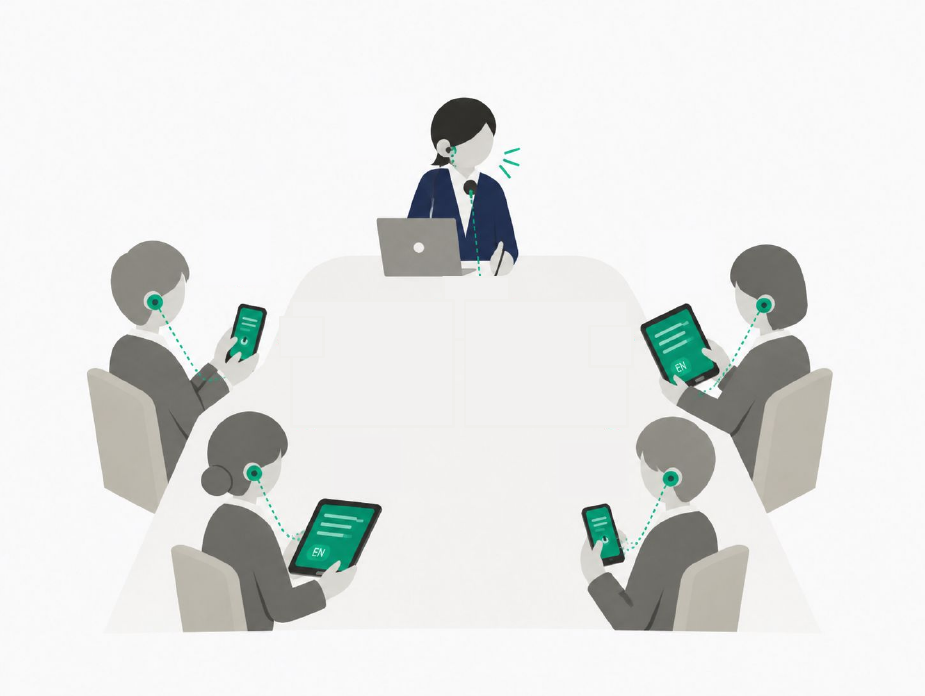
Host PC settings
| Where to set | Output (speaker) | Input (microphone) |
|---|---|---|
| PC (OS) sound settings | Host's headset | Host's headset |
| In-app settings in CoeFont Interpreter | Host's headset | Host's headset |
| In-app settings in Teams | CoeFont Audio | Host's headset |
What participants in the same room do
- Open the URL or QR code shared by the host on your own PC or smartphone.
- Connect your own earphones and listen to the interpreted audio.
- To prevent audio loops, set Teams on your own PC as follows.
- Microphone: Mute completely except when you speak
- Speaker: Your own earphones
When several people use headsets in the same meeting room, feedback can occur if they sit too close together. Sit a little apart from each other when you speak.
Setup for the browser version
In the browser version, you don't need to set "CoeFont Audio".
- Set the input (microphone) to the headset you're using, or to the meeting room speakerphone (Jabra, etc.). Use the same device for the web meeting tool's microphone.
- Set the output (speaker) to the headset you're using.
We recommend that everyone listens to the interpreted audio on their own device. Although we don't recommend it, you can also play the interpreted audio from a speakerphone's speaker. In that case, use a device with an echo canceller, as in Pattern B.
How to hear interpreted audio in an in-person meeting (browser version)
In in-person meetings, you may use the browser version with only the microphone, without screen capture (sharing the screen and system audio). While screen capture hasn't started, you can't turn off Interpretation mute on the host's interpretation screen. This is by design, to prevent interpreted audio from entering the host PC's microphone.
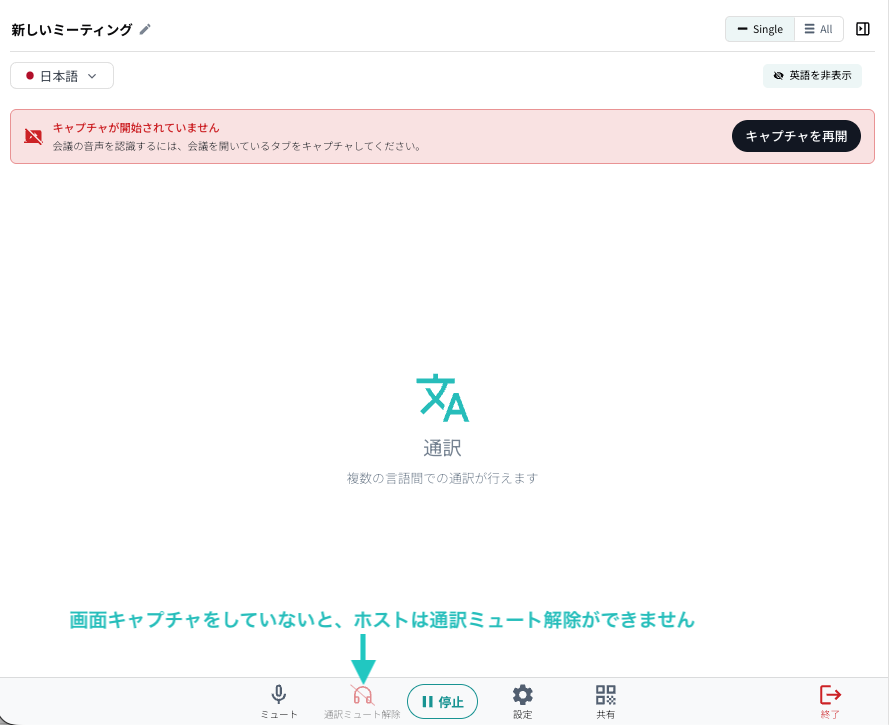
In this case, open the participant sharing link on another device and play the interpreted audio from that device.
- Click Share in the menu bar at the bottom of the host's interpretation screen to display the QR code or URL.
- On another device (smartphone, tablet, another PC, etc.), scan the QR code or open the URL.
- On the start screen, select Start with audio on.
- Set the viewing language to the language you want to hear as interpreted audio.
For example, if you set the viewing language to English, English audio plays only when someone speaks in Japanese. Speech in English isn't played as interpreted audio. For turning audio on and off and switching languages on the participant screen, see Watch with a shared URL or QR code.
Keep the played interpreted audio out of the host PC's microphone
If interpreted audio played from another device enters the host PC's microphone, CoeFont Interpreter picks it up as new speech and translates it again (echo). Prevent this with either of the following.
- Connect earphones to the playback device and listen to the interpreted audio on them (most reliable)
- Use a speakerphone with echo cancellation (Jabra, etc.)
For details on the cause and how to fix it, see Audio is translated twice.
Connecting and setting up Yamaha microphone speakerphones (YVC-1000 and YVC-330)
These are the connection and setup points for the Yamaha equipment you can borrow through Try a Conference Speakerphone. For both models, there are two key points.
- Match the microphone (input) to the equipment: Set both your PC's sound settings and the CoeFont Interpreter microphone to the YVC-1000 or YVC-330. If you leave the PC's built-in microphone selected, voices picked up by the equipment's microphone don't reach CoeFont Interpreter.
- Don't play interpreted audio from the unit itself: If you play it from the unit, the microphone picks it up and the interpreted audio may be input again. The host turns on Interpretation mute, and participants listen on their own devices (guest screen) with earphones (the same setup as Pattern A above).
YVC-1000 (meeting rooms for about 8 to 30 people)
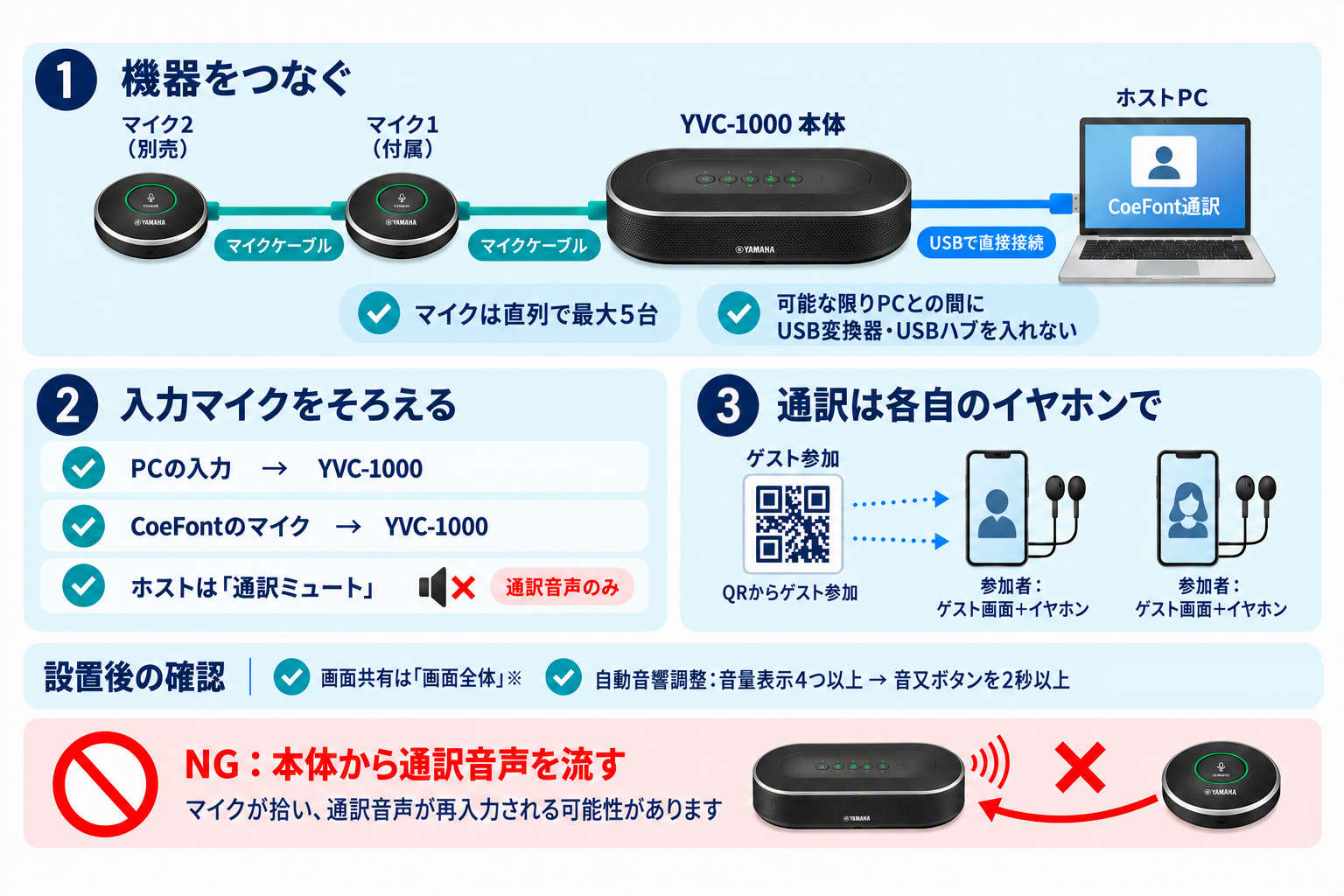
- Connect the included microphones to the unit in series with microphone cables (up to 5). Connect the unit directly to the PC by USB, and avoid USB converters and USB hubs as much as possible.
- After installation, set the unit's volume to 4 or more level indicators, and press the tuning fork button for 2 seconds or more to run automatic acoustic adjustment. Run it every time you change the installation location or the number of microphones.
- When you share your screen in the browser version, select Entire screen. If you share a single window, audio may be input twice.
YVC-330 (small meeting rooms for about 4 to 10 people)
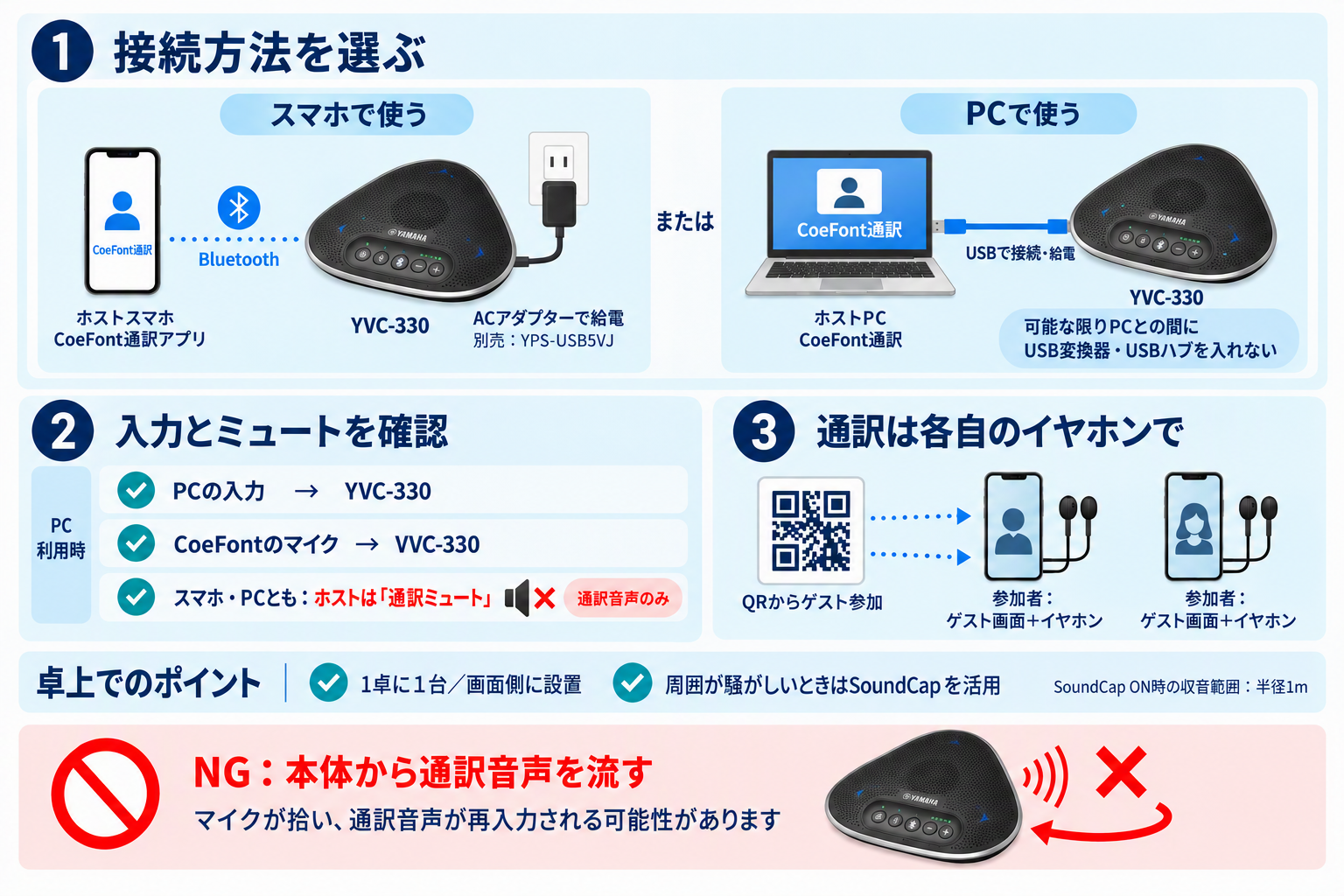
- Connect it directly to the PC with the included USB cable (don't use a USB hub).
- You can connect it to a smartphone by Bluetooth. Press the unit's Bluetooth button for 2 seconds or more, and when it blinks blue quickly, select "YVC-330 Yamaha" in the smartphone's Bluetooth settings (passkey: 0000). The connection is complete when it lights solid blue. When you use it with a smartphone only, power it with the separately sold AC adapter.
- When connected by Bluetooth, the smartphone's audio output switches to the unit. Turn on Interpretation mute in the host's app.
- Place one unit per table, on the screen side. When the surroundings are noisy, press the microphone mute button and the volume button at the same time to turn on "SoundCap", which picks up only voices within about 1 m of the unit.