Interpret with the Desktop App
Read this article when
- You want to start interpretation with the desktop app
- You want to set the interpretation languages, interpretation style, or the speed of the interpreted voice
- You want to know how to read the screen during interpretation and use the menu bar
- You want to share the interpretation link with participants
If you have not installed the desktop app yet, first complete Install and Update the Desktop App.
When you use the app together with the Microsoft Teams desktop app on Windows, additional audio settings are required. See also Audio settings for Teams (desktop app). They are not needed for Zoom or Google Meet, or on a Mac.
Before you start: check your microphone and speakers
Before joining a meeting, set your PC's sound settings to the earphones (or the meeting room's microphone and speakers) you will use. Using the PC's built-in microphone and speakers makes audio feedback (howling) more likely.
The steps and precautions for preventing feedback are covered in Set up your microphone and speaker before interpreting, a page for everyone who hosts an interpretation. If you are using it in a meeting room, see Use a microphone and speakers in a meeting room.
Launch the app
- Launch the CoeFont Interpreter app installed on your PC.
- Start a meeting or join one in your web conferencing tool (Zoom, Teams, Google Meet, etc.).
Interpretation settings
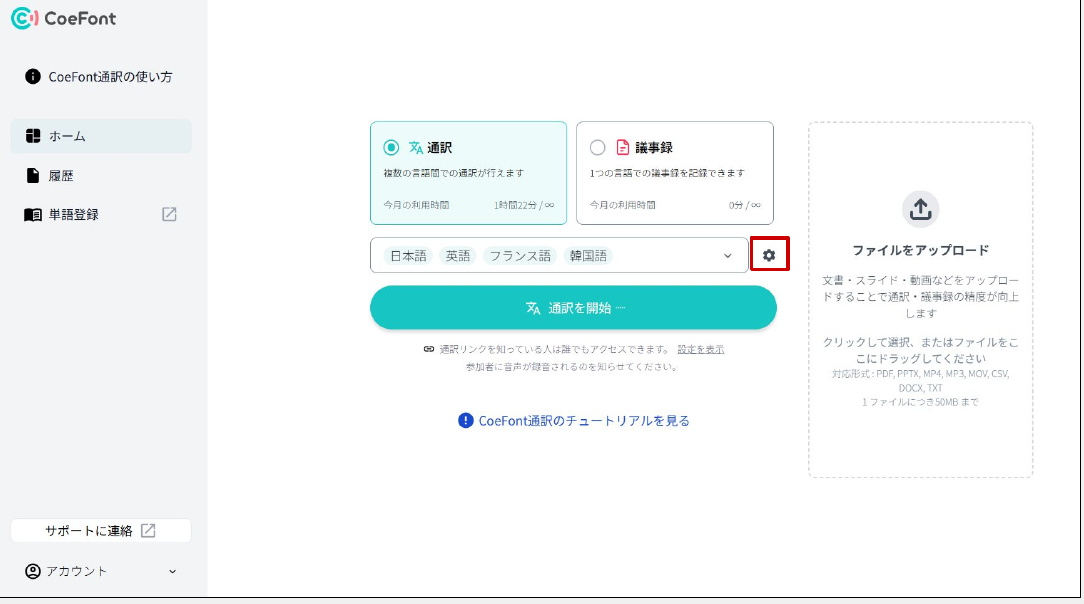
Open the interpretation settings from the gear icon on the home screen.
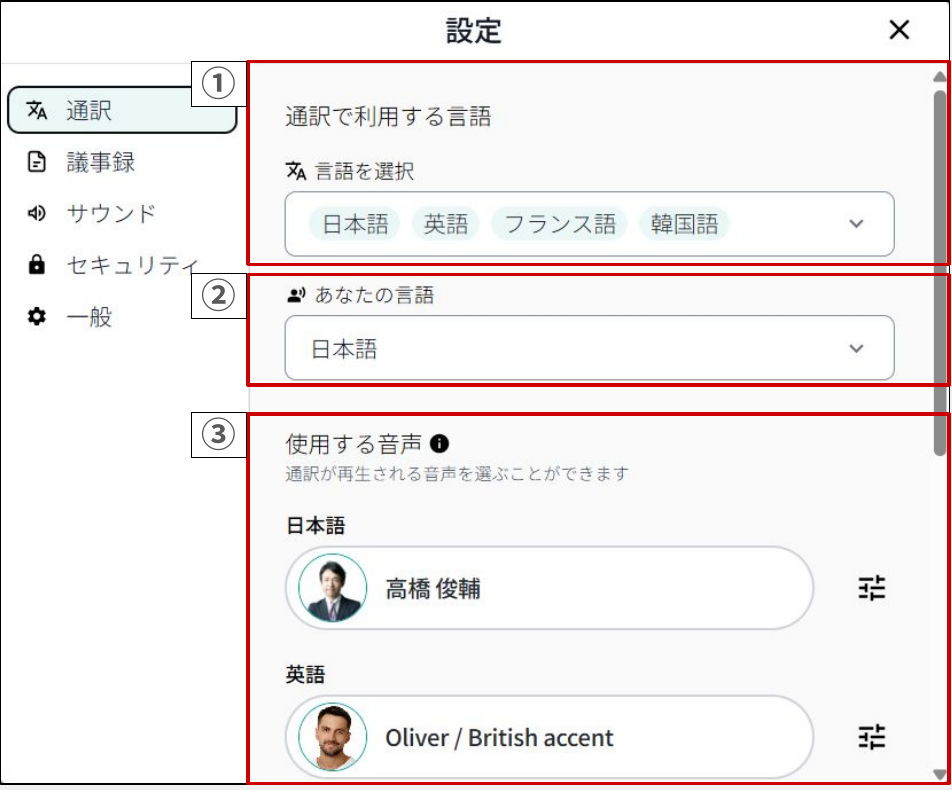
Interpretation languages and your language
- Click the gear icon on the home screen.
- Under Languages used for interpretation, select the languages used in the meeting (① in the figure). You can select two or more languages.
- Under Your language, select the language you speak (② in the figure). You hear the interpreted voice in this language.
- Under Voice, select the AI voice that reads out the translation (③ in the figure).
For the available languages, see Supported languages.
Interpretation style
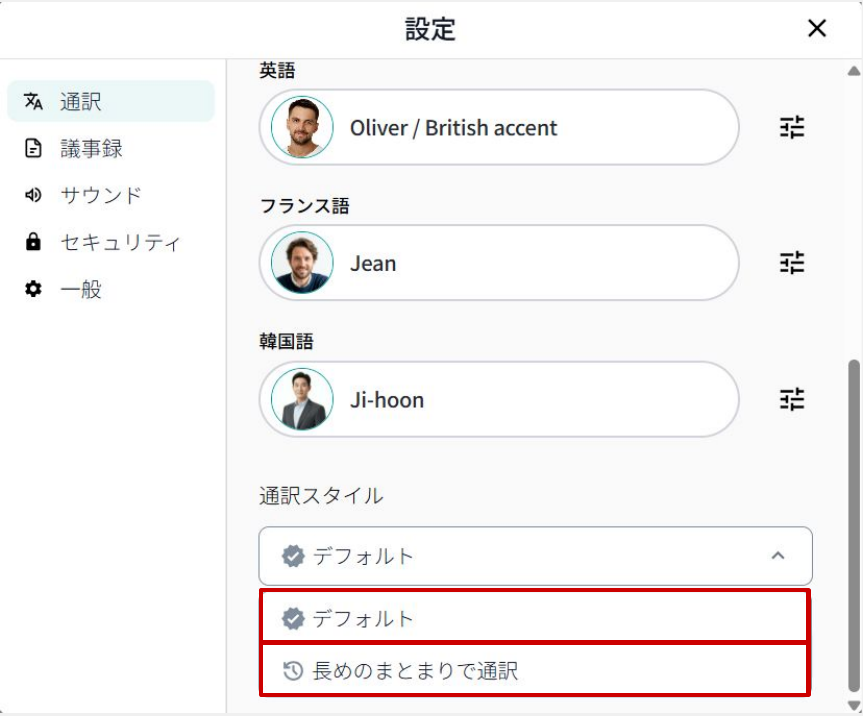
You can choose from two interpretation styles.
| Interpretation style | Characteristics |
|---|---|
| Default | Splits speech into short segments before interpreting, for fast interpretation |
| Interpret in longer segments | Interprets after understanding the context, so accuracy is higher than with Default. In return, there is a wait before the interpretation |
The style you select is saved for each user and is also shared with the browser version. A style selected in the browser version is also used when you start a meeting in the desktop app.
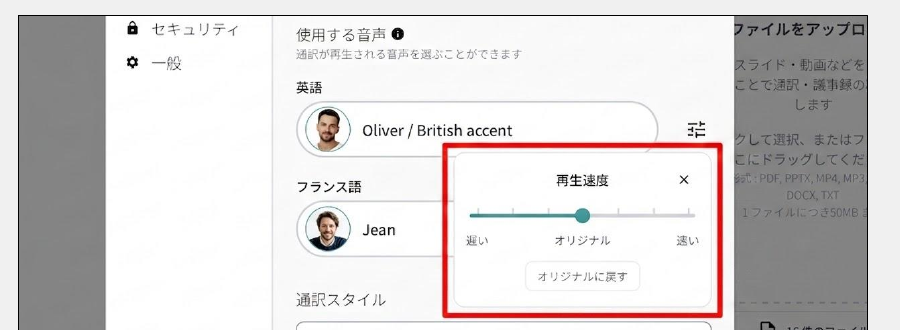
Playback speed of the interpreted voice
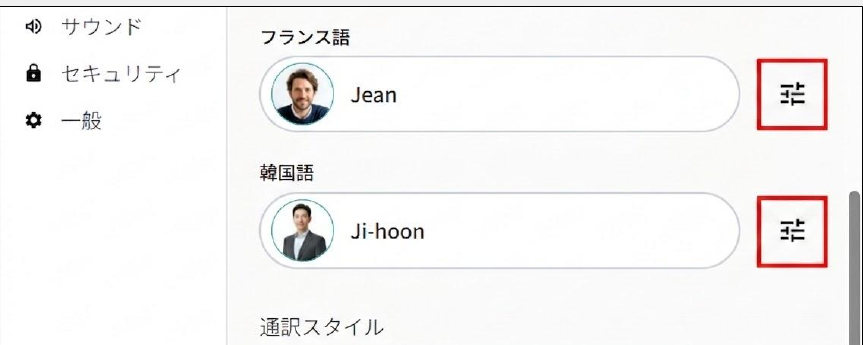
- In the "Voice" list, click the adjustment icon for the voice you want to adjust.
- Change the playback speed with the slider.
This is useful in situations like the following:
- When you read the captions and want to finish listening to the interpreted voice sooner
- When you want to shorten the time lag between the original speech and the interpreted voice
Sound settings
- Under Sound in the settings screen, check that Input source and Output source are the same as the external device you are using (such as earphones).
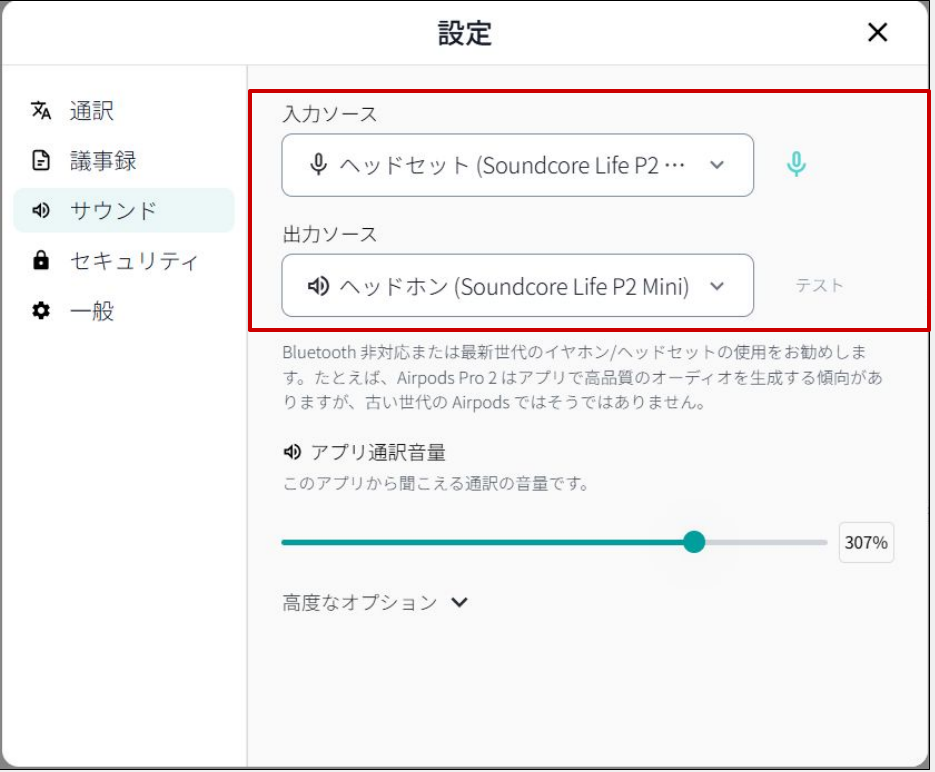
If the web conferencing tool and CoeFont Interpreter use different input and output devices, audio feedback can occur. Always set both to the same external device (such as earphones).
Start interpretation
- On the home screen, click Start interpretation.
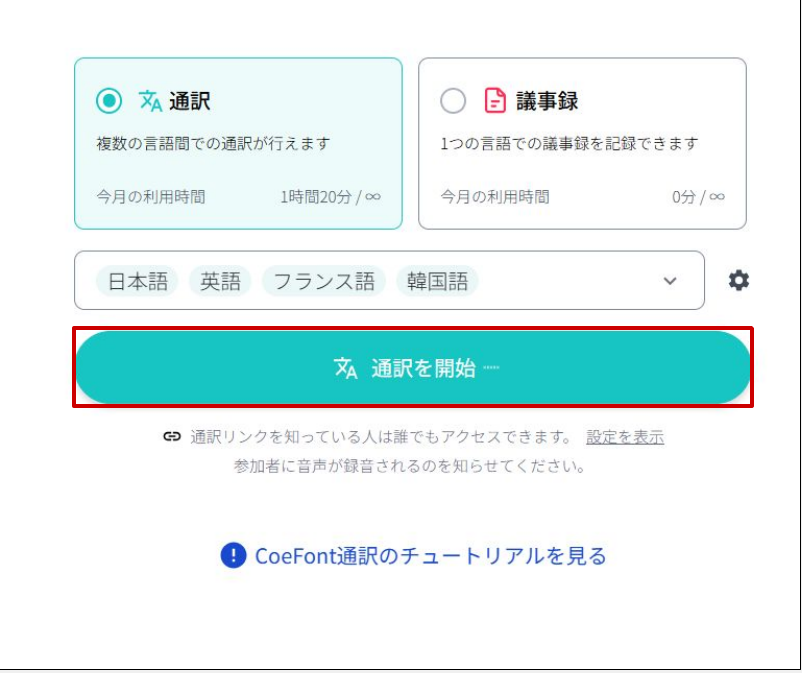
The screen switches to the interpretation screen. When the transcription and translation of your speech appear, interpretation has started.
At this point, the interpretation has not yet reached participants. To let participants hear it, share the link by following Share the interpretation link with participants.
Read the host screen
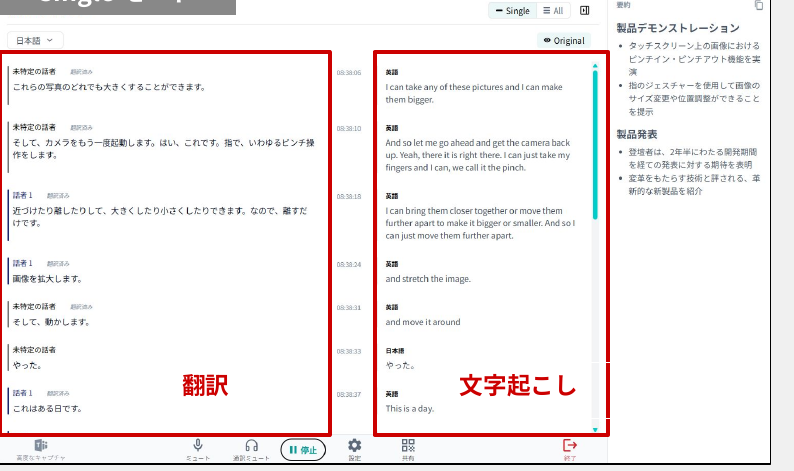
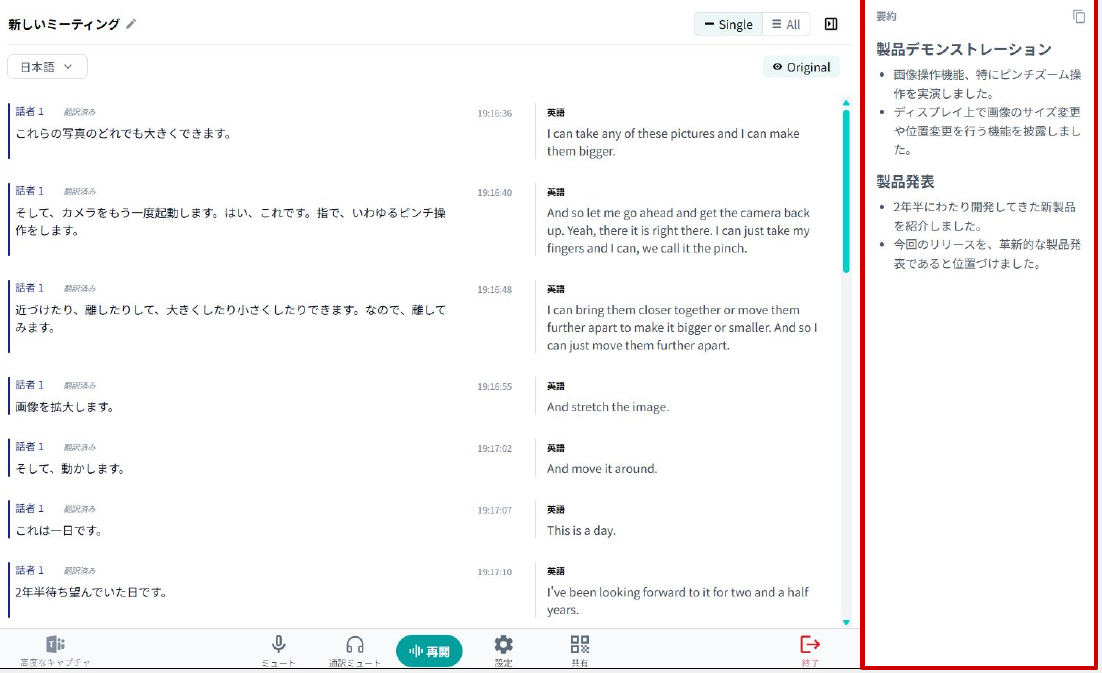
- The left side shows the translation into the language you selected.
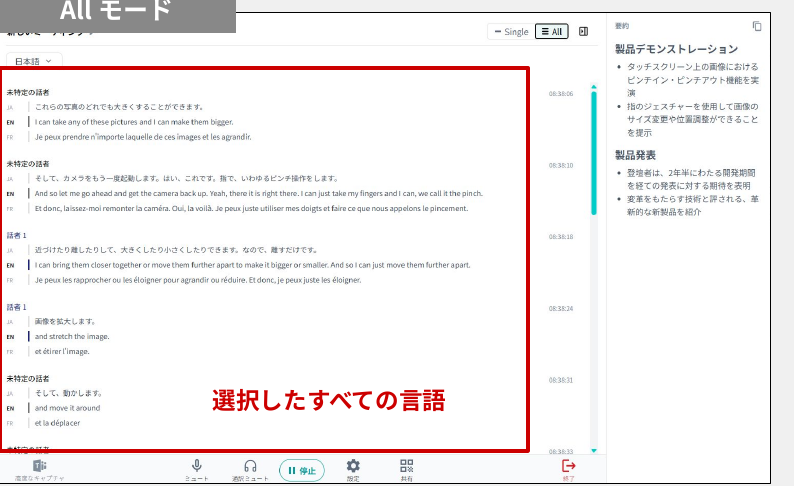
- The right side shows the transcription of all speech.
- The right edge of the screen shows a real-time summary of the meeting.
- You hear the interpreted voice in "Your language."
You can switch the display style at the top of the screen.
| Display style | What is shown |
|---|---|
| Single | The translation into your language and the transcription |
| All | The translations into all selected languages |
Use the menu bar
The menu bar at the bottom of the screen lets you do the following.
| Button | What it does |
|---|---|
| Advanced capture | Switches audio capture when using Teams on Windows. For details, see Audio settings for Teams |
| Mute | Stops your microphone audio from reaching CoeFont Interpreter. Interpretation does not stop |
| Mute interpretation | Stops the interpreted voice from playing. Transcription continues |
| Pause / Resume | Pauses and resumes transcription |
| Settings | Lets you change "Your language" and "Interpretation style" |
| Share | Shares the interpretation link with participants |
| End | Ends interpretation |

Even if you close the window, the app stays in the system tray (the menu bar at the top of the screen on a Mac) and does not quit completely. To quit the app completely, quit it from the app's icon there.
Share the interpretation link with participants
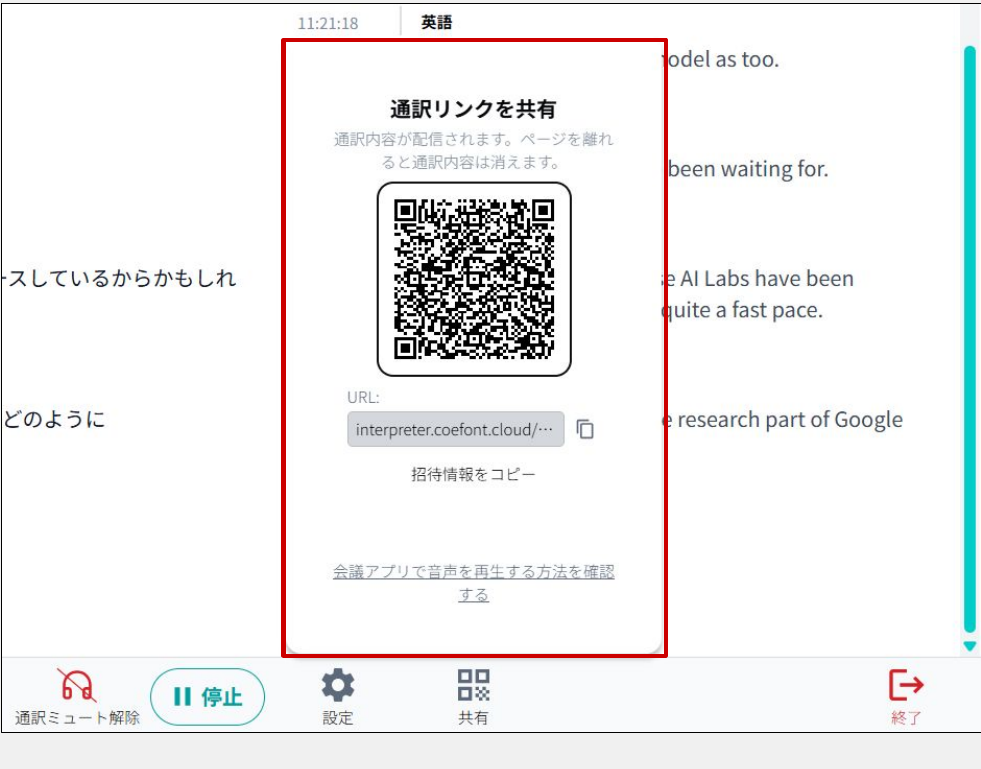
- Click Share in the menu bar.
- Share the QR code or URL, depending on your participants.
- QR code: For participants who watch on a smartphone.
- URL: For participants who watch in a browser.
Participants can watch without a CoeFont Interpreter account. For how participants read their screen, see Watch with a shared URL or QR code.
To prevent audio loops, both the host and participants should use earphones when listening to the interpreted voice.
Use it for a meeting in only one language
For a meeting in only one language where you do not use translation, use minutes mode. For how to use it, see Take Minutes for a Single-Language Meeting (Minutes Mode).