This page was machine-translated from the Japanese original and may contain unnatural wording or errors. View the Japanese page
Stop the Meeting Detection Popup
Read this article when
- A "Meeting detected" popup appears every time you start a meeting app (Zoom, Teams, etc.)
- You want to stop the "Start interpretation" button and the meeting app name from appearing every time
When the desktop app detects that a meeting app has started, it displays a "Meeting detected" popup. The popup itself cannot be dismissed permanently, so to stop it, turn off "Automatic meeting detection" in the settings.
Turning it off also disables starting interpretation from the popup
When you turn off "Automatic meeting detection," you can no longer open the interpretation or minutes screen from the popup's "Start interpretation" button. For each meeting, open the CoeFont Interpreter app and start interpretation manually.
Steps
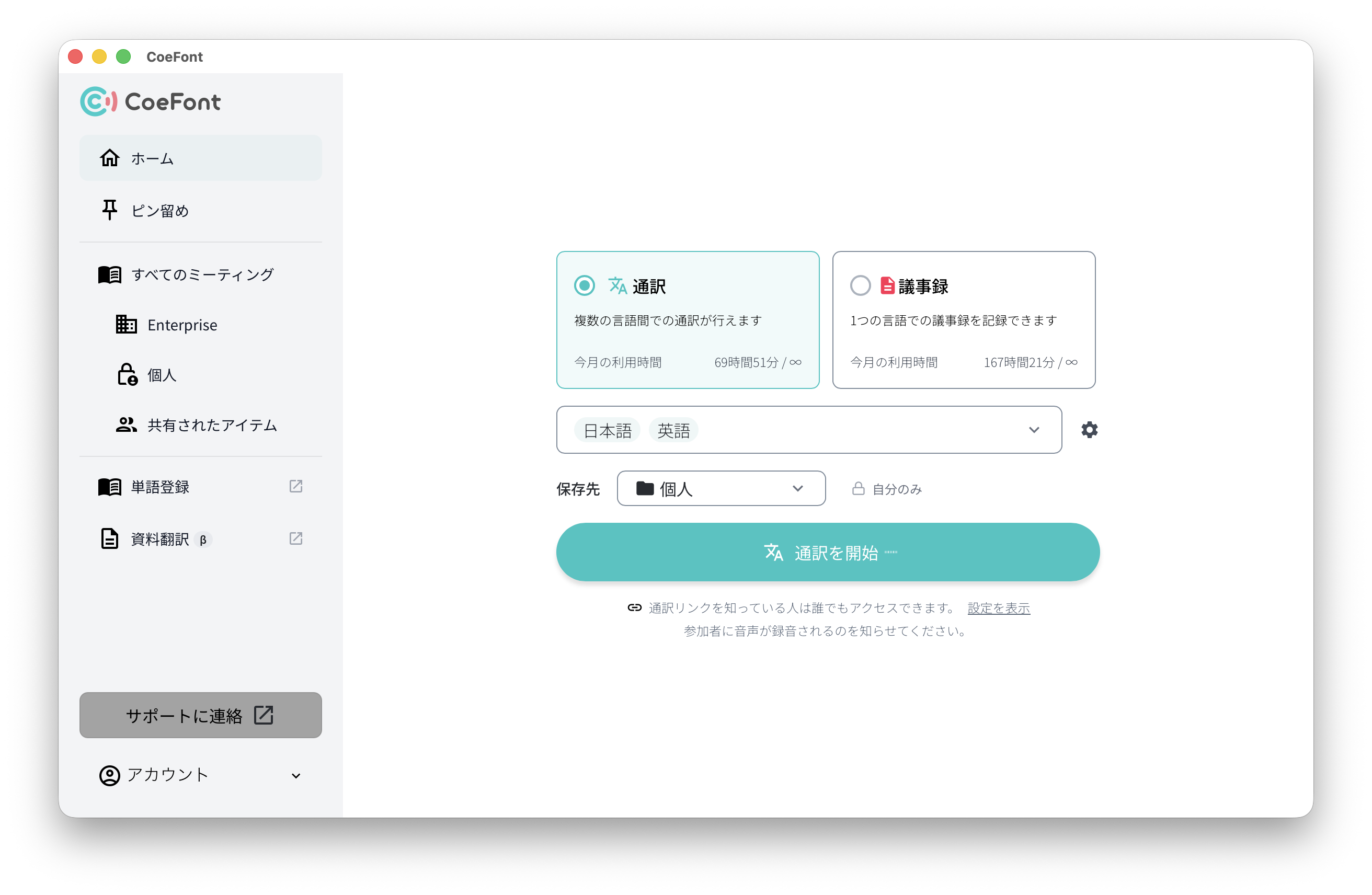
- Open the home screen of the desktop app.
- Click the gear icon on the right side of the screen.
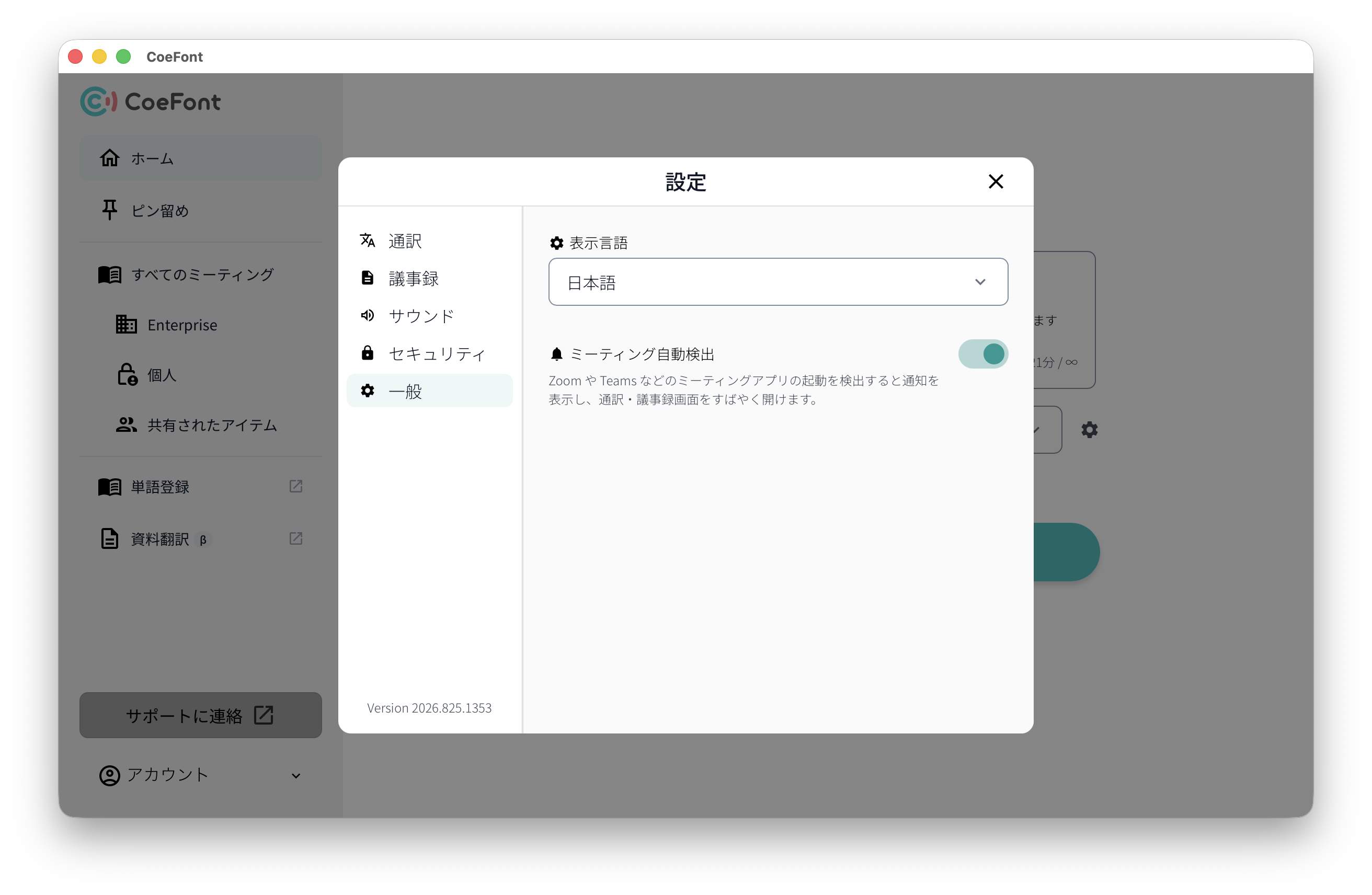
- Select General from the menu on the left side of the settings screen.
- Click the Automatic meeting detection toggle to turn it off (gray).
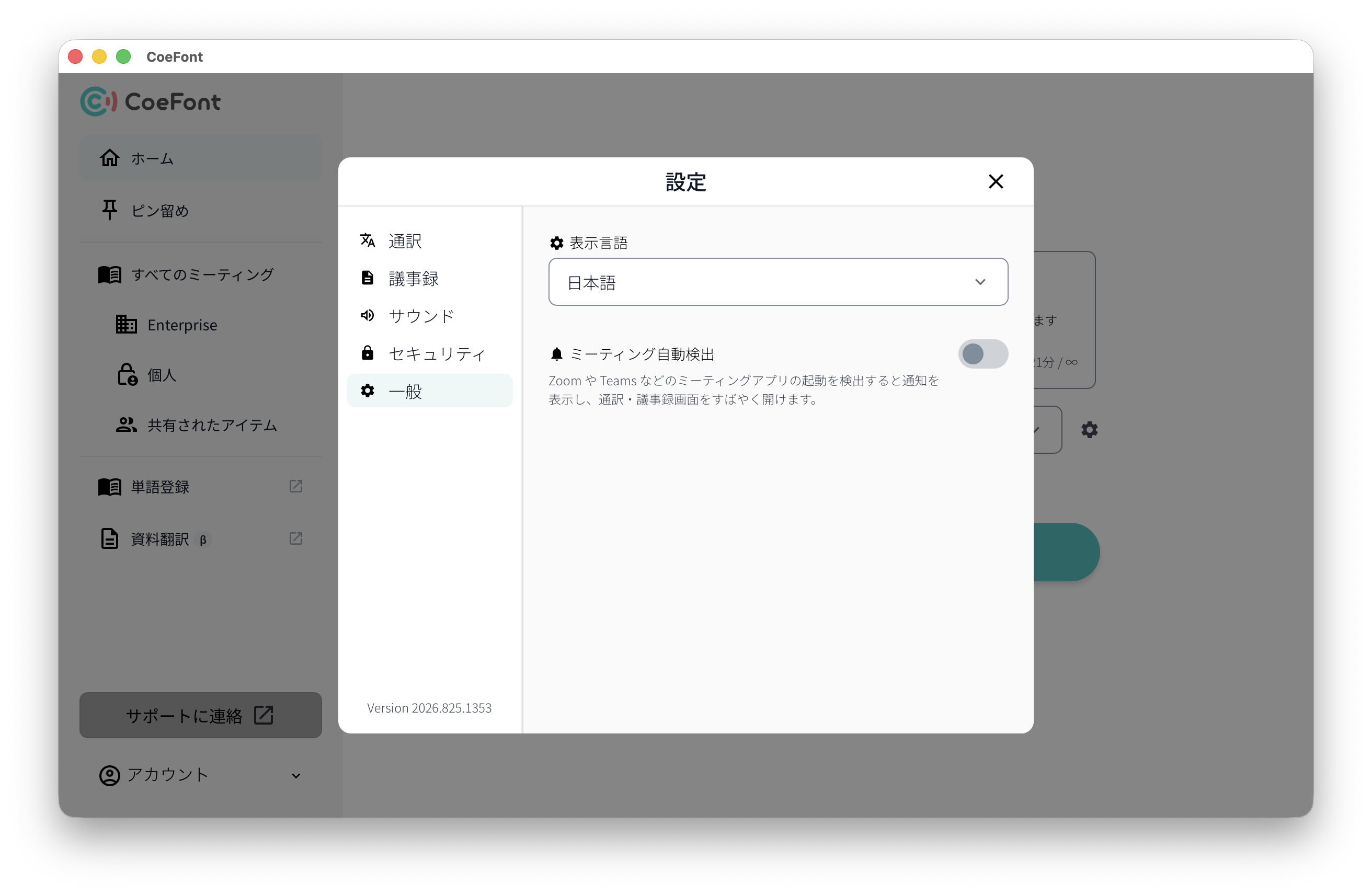
When the toggle turns gray, the setting is complete. The popup no longer appears the next time you start a meeting app.
To show the popup again, turn the toggle back on with the same steps.
Next steps
Related information
Did this article solve your problem?