Install and Update the Desktop App
Read this article when
- You want to download and install the desktop app
- You want to know how to log in and grant permissions on first launch
- You want to check which version of the app you are using
- You want to know what to do when an update notification appears
Every host (organizer) who starts interpretation with the desktop app needs to install it. Participants do not need to install anything.
Before installing, check the system requirements to confirm that your PC is supported.
Download
- Open the download page. If you are not logged in, the login page appears first. After you log in, you are taken to the download page.
- When the download page opens, the installer download starts automatically.
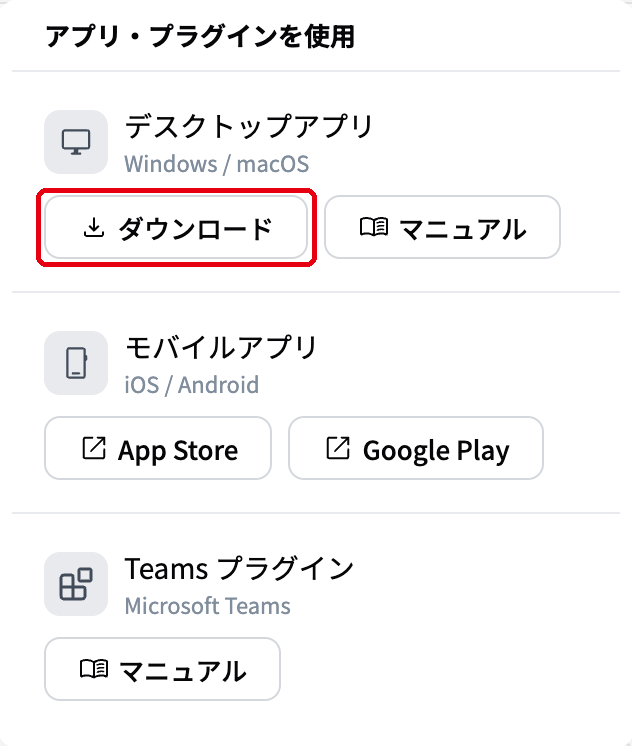
You can also open the download page from the CoeFont Interpreter console. Click Use apps and plugins at the top right of the screen, then click Download under Desktop app. When the window is narrow, Use apps and plugins appears as a download icon only.
Install
- Windows
- Mac
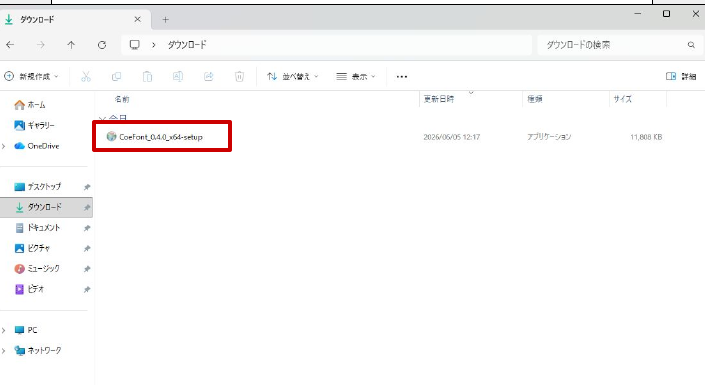
- Open the Downloads folder in File Explorer and double-click the setup file.
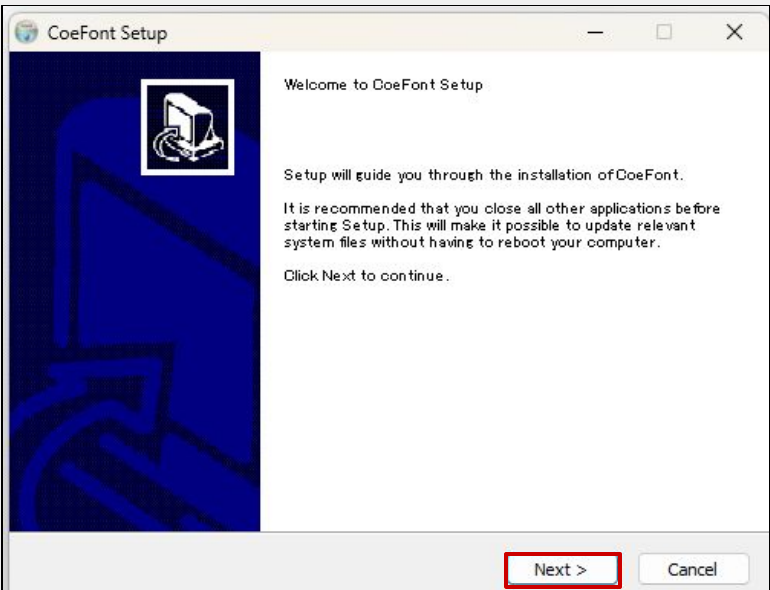
- When "CoeFont Setup" appears, click Next.
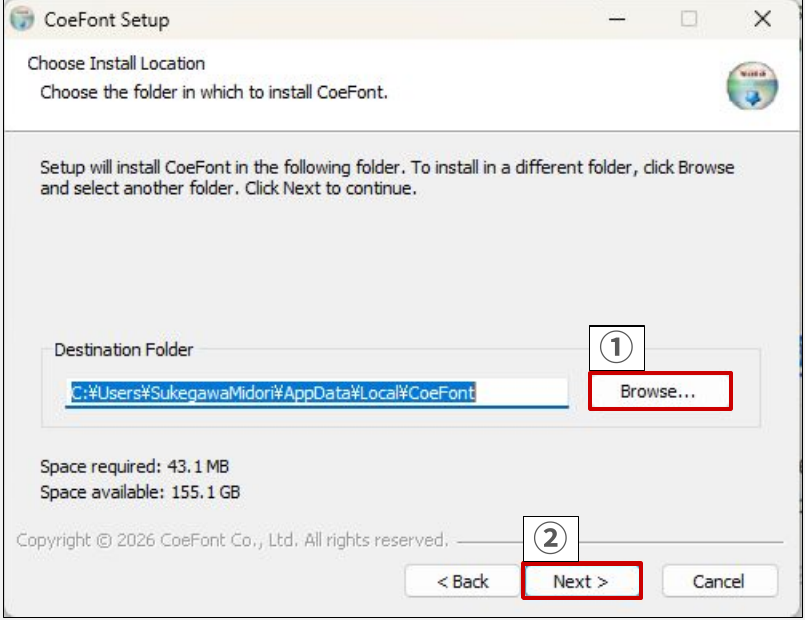
- If needed, specify the installation folder and click Next.
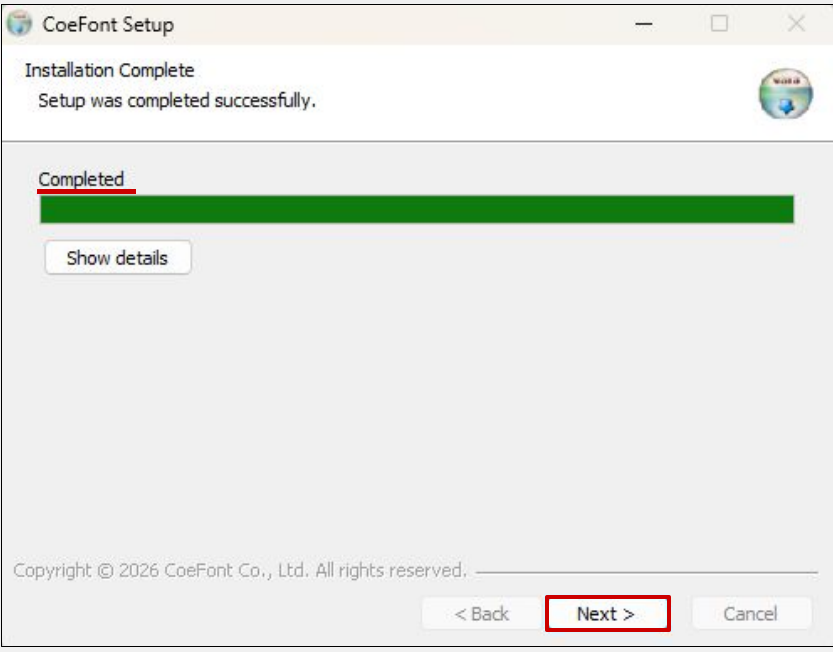
- When "Completed" appears, click Next.
- Click Finish.
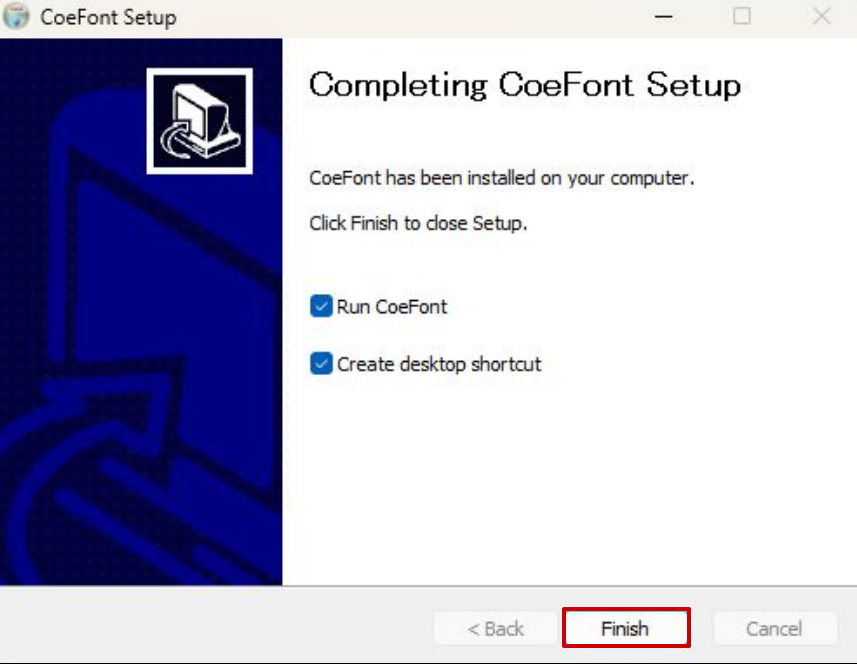
The virtual audio driver "CoeFont Audio" is also installed during the setup.
Install the driver directly from the CoeFont Audio installer.
If the problem persists, check Network requirements and connectivity check for any blocked communication, and ask your IT department to add it to the allowlist.
- Open the downloaded
.dmgfile. - Drag the CoeFont Interpreter app to the Applications folder.
- Launch the app from the Applications folder.
- If a security warning appears on first launch, allow the app in System Settings > Privacy & Security.
First launch and login
- Launch the CoeFont Interpreter app you installed.
- On a Mac, you are asked to allow access to the microphone and screen recording (screen capture). Allow all of them.
- On the login screen, choose to log in. The login page opens in your browser. Log in with the account you were invited with.
- On first launch, an onboarding guide to the app appears. Follow the instructions on the screen.
- When the CoeFont Interpreter home screen appears, you are ready to go.
For details on logging in, see How to log in.
Check the version
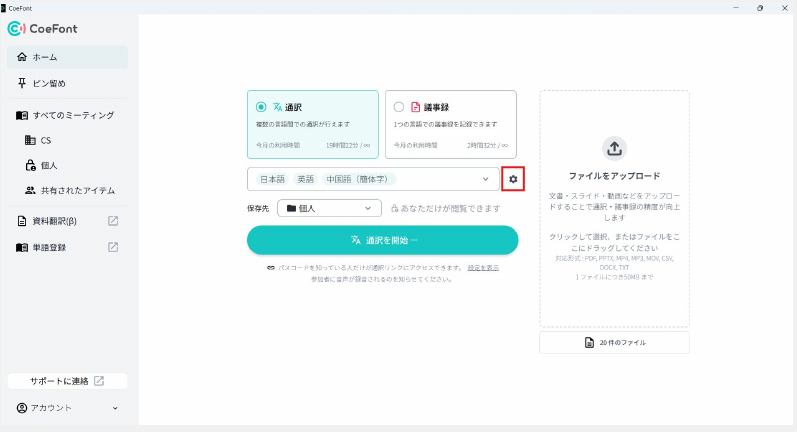
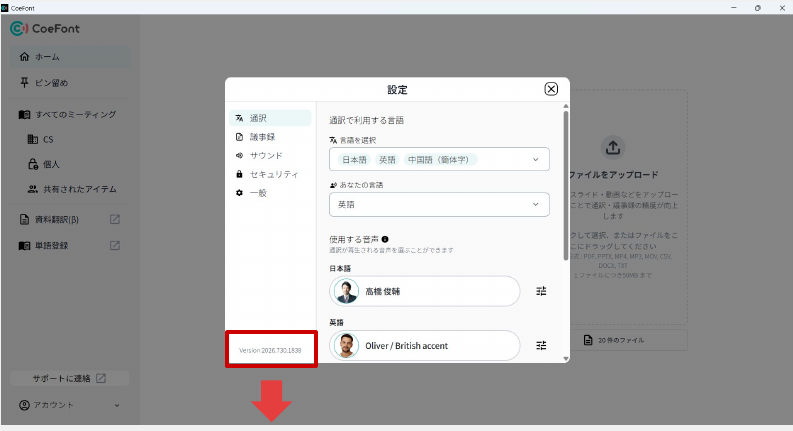
- Click the gear icon to the right of the language settings on the home screen.
- The current version is shown at the bottom left of the settings dialog.
Update
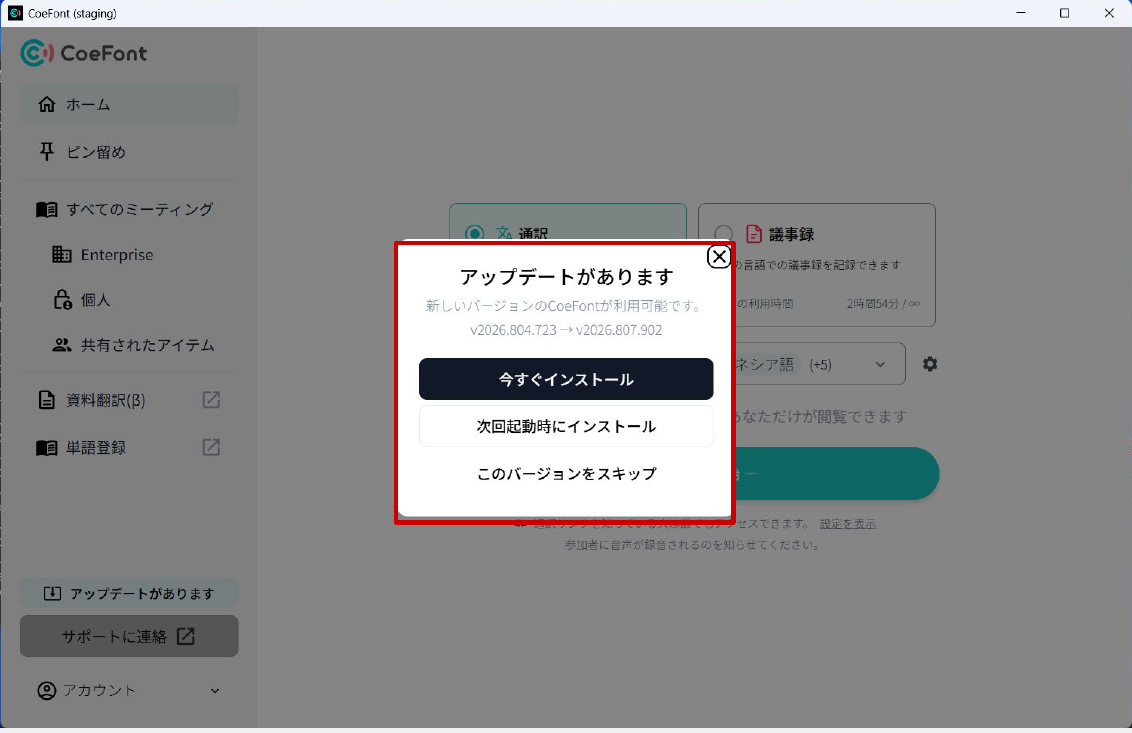
When a new version is available, the app shows "An update is available." Choose one of the following:
- Install now: The update to the latest version starts. When it finishes, the app restarts automatically.
- Install on next launch: The app updates the next time you start it. Choose this when you do not want to interrupt your work, such as during a meeting.