Uninstall CoeFont Audio
Read this article when
- In meetings where you do not use CoeFont Interpreter, your speaker is switched to "CoeFont Audio" on its own and you cannot hear the other participants
- You want to remove "CoeFont Audio" from the list of audio devices
- CoeFont Audio was not installed correctly and you want to reinstall it
"CoeFont Audio" is a virtual audio driver required to use the desktop app in Teams meetings.
After you uninstall it, you can no longer use the desktop app in Microsoft Teams meetings. If you want to keep using it with Teams, you can leave it installed and restore the sound settings for each meeting instead (Audio settings for Teams).
What changes when you uninstall
| Details | |
|---|---|
| What is resolved | In meetings where you do not use CoeFont Interpreter, the audio output switches to "CoeFont Audio," so you cannot hear the other participants or their audio does not come through |
| What you can no longer do | Use the desktop app in Microsoft Teams meetings |
You can restore a removed driver by reinstalling the app or by using the app's driver installation feature.
Uninstall steps
- Windows
- Mac
- Quit the CoeFont Interpreter app.
- Type "Device Manager" in the taskbar search box and open Device Manager.
- Click Sound, video and game controllers to expand it.
- Right-click "CoeFont Audio" and select Uninstall device.
- On the confirmation screen, select Attempt to remove the driver for this device and uninstall.
- If "CoeFont Audio" appears more than once, repeat steps 4 and 5 for each entry.
- Expand Audio inputs and outputs and confirm that "Speakers (CoeFont Audio)" and "Microphone Array (CoeFont Audio)" are gone.
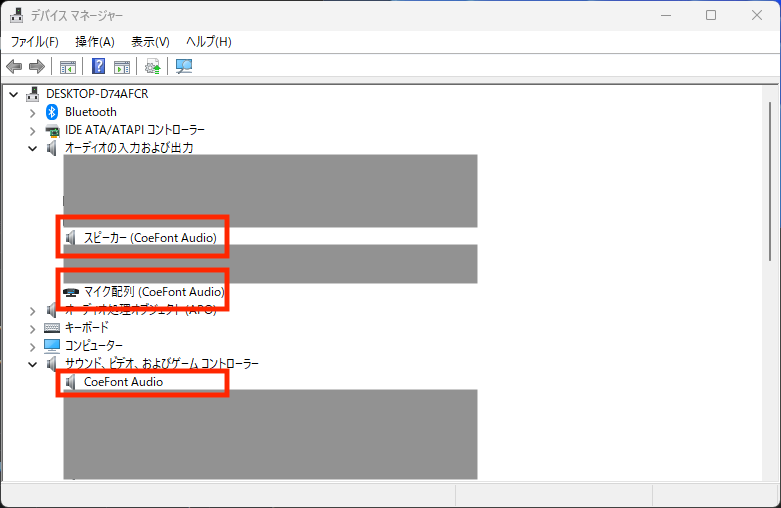
If the devices still appear after uninstalling, restart your PC.
On a Mac, you remove the driver by running commands in Terminal.
Check the driver
- Open System Settings > Sound > Input.
- Confirm that "CoeFont Audio" appears in the list.
Open Terminal
- Press Spotlight search (⌘ + Space), type "Terminal," and open it. You can also open it from "Applications" > "Utilities."
Remove the driver
sudo rm -rf in step 3 permanently deletes the specified file without confirmation. If you get even one character of the path or file name wrong, you may delete a different file. Copy and paste the commands on this page as they are.
-
Run the following command to move to the driver folder.
cd /Library/Audio/Plug-Ins/HAL/ -
Run the following command to confirm that the driver file is there.
lsIf "CoeFontAudio.driver" appears, you are good to go.
# 表示例
CoeFontAudio.driver MSTeamsAudioDevice.driver -
Run the following command to remove the driver.
sudo rm -rf CoeFontAudio.driver -
Enter your Mac login password and press Enter. No characters appear on the screen while you type, but your input is being accepted.
-
Run
lsagain and confirm that "CoeFontAudio.driver" is gone.# 表示例
MSTeamsAudioDevice.driver -
Run the following command to restart the audio service.
sudo killall coreaudiod
Confirm the removal
- Open System Settings > Sound > Input.
- If "CoeFont Audio" is gone from the list, the uninstall is complete.
Reinstall steps
To reinstall CoeFont Audio (for example, if the installation failed on Windows), uninstall it with the steps above, then reinstall it with the following steps.
- Launch the CoeFont Interpreter app.
- Follow the app's instructions to install CoeFont Audio.
- On Windows, check the following two items in Device Manager.
- "Speakers (CoeFont Audio)" and "Microphone Array (CoeFont Audio)" appear under Audio inputs and outputs
- Only one "CoeFont Audio" appears under Sound, video and game controllers
If both conditions are met, the installation was successful.
If the problem is not resolved, contact us through the contact form.