Audio Settings for Teams (Desktop App)
Read this article when
- Audio from a Teams meeting does not reach the desktop app
- You do not know what to set the Teams speaker to
- After launching the desktop app, you can no longer hear any sound on your PC
- After launching the desktop app, your microphone stopped responding
The settings on this page are required when you use CoeFont Interpreter together with the Microsoft Teams desktop app on Windows.
The settings on this page are required only when you use the Windows desktop app in Teams meetings. On the Mac version, "Advanced audio capture" does not need to be configured. They are also not needed when you use a meeting tool other than Teams, such as Zoom or Google Meet.
How advanced audio capture works
With Zoom and Google Meet, the other participants' audio reaches CoeFont Interpreter in the normal way. The Teams desktop app, however, outputs audio differently from other apps, so it cannot receive the other participants' audio in the normal way.
When you turn on "Advanced audio capture," Teams audio is captured through the virtual audio device "CoeFont Audio" and delivered to CoeFont Interpreter.
While it is on, keep the following in mind:
- Audio from other apps on your PC also passes through "CoeFont Audio." If you play video or music during a meeting, that audio is captured too.
- When you use Zoom or Google Meet after a Teams meeting, turn "Advanced audio capture" back off.
If you mainly use Teams meetings, also consider the Teams Plugin, which requires no PC audio settings.
Check first: your PC's sound settings
Depending on your PC's specifications and automatic detection features, your PC's sound settings may switch to "CoeFont Audio" when the app starts. If you cannot hear any sound on your PC or your microphone does not respond, restore the settings with the following steps.
- Open Windows Settings > System > Sound.
- Check that the output device (speakers) and input device (microphone) are not set to "CoeFont Audio."
- If either is set to "CoeFont Audio," switch it back to the earphones you are actually using, or to the PC's built-in speakers and microphone.
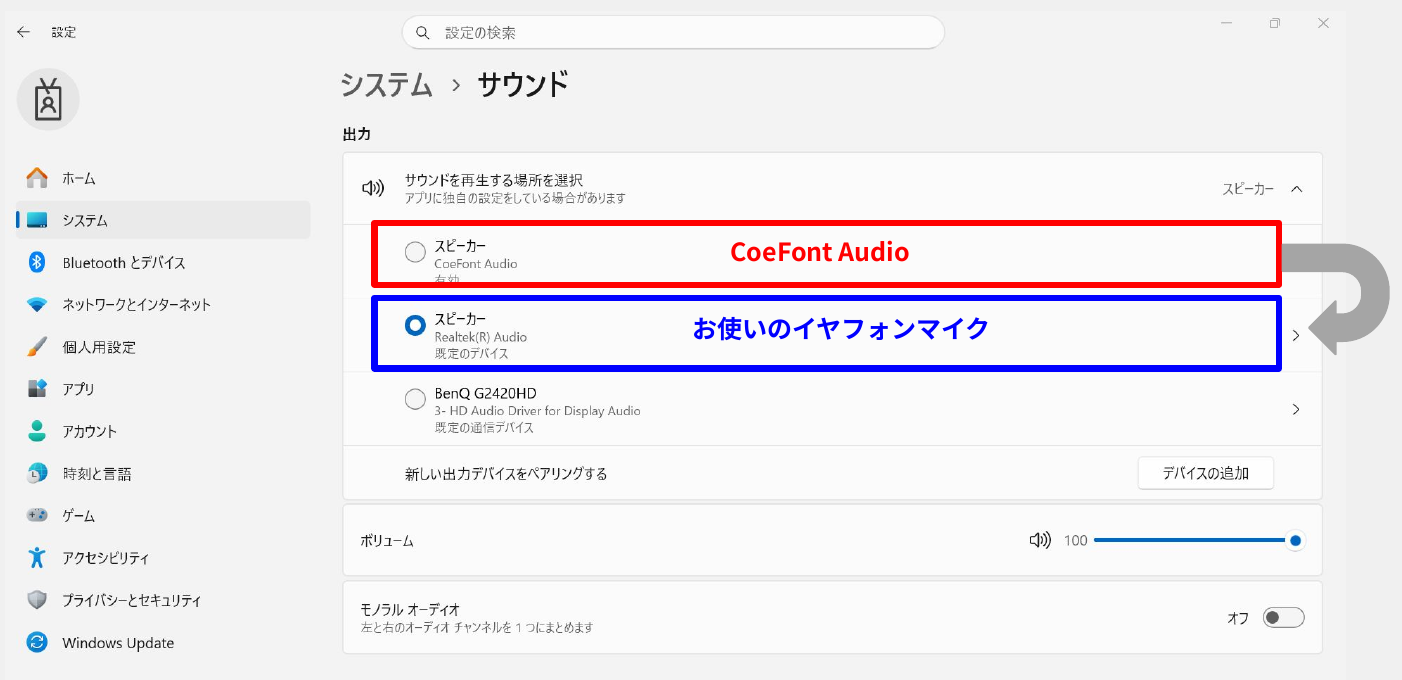
"CoeFont Audio" is a virtual device the app uses internally to process audio. If you set it as your PC's input or output, you may not be able to hear sound, and audio problems may occur in web meetings.
Settings for Teams meetings
Turn on advanced audio capture
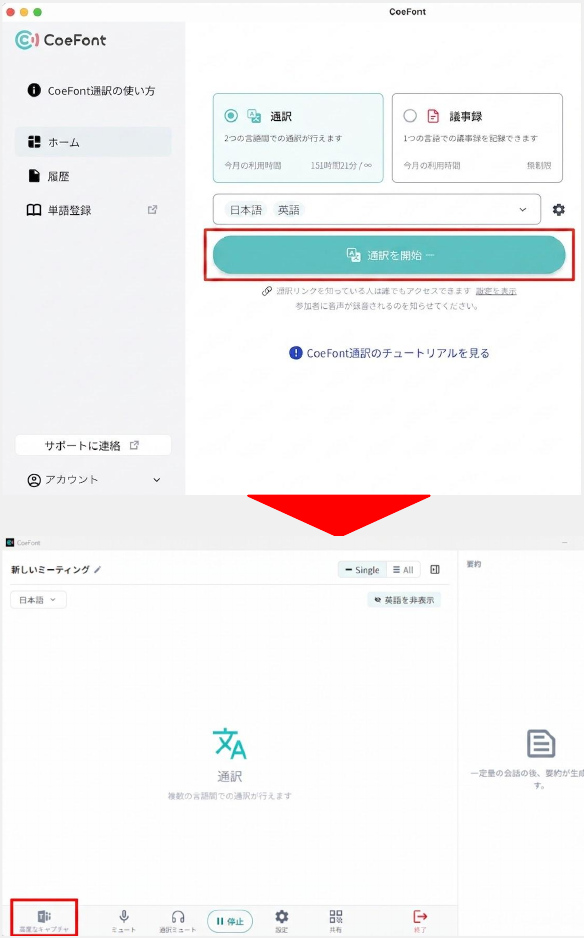
- On the CoeFont Interpreter home screen, click Start interpretation.
- On the interpretation screen, click Advanced capture at the bottom left.
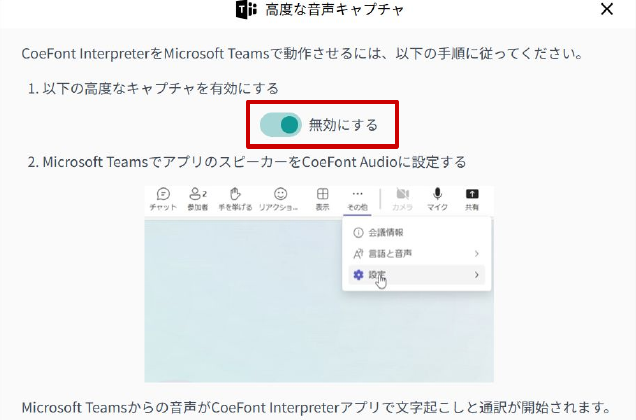
- Turn on the "Advanced audio capture" toggle. If the toggle is colored, it is on.
Set the Teams speaker
- Start or join a meeting in Teams.
- Open the menu next to "Microphone" on the meeting screen.
- Set Speaker to "CoeFont Audio."
- Set Microphone to the same device as your PC (such as earphones).
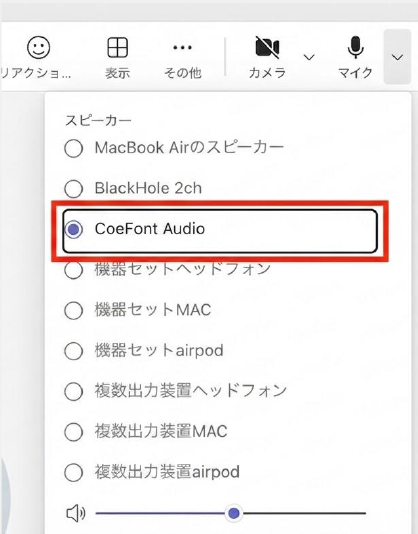
Set only the Teams speaker to "CoeFont Audio." Do not change the sound settings inside the CoeFont Interpreter app or your PC's speakers.
Share the interpretation link with participants
- Click Share in the CoeFont Interpreter menu bar.
- Share the QR code or URL that appears with participants.
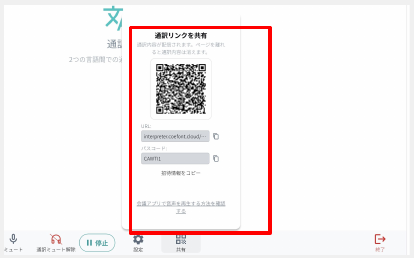
Participants hear both the original voice and the interpreted voice. You can adjust the volume of the interpreted voice under Settings > Sound > App interpretation volume.
Using it in transcription mode
In transcription mode as well, "Advanced audio capture" is required to capture Teams meeting audio. You can set it either before or after starting the minutes.
- Open Settings on the minutes screen.
- Open Sound and scroll to the bottom.
- Open Advanced options.
- Turn on "Advanced audio capture."
- Set the Teams speaker to "CoeFont Audio" and the microphone to the same device as your PC.
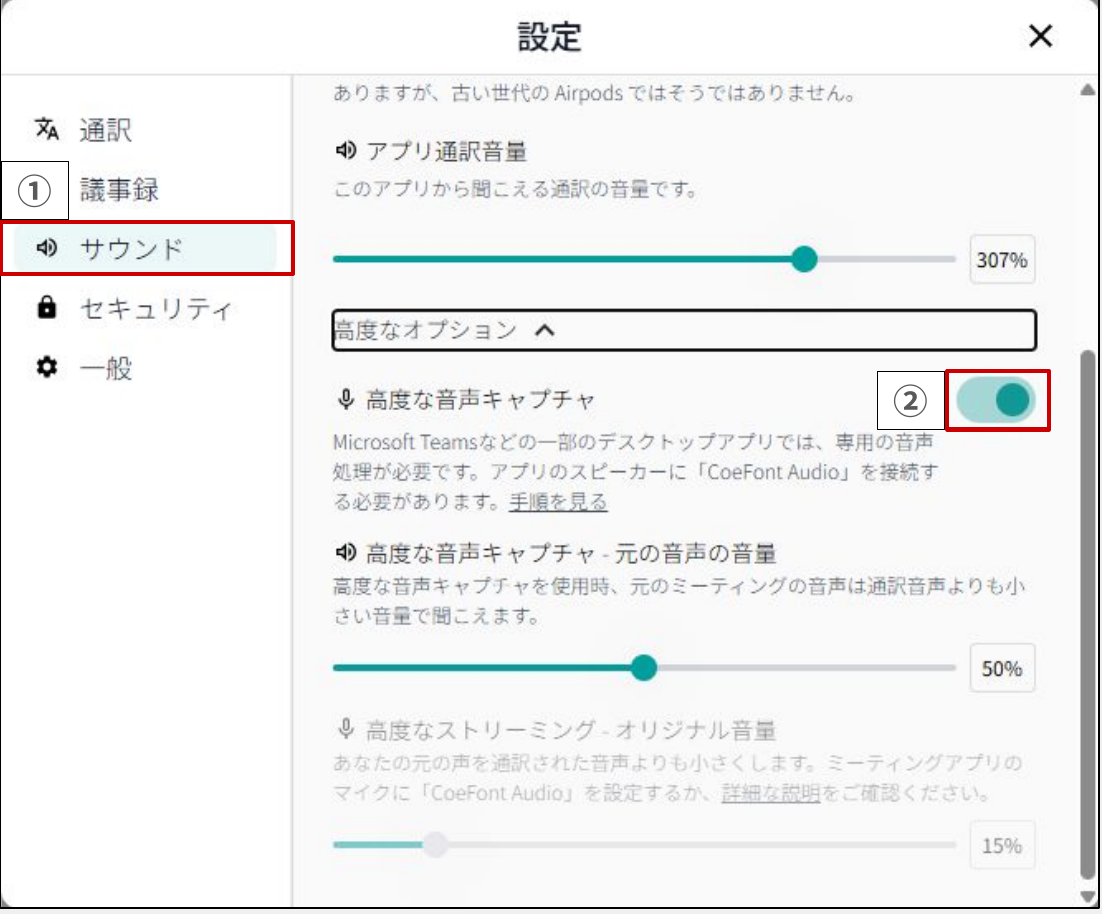
For how to use transcription mode, see Take minutes for a single-language meeting (transcription mode).