This page was machine-translated from the Japanese original and may contain unnatural wording or errors. View the Japanese page
How to Log In
Read this article when
- You want to know how to log in to CoeFont Interpreter
- Your organization has set up SSO and you want to log in with SSO
- You want to know where to look when you can't log in
Your organization's settings determine the login method: either "email address and password" or "SSO". If you don't know which one to use, ask your organization administrator (Admin).
If this is your first login
If you haven't set a password yet, first follow the steps in Register an account from the invitation email.
Log in with email address and password
- Open the login page.
- Enter the email address that received the invitation.
- Enter your password.
- Click Log in.
Log in with SSO
If your organization has set up SSO, you log in through your organization's identity provider (IdP).
- Open the login page and click Log in with SSO.
- Enter your company email address and click Log in with SAML SSO.
- Sign in on your organization's IdP authentication screen.
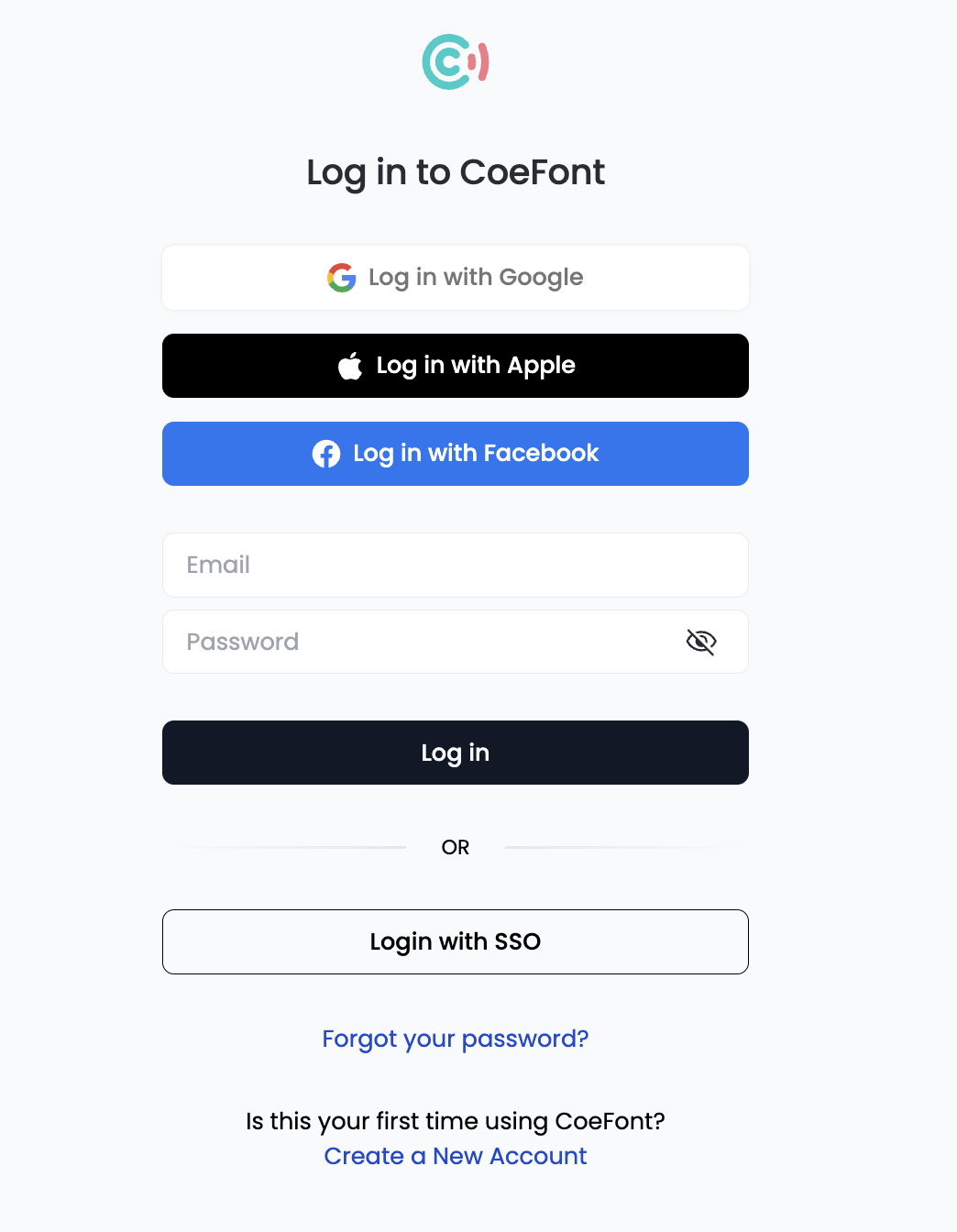
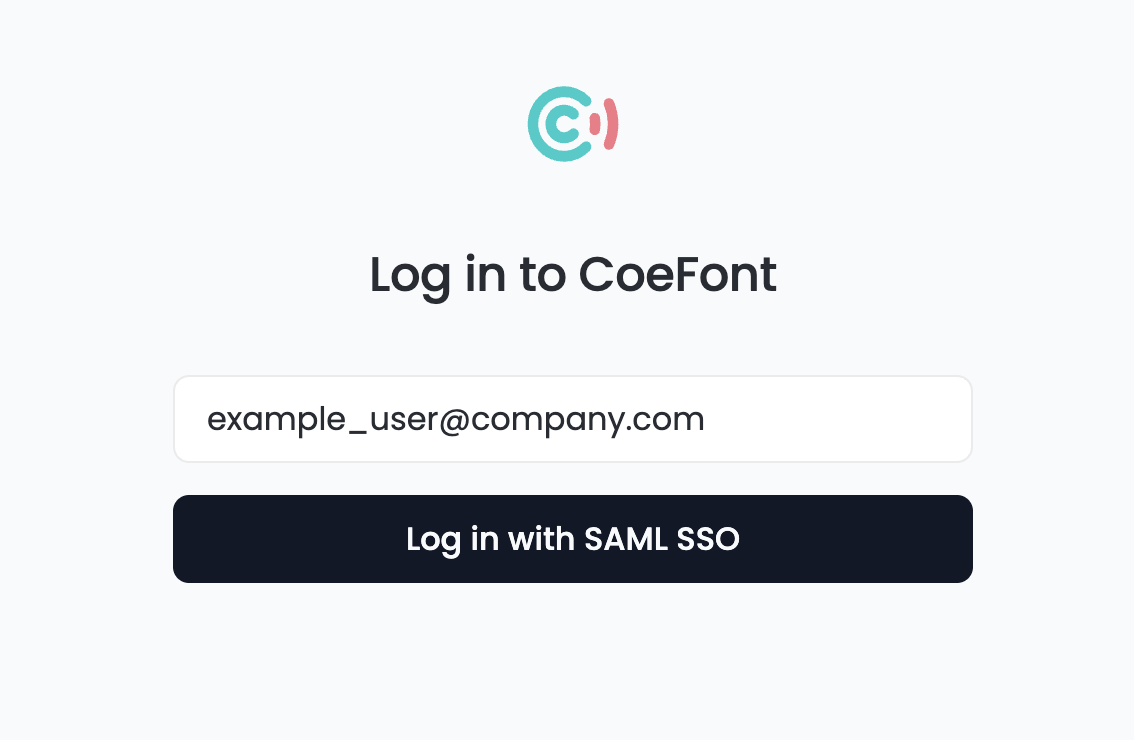
The domain of the email address you enter determines which organization you log in to. You don't need to enter an organization ID.
Organization administrators (Admin) configure SSO. For details, see SSO.
If you can't log in
- Forgot your password: Forgot your password
- Invitation email not received: Invitation email not received
- Invitation link expired: Invitation link expired
Next steps
Related information
Did this article solve your problem?