This page was machine-translated from the Japanese original and may contain unnatural wording or errors. View the Japanese page
I Forgot My Password
Read this article when
- You do not know your password and cannot log in
- You forgot the password you set last time
- You want to change your password for security reasons
Cause
If you forget your password, you can set a new one from the login page. You can reset it yourself at any time, without going through an organization admin.
Solution
How to reset your password
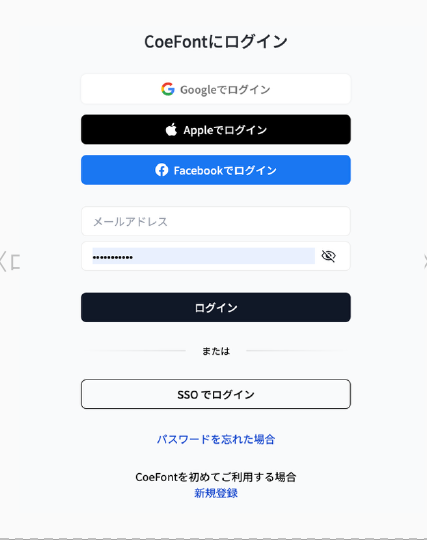
- Open the login page.
- Click Forgot your password?.
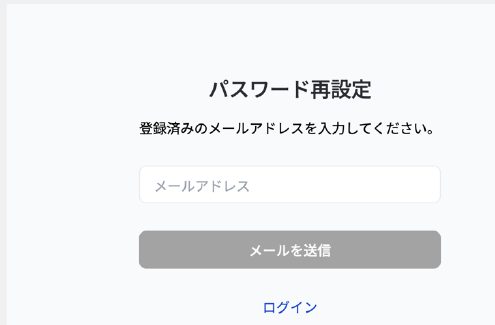
- Enter your registered email address and click Send email.
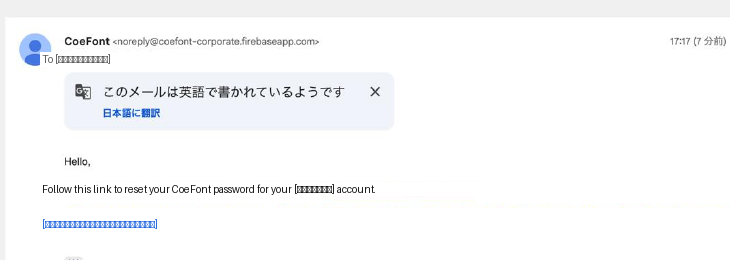
- Open the password reset email you receive and click the link in the message.
- Enter your new password.
- Enter the same password again to confirm, and finish the setup.
- If you can log in on the login page with the new password, you are done.
If you have not registered from an invitation email yet
If you have not completed your initial registration from the invitation email, see Invitation Link Expired.
If the reset email does not arrive
- Check your spam folder and trash for the reset email.
- If you cannot find it, ask your company's IT department whether your company's email filter or security product is blocking it.
The checking process is the same as in Invitation Email Not Received.
If the problem persists
Contact us through the inquiry form. Please include the following information.
- The email address concerned
- The approximate date and time you requested the reset email
- Whether you checked the spam folder
Related information
Did this article solve your problem?