Tips for Better Results (Speaking Style and Microphones)
Read this article when
- Interpretation accuracy feels lacking
- You want tips for speaking during meetings
- Voices from the back of the meeting room aren't picked up
- You want to use it in a noisy place (cafe, exhibition, outdoors)
- You want to know which microphones are recommended for PCs and smartphones
- You don't know which "Surrounding environment" setting to choose on your smartphone
Interpretation accuracy depends greatly on how you speak and the quality of the audio that reaches the microphone. As with human simultaneous interpretation, the basics are to speak clearly, one person at a time.
4 Tips to Improve Accuracy
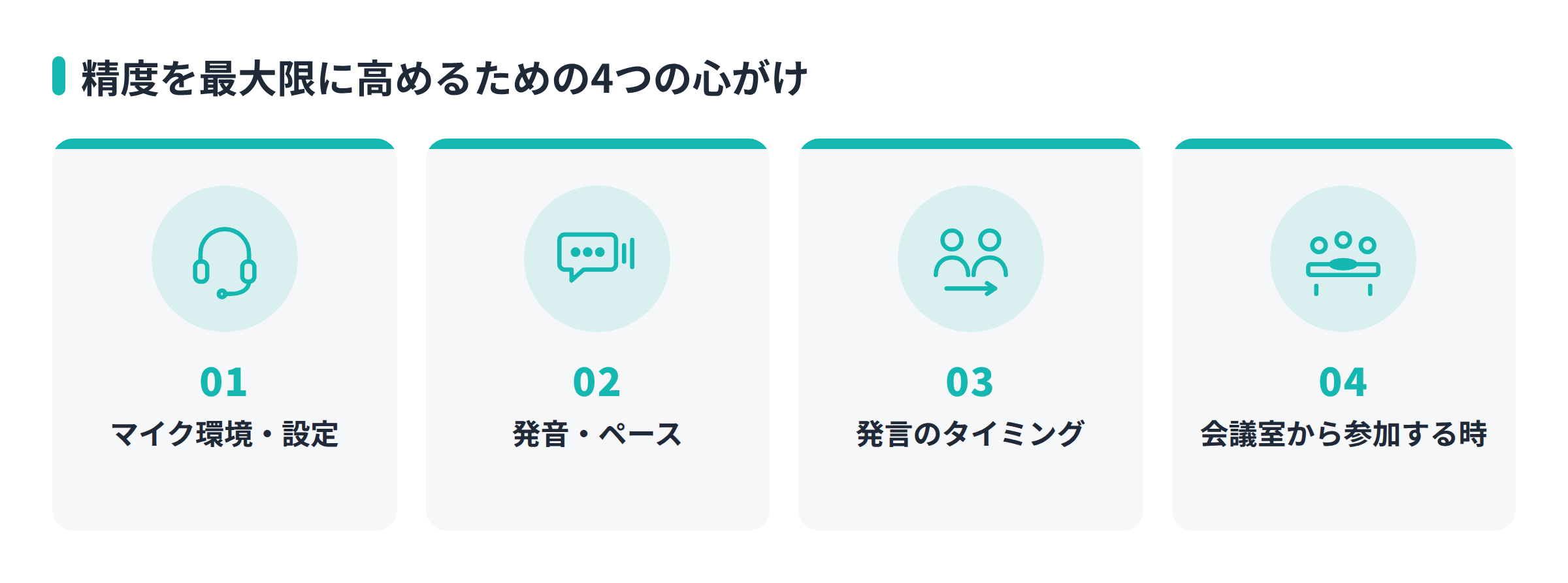
- Set up your microphone environment: A headset microphone delivers your voice clearly. Mute yourself when you aren't speaking so you can listen to the interpreted audio and hear other people more easily.
- Pause slightly and finish your sentences: Leave a little more space than usual, and finish each sentence instead of running on. Speaking calmly and clearly improves translation accuracy.
- Don't talk over each other: Overlapping speech is harder to translate. Wait until the other person has finished before you start. Translation is also more accurate when you don't mix multiple languages within a single sentence.
- Use an external speakerphone in meeting rooms: When several people join from one meeting room, connect an external speakerphone with a built-in microphone (such as a Jabra). It picks up everyone's voice while reducing background noise.
Microphones for PCs
A PC's built-in microphone is convenient, but it is one of the main causes of lower accuracy. Use an external microphone.
Joining alone
- Use a hands-free headset microphone instead of the PC's built-in microphone.
- If possible, choose a model with noise cancellation.
If you speak while the interpreted audio plays from speakers, the microphone picks up that sound and accuracy drops. Always listen to the interpreted audio with earphones or a headset. Using a headset microphone and a separate microphone at the same time can also lower recognition accuracy.
Joining with multiple people
- At each site, connect one meeting-room speakerphone to the host's PC.
- Set the microphone (input) of the PC, the meeting tool, and CoeFont Interpreter all to that meeting-room speakerphone.
The speaker (output) setting depends on whether everyone listens to the interpreted audio with their own earphones or it plays from the meeting-room speakerphone. For the setting patterns, see Use microphones and speakers in a meeting room.
Turn on "Advanced audio capture" and set only the speaker inside the Teams app to "CoeFont Audio". Do not change the settings inside the CoeFont Interpreter app or the PC's own sound settings. For the steps, see Audio settings for Teams (desktop app).
The following table gives a rough guide to equipment by number of people (estimates based on manufacturer-published figures).
| Example equipment | Approx. capacity | Suited for |
|---|---|---|
| Jabra Speak2 40 | Small to medium groups | Portable; for small meeting rooms |
| Jabra Speak2 75 (one unit) | Up to about 6 people | Typical meeting rooms |
| Jabra Speak2 75 (two units linked wirelessly) | Up to about 16 people | Large rooms where voices at the back are hard to pick up |
| Expandable conference microphone systems such as Yamaha YVC-300 / YVC-1000 | Up to about 40 people | Large meeting rooms for 30 to 40 people |
If voices from the back of the room aren't picked up, linking two compatible models extends the pickup range. However, portable speakerphones can be linked for about 16 people at most. For larger groups, consider a conference microphone system that supports expansion microphones.
Microphones for Smartphones
The smartphone app is relatively robust against ambient noise such as air conditioning, but when several people's voices are heard at the same time, it tends to have trouble deciding which speech to pick up.
Choosing the "Surrounding environment" setting
In the iOS app settings, select where you are using it under "Surrounding environment". Voice pickup and microphone sensitivity are adjusted automatically.
| Situation | Setting to choose |
|---|---|
| Quiet places such as meeting rooms or home | Quiet place (default setting) |
| Voices aren't recognized or cut out even though it's quiet, or the speaker is a little away from the device | Quiet and spacious place |
| Noisy places such as cafes or exhibitions | Noisy place |
| Ambient sounds are still picked up even with "Noisy place" | Very noisy place |
| You want to adjust the microphone sensitivity yourself | Manual setting |
In noisy places, hold the smartphone close to your mouth and speak a little louder to improve recognition. For details on the settings screen, see Smartphone app screens and settings.
The Android app has no "Surrounding environment" option. Instead, adjust the microphone sensitivity manually with the Microphone sensitivity bar under Audio in Settings. Raise it if your voice isn't picked up, and lower it if surrounding sounds are picked up. Move it a little at a time.
When surrounding voices get mixed in
In places where other people's conversations are audible, such as restaurants, use an external lavalier microphone.
- Connect an external lavalier microphone to your smartphone.
- In Audio settings on the settings screen, select the connected lavalier microphone as the microphone.
- Clip the lavalier microphone close to your mouth.
- If it picks up too much sound, lower the microphone sensitivity slightly (in the iOS app, select Manual setting under "Surrounding environment").
Common Points
- Dictionary registration: Registering proper nouns such as company names, product names, and personal names, as well as technical terms, in advance improves recognition and translation accuracy. However, registered entries are not always applied. Results also vary with how you speak and how well your voice is picked up. For details, see Custom dictionary and reference materials.
- Network: An unstable Wi-Fi connection can cause processing delays, audio dropouts, and missing input. Use a stable connection. For guidelines, see Network requirements and connectivity check.
When the Interpreted Audio Lags (Playback Speed)
If the meeting moves quickly and the pause before the interpreted audio plays bothers you, increase the playback speed of the interpreted audio to shorten the time it takes to finish listening. You can change the playback speed in the browser version, the desktop app, and the smartphone app. It is also handy when you want to listen quickly while checking the translated text on screen.
- Browser version
- Desktop app
- Smartphone app
- In the CoeFont Interpreter admin console, select Interpretation → Start interpreting.
- Open Interpretation settings, and in the "Voices to use" list, click the adjustment icon for the language whose speed you want to change.
- Move the playback speed slider that appears to increase the speed.
- When you are done, click Start with screen capture. If bot use is disabled for your organization, the button reads Start interpreting.
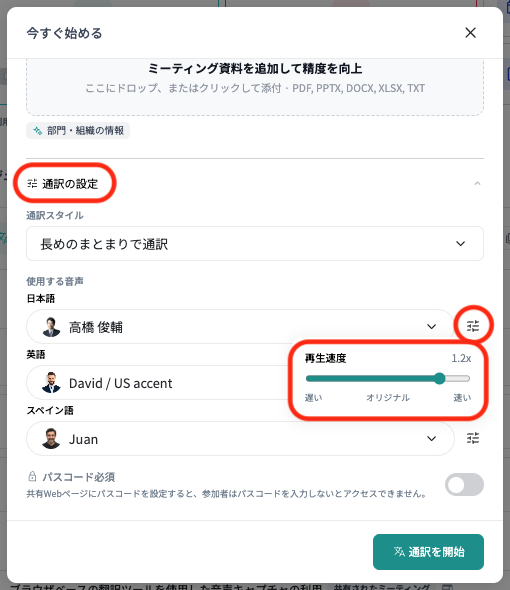
The image above shows the screen when bot use is disabled for your organization. In an organization where bot use is allowed, the start button reads Start with screen capture.
During a meeting, "Settings" lets you change only "Your language" and "Interpretation style". Adjust the playback speed on the settings screen before you start interpreting.
- Click the gear icon at the bottom right of the home screen.
- In the "Voices to use" list, click the adjustment icon for the language whose speed you want to change.
- Move the playback speed slider that appears to increase the speed.
- When you are done, click Start interpreting.
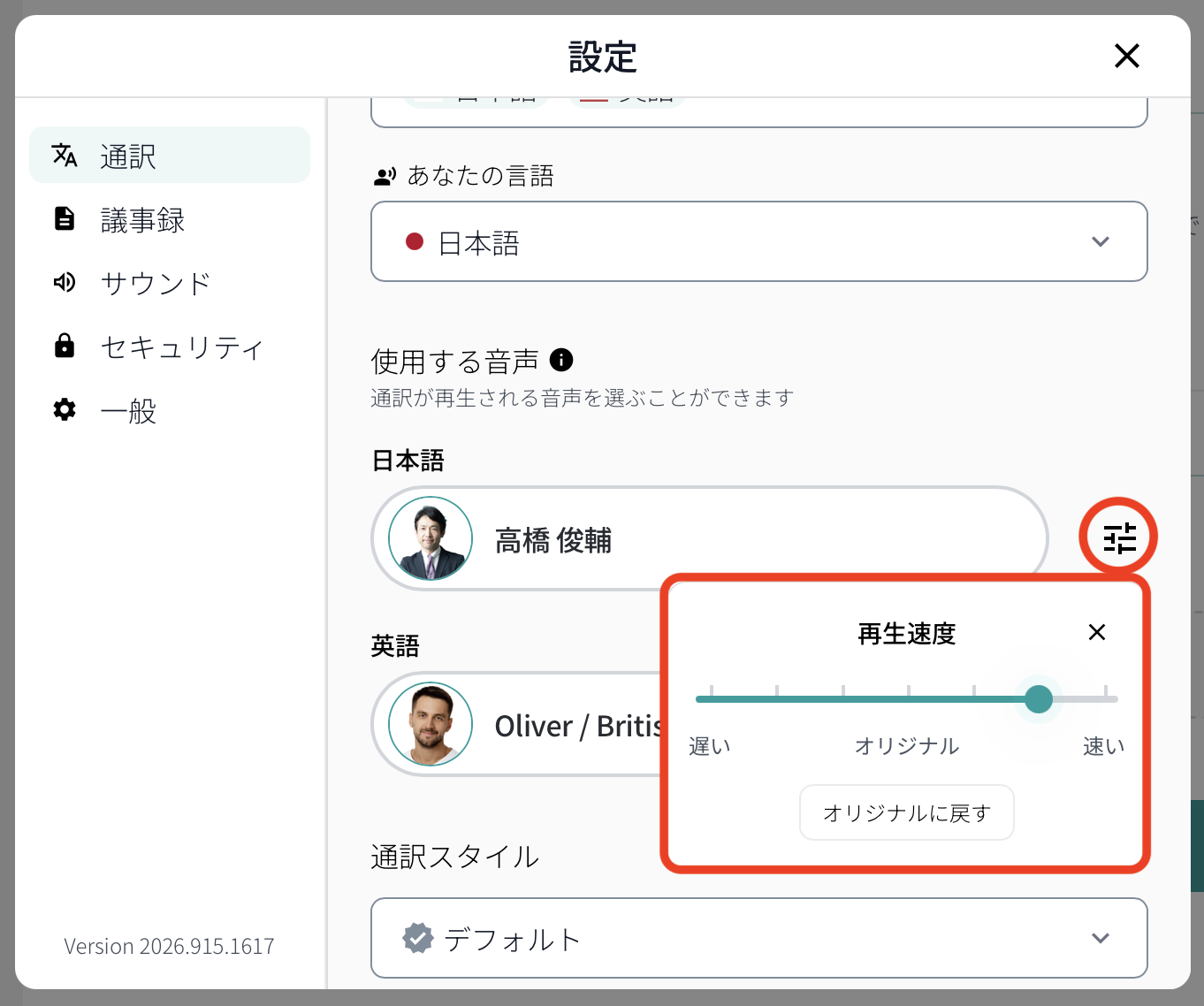
During a meeting, "Settings" lets you change only "Your language" and "Interpretation style". Adjust the playback speed on the settings screen before you start interpreting.
- Tap the flag button at the bottom of the interpretation screen and open "Language settings".
- Adjust the Playback speed of the language whose speed you want to change. For each language, you can set interpreted audio on or off, the playback speed, and the reading voice (person icon). In the Android app, tap the speaker icon for a language to show the playback speed slider.
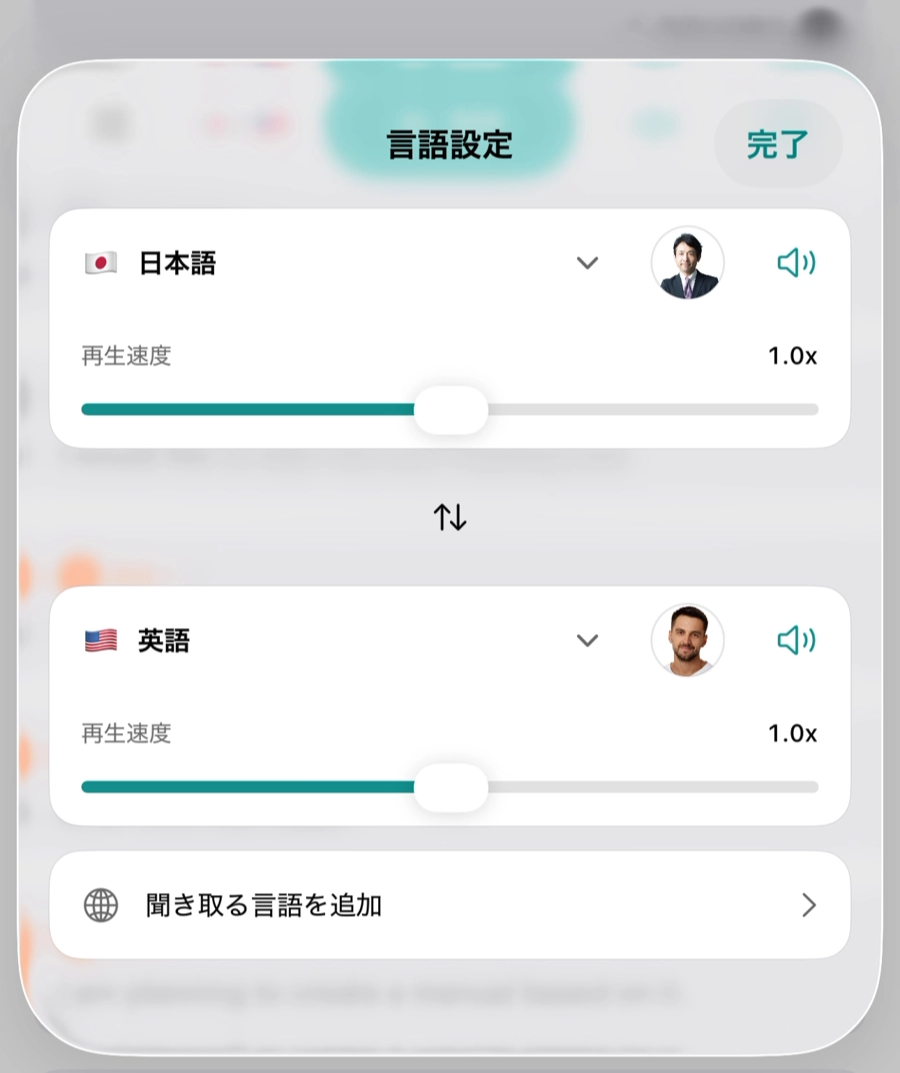
If you are not used to faster speech, don't start at the maximum speed. Speed up a little at a time, within the range you can follow. If you still notice a delay even at the maximum speed, also try the following.
- For fast-paced conversations, select "Default" as the interpretation style
- Check that your Wi-Fi connection is not unstable
- Break what you say into shorter utterances