Voices From Distant Speakers Are Not Picked Up
Read this article when
- Speech from people at the back of a meeting room or in distant seats is not recognized
- Everyone is speaking, but only some people are translated
- Voices of people far from the speakerphone are not picked up
- In a large venue, voices from the front rows are picked up but not those from the back
Cause
The speaker is outside the microphone's pickup range. In the mobile app, the pickup range may also be narrowed by the noise-reduction setting.
If the microphone picks up surrounding noise or conversations, you need to narrow the pickup range. See Audio Is Hard to Capture in Noisy Places.
Solution
- Mobile app
- Desktop app / Browser version
"Surrounding environment" setting
- On the main screen of the mobile app, tap Adjust audio pickup.
- Under "Surrounding environment," select Quiet, large place. This makes it easier to pick up quiet or distant voices.
- If voices from distant seats are recognized, you are done.
Adjust microphone sensitivity manually
If "Quiet, large place" does not help, adjust the microphone sensitivity yourself.
- Under "Surrounding environment," select Manual setting.
- Raise the microphone sensitivity little by little.
If you raise the sensitivity too much, the microphone also picks up surrounding sounds and conversations more easily. Adjust it gradually.
The Android app has no "Surrounding environment" option. In the settings, under Audio, move the Microphone sensitivity bar toward higher, little by little. For details on the screens, see Android App Screens and Settings.
For details on the screens, see Mobile App Screens and Settings.
Check the speakerphone's pickup range

- Check the pickup range of your speakerphone (the number of people it supports and the distance it can pick up) in the manufacturer's specifications.
- If participants at the back are outside the range, move the speakerphone closer to them, or ask participants to move closer to the microphone.
Add speakerphones
If one speakerphone does not reach, set up several.
- Set up an additional speakerphone near the participants at the back.
- Some models can be linked together in pairs to extend the pickup range (such as the Jabra Speak2 75). Check the manufacturer's specifications to see whether yours supports this.
Limit input to one microphone
Even if you connect multiple speakerphones, always use only one microphone as the input for CoeFont Interpreter.
- Select only the one speakerphone nearest the speaker as CoeFont Interpreter's microphone input.
- Turn off (mute) the microphones on the other speakerphones.
- When the speaker changes, switch the microphone input.

Do not turn on multiple microphones at the same time. They pick up the same voice twice, which causes echo and recognition errors.
Operating in large meetings and large venues
In a large meeting room or a venue for dozens of people, even linked portable speakerphones may not be enough.
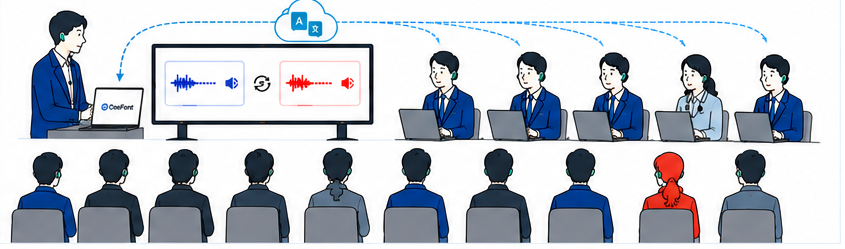
- Use an expandable conference microphone system: Install a conference microphone system that lets you add microphones (such as the Yamaha YVC-1000 or Jabra PanaCast) to suit the size of the venue.
- Use the venue's public address (PA) system: Feeding audio from the venue's PA system directly into CoeFont Interpreter gives stable pickup regardless of distance from the microphone. Having presenters wear a lavalier or headset microphone also works well.
If the problem persists
Contact your CoeFont representative. Please include the following information.
- The app you use (mobile app / desktop app / browser version)
- The size of the room and the approximate number of people
- The model and number of microphones you use