Audio Is Hard to Capture in Noisy Places
Read this article when
- There is a lot of surrounding conversation or noise, such as at an exhibition or café, and speech is not recognized well
- Speech is recognized, but the translation is wrong or the output makes no sense
- In a large meeting or seminar venue, the microphone picks up laughter and conversations around you
- You are using the app while moving, such as on a factory or facility tour, and surrounding sounds get in
Cause
Speech recognition is relatively resistant to constant noise such as air conditioning. However, when other people's conversations mix in, it becomes harder to decide which speech to recognize. The main cause is that the microphone picks up surrounding sounds over a wide area.
If voices from distant speakers are not picked up, you need to widen the pickup range. See Voices From Distant Speakers Are Not Picked Up.
Solution
- Mobile app
- Desktop app / Browser version
"Surrounding environment" setting
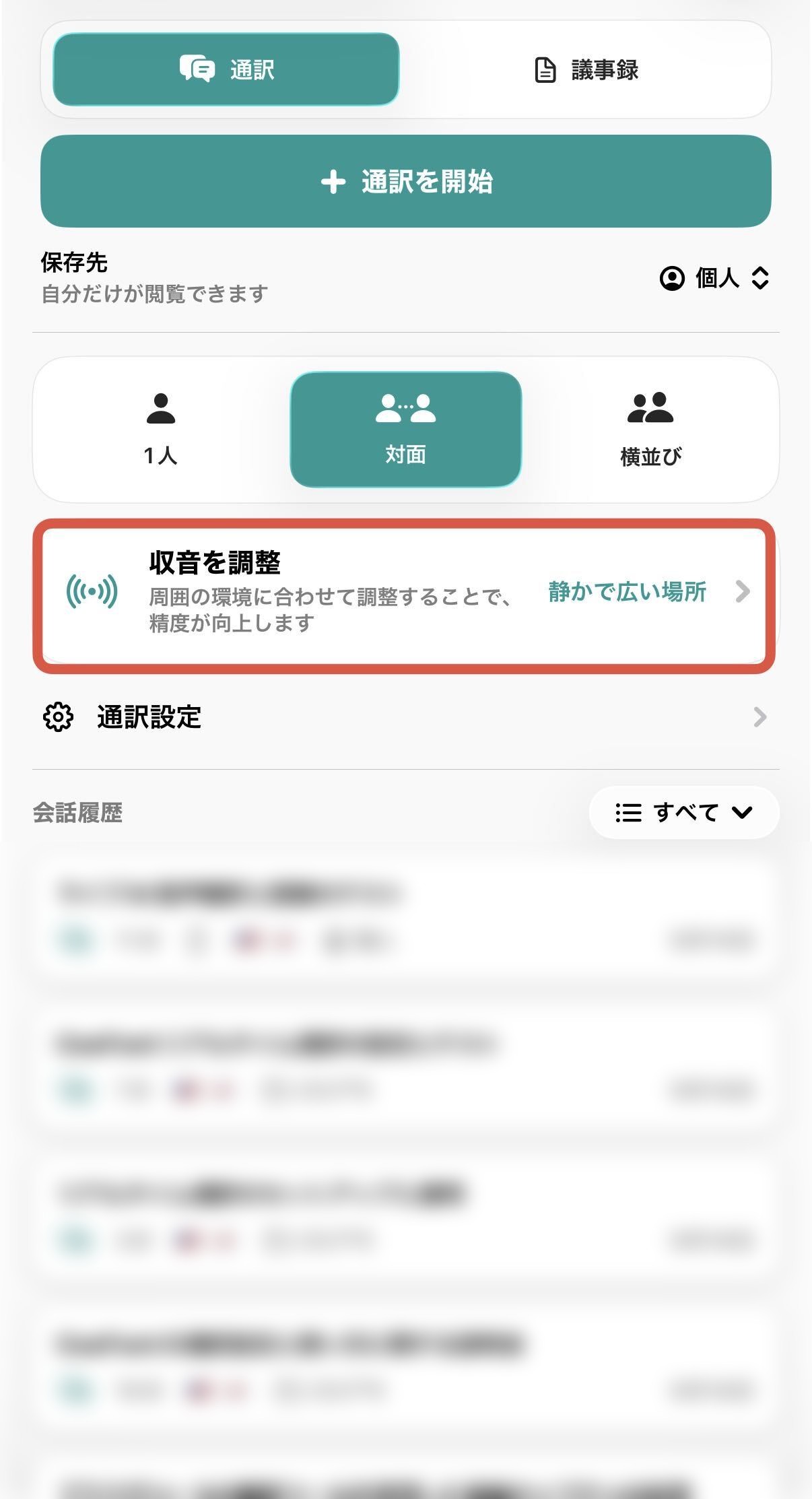
- On the main screen of the mobile app, tap Adjust audio pickup.
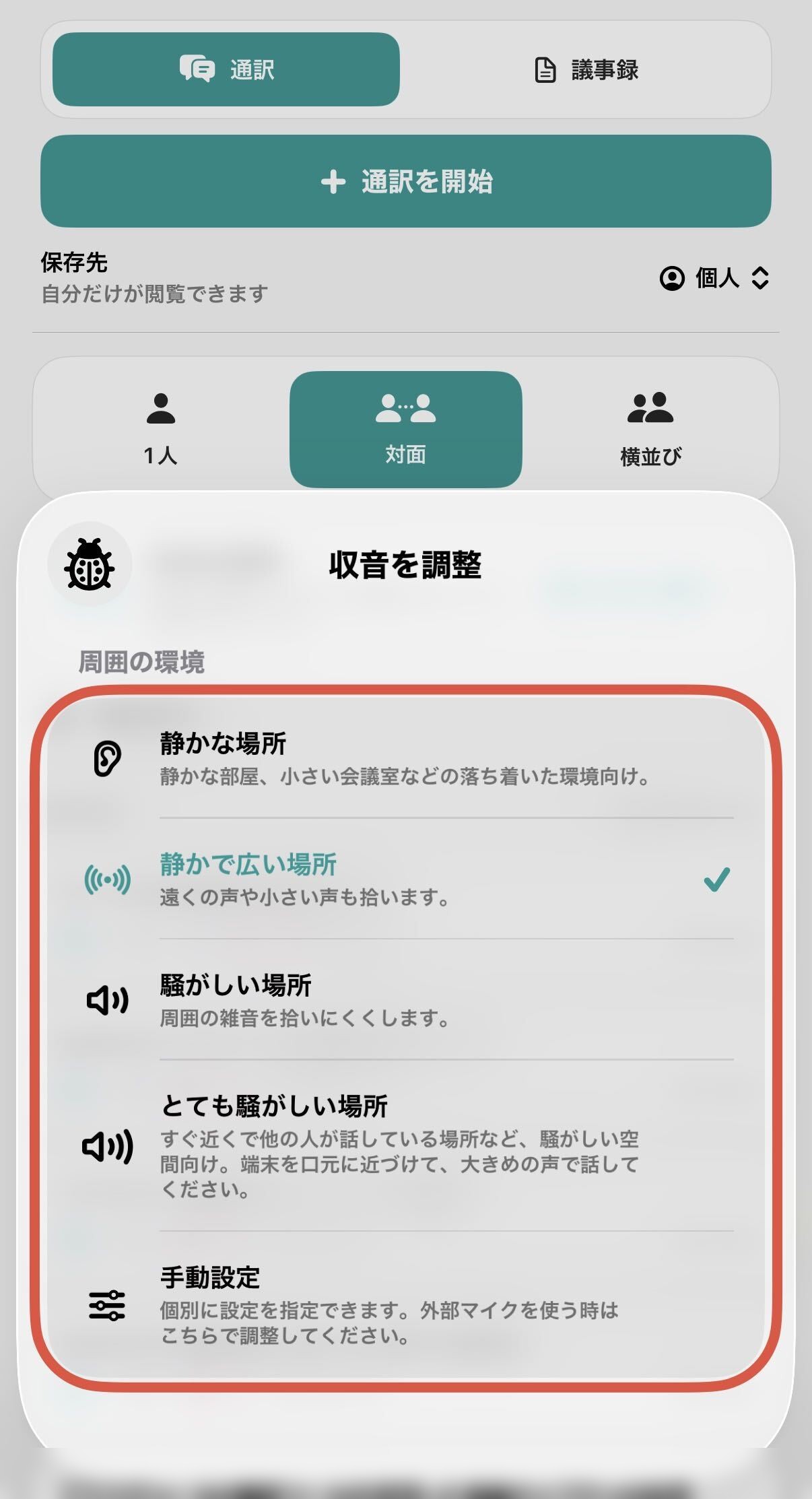
- Under "Surrounding environment," select Noisy place.
- Hold your smartphone close to your mouth and speak a little louder.
- If it still picks up surrounding sounds, select Very noisy place.
The Android app has no "Surrounding environment" option. In the settings, under Audio, move the Microphone sensitivity bar toward lower, little by little, so the microphone picks up fewer surrounding sounds. For details on the screens, see Android App Screens and Settings.
Use a lavalier microphone
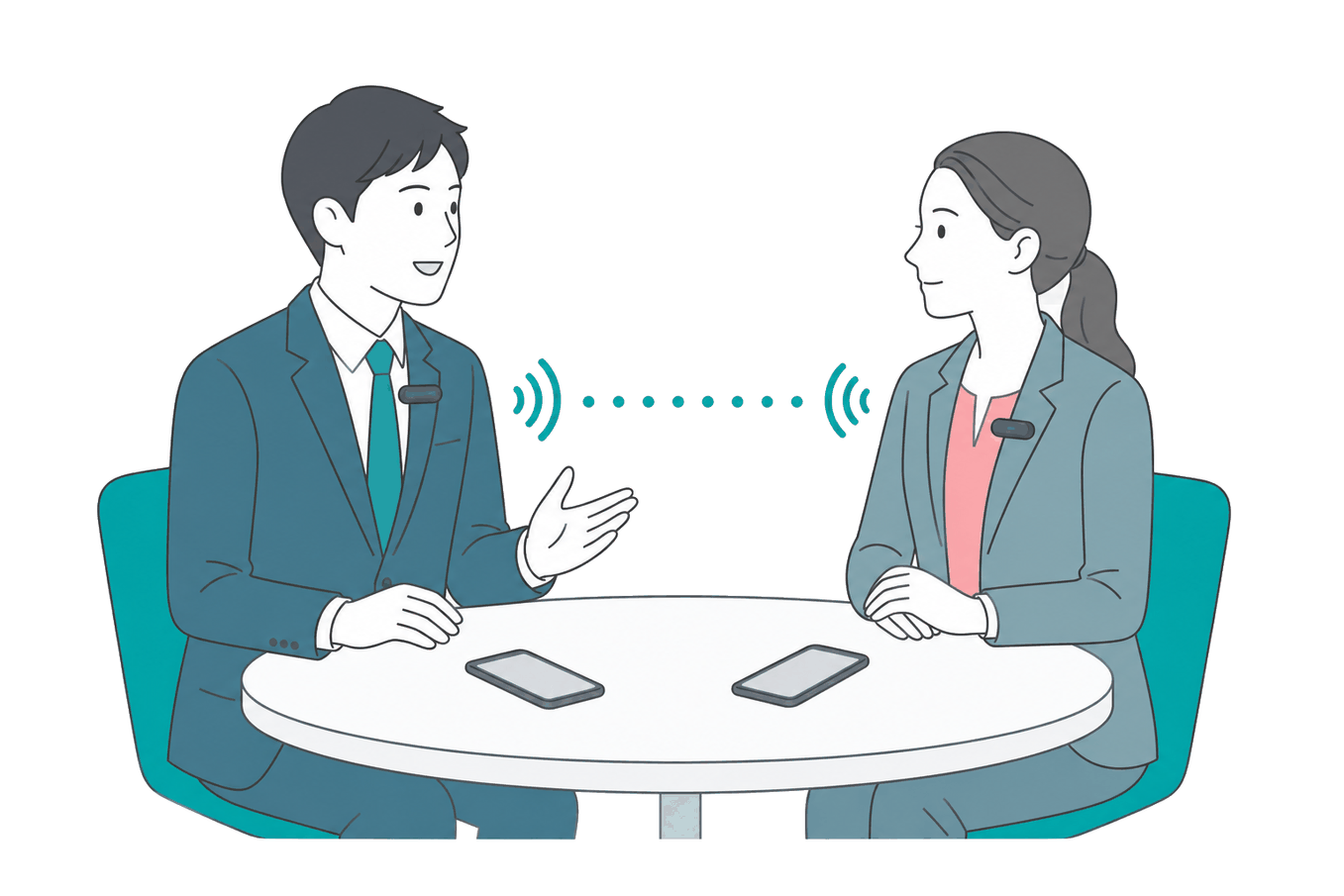
If "Very noisy place" does not help, use a lavalier microphone to pick up only the speaker's voice. It is especially effective where people are talking around you, such as in a restaurant or at an exhibition booth.
- Connect a lavalier microphone to your smartphone. Some products come in sets of two or four so several people can use them.
- In Audio settings on the mobile app's settings screen, select the connected lavalier microphone as the microphone.
- Clip the lavalier microphone to your chest or collar, close to your mouth.
A PC's built-in microphone picks up surrounding sounds over a wide area. In a noisy environment, switching to an external microphone is the most effective fix.
Switch to a headset
- Prepare a headset (earphones with a microphone) with noise cancellation.
- Connect the headset to your PC.
- In CoeFont Interpreter, change the input device to the headset's microphone.
Use a conference speakerphone
For use by several people or in a large venue, use a conference speakerphone.
- Connect a speakerphone with noise cancellation (such as the Jabra Speak2 series) to your PC.
- In CoeFont Interpreter, change the input device to the speakerphone.
Operating in large meetings and event venues
In meetings with hundreds of people, laughter, side conversations, and applause can greatly reduce translation accuracy. Combine the following measures.
- Use a dedicated microphone for the presenter: Take the audio from the venue's public address (PA) system, or have the presenter wear a lavalier or headset microphone.
- Limit where audio is picked up: Instead of trying to capture everyone's voice with one microphone, pass the microphone to whoever is speaking. During Q&A, pass the microphone around, or have the moderator repeat each question.
Operating while moving
When a guide speaks while moving, as on a factory or facility tour, do the following.
- Connect a lavalier microphone to the guide's smartphone and clip it to their chest.
- In the mobile app's "Surrounding environment," select Noisy place (on the Android app, set the microphone sensitivity lower).
- Participants open the viewing page from the QR code and listen to the interpretation with their own smartphones and earphones.
If the problem persists
Contact your CoeFont representative. Please include the following information.
- The app you use (mobile app / desktop app / browser version)
- Where you use it and the approximate number of people
- The model of the microphone you use