Interpretation Stops Partway
Read this article when
- The text suddenly stopped updating during interpretation
- The translation result is frozen
- After you stop and restart interpretation, it takes a while to start working
- Interpretation was cut off during a meeting, and starting it again does not work
Cause
CoeFont Interpreter communicates in real time while interpreting. If the connection is interrupted, interpretation stops. There are three main causes.
- The Wi-Fi signal is weak, or the connection dropped temporarily
- Your company network (firewall, VPN, etc.) is blocking required traffic
- The PC or smartphone went to sleep, or the screen was locked
Solution
Check the connection and restart interpretation
- Check that your PC or smartphone is connected to the internet. Opening another website in a browser is a reliable way to check.
- If it is not connected, restart your Wi-Fi router or switch to a wired LAN.
- On the CoeFont Interpreter interpretation screen, click Stop.
- Wait about 10 seconds, then click Start.
- If the text starts updating again, you are done.
Right after you stop and restart, the app searches for a connection. It can take a few seconds to more than ten seconds to start working, so wait a moment and see.
Check for blocking by your company network
Suspect this case if the browser version stops right after it starts, or if the problem occurs only when you are connected to your company network (including a VPN).
- Connect your PC to a network other than your company network, such as smartphone tethering.
- Start CoeFont Interpreter and check whether it works normally.
- If it works outside the company network, run the connection check by following Network Requirements and Connection Check.
- If any item shows "Error," share the results with your company's IT department and ask them to add the relevant URLs to the allow list.
Sleep and screen lock settings
If the device goes to sleep or the screen locks during interpretation, the connection is cut and interpretation stops. Set the device not to sleep during meetings.
- Windows
- Mac
- Smartphone
- Open Windows Settings.
- Open System and select Power & battery.
- Under "Screen, sleep, & hibernate timeouts," change each item to Never.
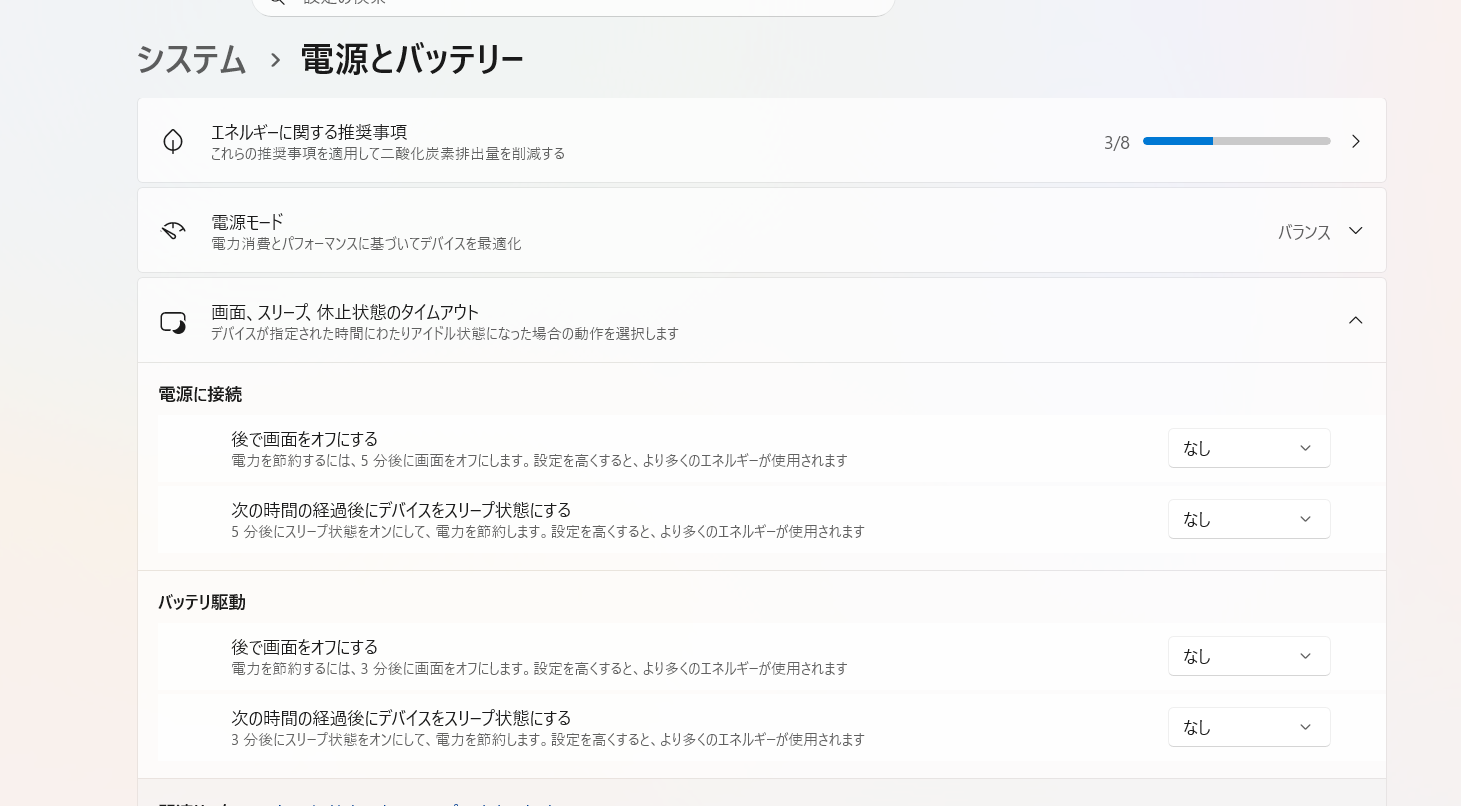
- Resume the meeting. If interpretation no longer stops, you are done.
- From the Apple menu, open System Settings.
- Open Lock Screen.
- Set "Turn display off when inactive" to longer than the length of your meeting.
- If you use a laptop, keep it plugged into the power adapter.
- Resume the meeting. If interpretation no longer stops, you are done.
- During interpretation, keep the CoeFont Interpreter app on the screen as much as possible.
- In the device settings, lengthen the time before the screen locks automatically so that it does not lock (on an iPhone, Auto-Lock under Display & Brightness in Settings).
- If you use the app with it closed, check Background operation time in the mobile app's interpretation settings. Interpretation in the background stops after the time you set.
Your organization admin may have set an upper limit for the background operation time. For details, see Mobile App Settings.
If the problem persists
Contact us through the inquiry form. Please include the following information.
- The date and time it happened
- The app you use (desktop app / browser version / mobile app)
- Your connection environment (company Wi-Fi, tethering, wired LAN, etc.)
- What you did before and after it stopped
- The connection check result screen (if you ran it)