Network Requirements and Connectivity Check
Read this article when
- You want to know how much bandwidth is needed for stable use in regular meetings
- You want guidelines for meetings of 20 to 30 people, such as board meetings or internal training, or for events with more than 100 people
- Interpretation does not start or stops only when you are connected to the corporate network (including VPN)
- You want to confirm before rollout or before an event that traffic will not be blocked
If your regular Teams or Zoom meetings run without audio or video interruptions, CoeFont Interpreter (audio and text only) should generally work without problems. This page gives specific guidelines and explains how to check in advance.
Basic Concepts
| Role | Traffic direction | Purpose | Connection you need |
|---|---|---|---|
| Host (the PC or device that starts interpretation) | Mainly upload (sending) | Sends microphone audio to CoeFont Interpreter servers in real time | A stable connection that does not drop |
| Participants (devices that listen) | Mainly download (receiving) | Receive and play the translated audio and captions | About 1.5 to 2.0 Mbps per device |
Guidelines by Scale of Use
The bandwidth figures below are reference values, calculated by multiplying the per-device guideline (1.5 to 2.0 Mbps) by the number of participants. If your regular online meetings run smoothly, you generally do not need to worry about these figures.
Internal and Online Meetings (a few people to about 10)
- Use a stable internal Wi-Fi network.
- A total of about 10 to 20 Mbps is enough for smooth operation.
- To keep the host's microphone input from dropping, avoid downloading large files on the same connection.
Medium-Sized Meetings, Board Meetings, and Internal Training (about 20 to 30 people)
- Connect the host's PC to a stable internal Wi-Fi network or a wired LAN.
- Plan for a total of about 40 to 60 Mbps.
- Use a single microphone (speakerphone) in the meeting room, and mute each person's PC microphone.
Large Events and Company-Wide Meetings (50 people or more)
For large venues or more than 100 participants, take steps to keep the venue's Wi-Fi access points from becoming congested.
| Scale | Expected traffic (theoretical) | Network setup |
|---|---|---|
| About 50 people | Download about 75 to 100 Mbps / upload about 5 to 10 Mbps | Fix the host's PC on a stable Wi-Fi network or wired LAN. If participants connect to the same Wi-Fi, use a business-grade router |
| About 100 people or more | Download about 150 to 200 Mbps / upload about 10 to 15 Mbps | If you cannot provide a stable connection, ask participants to connect their smartphones through their own mobile networks instead of the venue Wi-Fi |
If you broadcast from one desktop app and the other participants only listen, you do not need as much upload bandwidth as shown in the table.
The figures above are guidelines for stable operation. The bandwidth you actually need depends on the venue's network configuration. If you plan to use CoeFont Interpreter at a large event, contact us in advance through the Contact Us form.
Destinations to Allow
If your corporate network or proxy restricts traffic, allow the CoeFont Interpreter destinations.
| Destination | Purpose |
|---|---|
*.coefont.cloud | The CoeFont Interpreter service itself (HTTPS and WebSocket) |
*.coefont.com | Related CoeFont services |
Communication uses HTTPS (port 443) and WebSocket (wss://). The required destinations differ by feature, so after changing your allow settings, always run the connectivity check below and confirm that every item succeeds.
Running the Connectivity Check
At check.coefont.app, you can check whether the PC can connect to each CoeFont Interpreter destination. Run the check on the PC and network where the problem occurs (and with the VPN connected, if you use one).
- Open check.coefont.app in your browser.
- Click Start test.
- Wait until the list of results appears.
- Check whether any item in the list shows "Error".
- If any item has an error, save a screenshot of the results screen, or copy the results as text with Copy results at the top left of the screen.
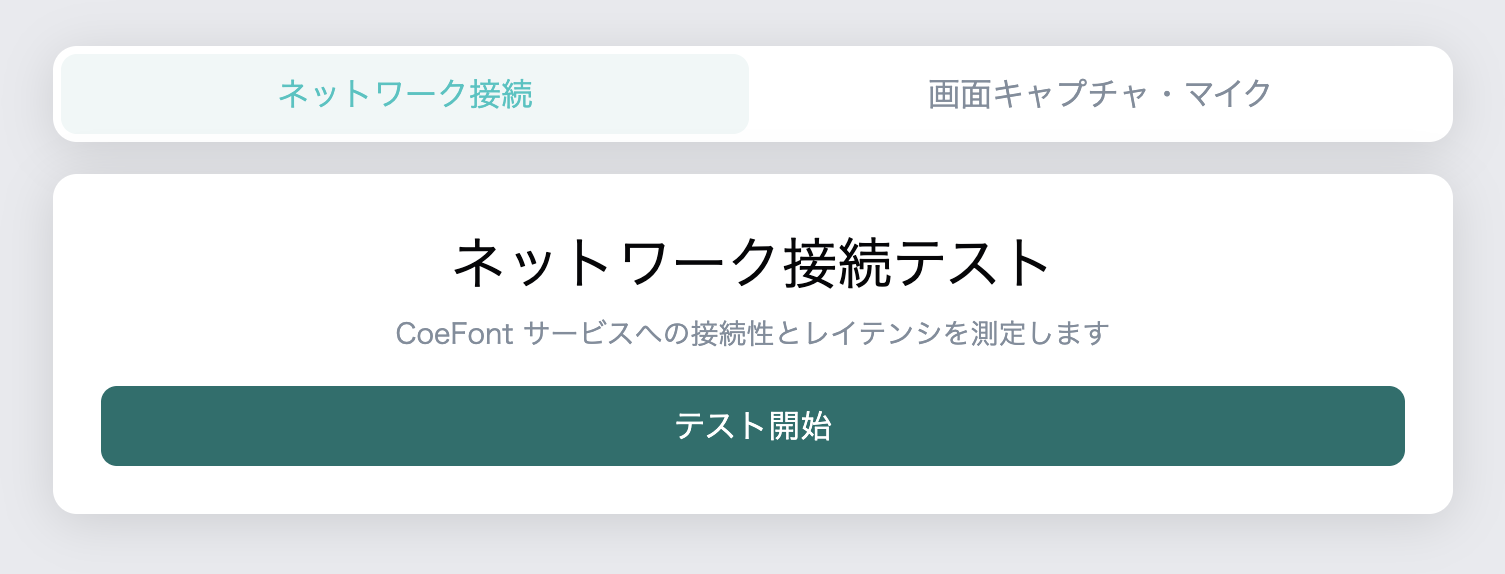
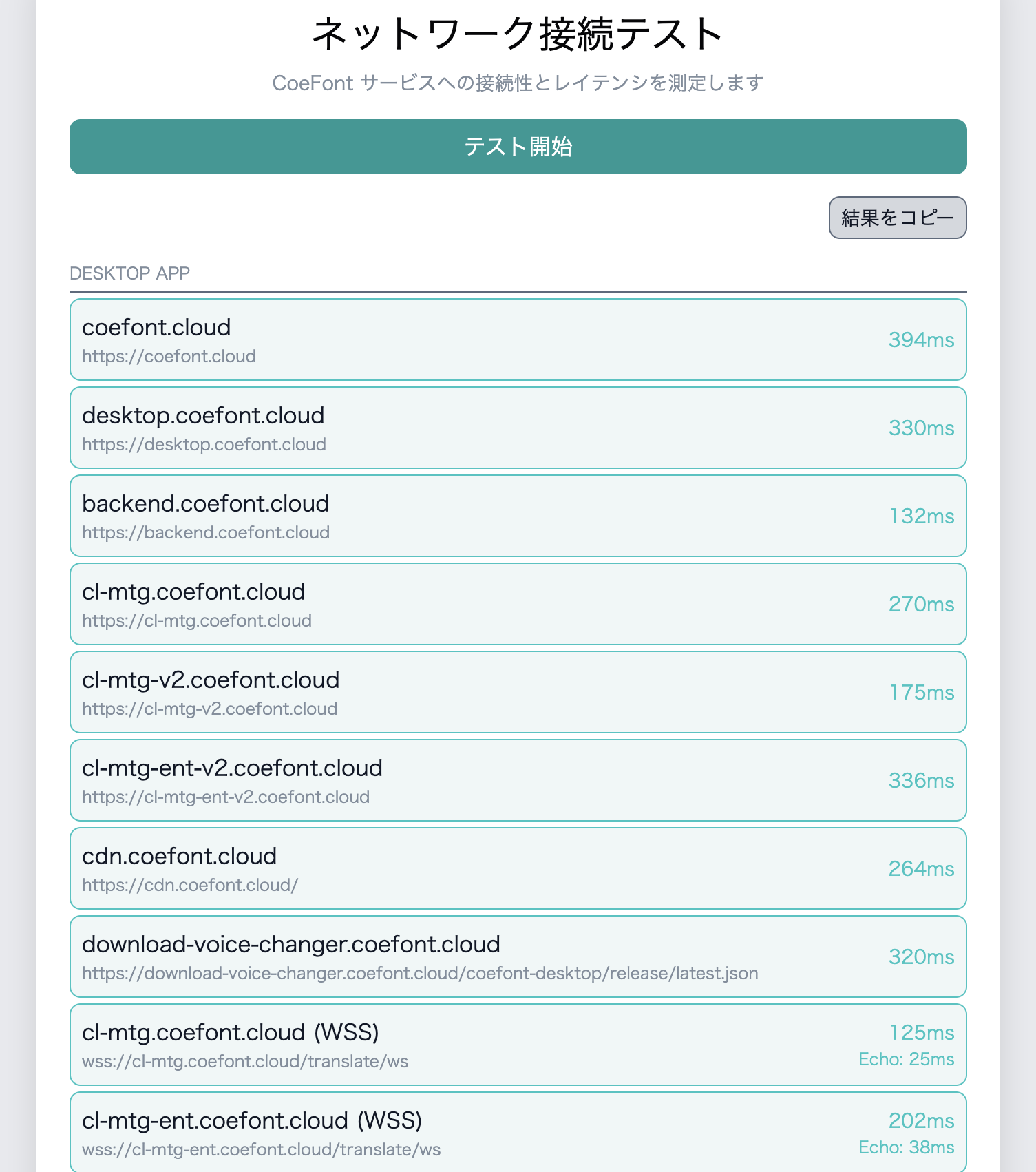
If the check page itself does not open, that also indicates that traffic is being blocked. Ask your IT team to allow the check page's URL as well.
What to Do If There Are Errors
- Share the results with your internal IT team as they are, without summarizing, and ask them to add the relevant destinations to the allowlist.
- Also contact us through the Contact Us form, attaching the same results.
- After the destinations are registered, run the connectivity check again and confirm that every item succeeds.
If even one destination is missed, only that feature fails, and you have to test and submit the request again. Internal requests often take time, so ask your IT team to register every item shown in the results at the same time.
Sample request to the IT department
We may be unable to use CoeFont Interpreter because our internal network security settings are blocking its traffic.
When we ran a connectivity check with the test URL below, some items were blocked, as shown in the attachment.
Could you please add the affected URLs to the allowlist?

▼ Test URL
https://check.coefont.app/

Note: If the test URL itself cannot be opened, please add this URL as well.
Screen Capture and Microphone Test for the Web Version
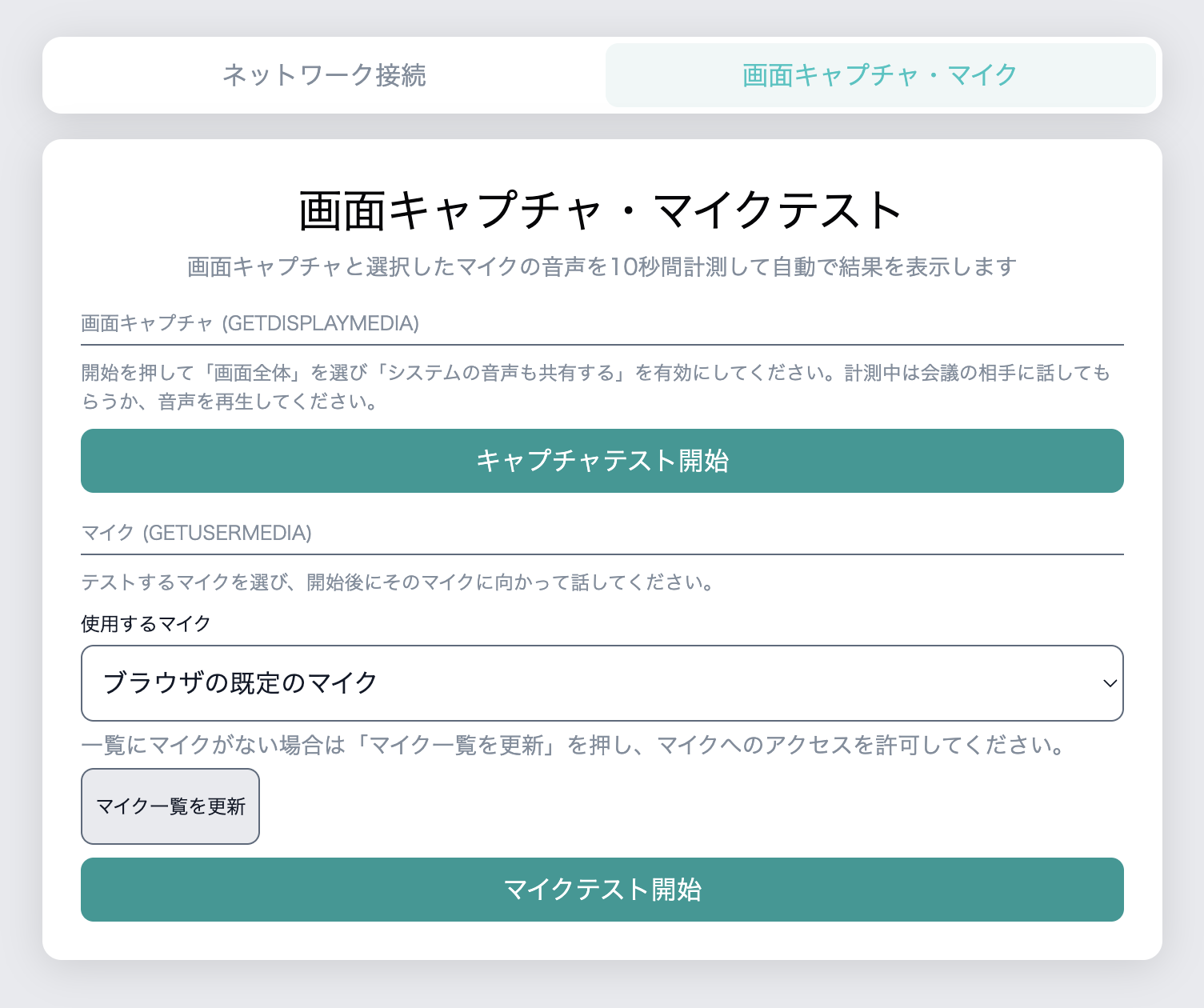
If you use the web version, you can also check that screen capture and the microphone work. If you do not use the web version, you do not need this test.
- On the PC where you use the web version, open check.coefont.app/#capture.
- Run the "Screen capture / microphone test".
- Save a screenshot of the results screen.
Pre-Event Checklist
- Every item in the connectivity check succeeds
- The host's PC that starts interpretation has a stable connection
- If several people join from one meeting room, use a single microphone, mute each person's PC microphone, and have everyone listen to the interpreted audio on their own earphones
Information to Include When You Contact Us
If the problem continues even though every item succeeds, contact us through the Contact Us form and include the following.
- The connectivity check results screen
- The help page you were reading and the steps you tried on that page
- The app you are using (web version, desktop app, Teams Plugin, or mobile app)
- Your connection environment (internal Wi-Fi, VPN, tethering, wired LAN, and so on)
- The date and time of the problem and details of the symptoms