Choose an App by Use Case
Read this article when
- You don't know how to set up CoeFont Interpreter for a business meeting or a meal
- You want to know what the host and participants each need to prepare for online or hybrid meetings
- You want to use CoeFont Interpreter for a large seminar or a factory tour or inspection
- You want to check whether it works the same way when you don't use Teams
- You want to deliver interpretation to both on-site attendees and online listeners at a conference
- You can't decide among several options and want to compare them by equipment and number of people
Use cases are organized into three groups and eight patterns. Find the scene closest to yours and check its equipment and preparation. Click a scene name in the table to jump to its description. Click an app name to open that app's usage page.
A one-page summary is also available: Tool guide "Which one should I use?" (PDF) (click an image to enlarge it)
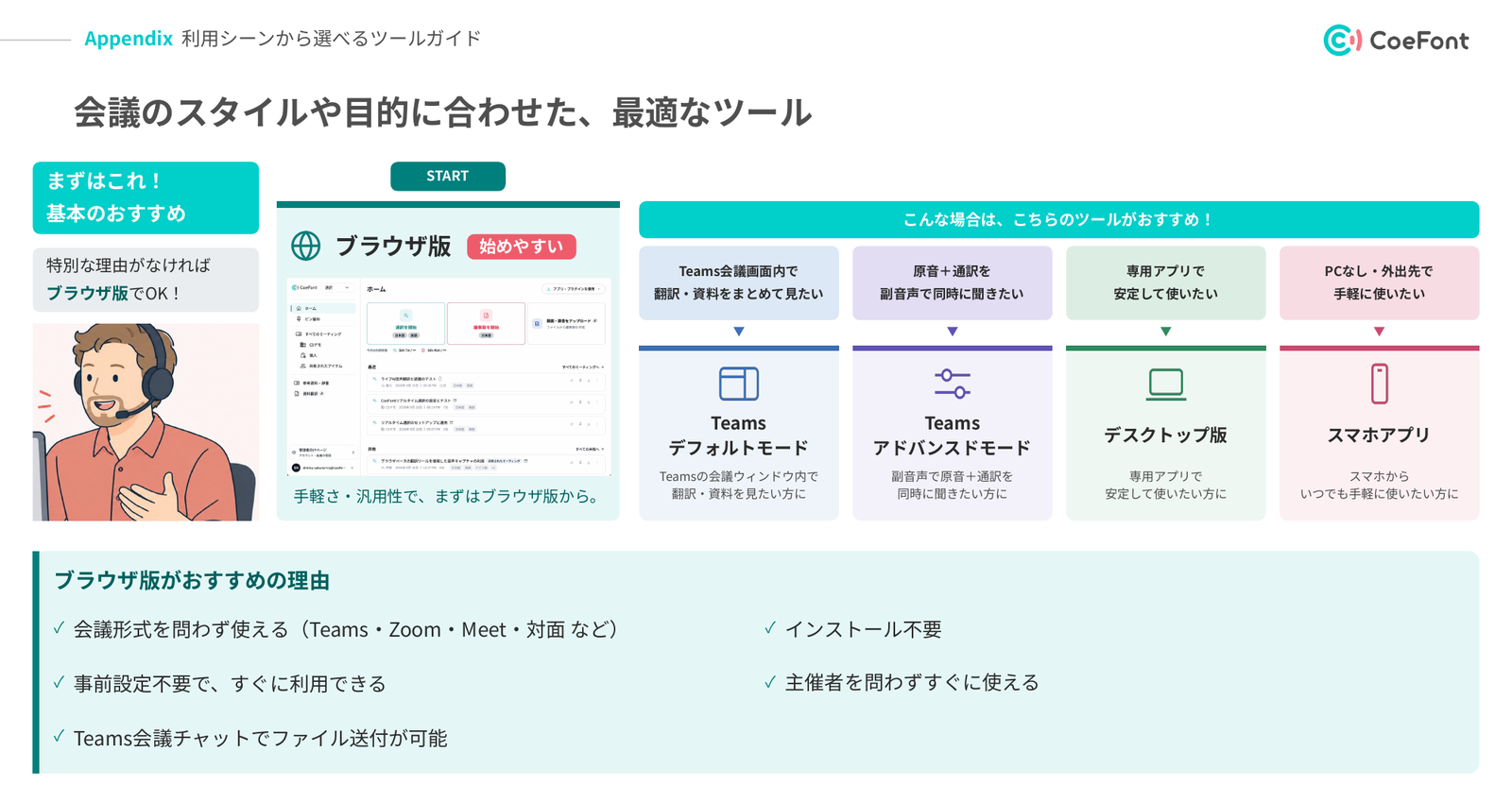
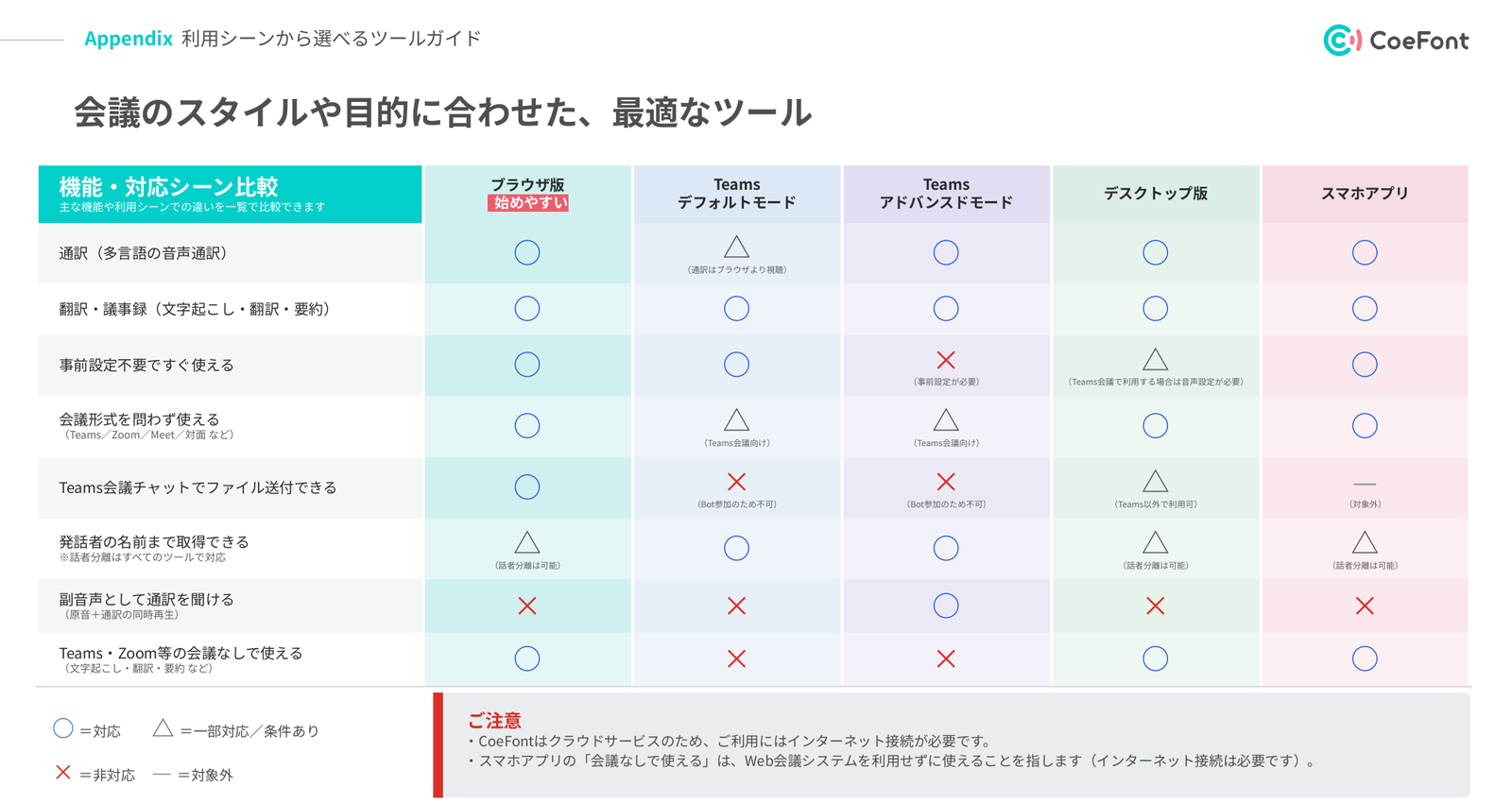
Scene list
| Group | No | Scene | Format | If you use Teams | If you use Zoom, Google Meet, Webex, etc. |
|---|---|---|---|---|---|
| Face-to-face | 01 | 1-on-1 | Face-to-face | Smartphone app | Smartphone app |
| Face-to-face | 02 | Group discussion | Face-to-face | Smartphone app | Smartphone app |
| Online / hybrid | 03 | Remote meeting | Online | Teams Plugin / Browser version | Desktop app / Browser version |
| Online / hybrid | 04 | Hybrid meeting | Face-to-face + online | Teams Plugin / Browser version | Desktop app / Browser version |
| Online / hybrid | 05 | Large online meeting | Online (broadcast) | Teams Plugin / Browser version | Desktop app / Browser version |
| Presentations / conferences | 06 | On-site simple presentation | Face-to-face | Smartphone app | Smartphone app |
| Presentations / conferences | 07 | Tours and inspections with large groups | Face-to-face | Smartphone app | Smartphone app |
| Presentations / conferences | 08 | Conference | Face-to-face + online | Browser version / Smartphone app | Browser version / Smartphone app |
In every scene, only the host who starts interpretation needs a CoeFont Interpreter account. Participants can listen from a shared URL or QR code without an app or an account.
If you're unsure, narrow it down by three points: the number of people, whether the meeting is face-to-face or online, and whether you need to show text on a monitor.
Face-to-face scenes
01 1-on-1 (face-to-face)
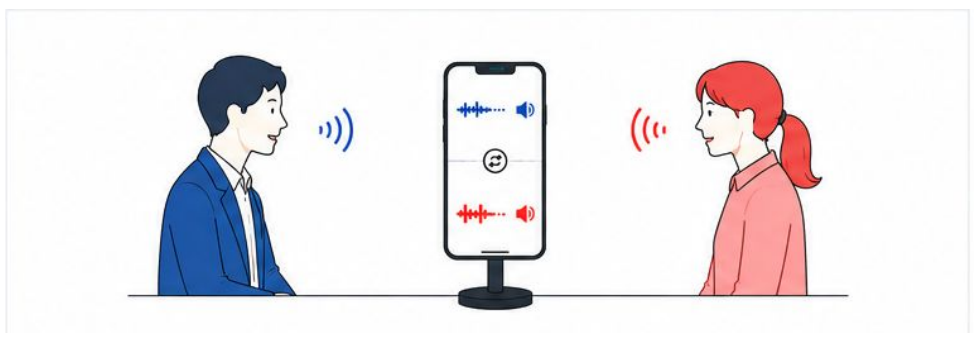
The simplest way to use it, where both people listen to the interpreted audio. You can start by placing one smartphone between the two of you.
| Item | Details |
|---|---|
| App | Smartphone app |
| Audio capture / output | Output from the smartphone speaker (no earphones) |
| Number of devices | 1 |
| Number of accounts | 1 (host only) |
- Good for: Few things to prepare, so you can use it right away at a business meeting. No need to share a QR code or URL.
- Note: Because audio plays from the speaker, it suits quiet places. When more people join, such as at a meal, giving each participant a device and a lavalier microphone makes it easier to pick up voices.
Host preparation
- Start the smartphone app and log in.
- Select the language pair you want to interpret.
- Place the device between the two of you and start talking.
The other person doesn't need to do anything. Speaking in front of the host's device is enough for interpretation.
02 Group discussion (face-to-face)
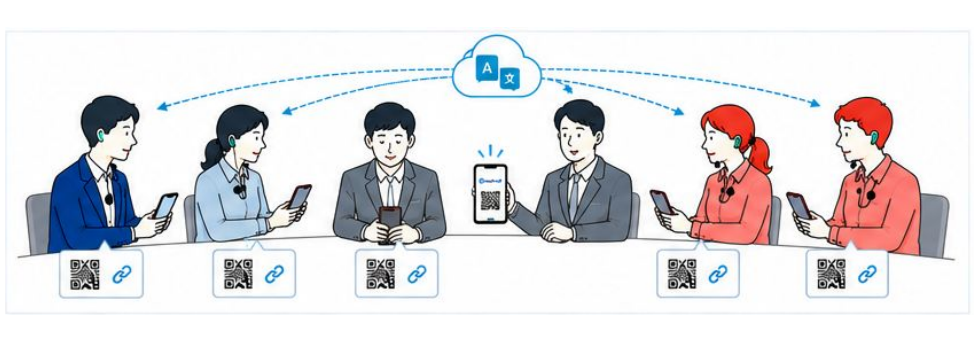
How to share interpretation with several people in the same place without a meeting tool.
| Item | Details |
|---|---|
| App | Smartphone app |
| Audio capture / output | Lavalier microphone or speaker microphone + earphones |
| Number of devices | One per listener |
| Number of accounts | 1 (host only) |
- Good for: You can start on the spot without a meeting tool. In large or noisy environments, a lavalier microphone improves accuracy.
- Note: Participants can't speak from their own devices. Speak toward the host's device or a connected microphone. Because interpreted audio plays from each person's device, we recommend wearing earphones.
Each participant chooses the language to listen in. If it's the same as the spoken language, they hear the original audio; otherwise, they hear the translation.
Host preparation
- Connect a lavalier microphone or speaker microphone.
- Share the QR code or URL with participants (show it on screen, print and post it, send it in chat, etc.).
Participant steps
- Scan the QR code and open it on your own device.
- Select the language you want to listen in and put on your earphones.
Online and hybrid scenes
Some parts of this group use a Teams meeting as an example. If you don't use Teams, use the desktop app or the browser version instead of the Teams Plugin, and you can use it in the same way with any meeting tool, such as Zoom, Google Meet, or Webex.
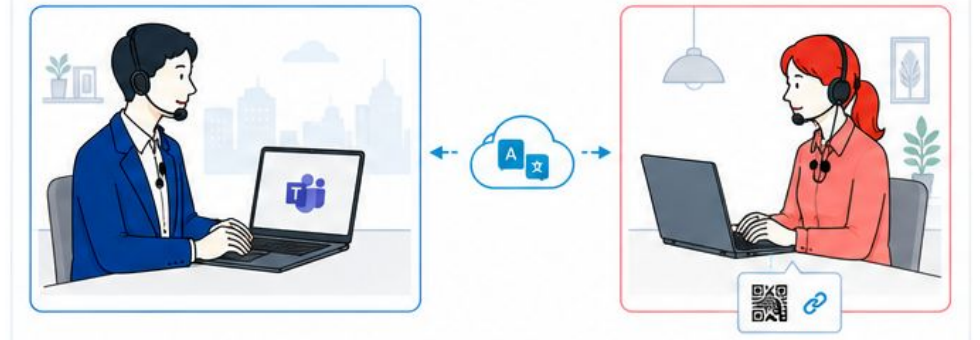
03 Remote meeting (online)
Each participant joins from a different location on their own device.
| Item | Details |
|---|---|
| App (Teams) | Teams Plugin / Browser version |
| App (other meeting tools) | Desktop app / Browser version |
| Audio capture / output | Headset (earphones + microphone) |
| Number of devices | One per participant |
| Number of accounts | 1 (host only) |
- Good for: Because everyone uses a headset, audio is clear and there is no risk of feedback. It scales across any number of locations and people.
- Note: It can't be used with the smartphone app. You need to ask all participants to prepare their audio setup, such as a headset. Results also depend on each participant's connection quality.
Host preparation
- Set the input and output devices of your PC, the CoeFont Interpreter app, and the meeting tool all to your headset.
- Share the QR code or URL with participants by chat or email.
Participant steps
- Connect your headset.
- Open the shared URL and select the language you want to listen in.
- Mute your microphone except when you speak.
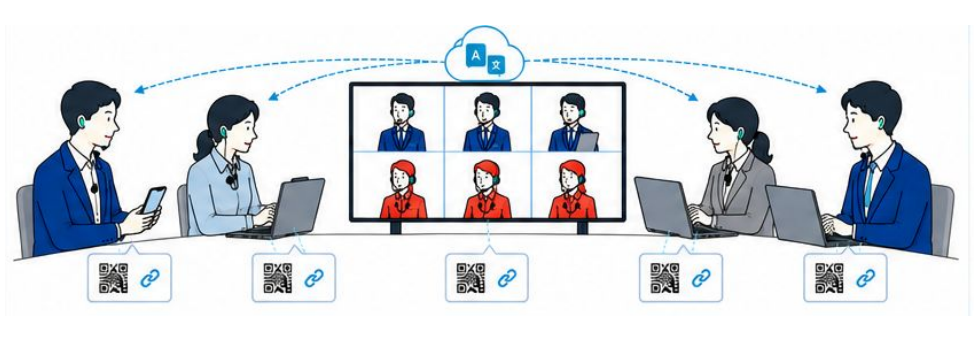
04 Hybrid meeting (face-to-face + online)
The most common meeting format, with participants in a meeting room and remote participants together.
| Item | Details |
|---|---|
| App (Teams) | Teams Plugin / Browser version |
| App (other meeting tools) | Desktop app / Browser version |
| Audio capture / output | A speaker microphone (conference microphone) at each site |
| Number of devices | One per person |
| Number of accounts | 1 (host only) |
- Good for: Even in a meeting that mixes face-to-face and remote participants, one conference microphone can deliver interpretation to both sides.
- Note: Audio from each site is gathered into CoeFont Interpreter through the host's PC (meeting tool). Because of how Teams works, people in the meeting room hear their own speech in their earphones. A high-performance speaker microphone can also play the interpreted audio from its speaker, but you need to verify this beforehand.
Meeting room (host's PC) preparation
- Connect a conference microphone suited to the room size and number of people to the PC.
- Set the input devices of your PC, the CoeFont Interpreter app, and the meeting tool all to the conference microphone.
- Share the meeting invitation URL with both the meeting room and online participants.
Online participant steps
- Join the meeting from the shared URL as usual.
- Mute your microphone except when you speak. You can also listen with earphones if needed.
For how to choose equipment for a meeting room, see Use microphones and speakers in a meeting room.
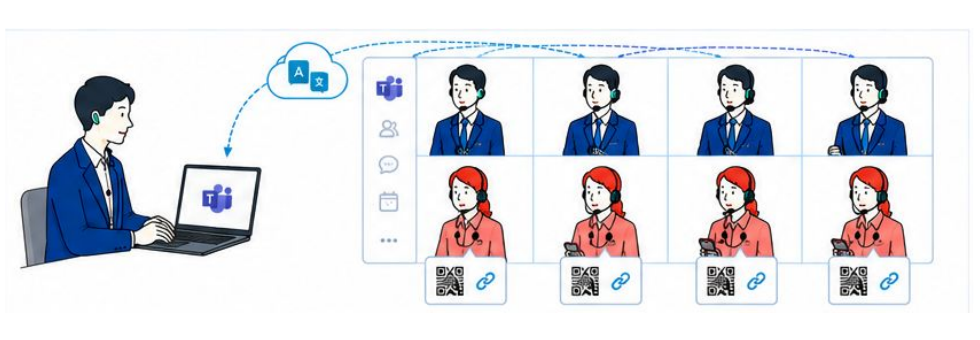
05 Large online meeting (online)
For large seminars and company-wide meetings, where all participants listen at once to the interpretation of the presenter's speech.
| Item | Details |
|---|---|
| App (Teams) | Teams Plugin / Browser version |
| App (other meeting tools) | Desktop app / Browser version |
| Audio capture / output | Earphones (listen only) |
| Number of devices | One per listener |
| Number of accounts | 1 (host only) |
- Good for: The same setup as 03 Remote meeting scales directly to large seminars and meetings. Participants can join from anywhere.
- Note: Participants need a stable connection and audio environment. Each participant needs to select the language they want to listen in.
Host (presenter) preparation
- Share the meeting invitation URL with everyone in advance, through a calendar invitation or chat.
- Start interpretation with the Teams Plugin, the desktop app, or the browser version, and present as is.
Participant steps
- Join the meeting from the shared URL and mute your own microphone.
- Select the language you want to listen in and listen with earphones.
For connection guidelines when many people use the service, see Network requirements and communication check.
Presentation and conference scenes
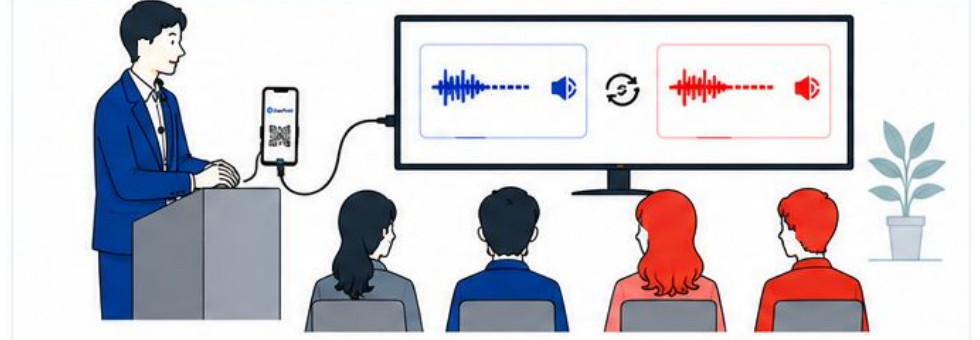
06 On-site simple presentation (face-to-face)
Shows the original text and the translation on a monitor. Participants don't need to scan a QR code.
| Item | Details |
|---|---|
| App | Smartphone app |
| Audio capture / output | Smartphone + monitor |
| Number of devices | 1 + monitor |
| Number of accounts | 1 (host only) |
- Good for: Simple equipment that suits face-to-face meeting rooms. In the minutes, speakers are identified automatically from voice characteristics.
- Note: In venues with many participants, consider how easy the monitor is to read. Because one device handles both capture and output, add a speaker microphone for large venues. An iPhone with a Lightning port needs Apple's official adapter to connect to a monitor.
Text appears on the monitor, and audio plays from the smartphone speaker.
Host preparation
- Start the smartphone app and connect a microphone.
- Connect the smartphone to the monitor (mirroring or HDMI).
- If the venue is large, add a speaker microphone.
Participants don't need to do anything. They can take part just by watching the monitor.
07 Tours and inspections with large groups (face-to-face)
Start interpretation on the host's smartphone, and participants listen on their own devices. It also works for facility tours on the move.

| Item | Details |
|---|---|
| App | Smartphone app (host's one device) |
| Audio capture / output | Participants listen on their own smartphones + earphones |
| Number of devices | One per listener |
| Number of accounts | 1 (host only) |
- Good for: No PC needed. You can run it with just the host's smartphone. Participants only need to scan a QR code to listen.
- Note: Participants can only listen and can't speak. For Q&A, you need to pass the host's smartphone around or a similar workaround. Because it easily picks up surrounding noise, we recommend that the host wear a lavalier microphone.
Host (guide) preparation
- Start the smartphone app. Use the built-in microphone by default, and add a lavalier microphone if it's noisy.
- Show the QR code and have participants scan it.
Participant steps
- Scan the QR code and open it on your own smartphone.
- Select the language you want to listen in and listen with earphones as you move.
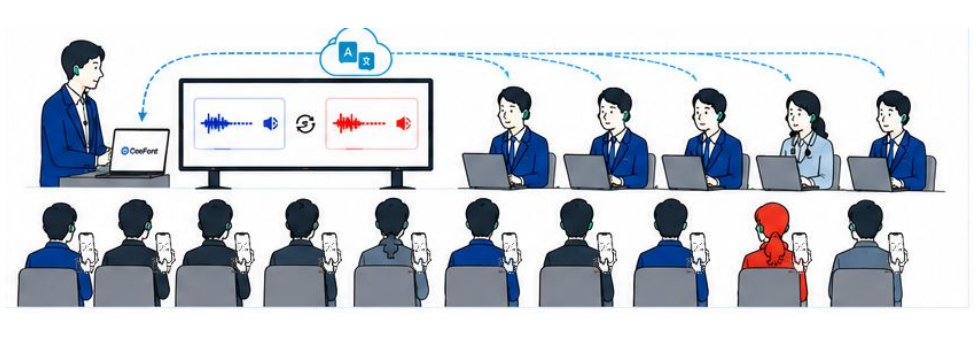
08 Conference (face-to-face + online)
Start interpretation in the browser version, and on-site attendees and online listeners each listen on their own devices.
| Item | Details |
|---|---|
| App | Browser version / Smartphone app |
| Audio capture / output | Listen on each person's device + earphones |
| Number of devices | One per listener |
| Number of accounts | 1 (host only) |
- Good for: You can start with just the host's PC (browser version). Participants only need to scan a QR code to listen. Connecting a microphone on the host side improves accuracy further.
- Note: If there are online listeners, you also need to start a meeting tool (any tool your company already uses) on the host's PC at the same time. For Q&A, you need to pass the microphone around or prepare multiple microphones.
The following are the steps for starting with the browser version.
Host preparation
- Start interpretation in the browser version on your PC and connect a microphone.
- Project or post the QR code to share it with participants.
- If there are online listeners, start the meeting tool at the same time.
Participant steps
- On-site attendees: Scan the QR code and listen with a smartphone and earphones.
- Online listeners: Open the shared URL and listen with a PC and earphones.