This page was machine-translated from the Japanese original and may contain unnatural wording or errors. View the Japanese page
Register Your Account from the Invitation Email
Read this article when
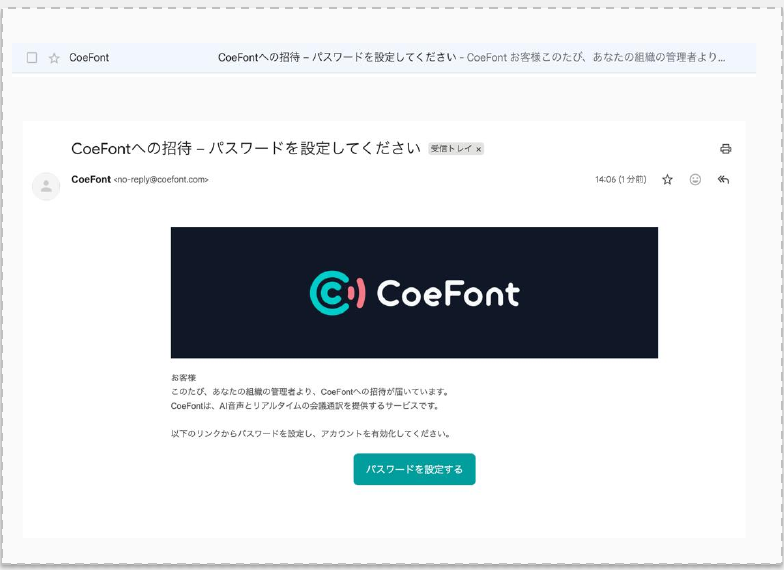
- You received an "Invitation to CoeFont" email from your organization admin
- You want to know how to set a password from the invitation email
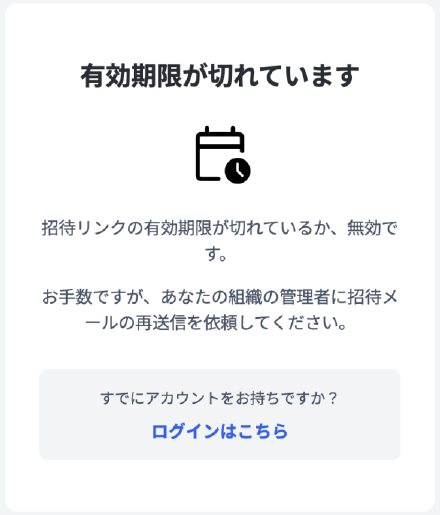
- Your invitation link has expired
- You want to know the steps for logging in for the first time
CoeFont Interpreter accounts are created by invitation from your organization admin (Admin). Set your password from the link in the invitation email, and you can log in.
Before You Register
- Invitation email subject: "Invitation to CoeFont". If you can't find it, check your spam folder.
- Link expiration: The password setup link in the invitation email is valid for one week after it was sent. If it has expired, see How to register when the link has expired.
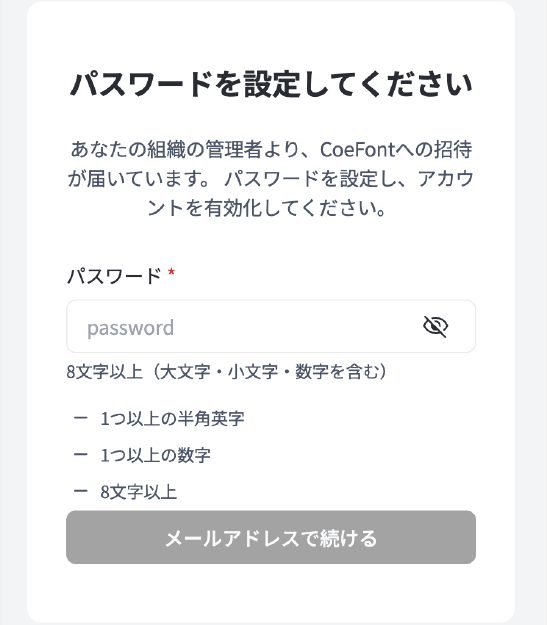
- Password requirements: Use at least 8 characters, including letters and numbers. Combining uppercase letters, lowercase letters, and symbols makes your password more secure.
If your organization uses SSO
If SSO is enabled for your organization, you don't set a password. You log in through your organization's identity provider. See How to log in for the steps.
Set Your Password
- Open the "Invitation to CoeFont" email from your organization admin.
- Click Set password in the email body.
- On the password setup screen, enter your password.
- Enter the same password again to confirm.
- Click Set.
- When "Your password has been set" appears, click Go to login.
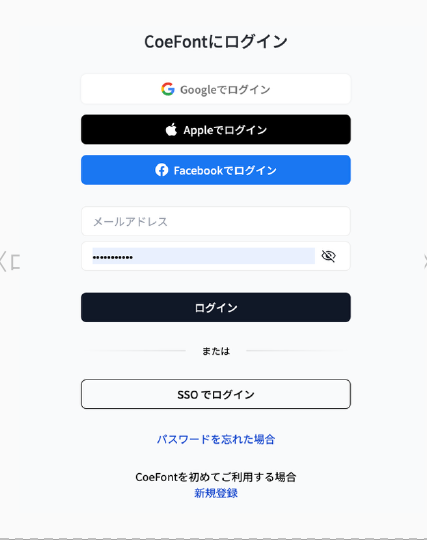
- Log in with your registered email address and password.
How to Register When the Link Has Expired
Even if your invitation link has expired, you can complete registration by resetting your password.
- Open the link in the invitation email. On the expiration screen, click Log in here under "Already have an account?".
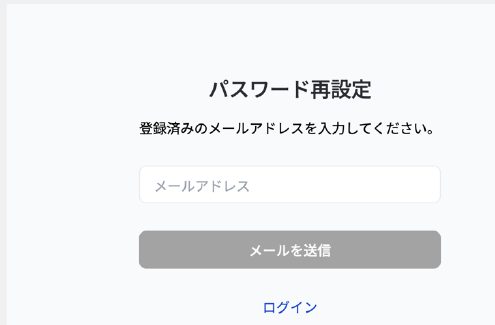
- On the login screen, click Forgot your password?.
- Enter the email address that received the invitation.
- Click Send email.
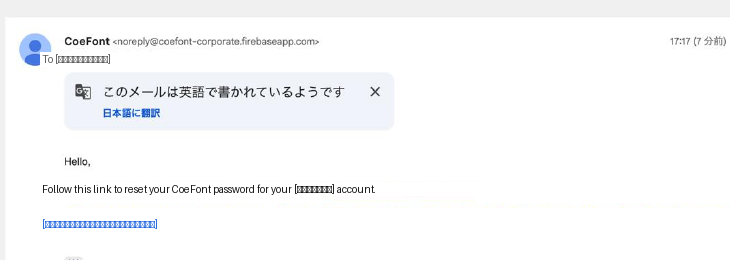
- Open the link in the password reset email you receive.
- Set a new password.
- From the login page, log in with your email address and new password.
Don't log in with a personal account
Log in with the account for the email address your organization admin invited. A personal Free plan account can't use your organization's features.
If the problem persists, contact your organization admin or reach out through the contact form.
Next Steps
Related Information
Did this article solve your problem?