Administrator Setup Checklist
Read this article when
- You're an organization administrator about to roll out CoeFont Interpreter and want to know what to set up first
- You want to know the flow from creating an administrator account to starting to use the service
- You want to review what to decide during rollout, such as member invitations, departments, dictionaries, and usage time limits
The settings an organization administrator configures during rollout are listed here in the recommended order. For detailed steps on each item, see the linked page.
Checklist
- 1. Create an administrator account and have your plan applied
- 2. Confirm you can open the CoeFont Interpreter admin console
- 3. Invite members
- 4. Organize departments and folders
- 5. Register reference materials and technical terms
- 6. Decide the usage time limit for each department
- 7. Set up SSO (only if you use it)
- 8. Check that communication works on your internal network
- 9. Prepare microphones and speakers
- 10. Decide whether to use the meeting bot
1. Create an administrator account
First, create an account for the person who will be the administrator (one person) on the Free plan. Once the Enterprise plan is applied to that account, you can use admin features such as inviting members and registering dictionaries.
- Open the account creation page. If you register from this page, the CoeFont Interpreter admin console opens right after the account is created.
- Confirm that the screen shows the "Free plan".
- Create an account with the administrator's email address.
- Send the email address registered for the account to us to your CoeFont representative.
- We'll notify you by email when the plan has been applied.
- If you are asked to enter credit card information, you are on a screen for a plan other than Free. Start over from the Free plan screen.
- If an error appears during creation, an account with the same email address already exists. For the steps, see Delete an account you created individually.
2. Confirm access to the admin console
After the plan is applied, you use the CoeFont Interpreter admin console to manage members, register dictionaries, check minutes, and more.
- Open the CoeFont Interpreter admin console and log in.
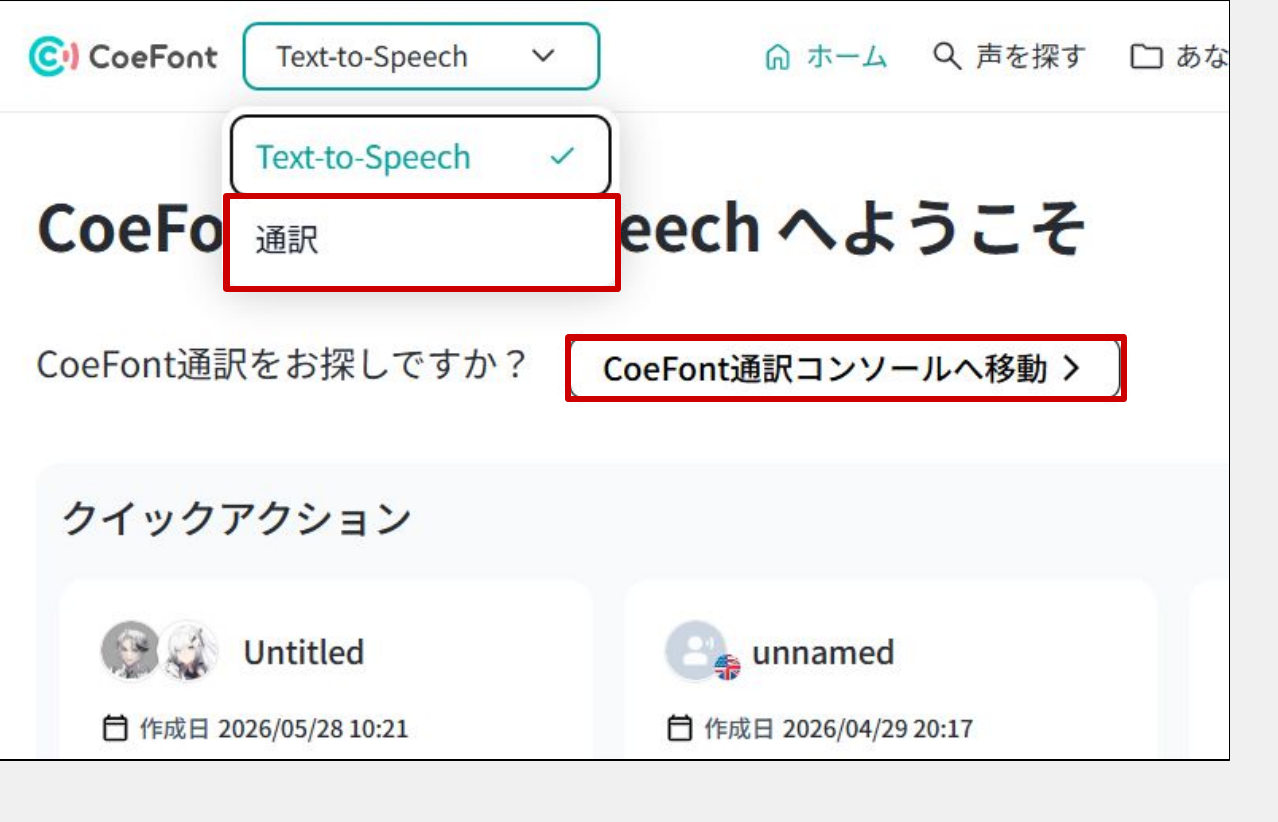
- If a "Welcome to Text-to-Speech" screen appears, select Interpreter in the switch menu to the right of the CoeFont logo, or click Go to CoeFont Interpreter Console.
3. Invite members
Once you invite members, all of them can use interpretation as meeting hosts. For a large number of people, we recommend bulk registration with a CSV file; for a small number, entering email addresses.
- Invitation steps: Manage members
- Differences between permissions: About permissions
Point invited members to Register an account from the invitation email.
The only reference materials and dictionary a member can view and register are the organization-wide ones and those of the department they belong to. If your organization uses departments, we recommend creating the departments in Department management on the Admin page before inviting members.
4. Organize departments and folders
By creating departments, you can manage members, the sharing scope of minutes, and usage by department.
5. Register reference materials and technical terms
Registering company names, product names, and industry terms improves the accuracy of interpretation and minutes. Reference materials and the dictionary can be registered for the whole organization and for each department. Only organization admins (Admin) can register them for the whole organization.
6. Set usage time limits
You can set a monthly limit on interpretation and minutes usage time for each department. A department that reaches its limit can no longer start interpretation or minutes. Check each department's actual usage before setting limits.
- How usage time is counted: How usage time is counted
- Setting limits: Usage time limits by department
- Checking usage: Check usage
7. Set up SSO (if you use it)
If you want members to log in through your organization's identity provider, set up SSO before inviting members so that the authentication method is the same at invitation time.
8. Check your internal network
If your internal network or proxy blocks communication, interpretation may not start. Run the communication check before rollout.
9. Prepare microphones and speakers
Using a PC's built-in microphone and speakers tends to cause feedback and lowers interpretation accuracy. Prepare external earphones or a meeting room microphone and speaker, and select them in your PC's sound settings.
- Use microphones and speakers in a meeting room
- Tips for better results (speaking style and microphone)
10. Check meeting bot use
Members can enter a Teams, Zoom, Google Meet, or Webex meeting link to have the CoeFont Interpreter bot join the meeting. By default, bot use is allowed. If your organization does not use the bot, an organization admin should disable it.