Invite the Bot to a Meeting for Interpretation
Read this article when
- You want interpretation and minutes for a Teams, Zoom, Google Meet, or Webex meeting without sharing your screen or system audio
- You want to send participants a link to listen to the interpretation through the meeting chat
- You want to have the bot join a scheduled meeting from its meeting link
- You want to know why the bot couldn't join a meeting or stopped partway
When you enter a meeting link in the browser version of the admin console, the CoeFont Interpreter bot joins the meeting under the name "CoeFont Interpreter". Because the bot takes in the meeting audio, you don't need to share the meeting screen or system audio in your browser.
What the Bot Can Do
- It interprets what is said in the meeting and saves minutes (summary and transcript) afterward. If you start from Start minutes on the home page, it takes minutes only, without interpretation (minutes mode).
- Participants listen to the interpreted audio and view the translated text on a viewing page that each of them opens in their own browser. The bot does not play interpreted audio into the meeting.
- When interpretation is ready, the bot posts a link to the viewing page in the meeting chat (except in Webex).
The differences from sharing your screen and system audio (screen capture) are as follows.
| Item | Start by inviting a bot | Start with screen capture |
|---|---|---|
| How meeting audio is captured | The bot captures it as a meeting participant | The host shares the meeting screen and system audio in the browser |
| Supported meetings | Teams, Zoom, Google Meet, Webex (meetings that have a meeting link) | Meetings where audio can be shared in the browser |
| Participant list in the meeting | "CoeFont Interpreter" is displayed | Nothing is displayed |
| How to start | Enter a meeting link on the same screen as Start interpreting in the browser version | Start interpreting in the browser version |
Before You Start
- Bot use must be allowed for your organization: It is allowed by default. If an organization admin has disabled it, the Invite a bot to the meeting field does not appear on the "Start now" screen. For the setting, see Meeting Bot Settings.
- Use it from the browser version of the admin console: The desktop app, smartphone app, and Teams Plugin do not have a feature for inviting the bot from a meeting link.
- Meeting link format: Use the meeting's join link as is. You can omit
https://. Links rewritten by email security features (such ashttps://…safelinks.protection.outlook.com/…) cannot be used. Copy the original link from the meeting tool's screen or the invitation.
| Meeting tool | Supported meeting links |
|---|---|
| Microsoft Teams | The meeting join link (https://teams.microsoft.com/meet/… or https://teams.microsoft.com/l/meetup-join/…) |
| Google Meet | A link in the format https://meet.google.com/xxx-xxxx-xxx |
| Zoom | A join link that contains the meeting ID (https://zoom.us/j/…, https://<company name>.zoom.us/j/…). Paste links with a passcode (?pwd=…) as is. Personal link names (/my/…) and webinar (/w/…) links cannot be used |
| Webex | The join link of a Webex meeting (https://<site name>.webex.com/meet/…, etc.) |
- Languages: Select two or more languages for interpretation, or one language for minutes. If you have selected Nepali or Burmese, Invite a bot and start is disabled. In that case, use Start with screen capture.
- Bots per meeting: Only one bot from the same organization can join a meeting. You cannot invite a bot to a meeting where another member has already invited one.
Inviting the Bot and Starting
- Start a meeting in your meeting tool (Teams, Zoom, Google Meet, or Webex) and copy the meeting's join link.
- In your browser, open the CoeFont Interpreter admin console and display the home page.
- On the home page, click Start interpreting. To take minutes only, click Start minutes. The "Start now" screen opens.
- Set Languages, Save destination, and Materials. Each item means the same as in Start interpreting in the browser version.
- Paste the meeting link you copied in step 1 into the Invite a bot to the meeting field. You can also click Paste to the right of the field.
- When the meeting link is recognized, the meeting tool's icon appears to the left of the field. Click Invite a bot and start.
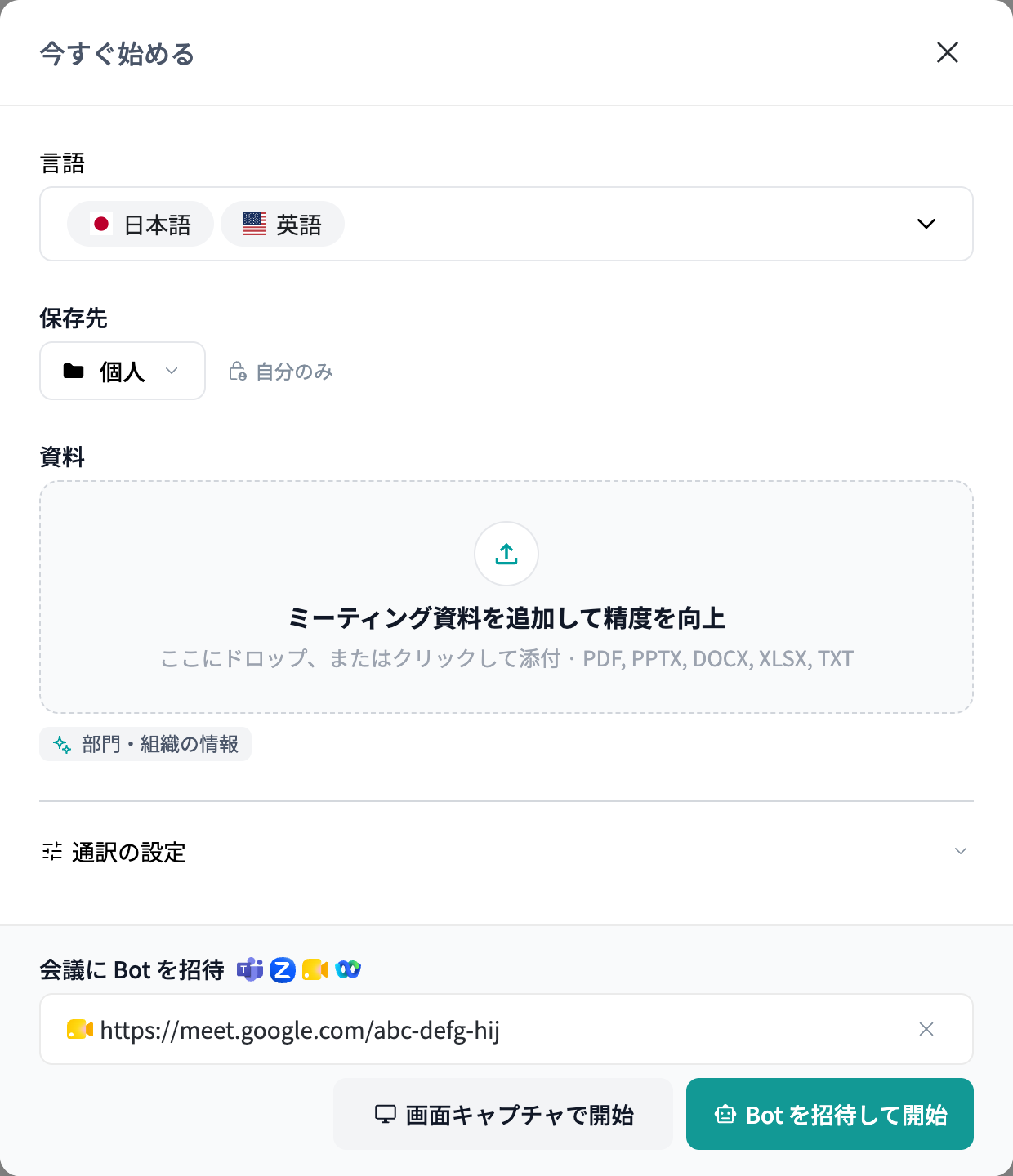
The screen switches to the bot's screen. When the bot has joined the meeting and is ready, captions of what people say appear on the screen.
- If the meeting link is not valid, the message "Enter a valid meeting link for Teams, Google Meet, Zoom, or Webex." appears below the field.
- While the meeting link field is empty, Invite a bot and start is disabled. If you click Start with screen capture without entering a meeting link, interpretation starts by sharing your screen and system audio (Start interpreting in the browser version).
Admitting the Bot
In a meeting that uses a waiting room (lobby) in the meeting tool, the bot waits before entering the meeting. The bot's screen shows "Waiting for admission".
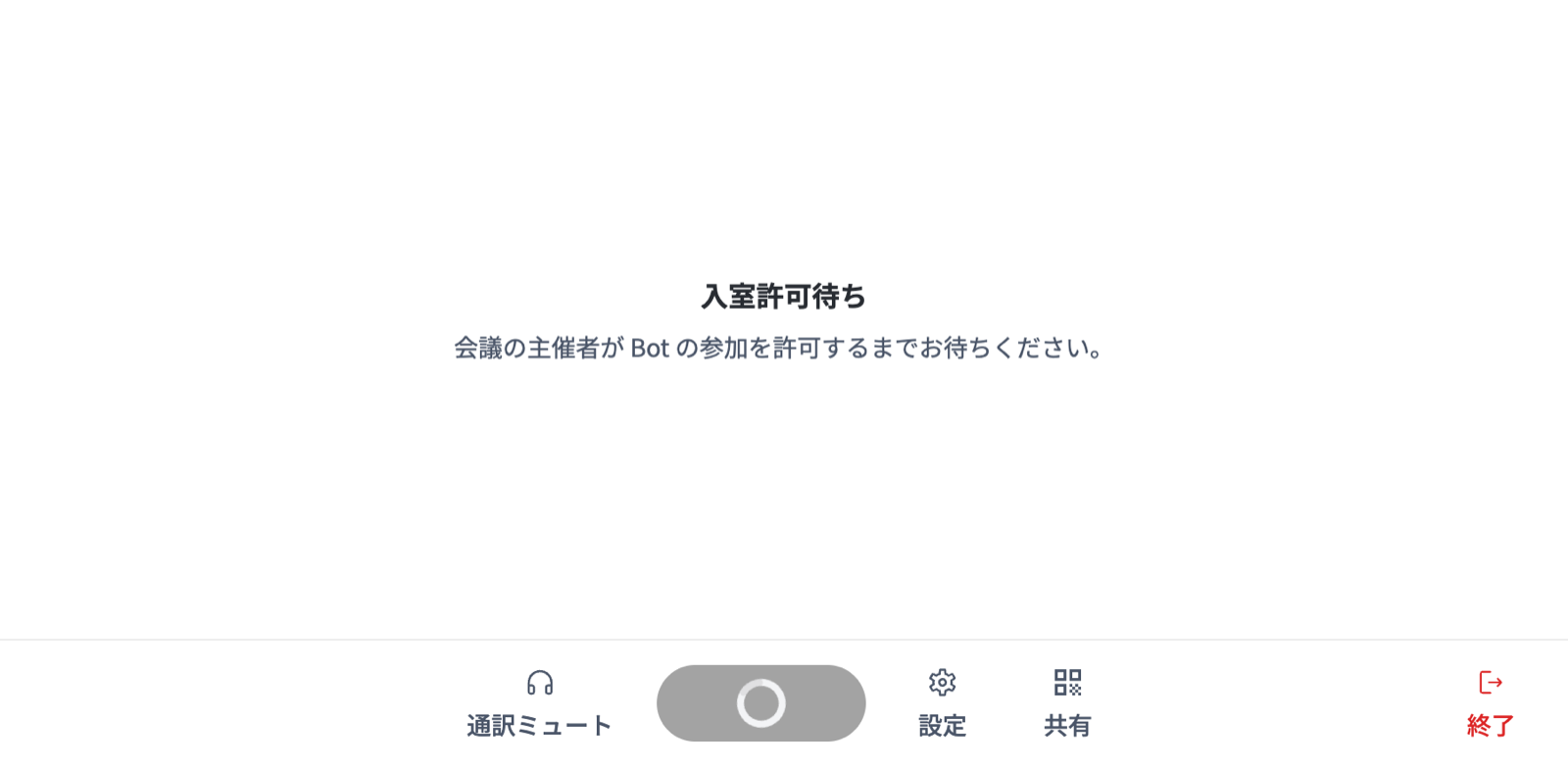
- In the meeting tool, open the list of waiting participants.
- Admit "CoeFont Interpreter".
- When captions appear on the bot's screen, interpretation has started.
If the bot is not ready to start interpreting within 15 minutes of being invited (for example, it is not admitted from the waiting room or the meeting has not started), the bot stops. In that case, invite the bot again.
Sharing with Participants
When interpretation is ready, the bot posts a link to the viewing page in the meeting chat. If you have set a passcode, the post also includes the passcode. Participants open this link in their browser to listen to the interpretation. In Google Meet, the URL is shown as is instead of a link.
In the following cases, nothing is posted to the chat, so send the link to participants from Share on the bot's screen.
- Webex meetings (nothing is posted to the chat)
- Meetings where the meeting chat is disabled
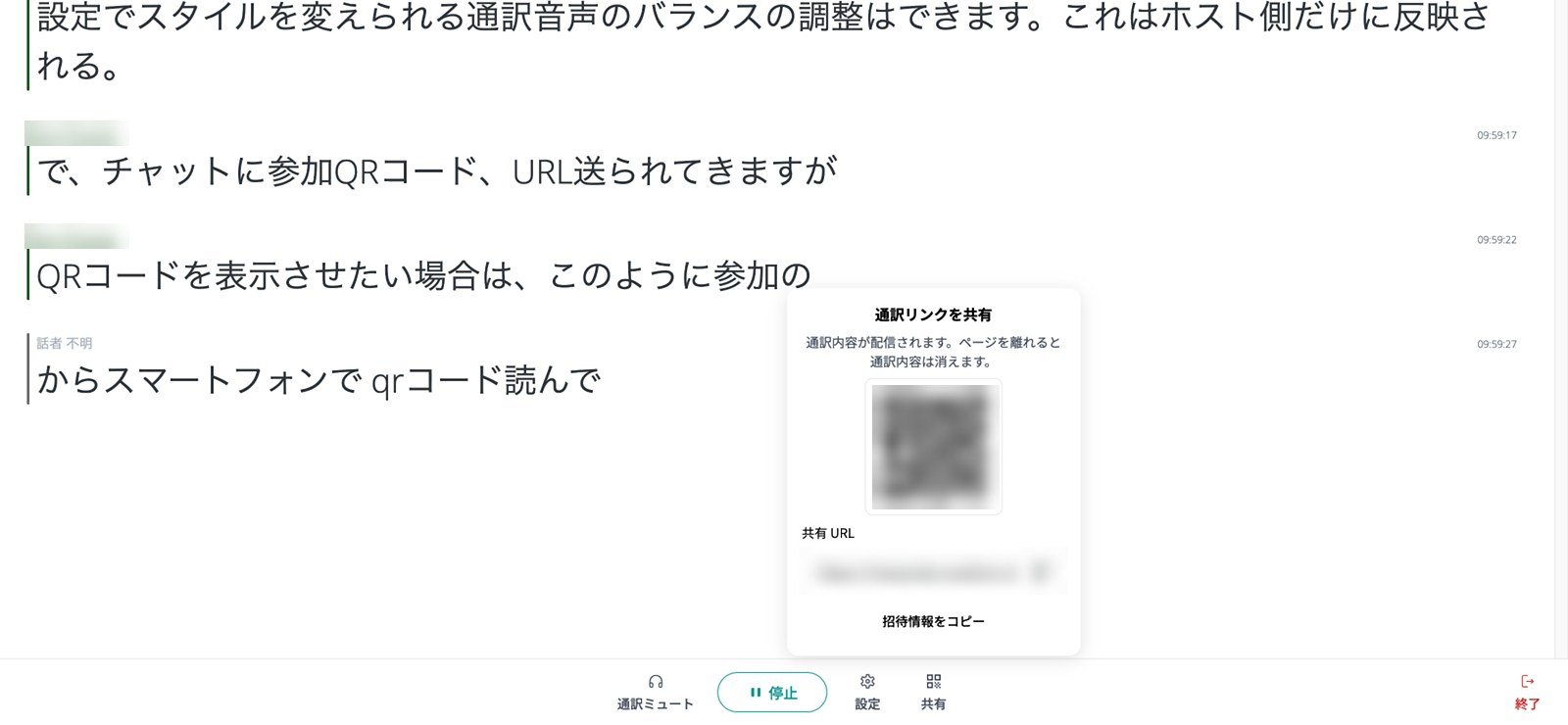
- Click Share at the bottom of the bot's screen. Share becomes available when the bot is ready.
- Give the information to participants in one of the following ways.
- Copy invitation info: Copies the Share URL and Passcode together.
- The copy icon next to Share URL: Copies only the URL.
- QR code: Have in-person participants scan it with their smartphones.
The passcode is shown if you turned on Require passcode when starting (in minutes mode, it is inside Minutes settings) or if your organization requires passcodes. When you start from a schedule, the schedule's settings apply. For how participants see the page, see Listen via a Shared URL or QR Code.
Controls During Interpretation
You can use the following controls at the bottom of the bot's screen.

| Button | What it does |
|---|---|
| Mute interpretation | Mutes the interpreted audio playing on this PC. It does not affect participants' viewing pages. Not shown in minutes mode |
| Pause / Resume | Pauses interpretation. Speech during the pause is not interpreted. Click Resume to interpret speech from then on |
| Settings | Changes the interpretation languages, interpretation style, and interpreted audio volume. In minutes mode, you can change only the minutes language |
| Share | Shows the link, QR code, and passcode to send to participants |
| End | Makes the bot leave the meeting and ends interpretation |
If no meeting audio arrives for 5 minutes, the bot pauses interpretation automatically. When speech resumes, it resumes interpretation automatically. If no audio arrives for 15 minutes, the bot leaves the meeting and ends interpretation.
The interpreted audio on the bot's screen plays from the PC's default speaker. If you listen on a PC that is in the meeting, use earphones. If it plays from the speaker, the meeting microphone may pick up the interpreted audio.
If you close the bot's screen, you cannot reopen the same screen from the home page or elsewhere. The bot stays in the meeting and keeps interpreting, and leaves automatically when all participants have left the meeting. To stop interpretation partway, use End on the bot's screen. For a meeting started from a schedule, you can reopen the bot's screen with Rejoin in the Schedule section of the home page.
Ending Interpretation
- Click End at the bottom right of the bot's screen. The "End interpretation?" screen opens ("End minutes?" in minutes mode).
- If needed, set the minutes Title, Save destination, and Summary template. If you leave the title blank, one is assigned automatically.
- Click End interpretation. In minutes mode, click End minutes.
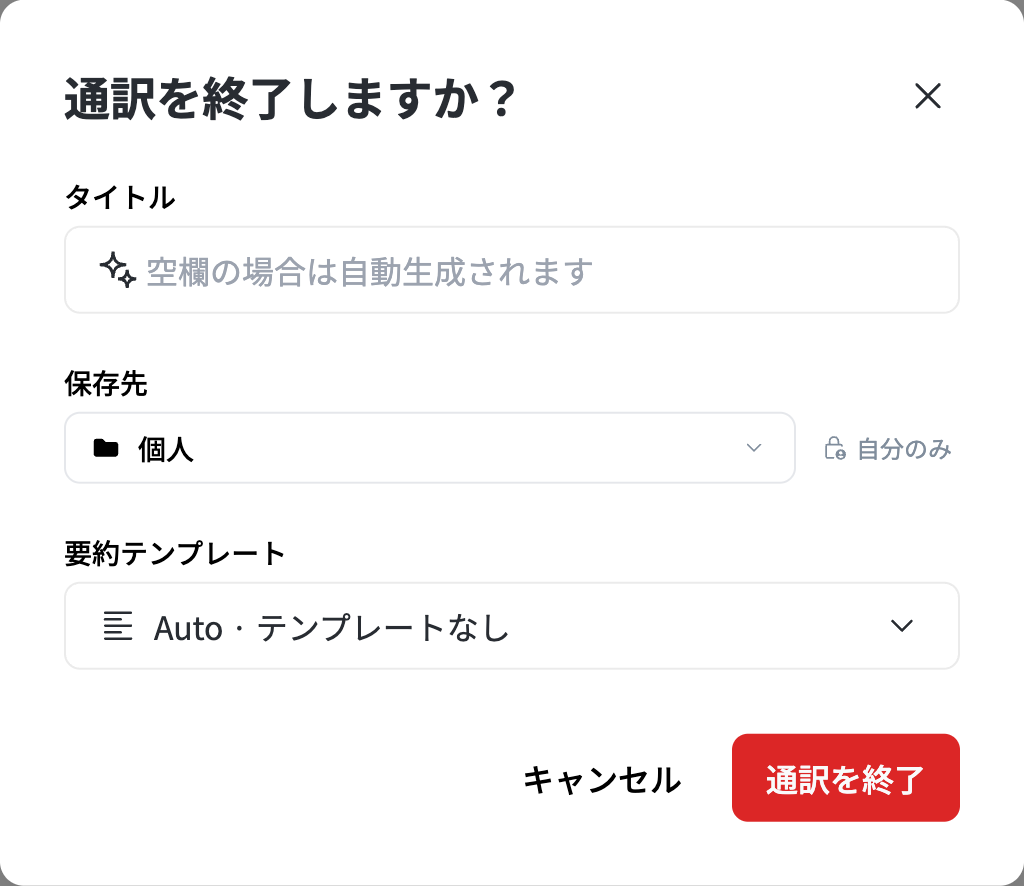
You are done when the bot leaves the meeting and the meeting details screen opens. As with a regular meeting, you can check the summary and transcript on the meeting details screen. For how to check them, see Viewing and Downloading Minutes.
If all meeting participants leave, the bot also leaves automatically and the minutes are created.
Starting from a Schedule
You can also register a meeting link when you schedule a meeting in Schedule. Enter the meeting link in the Invite a bot to the meeting field on the schedule creation screen, and then click Save and get link. For the steps, see Registering a meeting link.
- The bot does not join automatically at the scheduled time. On the day, click Start for the schedule in the Schedule section of the home page, and the bot joins the meeting.
- If you start a schedule that has a meeting link in the browser version, it always starts with the bot. To start with screen capture instead, open the schedule, delete the meeting link, click Save, and then click Start.
- If you start from the Schedule section on the desktop app's home page, the bot does not join. The meeting link is not used, and the desktop app captures the meeting audio.
- For a schedule where the bot has joined, the button changes to Rejoin. Only the person who started that schedule can reopen the bot's screen.
Troubleshooting
| Message or situation | Cause and solution |
|---|---|
| The "Start now" screen has no Invite a bot to the meeting field | Bot use is disabled for your organization. Ask an organization admin to check Meeting Bot Settings |
| "Enter a valid meeting link for Teams, Google Meet, Zoom, or Webex." | The meeting link format is not supported. Copy the meeting tool's join link as is (Meeting link format) |
| "Stopping the bot because the wait time for admission was exceeded." | The bot was not ready to start interpreting within 15 minutes of the invitation (it was not admitted from the waiting room, the meeting had not started, etc.). Start the meeting, invite the bot again, and admit it |
| When inviting, "Could not invite the bot." is followed by "This action isn't available in the current state. Reload and try again." or "A bot has already been invited to this meeting link. …" | A bot from the same organization has already been invited to the same meeting (including one invited by another member or by you). Check with the member who invited it |
| The bot's screen shows "A bot from the same organization has already joined this meeting." | Interpretation, such as the Teams Plugin, from the same organization is already running in the same meeting. Use only one of them for interpretation |
| "Could not invite the bot. The limit of bots that can be used at the same time has been reached." | The number of bots your organization is using at the same time has reached the limit. End a bot you have finished using, and then invite again |
| "Stopping the bot because the organization settings, permissions, or usage allowance could not be verified." | It could not be confirmed that bot use can continue. Main causes include an organization admin disabling bot use and the organization or department usage time limit being reached. For limits, see Usage Time Limits by Department |
| "Could not continue joining the meeting. Check the meeting settings and admission." | The bot could not join the meeting or was disconnected from it. Check that you admitted the bot from the waiting room and that the meeting tool does not restrict external participants, and then invite again |