This page was machine-translated from the Japanese original and may contain unnatural wording or errors. View the Japanese page
Meeting Bot Settings
Read this article when
- You don't want members in your organization to use the feature that invites the bot from a meeting link
- You want to stop bots that are in meetings across the whole organization
- You want to check whether bot use is allowed by default
The Meeting bot setting switches, for the whole organization, whether members can invite the bot to a meeting. For how to use the bot, see Invite the Bot to a Meeting for Interpretation.
Allowed by default
In an organization that has never changed this setting, members can invite the bot. If your organization does not use the bot, an organization admin should disable it.
Changing the Setting
Only organization admins (Admin) can view and change this setting.
- Log in to the CoeFont Interpreter admin console and click Admin pages at the bottom of the left menu.
- In the left menu, click Meeting bot under Interpretation management.
- Click the Allow bot use by organization members switch to turn it on or off.
- The setting is complete when the text below the switch shows "Bot use is allowed" (on) or "Bot use is disabled" (off).
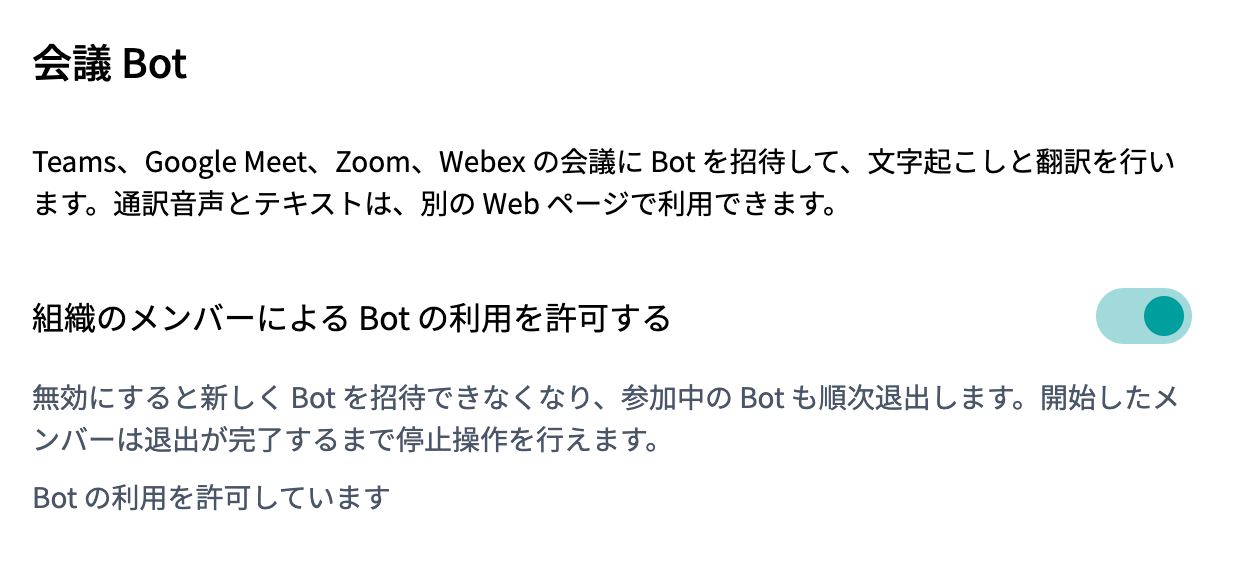
The setting applies to the whole organization. You cannot switch it by department or by member.
What Happens When It Is Disabled
- The Invite a bot to the meeting field no longer appears on members' "Start now" screen. The start button changes to Start interpretation (Start minutes in transcription mode), and interpretation starts by sharing the screen and system audio.
- Bots that are in meetings leave the meetings one after another. The bot's screen shows "Stopping the bot because the organization settings, permissions, or usage allowance could not be verified." (The same message also appears when a usage time limit is reached.)
- Until a bot has left, the member who started it can still end interpretation with End on the bot's screen.
- The Invite a bot to the meeting field no longer appears when creating a new schedule.
- For a schedule that already has a meeting link, clicking Start shows "Could not invite the bot. Bot use is not allowed." and the meeting cannot be started. The member can open the schedule, delete the meeting link, click Save, and then click Start to start by sharing the screen and system audio.
Organization admins cannot stop an individual member's bot. To stop the bot in a specific meeting, use one of the following methods.
- Ask the member who started the bot to end it with End on the bot's screen. (If the bot's screen is closed, they cannot do this. If the meeting was started from a schedule, they can reopen the screen with Rejoin.)
- Have the meeting organizer remove "CoeFont Interpreter" from the meeting in the meeting tool.
- Disable this setting.
The bot also leaves automatically when all meeting participants have left.
Next Steps
Related Information
Did this article solve your problem?