Departments and Folders
Read this article when
- You want to organize minutes by department and control who can access them
- You want to make a member a department admin, or move members between departments
- You want to know the difference between department folders and personal folders
- You want to share the minutes you created with the whole team
- You are worried that minutes might be lost when an account is deleted, for example when someone leaves the company
Departments let you divide your organization into groups and manage members, minutes access permissions, and usage time at the department level.
Basic department rules
One department per member
A member can belong to only one department. Belonging to multiple departments is not supported.
If someone works across departments, choose one as their department. To let them view folders of other departments, use sharing settings. Even if a member does not belong to a department, they can access its folders through sharing settings.
Organization admins (Admin) change a member's department on the Department management screen. If you sync departments with your IdP, manage this on the IdP side.
Automatic creation of department folders
A folder for each department (the department folder) is created automatically. You cannot delete a department folder manually, but you can rename it.
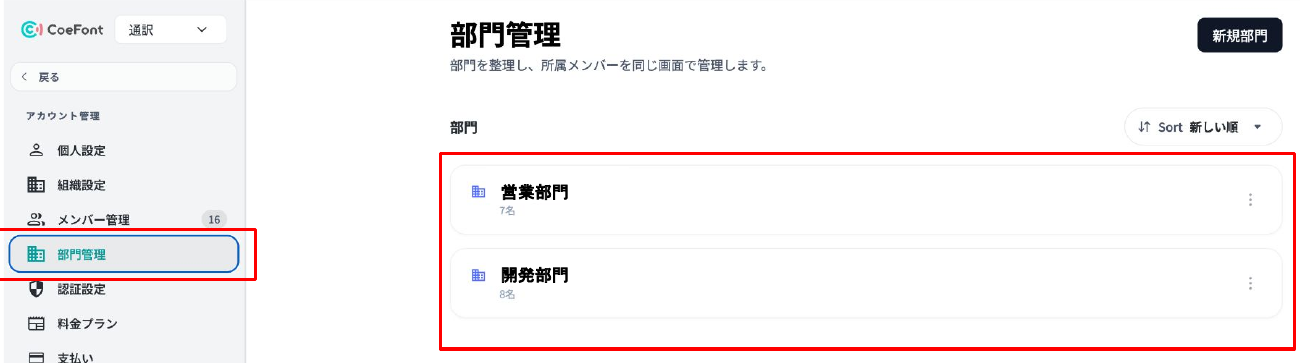
The department management screen
You manage departments from Department management on the Admin page of the CoeFont Interpreter admin console. Only organization admins (Admin) can create and delete departments, and add members to or remove them from a department.
You can manage department creation, member assignment, and transfers between departments on the IdP side, based on the IdP's department (department) value. While sync is enabled, you cannot change the department structure or member assignments from CoeFont Interpreter. Even during sync, you can still appoint and remove department admins and delete departments that have no members from CoeFont Interpreter. If your organization has managed departments separately from the IdP, enabling sync overwrites the existing department structure with the IdP values. Before you enable it, consult your CoeFont representative. For details, see Department sync with your IdP.
What each role can do
A department has two roles: "department admin" and "member". They appear in the Permission column of the member list on the department management screen.
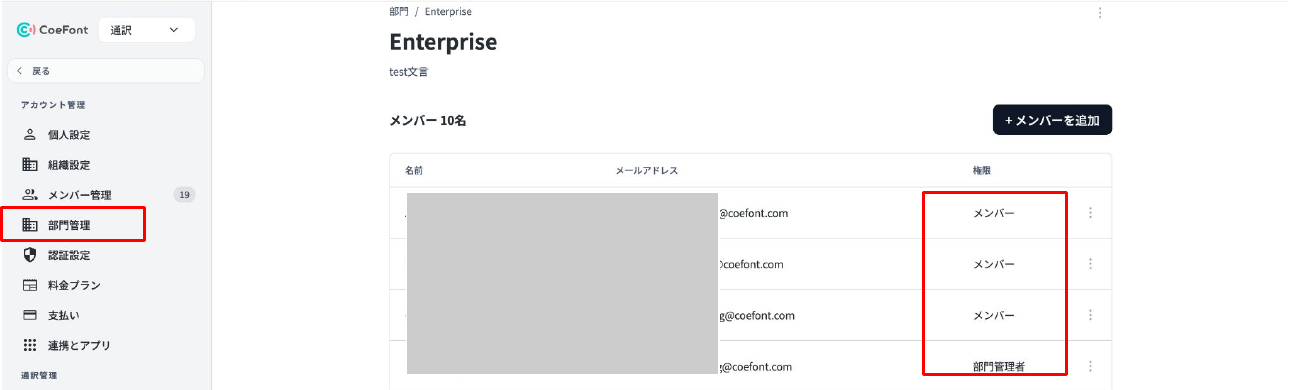
In the tables below, "Editor" means an editor (Editor) who is not a department admin. You can perform an action if you meet the condition through either your organization role (organization admin / editor) or your department role (department admin / member). For example, even if your department role is "Member", you can perform every organization and department management action if you are an organization admin (Admin).
Organization and department management
| Action | Organization admin (Admin) | Department admin | Editor |
|---|---|---|---|
| Invite or remove members | ○ | × | × |
| Change a member's organization role (organization admin ⇔ editor) | ○ | × | × |
| Create a department | ○ | × | × |
| Delete a department | ○ | × | × |
| Add members to a department | ○ | × | × |
| Remove members from a department | ○ | × | × |
| Appoint or remove other members as department admins | ○ | ○ | × |
| Change the department name and description | ○ | ○ | × |
| Set or change a department's usage time limit | ○ | × (cannot view it either) | × |
Only organization admins (Admin) can add members to or remove them from a department. The buttons for adding and removing members are not shown on a department admin's screen.
Reference materials and dictionary
| Action | Organization admin (Admin) | Department admin | Editor |
|---|---|---|---|
| Register and view the organization-wide reference materials and dictionary | ○ | × | × |
| Register and view the reference materials and dictionary of your department | ○ (all departments and the whole organization) | ○ (own department only) | ○ (own department only) |
Editors who do not belong to a department cannot register dictionaries. Regardless of the scope you can register to, meetings use both the organization-wide dictionary and the dictionary of the department folder where the meeting is saved. The dictionary of a participant's department is not used. For details, see Department dictionaries.
Usage, viewing, and folders
| Action | Organization admin (Admin) | Department admin | Editor |
|---|---|---|---|
| Use interpretation and transcription | ○ | ○ | ○ |
| Departments and members you can view | All departments | Own department only | Only departments you have permission for |
| Show All departments | ○ | × | × |
| Change sharing settings of a department folder | ○ (own department only) | ○ (own department only) | ○ (own department only) |
| Create subfolders under a department folder | ○ | ○ | ○ |
| View and edit meetings in a department folder | ○ (own department only) | ○ (own department only) | ○ (own department only) |
Notifications and handover
| Action | Organization admin (Admin) | Department admin | Editor |
|---|---|---|---|
| Receive usage alerts (80% notification) | For the whole organization and for each department (CC) | For their own department | × |
| Take over ownership of meetings of a creator who was transferred or deleted | − | ○ | × |
What no role can do
- View or delete the contents of a member's personal folder (not even organization admins)
- Assign one person to multiple departments (dual assignment)
- Restrict the creation of subfolders under a department folder to admins only
- Forcibly delete an email address that is already registered with another account (not even organization admins)
- Change the destination of admin and billing emails
For details on how organization roles and department roles relate, see About permissions.
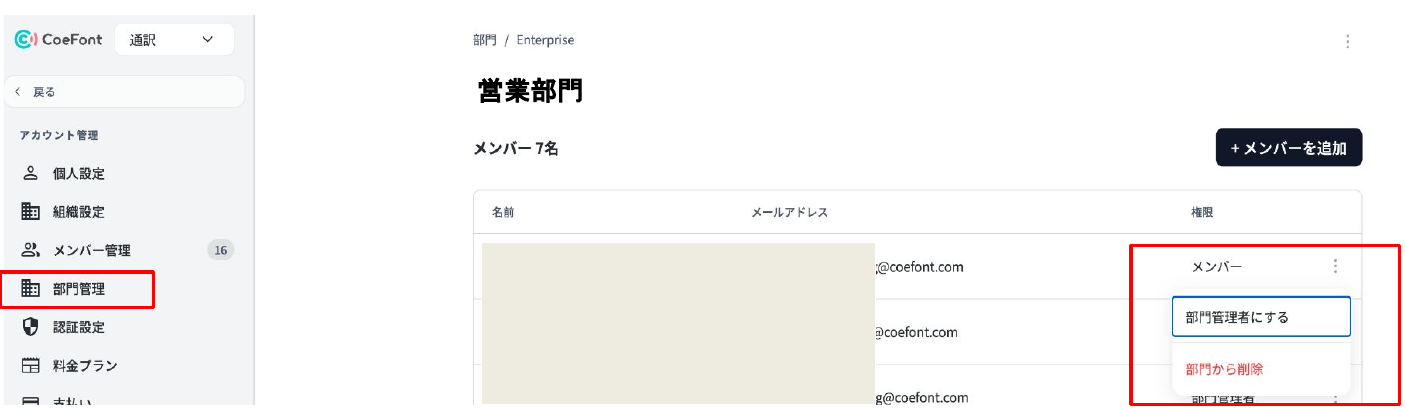
Appointing a department admin
Organization admins (Admin) and the department admins of that department can appoint and remove department admins.
- In the CoeFont Interpreter admin console, click Admin page at the bottom of the left menu.
- Click Department management in the left menu.
- Click the department.
- Click ︙ (three-dot menu) in the row of the member whose permission you want to change.
- Click Make department admin.
To remove someone as department admin, choose Make member from the same menu. Organization admins (Admin) can also remove a member from the department with Remove from department in the same menu.
Folder types and sharing scope
Minutes are saved in either department folders or personal folders.
| Comparison | Department folder | Personal folder |
|---|---|---|
| Initial sharing scope | All members of the department | Only you (private) |
| What you can do | Any department member can view and edit (create and delete folders and meetings, edit content) | Only you can view and operate (others can view if you grant them permission individually) |
| Nature of the data | Shared assets of the organization | Private items and drafts |
When you move minutes from a personal folder to a department folder, the department's access permissions are applied to them automatically.
Department folders shared by other departments appear in the side menu as organization folders, just like your own department's, rather than under Shared items. They also appear as candidates for save and move destinations. A subfolder shared with you without view permission for its parent folder is opened from Shared items.
To learn how to move minutes to a department folder or share them with specific people, see Sharing, moving, and revoking minutes.
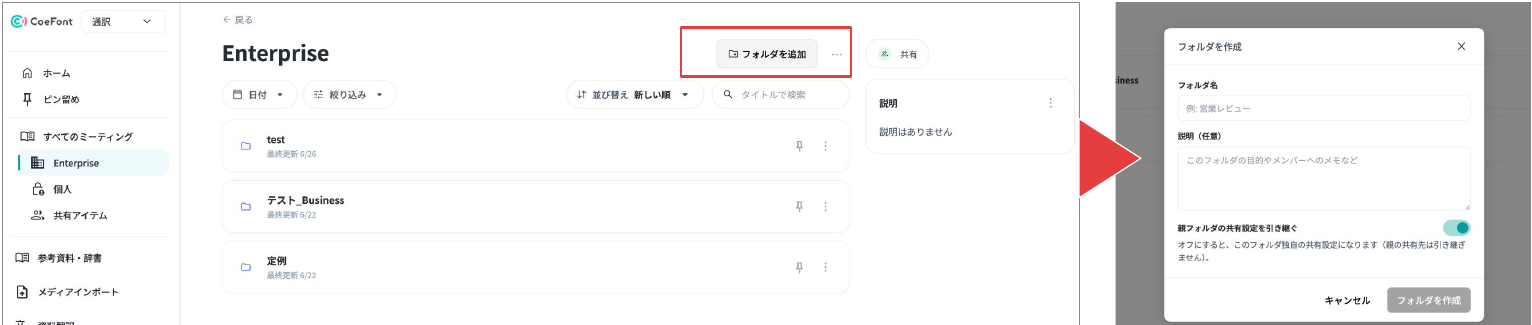
Creating a folder
- Open a personal folder or a department folder that you have edit permission for.
- Click Add folder at the top of the screen.
- Enter a Folder name.
- If needed, enter the purpose of the folder in Description (optional).
- Turn Inherit sharing settings from parent folder on or off.
- Click Create folder.
When Inherit sharing settings from parent folder is on, the access permissions of the parent folder (the members and departments that can view or edit) apply as-is to the new folder and the minutes in it. When it is off, the folder has its own sharing settings.
Tips for managing folders
- Use consistent names: Use project names, dates, or meeting types so that names are easy to understand within your team.
- Keep the hierarchy shallow: You can create folders at any depth, but for readability we recommend about "root plus one level".
- Keep team assets in department folders: Create and save recurring team meetings and similar items in a department folder, not a personal folder.
- Start meetings from a folder: If you start a meeting with the New button in a department or personal folder, the minutes are saved to that folder automatically after the meeting. This saves you from moving them later.
A personal folder is tied to an account. Minutes left in a personal folder are permanently deleted when the creator's account is deleted. They also disappear from the screens of anyone you shared them with.
Before you delete an account, for example when someone leaves the company, move any minutes you need to keep to a department folder. Meetings saved in a department folder remain in the folder even if the creator moves to another department or their account is deleted. Department members can still access them, and ownership of the meetings passes to the department admins.