Mobile App Settings
Read this article when
- Interpretation keeps running in the background after someone forgets to close the app, using up your contracted time
- You want to set the same limit on background running time for your whole organization
- You want admins to decide whether interpretation starts automatically when the app is launched
Mobile app settings let you enforce the behavior of the smartphone app (iOS and Android) across your whole organization.
- Background running time: How long the app keeps running after it moves to the background
- Auto-start on launch: Whether interpretation starts automatically when the app is launched
Supported Versions
These settings only take effect in the following versions of the smartphone app.
- Android: 3.1.0 or later
- iOS: 3.2.0 or later
The settings are not applied to older versions of the app. Before you configure them, ask your members to update the app.
Set the Background Running Time
- Log in to the CoeFont Interpreter admin console and click Admin pages at the bottom of the left menu.
- Click Mobile app settings in the left menu.
- Click the Background running time dropdown.
- Select the time to enforce across your whole organization.
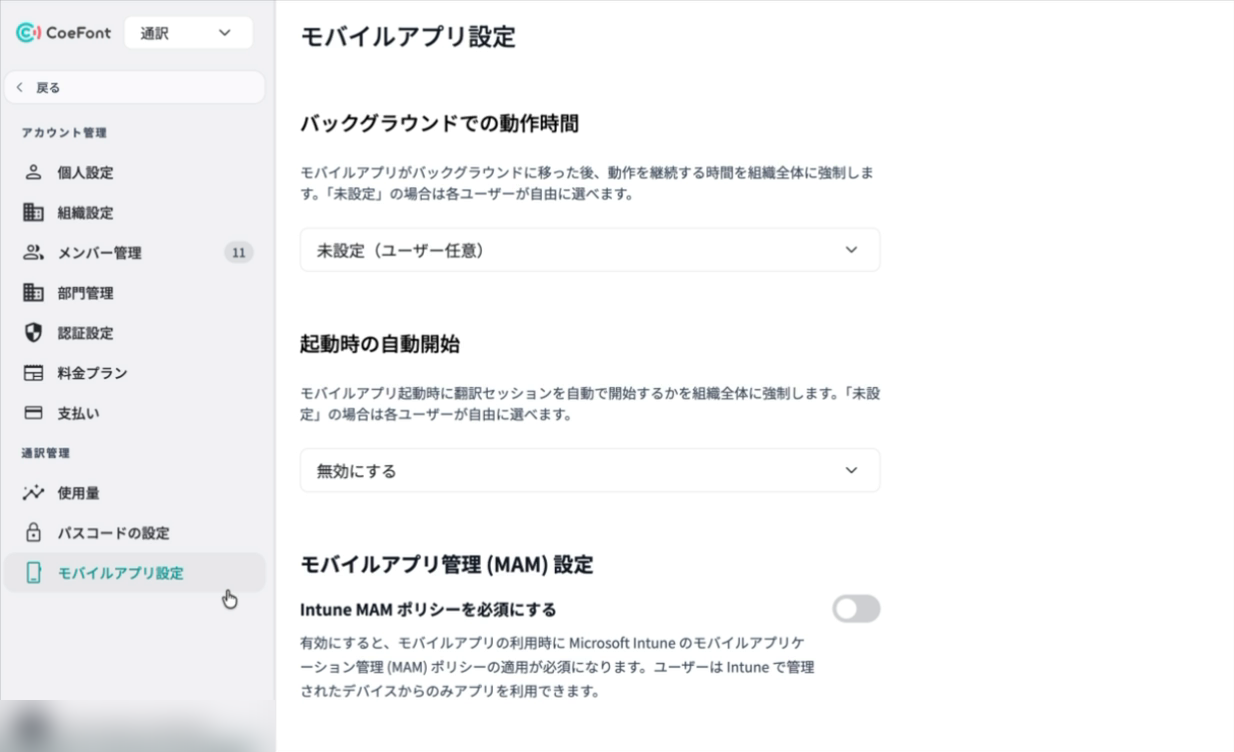
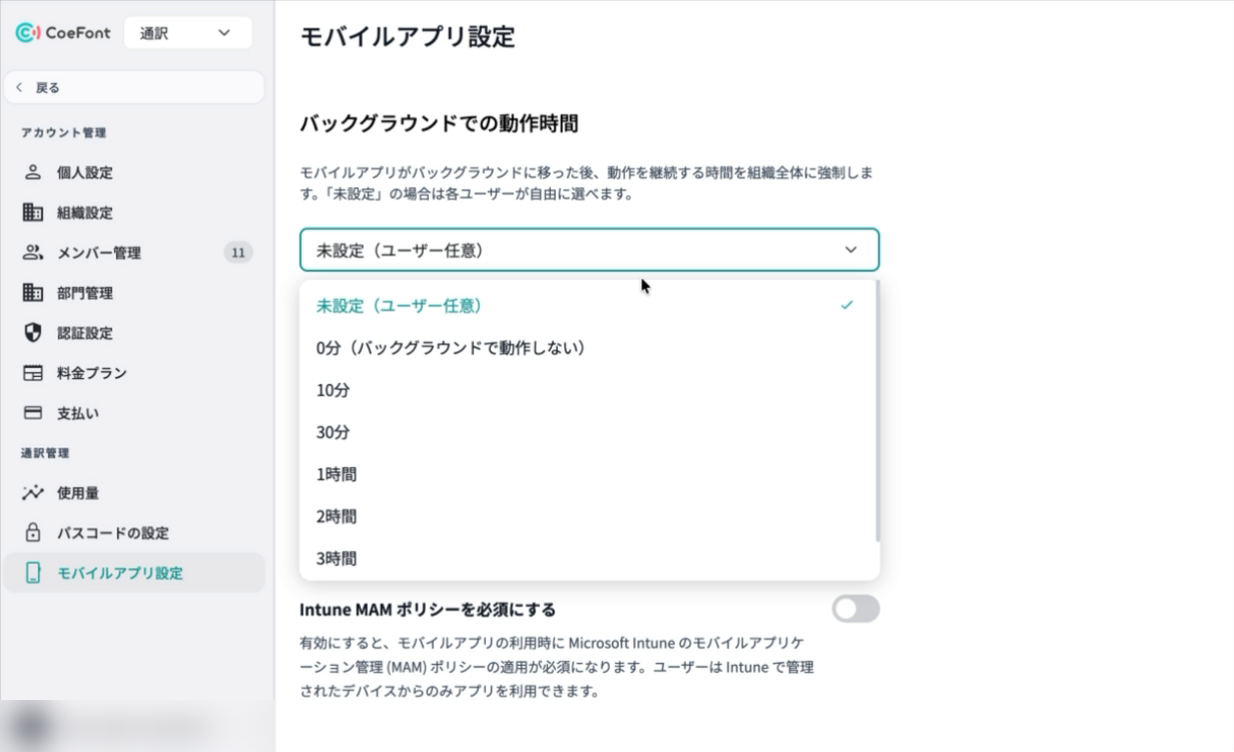
When you make a selection, "Settings updated." appears at the top right of the screen. The setting is now complete.
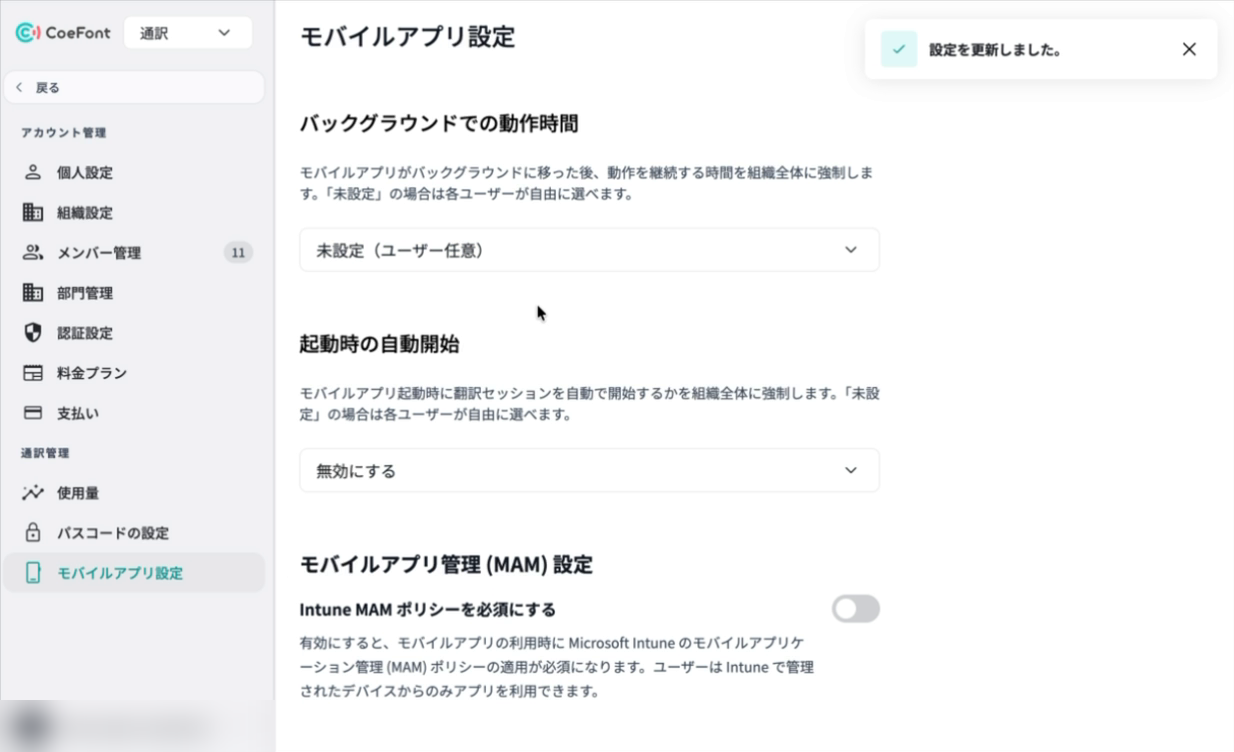
If you leave it as Not set (user's choice), each member can choose the time under Interpretation settings in the smartphone app menu.
Changes are not applied immediately to apps that are already running. They take effect when the member restarts the app.
Set Auto-Start on Launch
If needed, you can also enforce across your whole organization whether interpretation starts automatically when the app is launched.
- On the Mobile app settings page, click the Auto-start on launch dropdown.
- Select the setting to enforce across your whole organization.
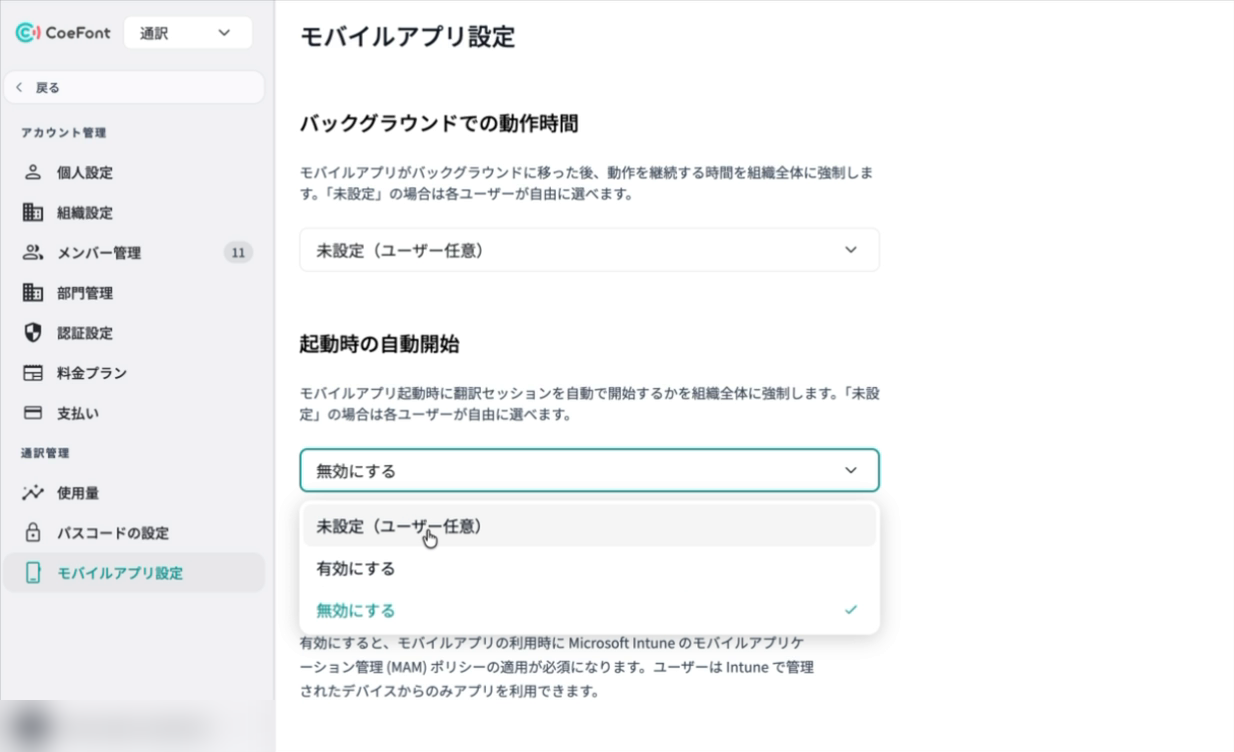
If you leave it as Not set, each member can choose in the app's personal settings. This setting also takes effect when the member restarts the app.