Sharing, Moving, and Undoing Minutes
Read this article when
- You want your team members to see the minutes you created
- You are not sure whether to use "Share" or "Move to folder"
- You moved minutes from your personal folder to a department folder by mistake
- You shared minutes with the wrong members or departments
Difference between moving and sharing
There are two ways to let others see minutes: moving and sharing. They have different results and different ways to undo.
| Move | Share | |
|---|---|---|
| Where the minutes are stored | Changes from your personal folder to a department folder | Stays in your personal folder |
| Who can view | All members of the department | Only the people or departments you specify |
| Permissions granted | All department members can view, edit, and download | You choose View or Edit and grant it |
| How it appears on their screen | Inside the department folder | Under "Shared with me" |
If you do neither, only you can view the minutes in your personal folder.
Examples of when to use each
| When you want to limit the audience | When you want to make it a department asset | |
|---|---|---|
| Situation | A regular department meeting that includes performance reviews or confidential discussions you do not want to show to the whole department | A meeting that all department members should be able to refer to, such as a weekly sales meeting |
| Action | Keep the minutes in your personal folder and "Share" them only with specific people or departments, such as the department manager | "Move" the minutes from your personal folder to the department folder |
| Result | Only the people you specify can view and edit | All department members can view and edit |
A personal folder is tied to an account. If the creator's account is deleted, the minutes in the personal folder are permanently deleted. They also disappear from the screens of people you shared them with.
Move any minutes the company needs to keep to a department folder before someone leaves or changes departments. Minutes in a department folder remain available to department members even after the creator transfers or is deleted.
Moving to a department folder
- In the CoeFont Interpreter admin console, open the minutes list.
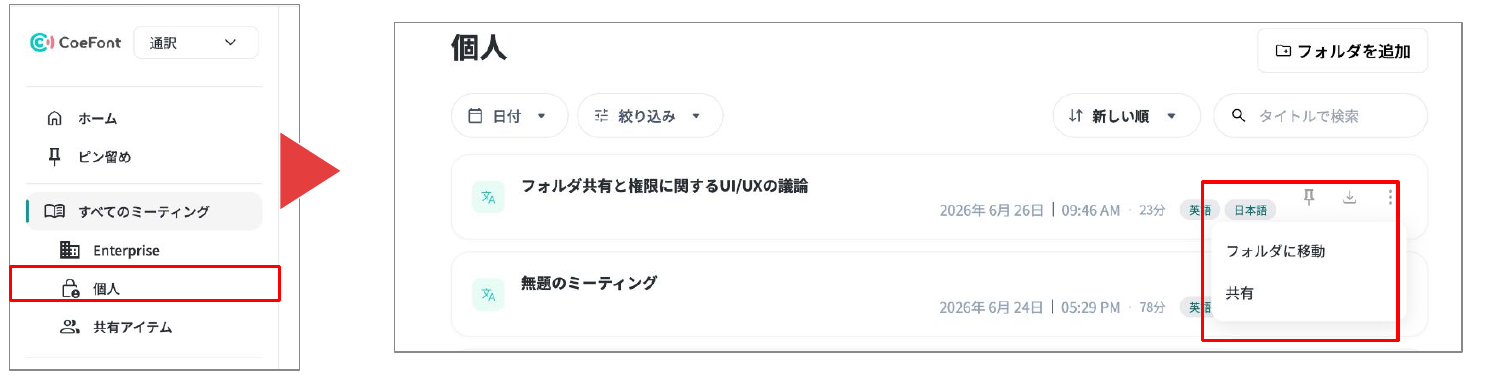
- Click ⋮ (More) in the row of the meeting. If you have the minutes detail screen open, click ⋮ at the top right.
- Select Move to folder.
- Select the destination department folder.
- The minutes appear in the department folder's list, and you are done.
For how department folders work and how to create them, see Departments and Folders.
If you start a new meeting while a department folder is open, the minutes are saved in that folder after the meeting. This saves you from moving them later.
Sharing with specific people or departments
- In the CoeFont Interpreter admin console, open the minutes of the meeting.
- Click Share at the top right. You can also select Share from ⋮ in the list row.
- Specify who to share with (a member or a department).
- Choose the permission to grant: View or Edit. If you only want them to look, choose View.
- The people you shared with appear in the list, and you are done.
People you shared with can open the minutes from Shared with me in the admin console.
After you add the people to share with, you can choose whether to notify them by email. If you send the notification, they receive an email with a link to the shared minutes. On a device with the CoeFont Interpreter smartphone app installed, the link to the minutes opens directly in the app.
The share screen has a Copy link button at the bottom left. It is also shown to members with View permission, so even for view-only minutes, they can copy the link to the minutes from the share screen and pass it on. This works in both the admin console and the desktop app.
Undoing a share or move
If you moved the minutes to a department folder by mistake
- On the minutes list or the minutes detail screen, click ⋮.
- Select Move to folder.
- In the list of destinations, select your Personal folder.
- The minutes disappear from the department folder's list, and you are done. Only you can view them again.
If you shared the minutes by mistake
In this case, the minutes are still in your personal folder. You do not need to perform a "move."
- On the minutes detail screen, click Share at the top right.
- A list of the people and departments you are currently sharing with appears.
- Remove the person or department you shared with by mistake from the list.
- They disappear from the list, and you are done. The minutes also no longer appear in their "Shared with me."