Bulk Replacing Mistranslations
Read this article when
- A proper noun or technical term is misrecognized the same way every time (for example, a company or service name turns into a different word)
- You want to fix the same mistake in both the summary and the transcript at once
- You want to add the corrected word to the dictionary so it is recognized correctly next time
What you can replace
With Find and Replace on the minutes detail screen, you can replace incorrect words with the correct ones all at once.
- You can replace text in the Summary and the Transcript (Cleaned). The cleaned transcript is easier to read because filler words and similar are removed.
- The Transcript (Original) is a record of what was said, exactly as spoken. It cannot be edited, so that the original content is preserved. You can search it, though.
- To switch between Cleaned and Original, see Reviewing the Summary and Transcript.
- Only people with edit permission for those minutes can replace text. This includes the creator of the minutes and people with edit permission for the folder where they are saved. People with view-only permission can search but cannot replace.
Opening Find and Replace
For how to open minutes, see Viewing and Downloading Minutes.
You can open Find and Replace in either of these ways.
- On the minutes detail screen, click Find and Replace at the top right
- On the Summary tab or the Transcript (Cleaned) tab, drag to select the text you want to fix

Replacing text
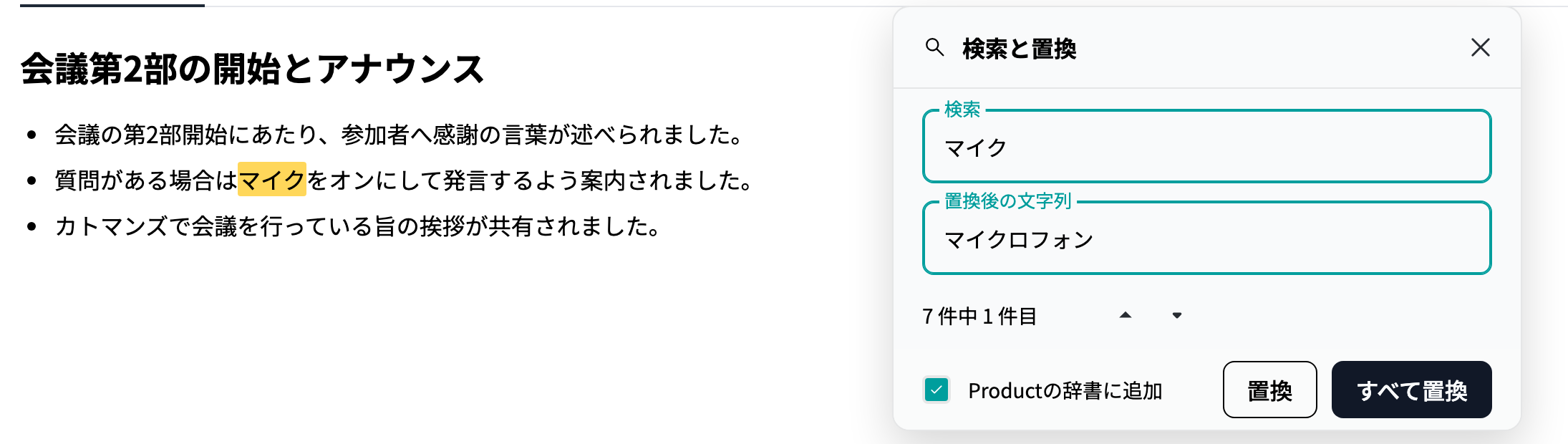
- Enter the incorrect word in the search field. The search covers both the Summary and Transcript tabs. It is not case-sensitive for Latin letters.
- Use the ▲ and ▼ buttons to step through the matches.
- Enter the correct word in the Replace with field.
- Click one of the following.
- Replace: Replaces only the currently selected match.
- Replace All: Replaces every match in the summary and transcript.
- The text is updated with the correct word, and you are done.
The replacement text is inserted exactly as you type it. It does not adjust to the capitalization of the matched text.
Adding to the dictionary
If Add to dictionary is checked in the panel, the replacement word is added to the dictionary. It is checked by default.
The word is added to the dictionary of the department that owns the folder where the meeting is saved. The checkbox shows the destination, as in "Add to the (department name) dictionary".
- If the meeting is saved outside a department folder (for example, in a personal folder), the word is added to the dictionary of the department of the person who performs the replacement. If that person does not belong to a department, an organization admin (Admin) sees "Add to the organization-wide dictionary", and the word is added to the organization-wide dictionary.
- If you do not have permission to edit the destination dictionary (for example, an Editor who does not belong to a department replacing text in a meeting in a personal folder), the Add to dictionary checkbox is not shown.
This section describes replacing text in the admin console. For words added in the desktop app, check the Dictionary tab on the Reference Materials and Dictionary screen.
Words added to the dictionary are more likely to be recognized correctly in later meetings. A department's dictionary is used for meetings saved in that department's folder. For details, see Department Dictionaries. To review or delete registered words, see Custom Dictionary and Reference Materials.
If the same word is repeatedly misrecognized, adding it to the dictionary before the meeting reduces the need to replace it afterward.