Controls during interpretation and sharing with participants (browser version)
Read this article when
- You want to know how to read the screen during interpretation
- You want to know the difference between mute, interpretation mute and stop
- You want to share a link so participants can listen to the interpretation
This page describes what you can do after starting interpretation by following Start interpreting in the browser version.
Reading the interpretation screen
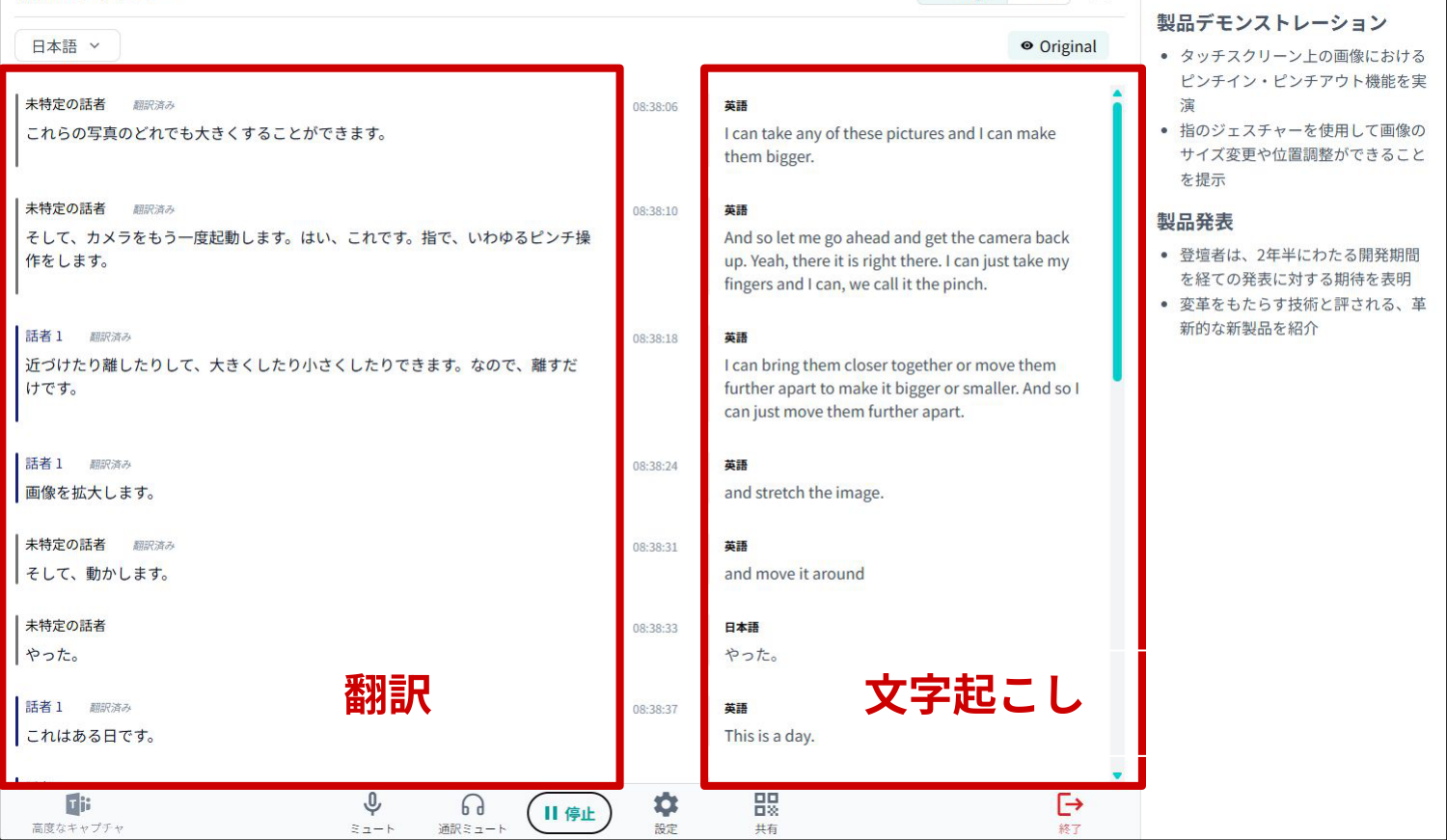
Once interpretation starts, transcripts and translations of your speech and the other participants' speech are displayed.
- The left side shows the translation into the language you selected.
- The right side shows the transcript of all speech.
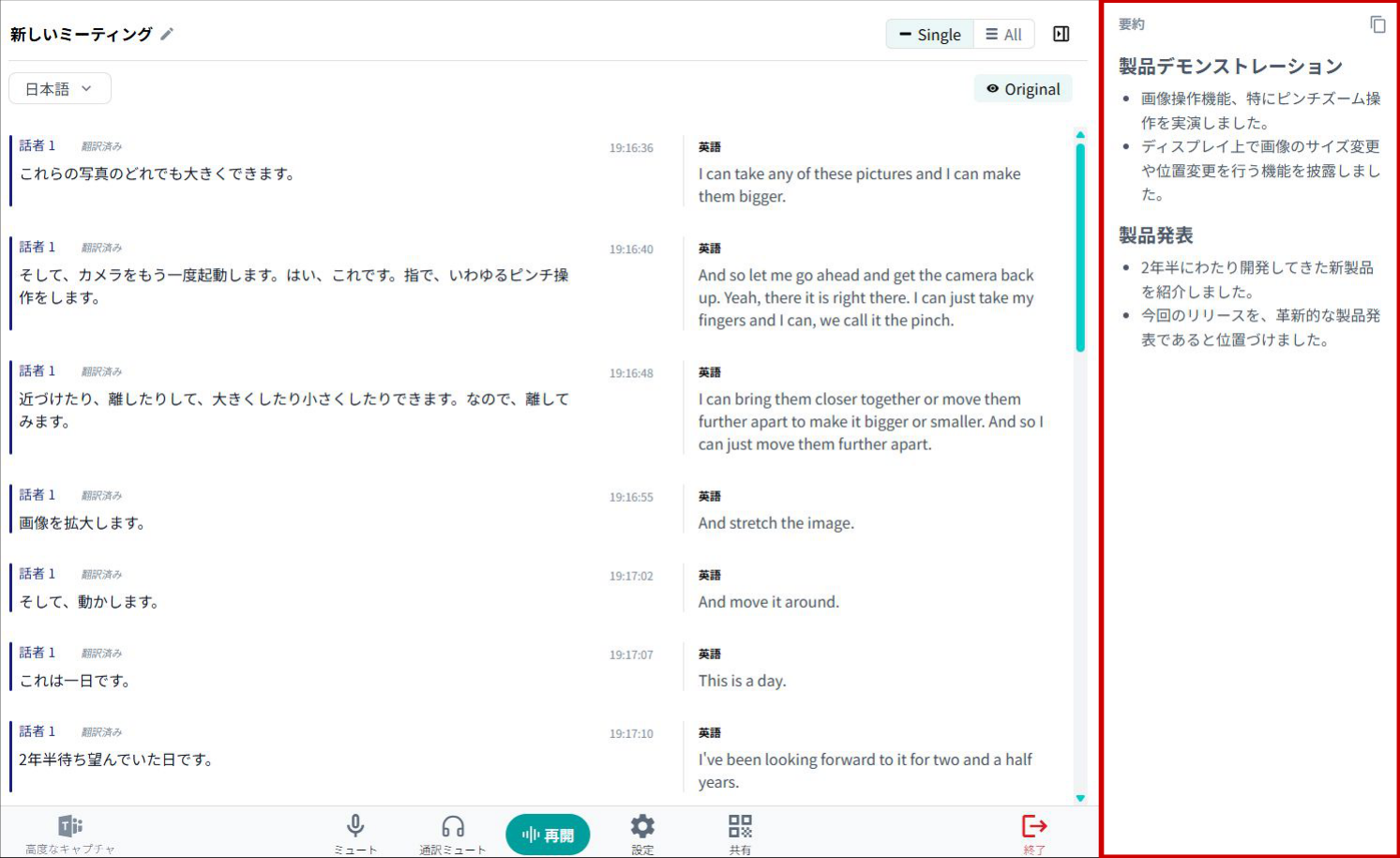
- The right side of the screen also shows a real-time summary of the meeting.
- You hear the interpreted audio in the language set as "Your language". Other participants hear your speech in the language they have set.
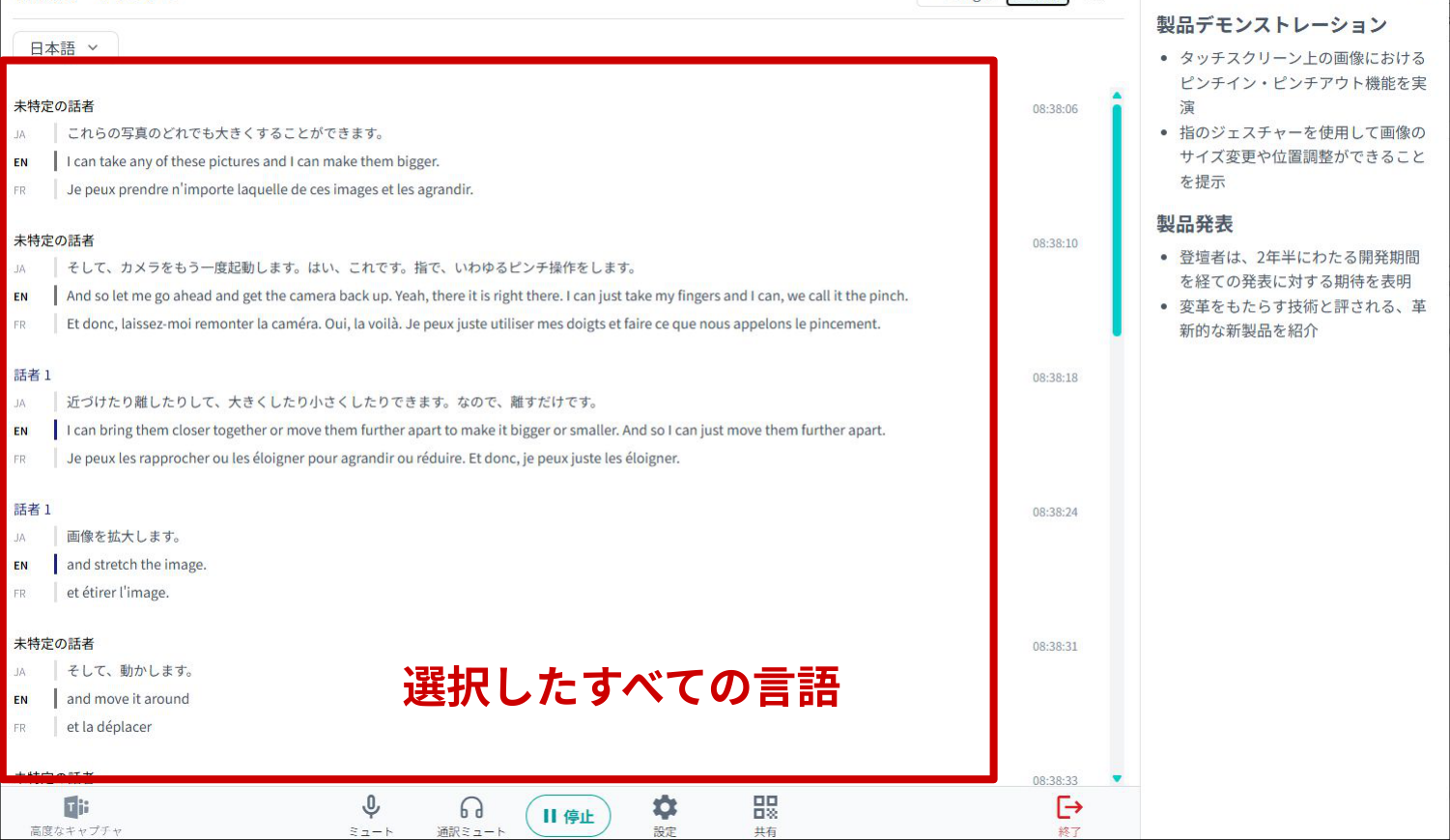
You can switch the display style at the top of the screen.
| Display style | What is displayed |
|---|---|
| Single | Translation into your language and the transcript |
| All | Translations into all the selected languages |
Menu bar controls
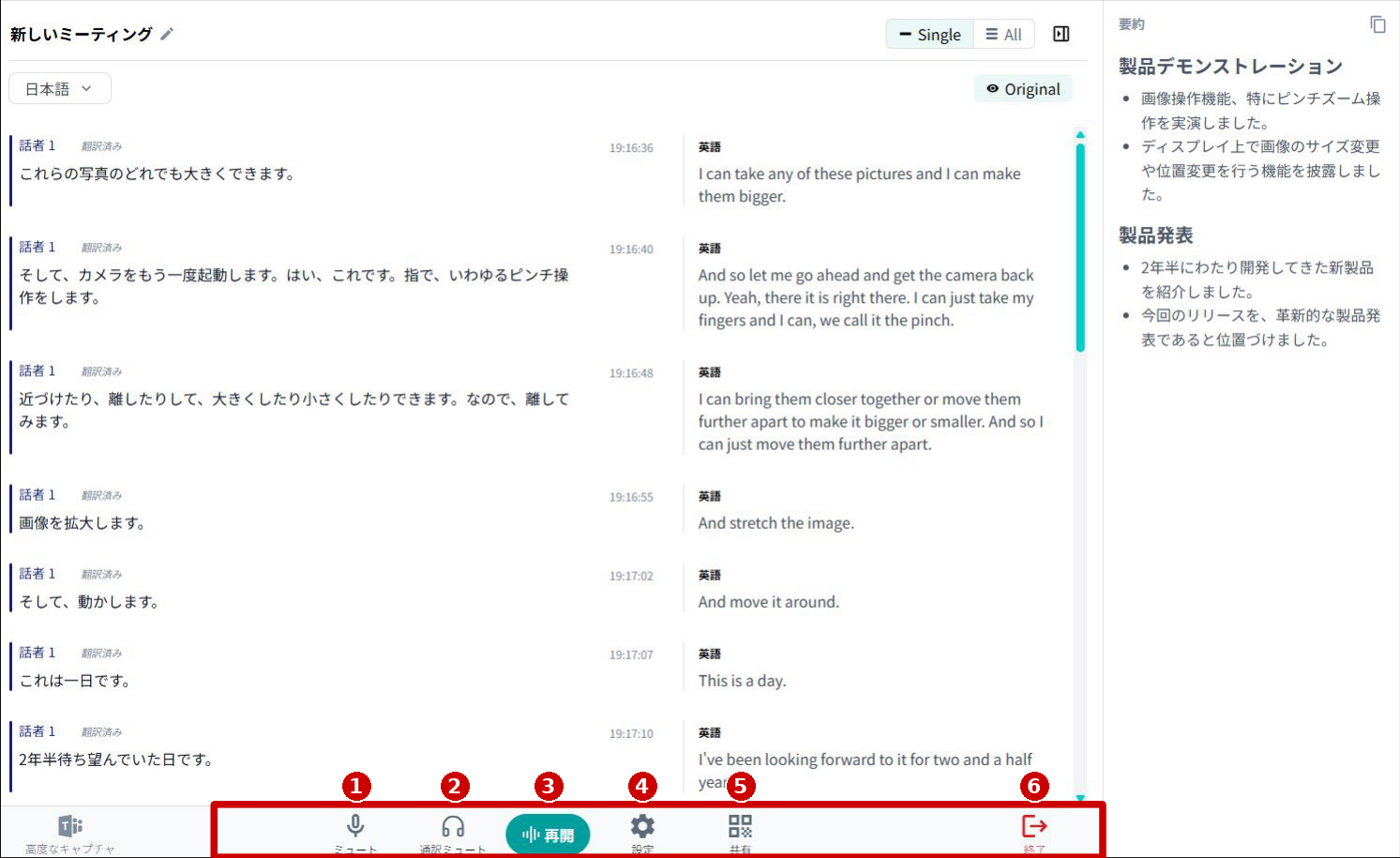
The menu bar at the bottom of the screen offers the following controls. The numbers correspond to the numbers in the image.
- Mute: Stops audio from your device's microphone from reaching CoeFont Interpreter.
- Interpretation mute: Stops the interpreted audio from playing. You cannot turn it off unless screen capture (sharing the screen and system audio) is active. To learn how to listen to interpreted audio in an in-person meeting, see How to listen to interpreted audio in an in-person meeting (browser version).
- Stop / Resume: Pauses and resumes transcription.
- Settings: Lets you change "Your language" and "Interpretation style". Other settings cannot be changed during interpretation.
- Share: Shares the interpretation link with participants.
- End: Ends interpretation. Interpretation also ends if you close the browser.
Difference between mute, interpretation mute and stop
Each of the three controls stops something different.
| Control | What stops | Interpretation / transcription | When to use |
|---|---|---|---|
| Mute | Audio input from your microphone | Continues | You want to keep interpretation running but not send your own voice |
| Interpretation mute | Playback of interpreted audio | Continues | You don't want to hear the interpreted audio and only want to read the text |
| Stop (pause) | Transcription (recording) | Stops | You don't want a record to be kept |
If you don't want your voice to be picked up, also mute the microphone in your meeting tool (Teams, Zoom, etc.) to be sure.
Checking sound settings
To check or change audio input and output during interpretation, open Settings in the menu bar.
- Check that Input source and Output source match the external device you are using (such as earphones).
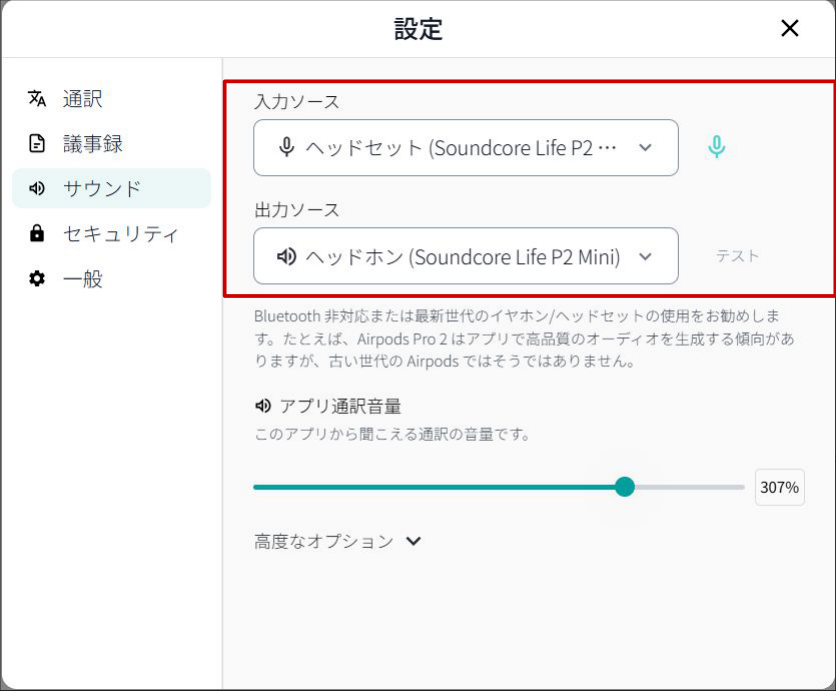
The browser version captures your PC's system audio. If Teams is playing sound through a different speaker, the other participants' voices do not reach CoeFont Interpreter.
- Set the speaker in Teams and the speaker in Windows sound settings to the same device.
- To be safe, set the input and output of your PC, Teams and CoeFont Interpreter, including the microphone, to the same device (such as earphones). Mismatched inputs and outputs can also cause feedback.
If the meeting audio still doesn't come through, you can narrow down the cause using "Screen capture and microphone test" in Network requirements and connectivity check. If it doesn't work well in Microsoft Edge, switching to Google Chrome has helped in some cases.
Sharing the interpretation link with participants
- Click Share in the menu bar.
- Share the QR code or the URL, depending on the participant.
- QR code: For participants who watch on a smartphone.
- URL: For participants who watch in a browser.
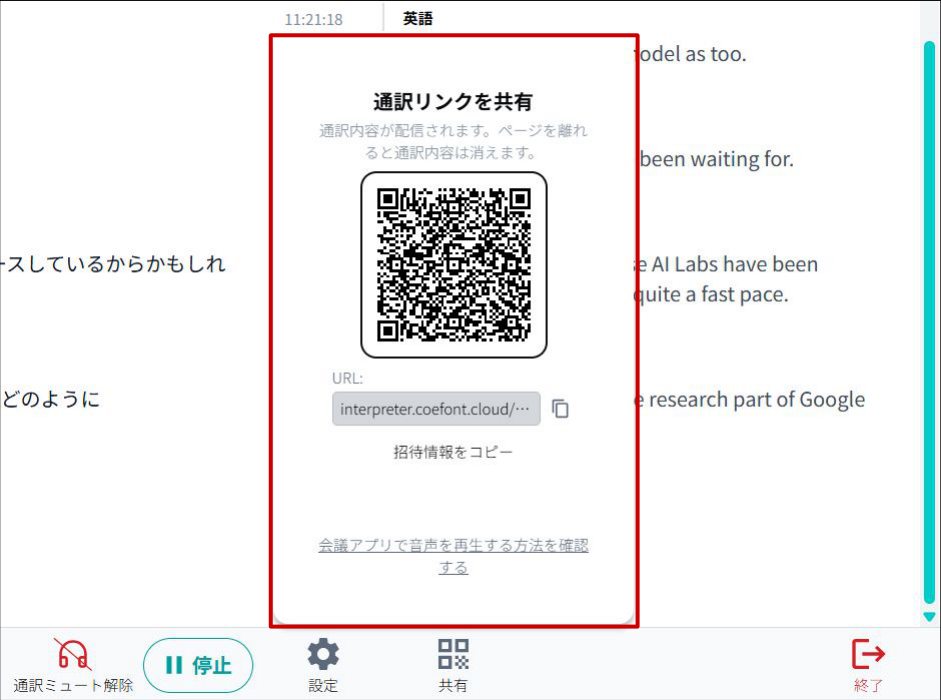
Participants can watch without a CoeFont Interpreter account. How to read the participant's screen is described in Watch via a shared URL or QR code. You can share that page with participants as is.
To prevent audio loops, both the host and participants should use earphones when listening to the interpreted audio.
Minutes after the interpretation ends
When you end the interpretation, the minutes are saved automatically to the destination you selected at the start. To download the minutes, customize the summary format, or check the audio of each utterance, see the following pages.