Cannot Log In to the Teams Plugin or Translation Does Not Start
Read this article when
- "Failed to get token" appears
- The screen stays blank after you click the login button
- The "CoeFont Interpreter settings" screen is blank and you cannot click Save
- "Login required" keeps appearing in the meeting chat, or the message asking you to log in never arrives
- Translation does not appear even though you started interpretation
- CoeFont Interpreter (the bot) does not join the meeting
Cause
The main causes are as follows.
- Login to CoeFont has not been completed, or the login expired because the app went unused for a long time
- The Teams screen did not load correctly
- You are logged in with an account other than the meeting host's
- The bot has not been able to join the meeting properly
Solution
Try the steps in order from the top. Once the problem is solved, you do not need the remaining steps.
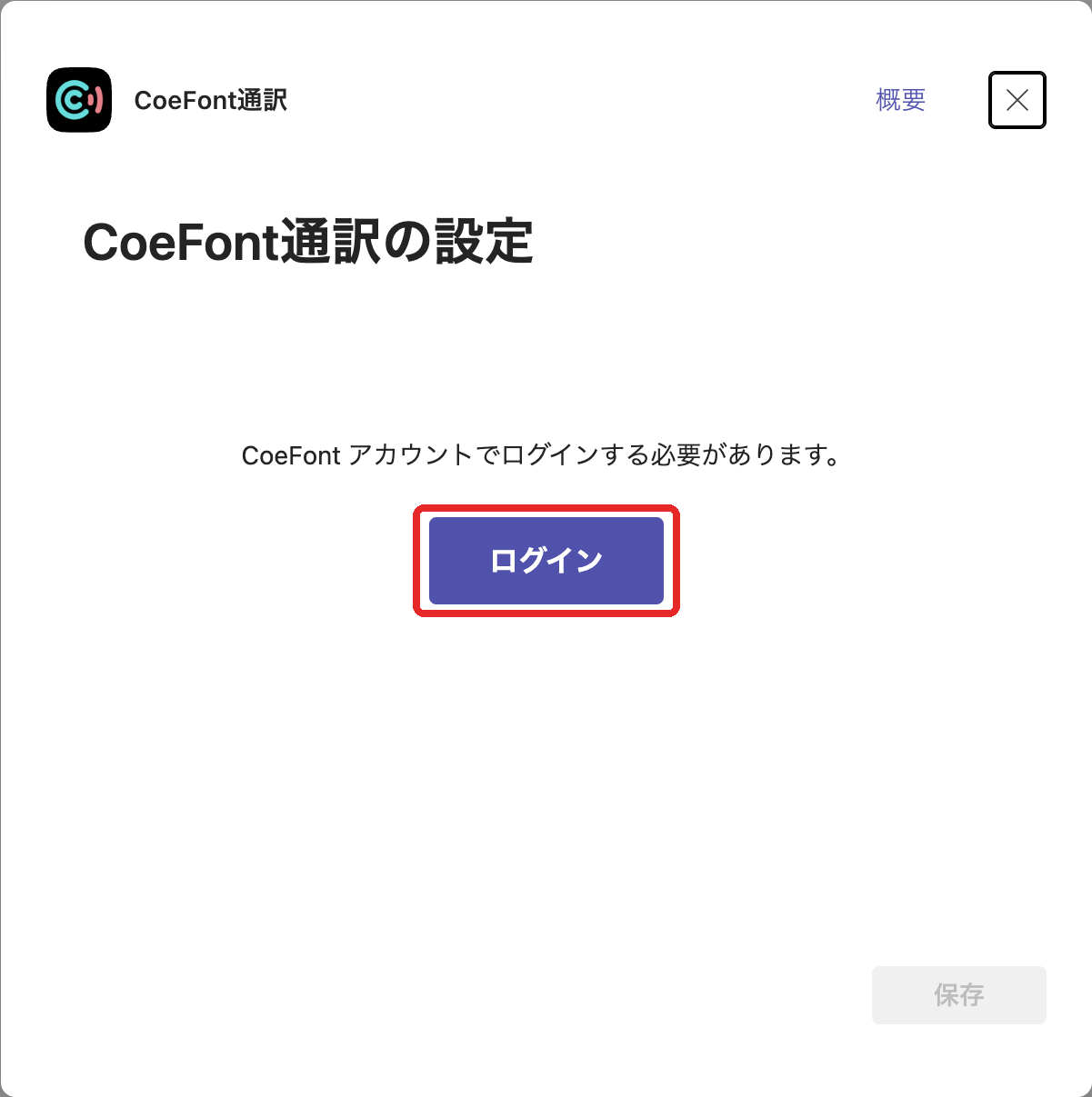
Log in from the "CoeFont Interpreter settings" screen
- When you add the CoeFont Interpreter app to a meeting, the "CoeFont Interpreter settings" screen appears.
- Click Log in and log in with an account registered with CoeFont.
- Set the languages and click Save.
Restart Teams
Try this if the screen goes blank, login does not progress, or "Failed to get token" appears.
- Leave the meeting.
- Quit Teams completely.
- Start Teams and join the meeting again.
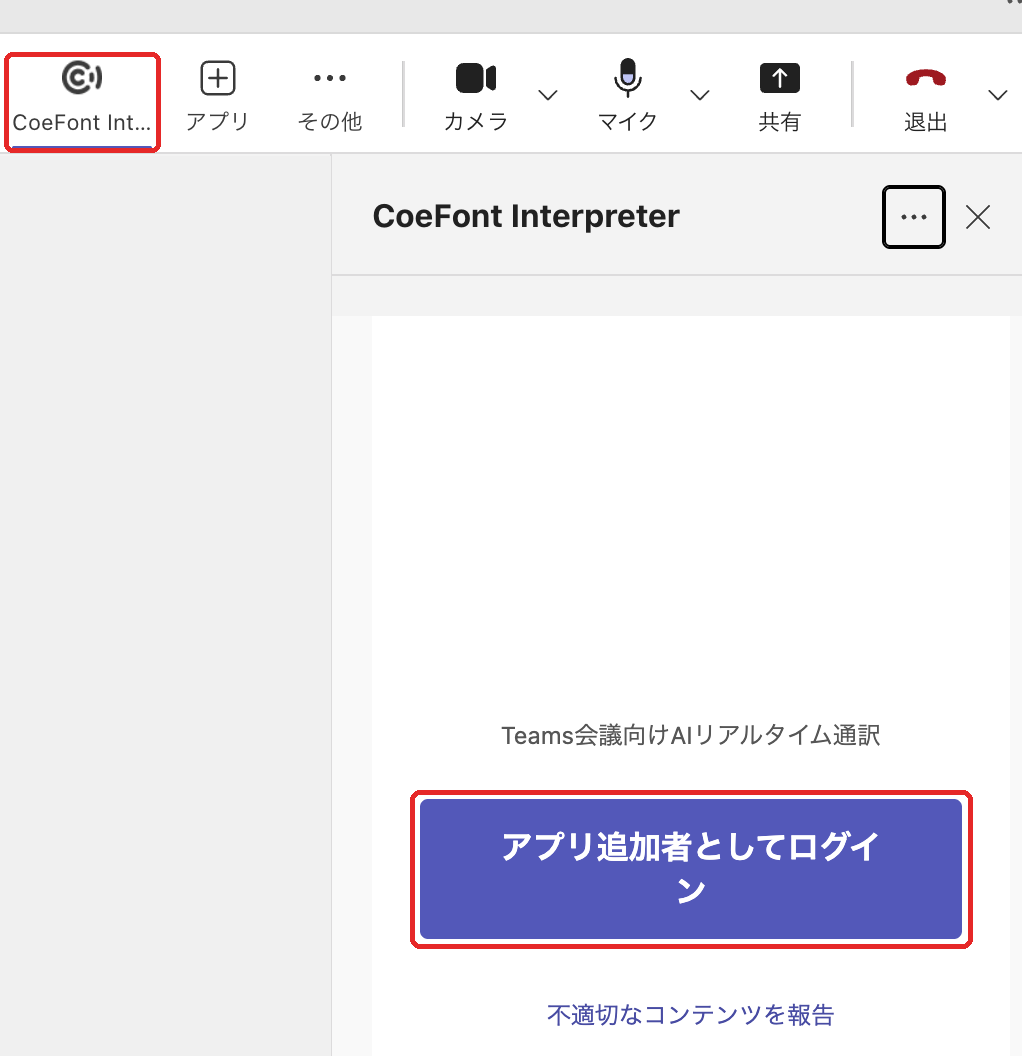
Log in from "CoeFont Interpreter" in the toolbar
If you cannot log in from the settings screen, log in from the meeting toolbar.
- Check that CoeFont Interpreter appears in the meeting toolbar. If it does not, add the app by following Adding the Teams Plugin and First Login.
- Click CoeFont Interpreter.
- In the panel on the right, click Log in as the app adder.
- Log in with an account registered with CoeFont.
Check the login status with a command
If the message asking you to log in does not arrive, or the bot does not join the meeting, send a command from the Teams chat.
To send a command, type @coefont in the chat, select the CoeFont app, and then type the command. For details on how to send commands, see During the Meeting (Pause, Wait Time, and Commands).
- Send
/checkto check the login status. - If you are not logged in, send
/loginand follow the instructions shown to log in.
Log in with the host's account
If you are logged in with an account other than the host's, the bot may not be able to join properly.
- Send
/logoutto log out. - With the meeting host's account, send
/loginto log in again.
Restart interpretation with commands
- Send
/stopto make the bot leave the meeting. - Wait a few seconds, then send
/start. - If the bot joins the meeting and translation appears, you are done.
If the problem persists
Contact us through the inquiry form. Please include the following information.
- The message you saw or a screenshot of the screen
- How far you got through the steps on this page
- The email address of the CoeFont account you used to log in
- Whether you are logged in with the meeting host's account