"Another user has already added it" Appears in the Teams Plugin
Read this article when
- "Another user has already added it" appeared after you added the CoeFont app to a meeting
- "Only the user who added the app can change the interpretation settings" appears, and you cannot set the languages or other options
- You want to use your own account in a meeting where someone else previously added the CoeFont app
- You still cannot change the settings after logging out or stopping interpretation
Cause
If you add the app again to a meeting where another user has already added the CoeFont app, this message appears on the "CoeFont Interpreter settings" screen. Only the user who added the app can change the interpretation settings.
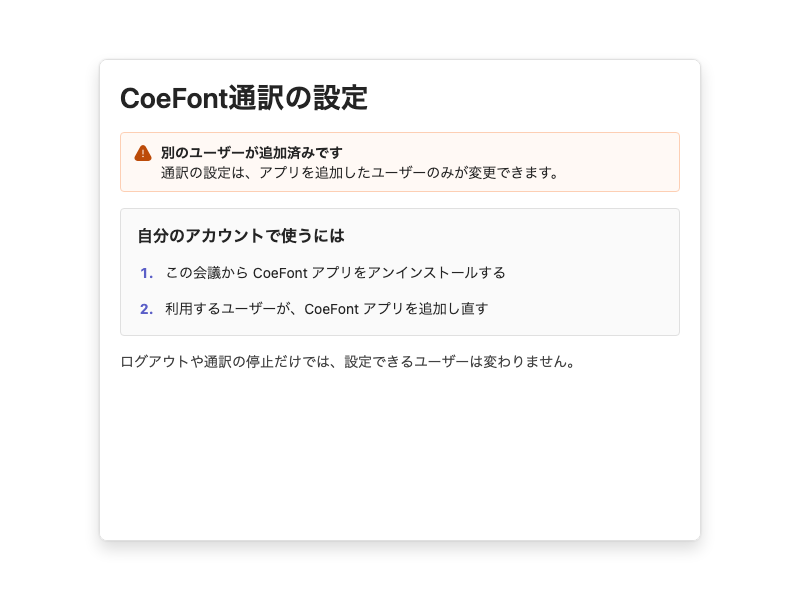
Logging out or stopping interpretation does not change who can edit the settings. To use the app with your own account, uninstall it first, and then have the user who will use interpretation add it again.
Solution
- Your saved language and destination folder settings are also deleted. Configure them again after you add the app again.
- In a recurring meeting, the app is shared across all occurrences, so it is removed from every upcoming occurrence.
Uninstalling the app during the meeting
Users other than the one who added the app can also uninstall it. After you uninstall it, the meeting returns to the state before the app was added, so you do not need to recreate the meeting.
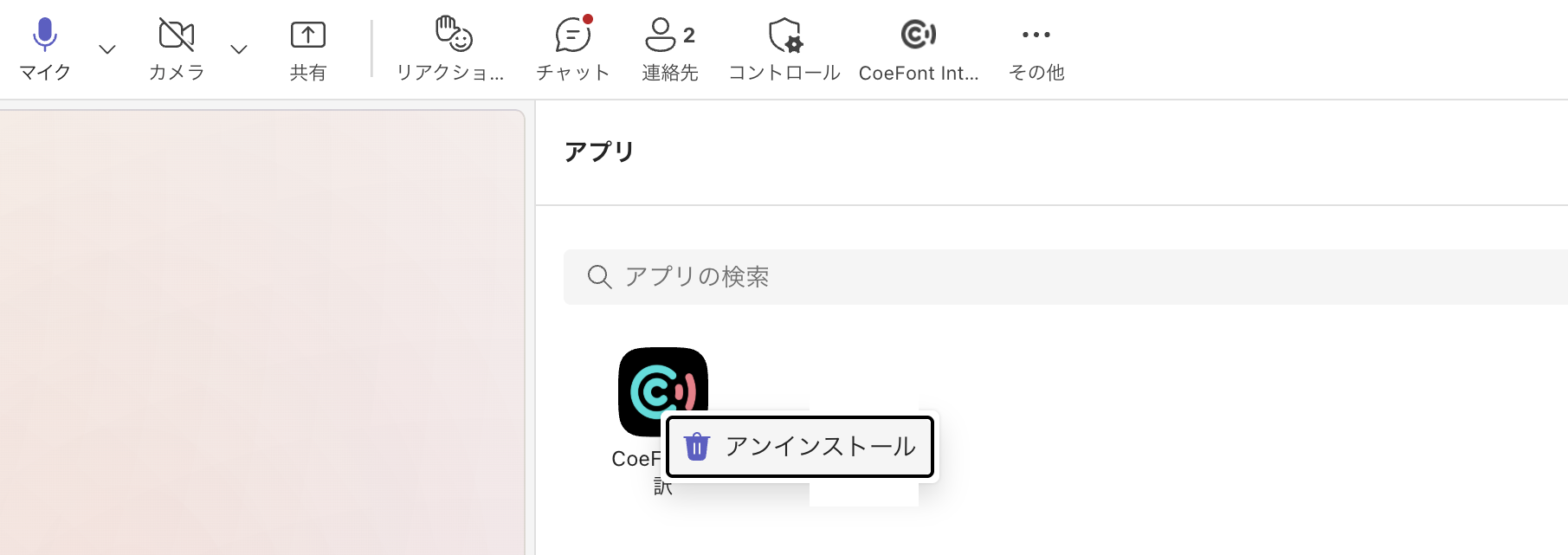
- In the toolbar at the top of the meeting screen, select "Apps". The app list opens on the right.

- In the list, right-click the CoeFont Interpreter icon and select "Uninstall".
Adding the app again as the user who will use it
The person who adds the app and the person who logs in to the app and hosts CoeFont Interpreter must be the same person.
- The user who will use interpretation (the meeting organizer) adds the CoeFont app to the meeting again.
- On the "CoeFont Interpreter settings" screen, select "Log in" and log in with your own CoeFont Interpreter account.
- Configure the languages and other settings again, and select "Save". If the notice no longer appears on the "CoeFont Interpreter settings" screen, you're done.
For the steps to add the app and set the languages, see Interpreting in Default Mode.
Removing the app before the meeting
You can also remove the CoeFont app from the calendar before the meeting starts.
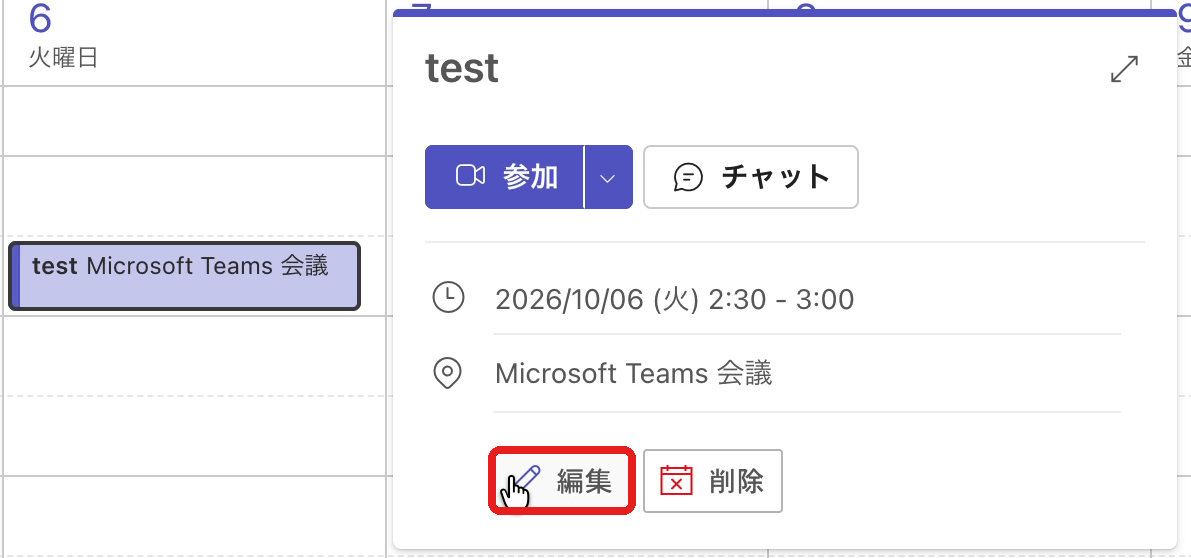
- In the Teams calendar, select the meeting and select "Edit".
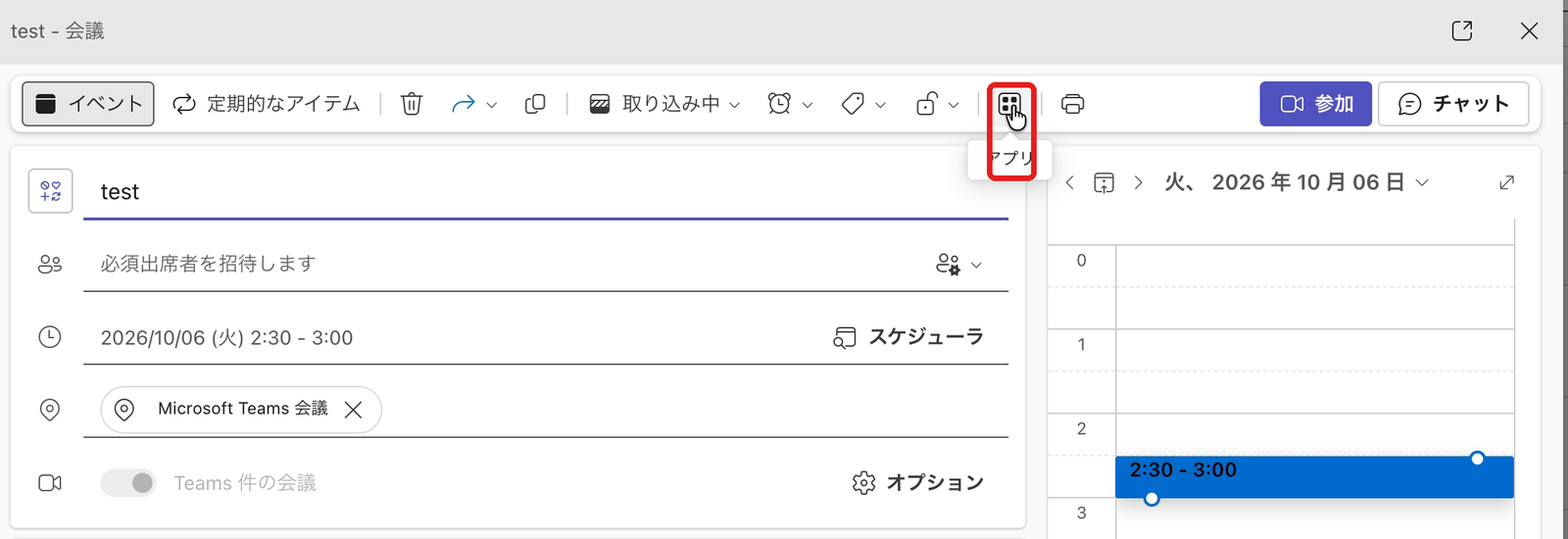
- In the toolbar at the top of the edit screen, select the app icon.
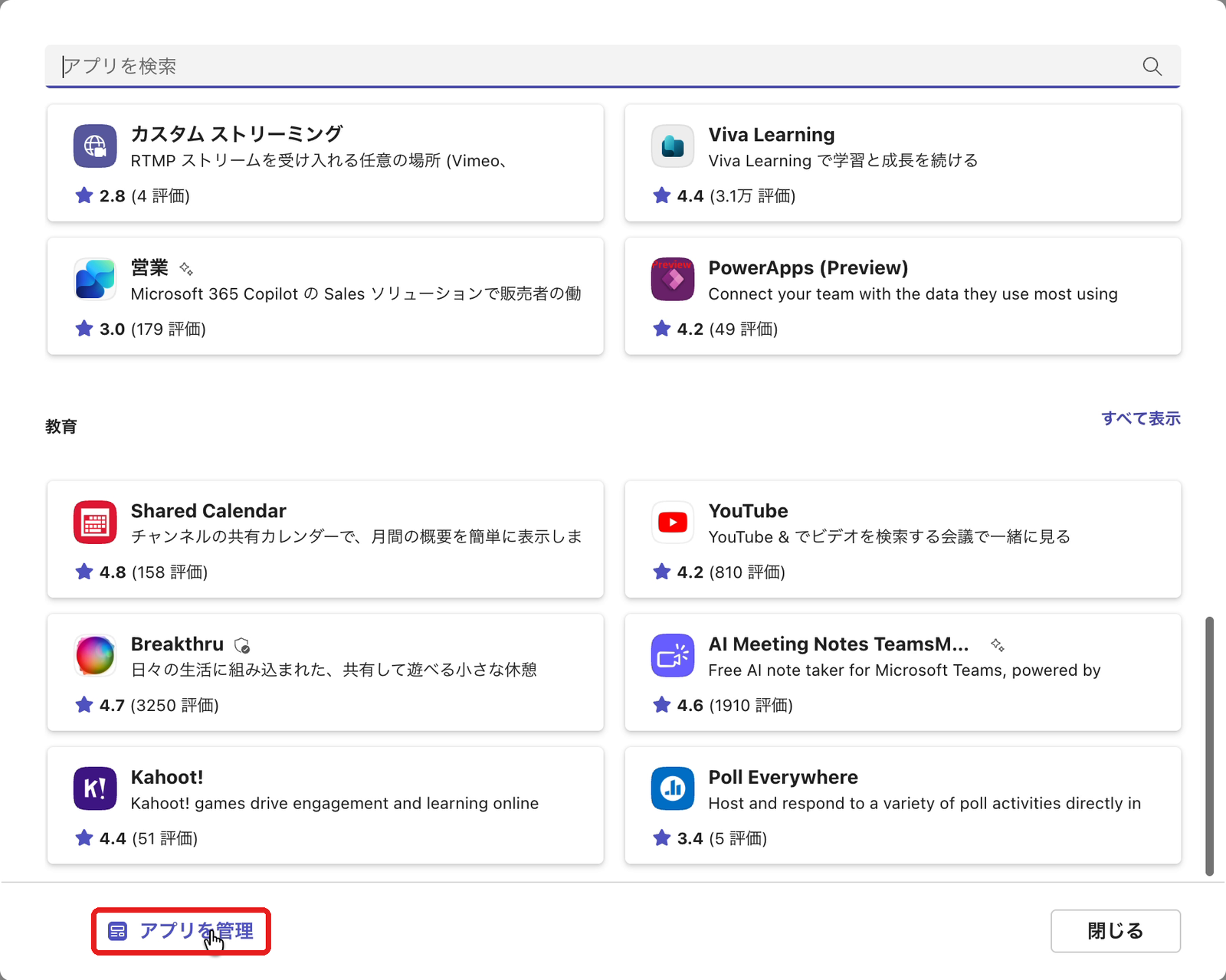
- At the bottom left of the app list, select "Manage apps".
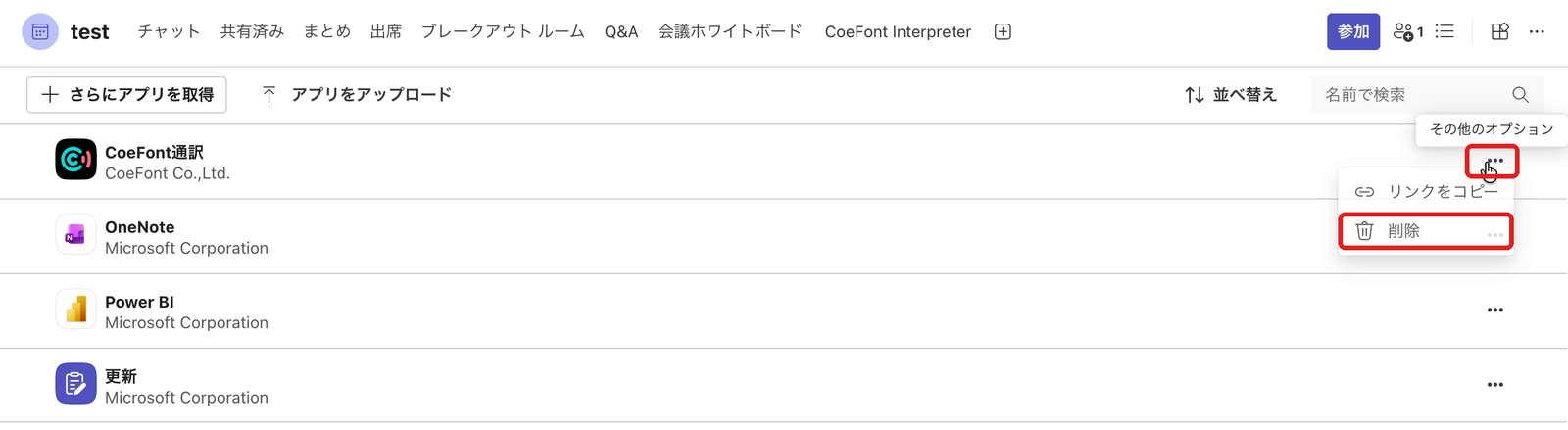
- Select "…" for CoeFont Interpreter, and select "Remove".
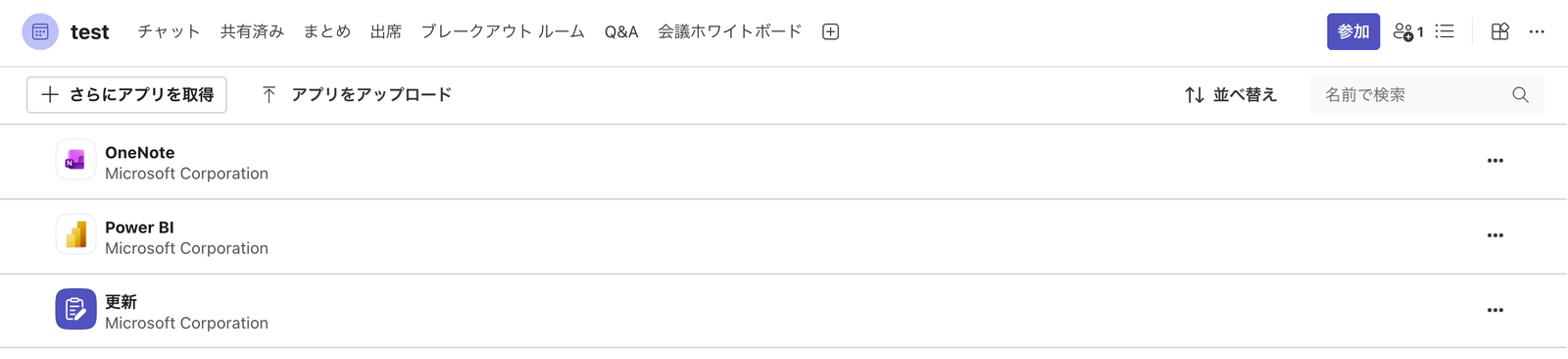
- When "App removed" appears and CoeFont Interpreter disappears from the list, you're done.
After removing it, have the user who will use interpretation add the app again by following "Adding the app again as the user who will use it".
If the problem persists
Contact us through the inquiry form. Please include the following information.
- A screenshot of the message that appeared
- Whether the person who added the app and the person who wants to use interpretation are the same
- Whether the meeting is a recurring meeting