Stopping or Removing CoeFont in Recurring Meetings
Read this article when
- You want to hold this occurrence of a regular meeting without CoeFont Interpreter
- The CoeFont bot joins automatically even in occurrences that don't need interpretation
- You want to stop using CoeFont Interpreter in a recurring meeting
- You want to use CoeFont Interpreter again in a recurring meeting you removed it from
These steps apply to both Default Mode and Advanced Mode.
How CoeFont behaves in recurring meetings
- Once you add the CoeFont app to a recurring meeting, the bot joins automatically in every occurrence.
- The app and language settings are shared by all occurrences. There's no setting to disable it for just one occurrence.
For this reason, the steps differ depending on whether you want to stop it for a specific occurrence or remove it from the whole series.
Stopping CoeFont for a specific occurrence
After that occurrence starts and the bot joins, send the /stop command from the meeting chat. Other occurrences aren't affected.
- Open the chat of that occurrence of the meeting.
- Enter
@coefontin the message box. - Select the CoeFont app from the suggestions.
- Then enter
/stopand send it. - When interpretation stops and the bot leaves the meeting, you're done.
For details on commands, see Meeting controls (pause, wait time, commands).
- The bot joins the meeting once, so a short history and usage time for that occurrence remain.
- If the meeting is reopened after everyone has left, the bot joins again.
If you don't want the bot to join at all
- Cancel only that occurrence of the recurring meeting.
- Create a new one-time meeting without the CoeFont app, and hold the meeting there.
If you won't use CoeFont Interpreter in later occurrences either, go to "Removing CoeFont from the whole recurring meeting".
Removing CoeFont from the whole recurring meeting
If you remove the CoeFont Interpreter app from the meeting, the bot no longer joins any later occurrence. In Default Mode, you only need to remove the app. In Advanced Mode, you need to both remove the app and turn off the role.
- The app is shared by all occurrences, so removing it from any occurrence removes it from all later occurrences.
- The saved language and destination folder settings are also deleted. To use it again, you need to add the app and set it up again.
- We don't recommend removing only the interpreter bot from the attendees of one occurrence. The language settings are saved for all occurrences, so the bot may still join even if you remove it.
- If the meeting has already started, first send
/stopin that meeting's chat to make the bot leave.
Removing the app
This is a screen recording of the whole sequence. The same steps are explained screen by screen below.
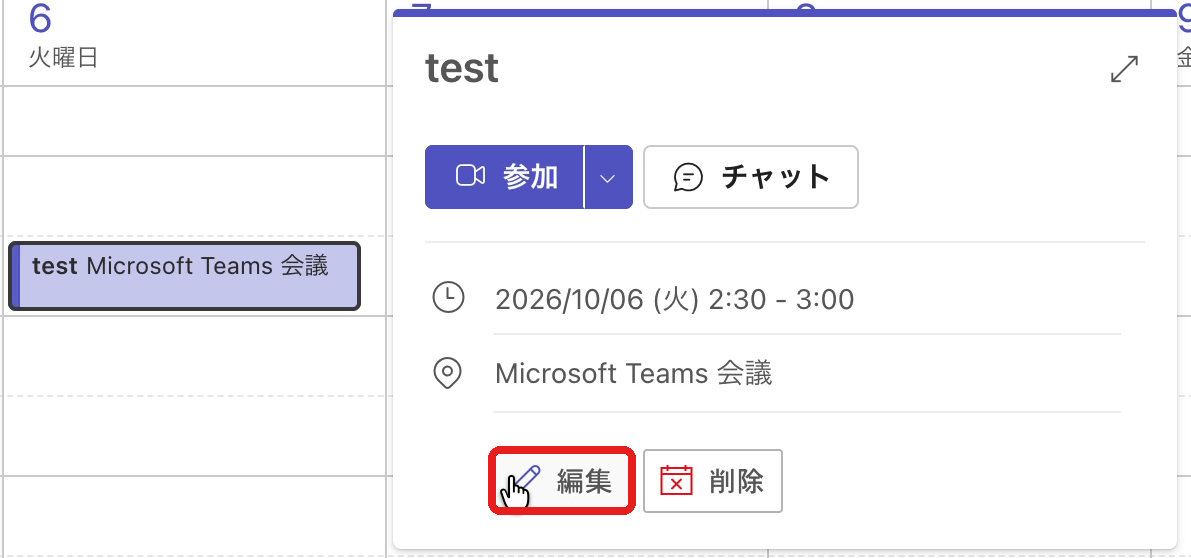
- In the Teams calendar, select an occurrence of the recurring meeting from the next one onward.
- Select "Edit".
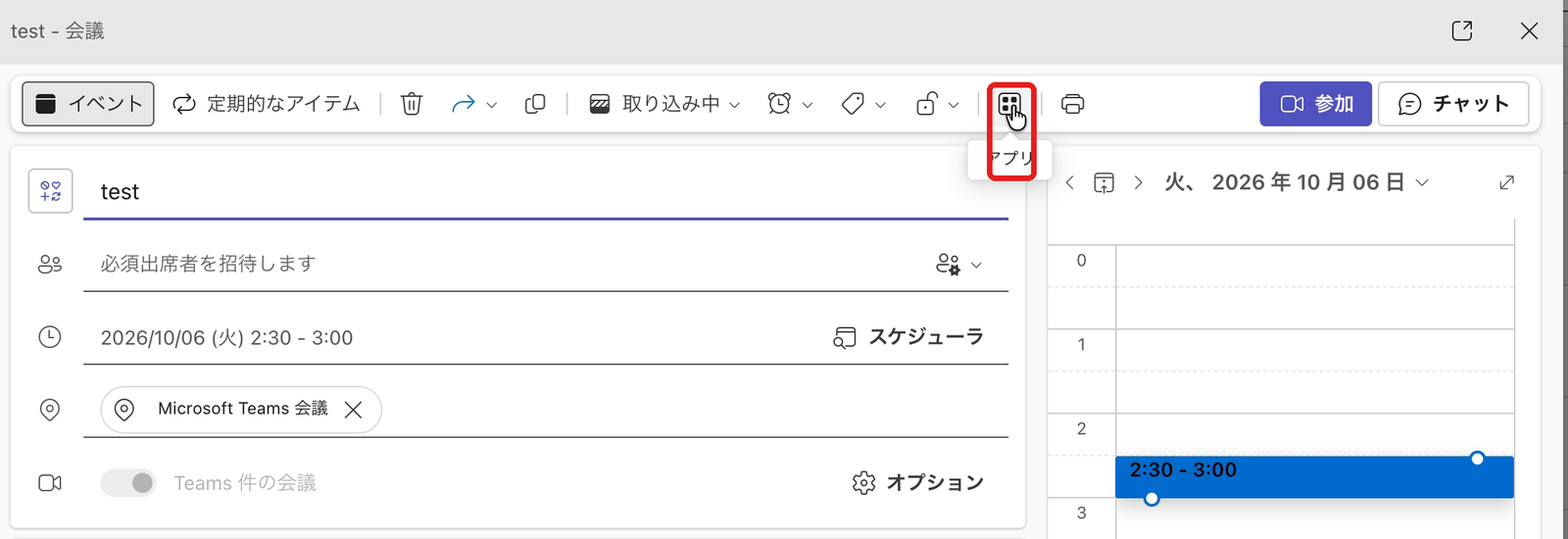
- In the toolbar at the top of the edit screen, select the app icon.
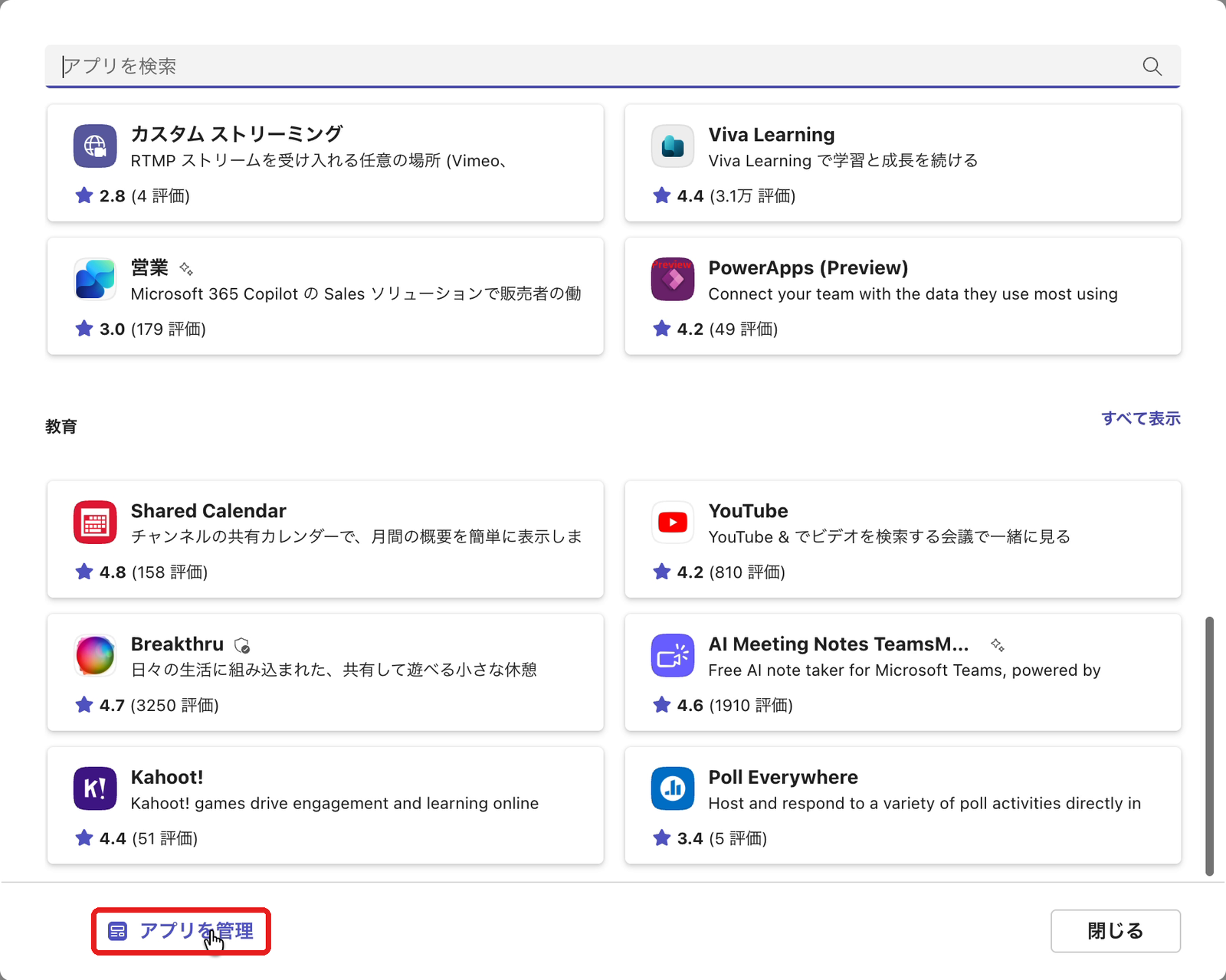
- At the bottom left of the app list, select "Manage apps".
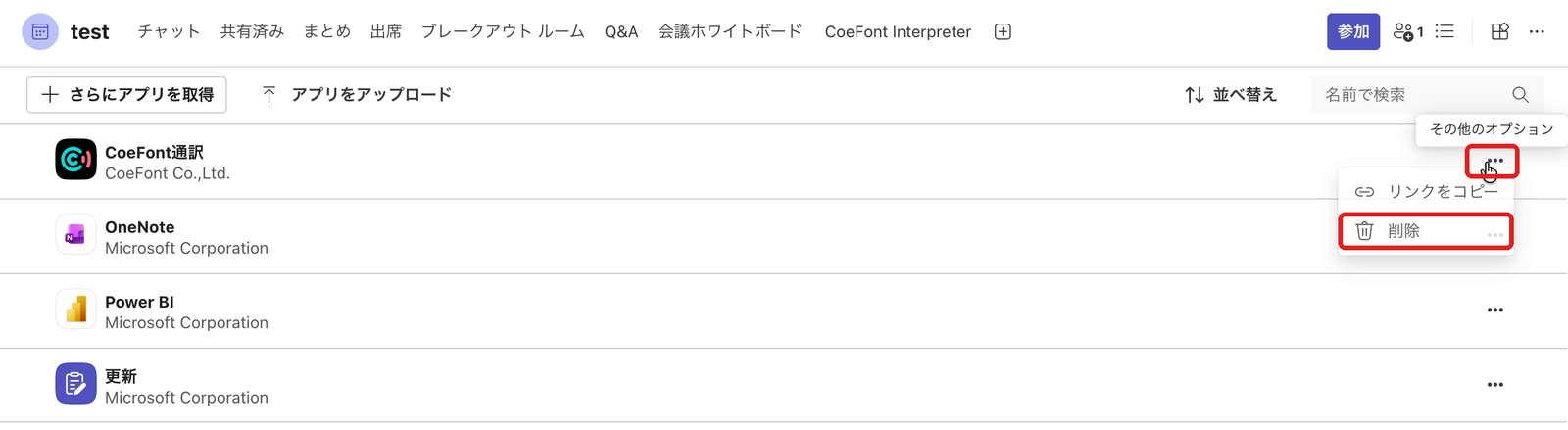
- Select "…" for CoeFont Interpreter.
- Select "Remove".
- When "App removed" appears and CoeFont Interpreter disappears from the list, you're done.
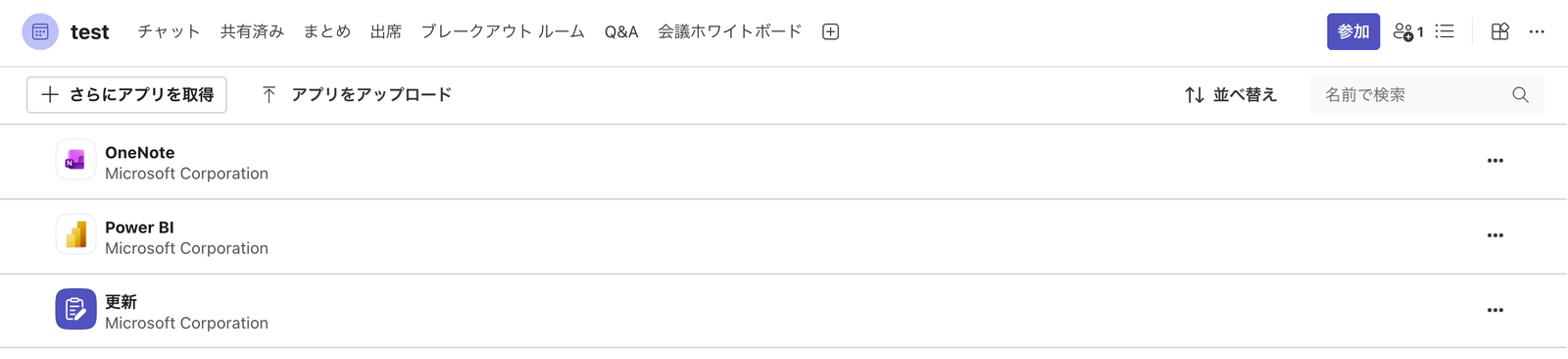
Turning off the role (Advanced Mode only)
If you use Advanced Mode, turn off the role in the meeting options after you remove the app.
- In the Teams desktop app calendar, open the meeting.
- Select "Options" to open the "Meeting options" screen.
- Select "Roles".
- Turn off the "Enable language interpretation" toggle.
Turning off the role or removing the language bots alone doesn't stop the bot from joining. The bot joins because the CoeFont app is added to the meeting. If you turn off only the role and leave the app, the bot keeps joining, and all participants may hear the interpreted audio. Be sure to remove the app as well.
Using CoeFont again
Add the app and set the languages again. For steps, see Interpreting in Default Mode or Interpreting in Advanced Mode.