This page was machine-translated from the Japanese original and may contain unnatural wording or errors. View the Japanese page
Adding the Teams Plugin and Logging In for the First Time
Read this article when
- You're using CoeFont Interpreter in Teams for the first time
- You want to know how to add the CoeFont app to Teams
- You want to know how to log in to CoeFont Interpreter for the first time
You only need to add the app and log in once.
Before you add the app
- Your organization's Teams must allow one of the following. If neither is allowed, check with your IT department.
- Adding the CoeFont app from Microsoft Marketplace
- Allowing the CoeFont app in the Teams admin center
- If you were invited to a meeting as a guest, you can't launch the CoeFont app. The meeting organizer adds the app and logs in.
Adding the CoeFont app
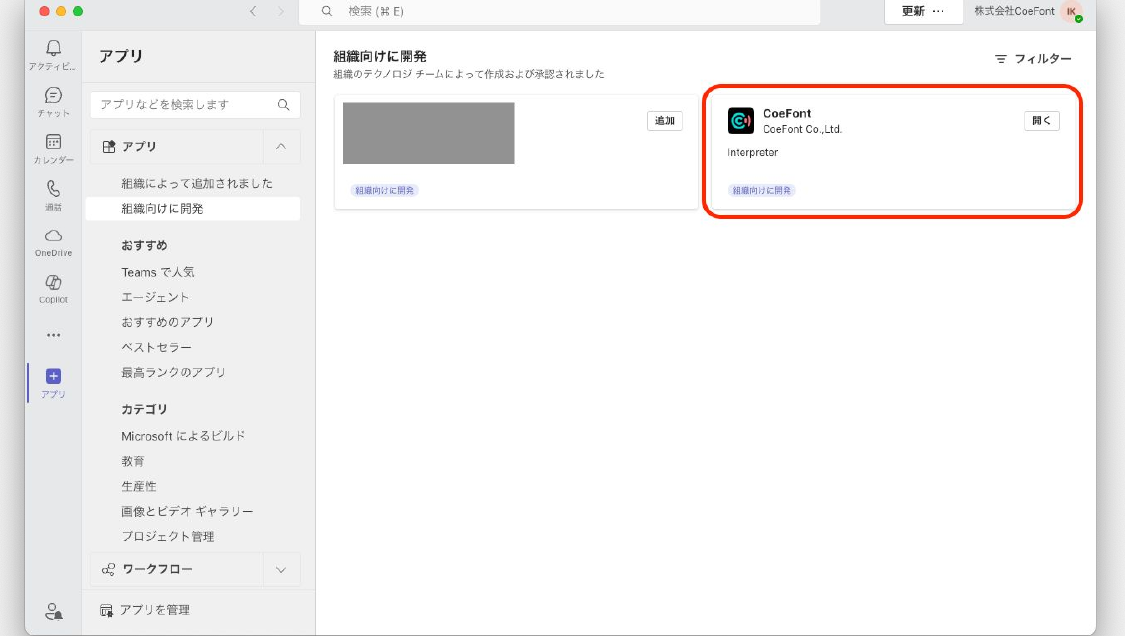
- Open the "CoeFont Interpreter" app page on Microsoft Marketplace.
- Select the install (allow) button.
- In the Teams desktop app, search for apps and check that CoeFont has been added.
If the button shows "Request" and you can't add the app
Depending on your organization's Teams settings, the button may change to "Request", and you can't add the app yourself. This means the Teams admin needs to approve it. For what to do, see Teams Plugin shows "Request" and the app can't be added.
Logging in for the first time
After you add the app, you log in the first time you use it in a meeting.
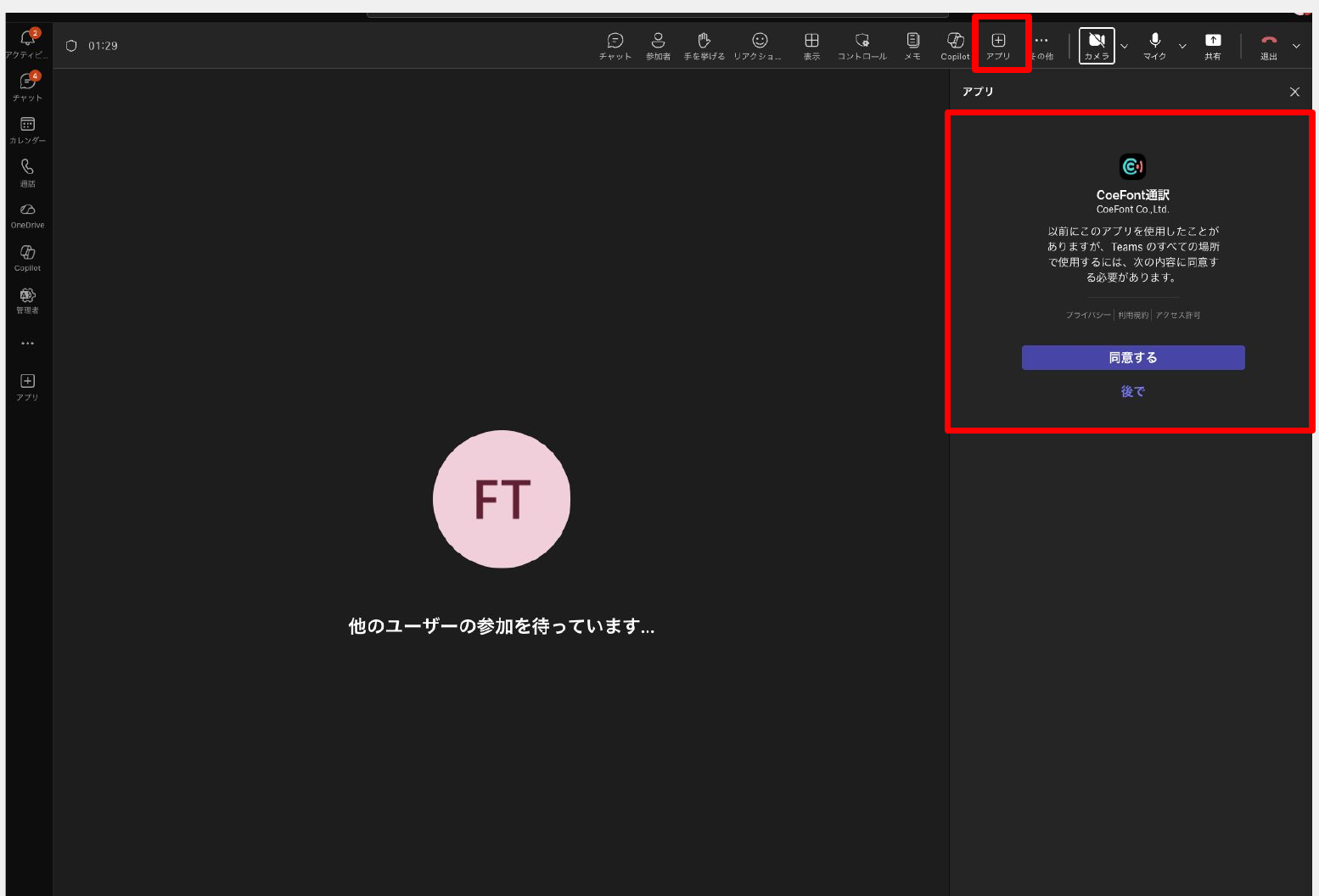
- The first time you select the app in a meeting, a permissions consent screen appears. Review the details and select "Accept".
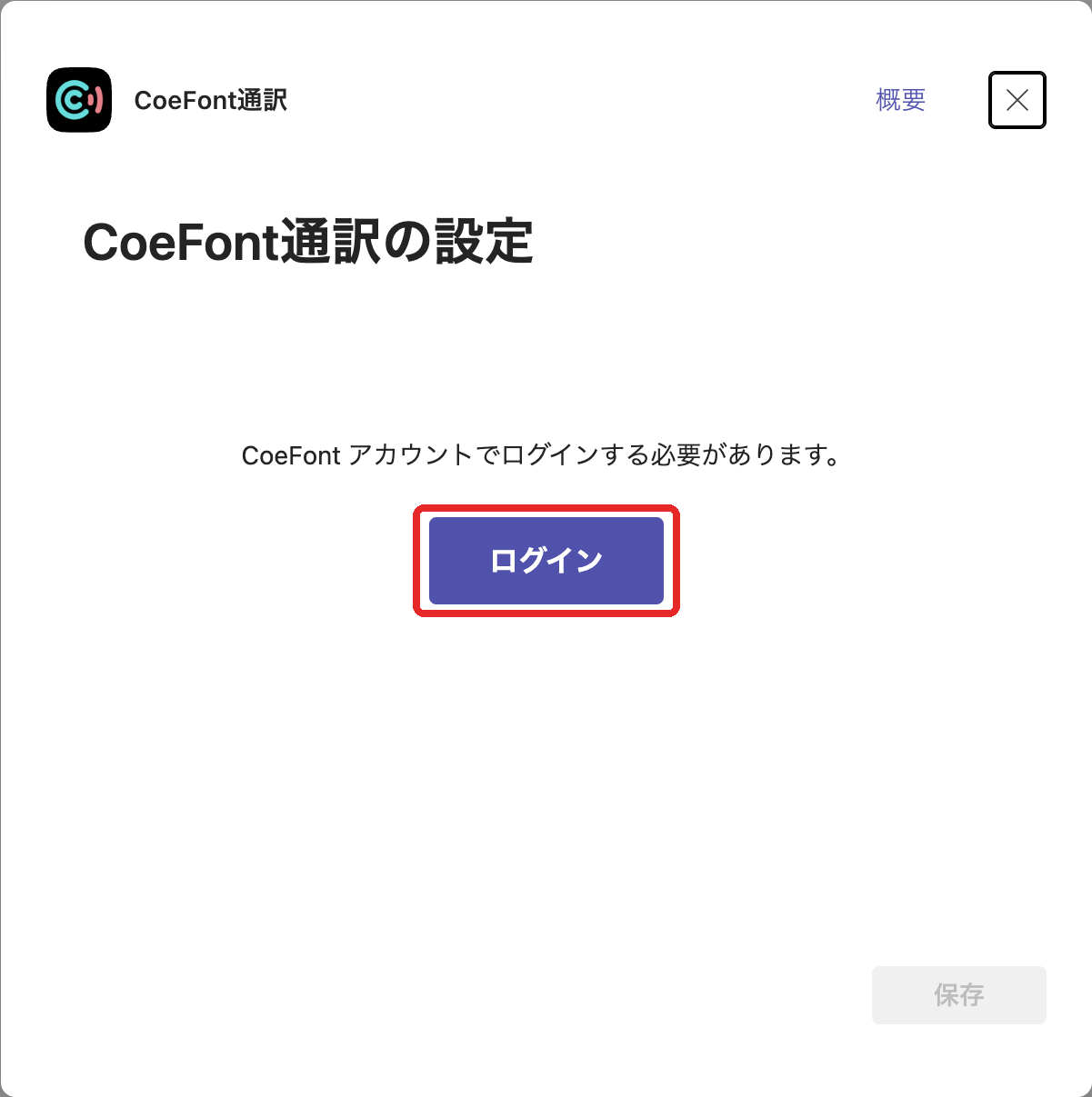
- On the "CoeFont Interpreter Settings" screen, select "Log in".
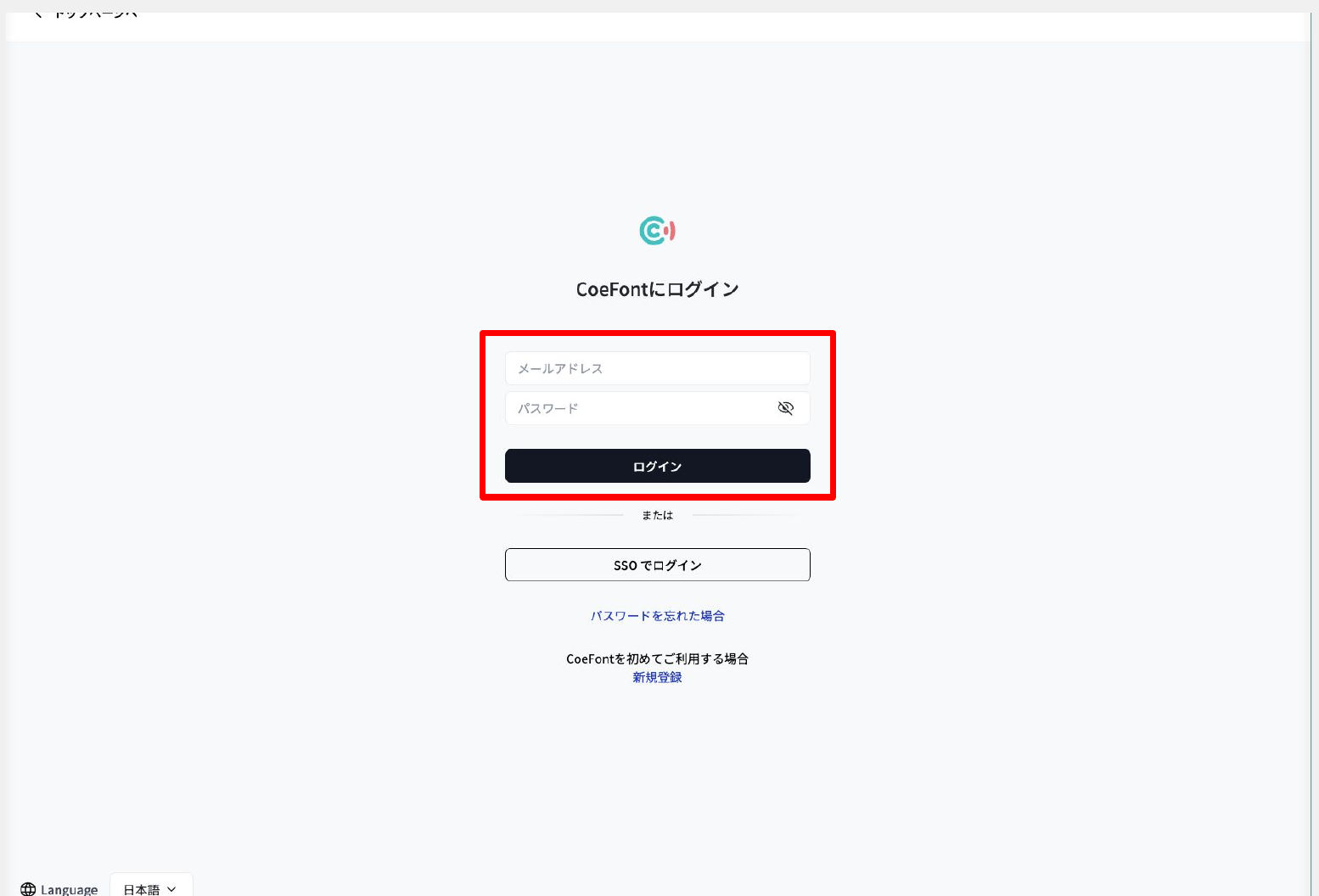
- On the login screen, enter the email address and password registered with CoeFont Interpreter.
- When "Login successful!" appears, you're done.
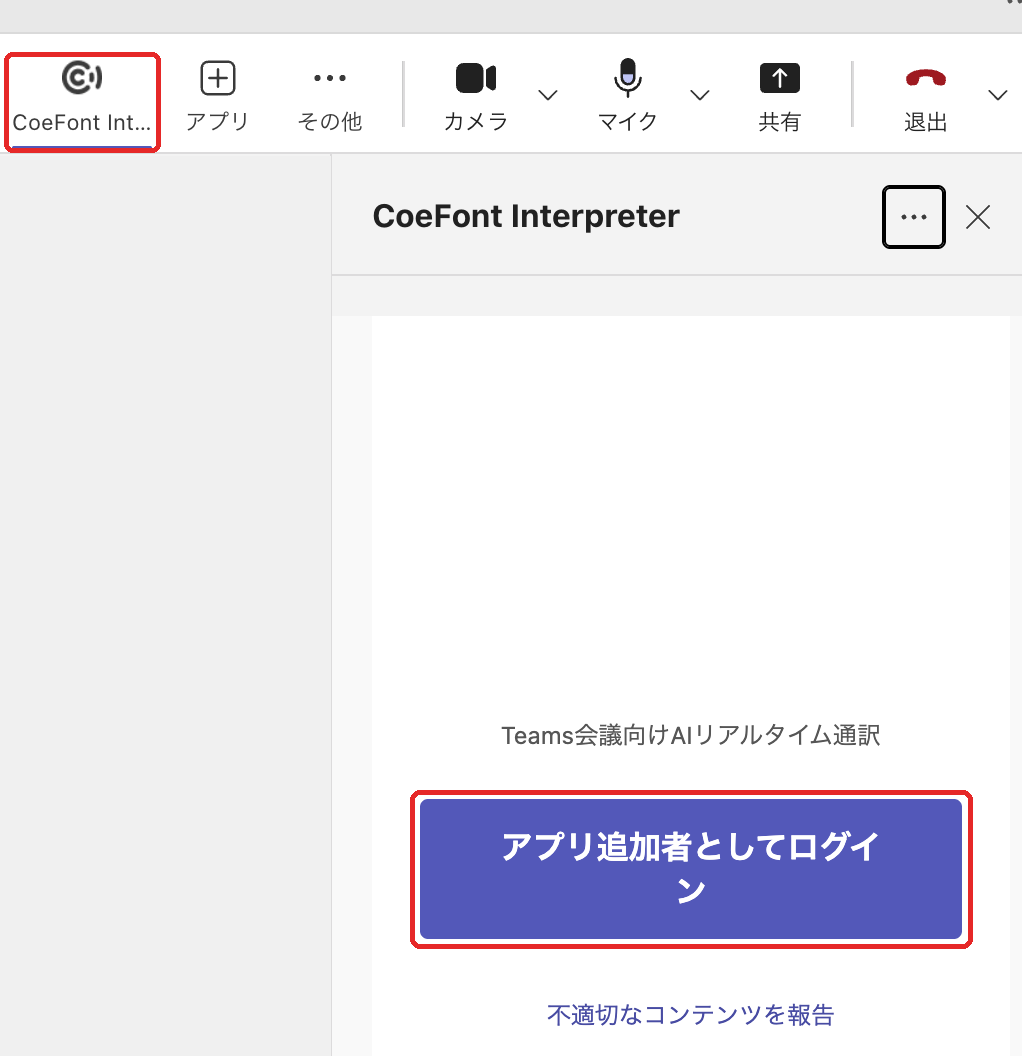
If you can't log in from the settings screen
- In the meeting toolbar, select "CoeFont Interpreter".
- In the right-hand panel, select "Log in as the app installer".
- On the login screen, enter your email address and password.
Account to log in with
Log in with an account that belongs to an organization on the Enterprise plan. To check or switch the account you're logged in with, see Meeting controls (pause, wait time, commands).
Next steps
Related information
Did this article solve your problem?